If your clinic has enabled the Wibbi Home Exercise Program (HEP) integration, your patient’s Wibbi HEP details can be pulled into your note. If your patient has multiple programs, you’ll be able to select which program to add.
When you pull a Wibbi HEP into a note, exercise details for that program display in a card within the note. When the note is signed, a PDF of the full HEP is automatically appended to the competed note and is available to view, download, or send directly to the patient.
NOTE: Wibbi exercise details, such as sets and reps, are read-only in Fusion. Any changes must be made directly within the Wibbi platform.
Check out the Wibbi Knowledge Base for detailed information about creating and customizing home exercise programs with Wibbi.
A Wibbi HEP can be pulled into the following note types:
- Daily Notes
- Progress Notes
- Reassessment Notes
- Discharge Notes
Jump to Section:
Add a Wibbi HEP to a Note
- Open the patient note.
- Scroll down to the Plan tab to locate the Wibbi HEP section.
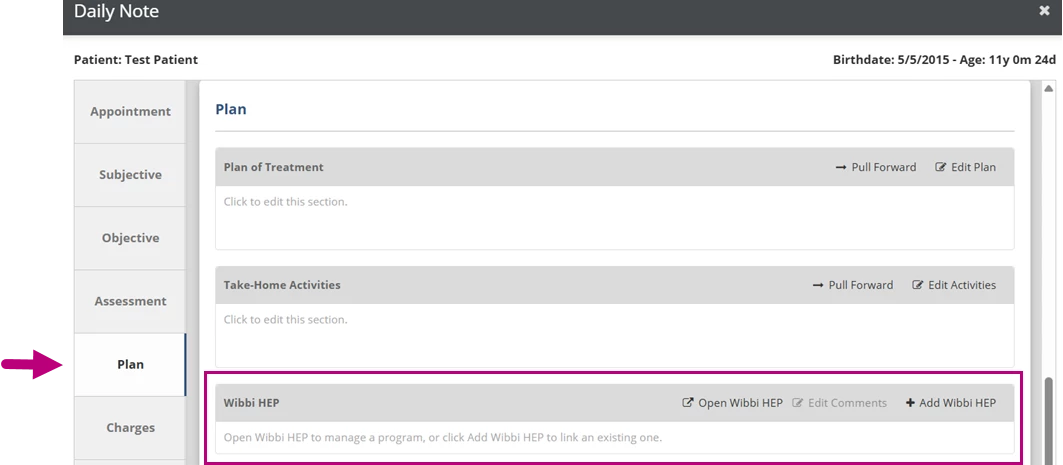
- Click Add Wibbi HEP.
NOTE: If your patient doesn’t already have a Wibbi HEP, click Open Wibbi HEP to open the Wibbi platform. From here, you can create a new Wibbi HEP for the patient. After the program has been created, when you return to the note, the new Wibbi HEP will be available.

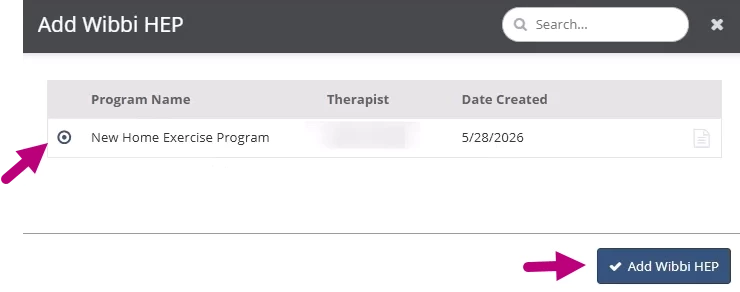
- Select the Program Name.
- Click Add Wibbi Hep.
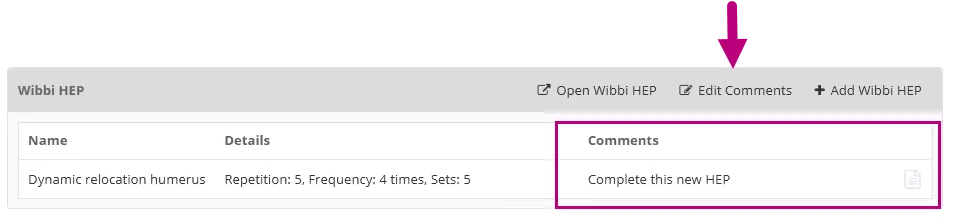
- The exercises and exercise details from populate in the Wibbi HEP section.

- Optional: Click inside the Comments column or click Edit Comments to add a comment to an exercise.
View or Download the Wibbi HEP on a Completed Note
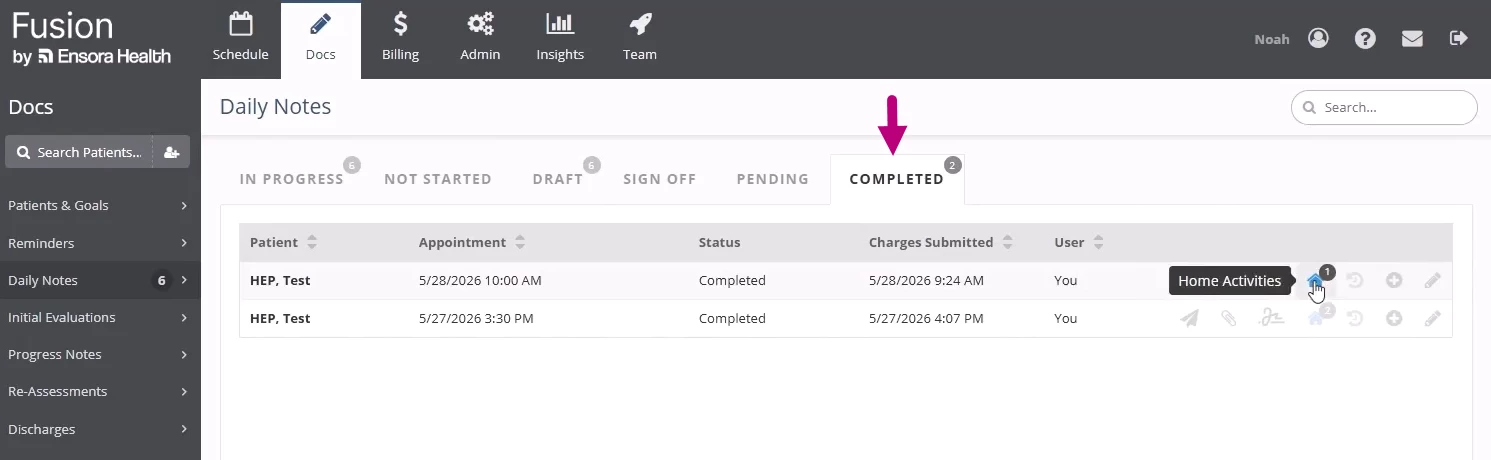
- Navigate to the patient’s Completed documents under the Docs tab, or by clicking the View Documents icon in a patient appointment under the Schedule tab.
- Completed Documents
- Patient Appointment
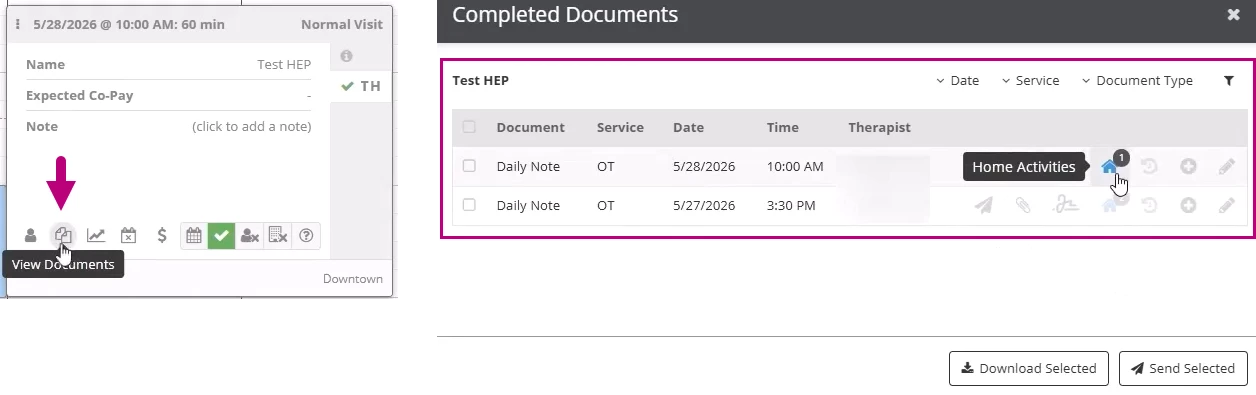
- Completed Documents
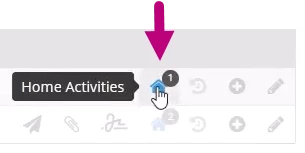
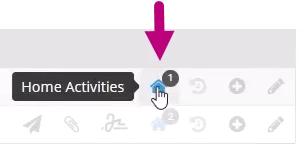
- Click the Home Activities icon.
NOTE: The Home Activities icon displays a badge with a number to indicate that a home activity is assigned.
- Click the Name.
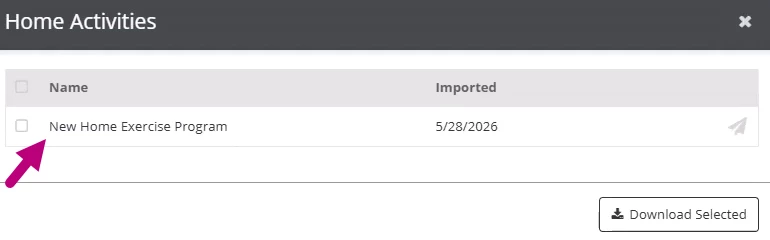
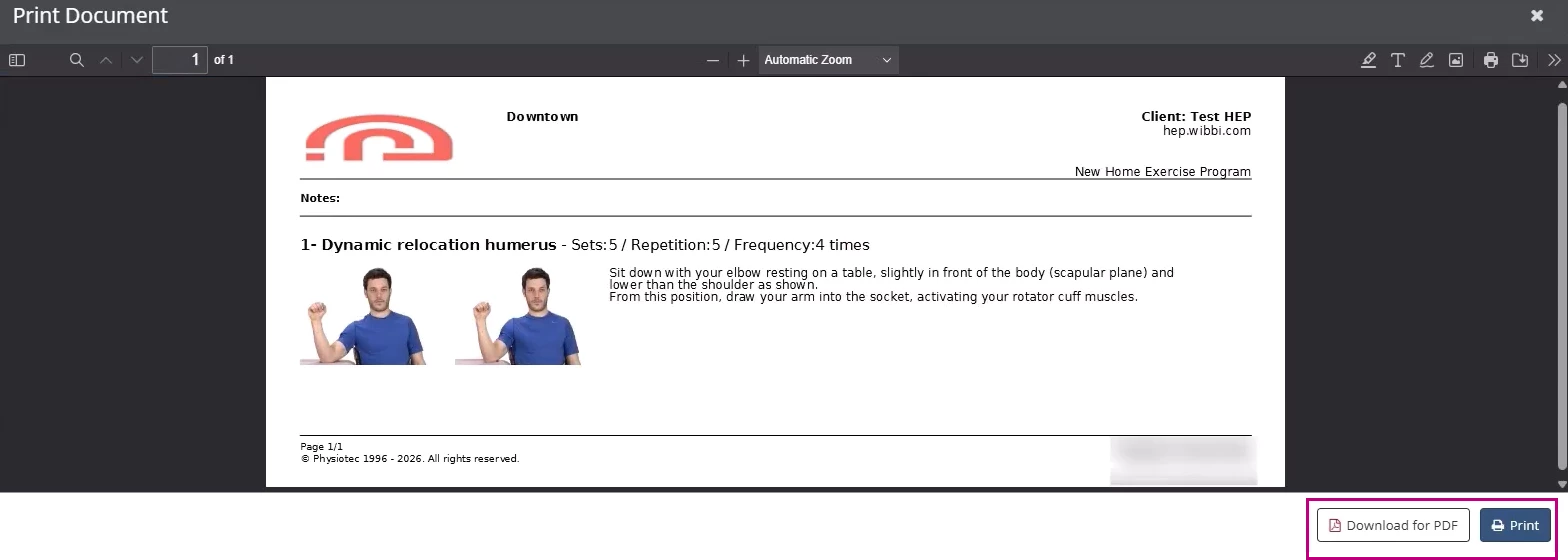
- The Wibbi HEP displays.
- Click Print to print the document.
- Click Download for PDF to download a copy of the document.
Send a Wibbi HEP PDF to a Patient
- Click the Home Activities icon on the completed document.
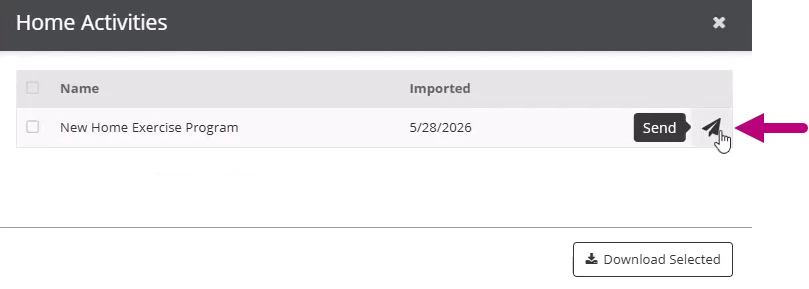
- Locate the Wibbi HEP on the Home Activities list and click the Send icon.
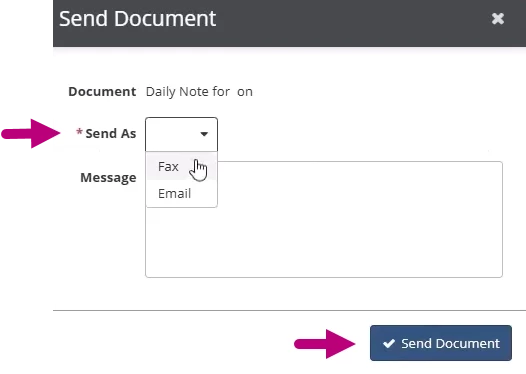
- Select either Fax or Email from the Send As dropdown.
- Optional: Enter a Message to the patient.
- Click Send Document.
NOTE: This PDF will also be available in the patient portal under the home activities section.