PERMISSIONS REQUIRED: You need the Docs permission to create a document.
Documents are automatically created when a patient is checked in to an appointment, but you can also start a document early or, in some cases, without an appointment.
- Each appointment can only have one daily note and one evaluation document.
- Daily notes can be linked to any past appointment or an appointment that's no more than 14 days in the future.
- Evaluations can be linked to an appointment that is no more than 90 days in the past or no more than 14 days in the future.
- Daily notes, initial evaluations, and re-assessments must be linked to an appointment, but progress notes and discharge summaries don't have to be.
Create a Document
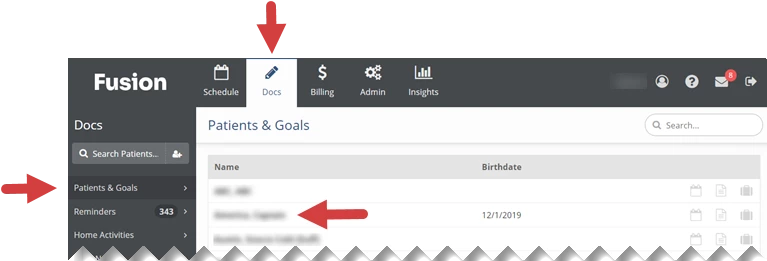
- Click the Docs tab at the top of the screen.
- Click Patients and Goals in the menu on the left.
- Click the Name of the patient you are creating a document for.
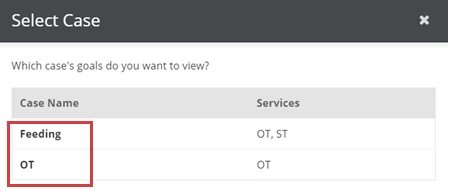
- If your patient has more than one patient case, the Select Case window will appear. Click the Case Name to select the case that the document will be added to.
- If your patient has one patient case, that patient case will open by default. You will skip this step.
- If your patient has one patient case, that patient case will open by default. You will skip this step.
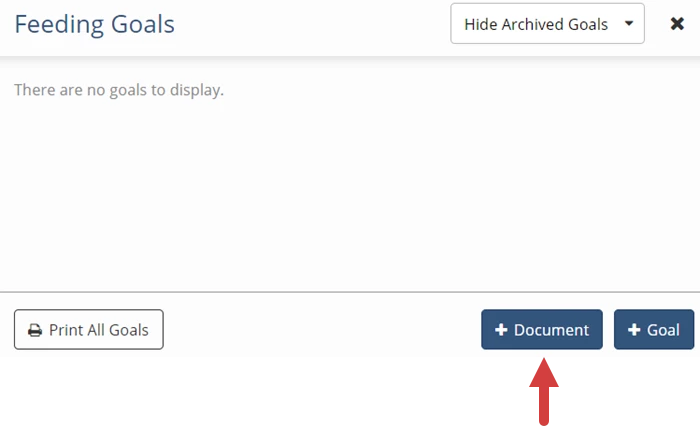
- Click the +Document button in the lower right.
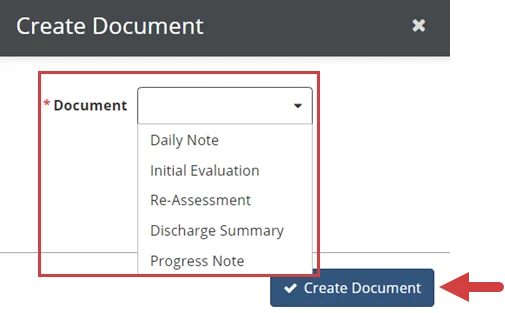
- Select Document type from drop-down.
- Click the Create Document button.