Therapy Activities are exercises, interventions, and other therapeutic tasks completed during treatment sessions. They enable occupational therapists, physical therapists, and speech-language pathologists to plan, manage, and document in-session patient care within the system.
Therapy Activities can be linked to daily notes and included in progress notes, re-assessments, and discharge summaries, supporting accurate clinical documentation and tracking of patient progress.
When working in the Daily Note, therapists document activities in the Objective section. From there, they can add new activities for the patient, or pull forward and update activities that were previously documented for the patient. If an activity does not already exist in the system, therapists can create it directly within the Daily Note, add it to the note, then document the patient's progress toward that activity.
NOTE: Users with the Admin permission can add and manage therapy activities from the Admin tab. See Add & Manage Therapy Activities: Admins for more information.
Jump to Section:
Add a Therapy Activity to a Daily Note
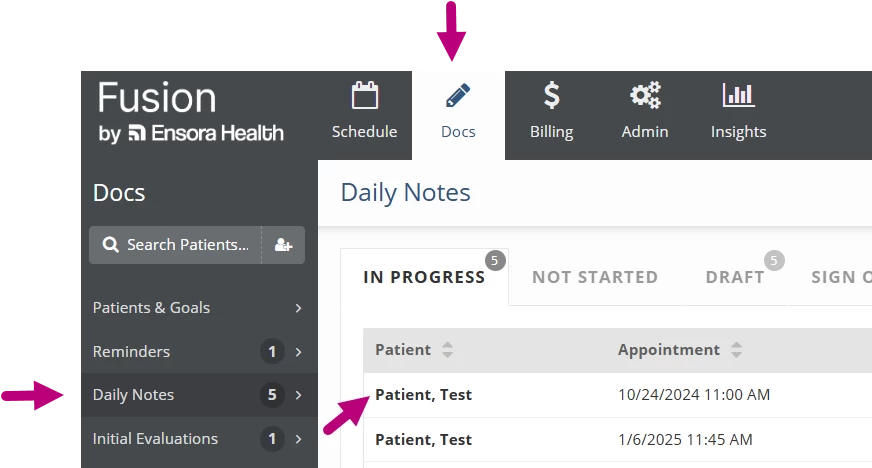
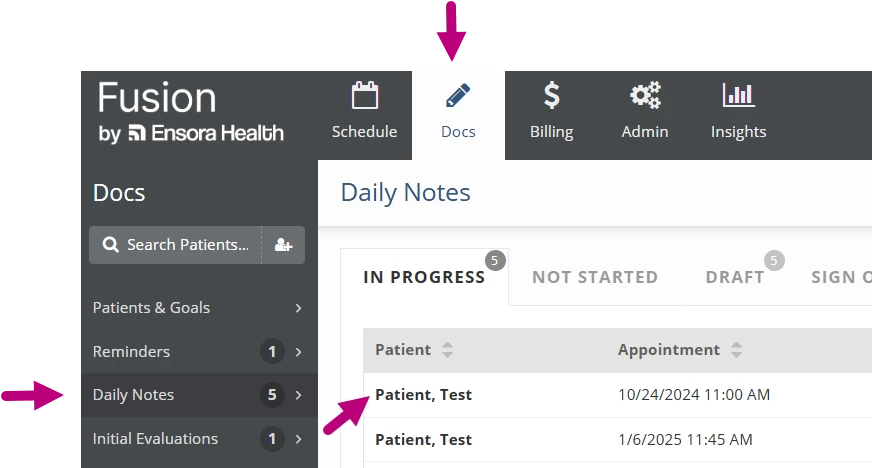
- Click the Docs tab.
- Click Daily Notes in the menu on the left.
- Click the Daily Note.
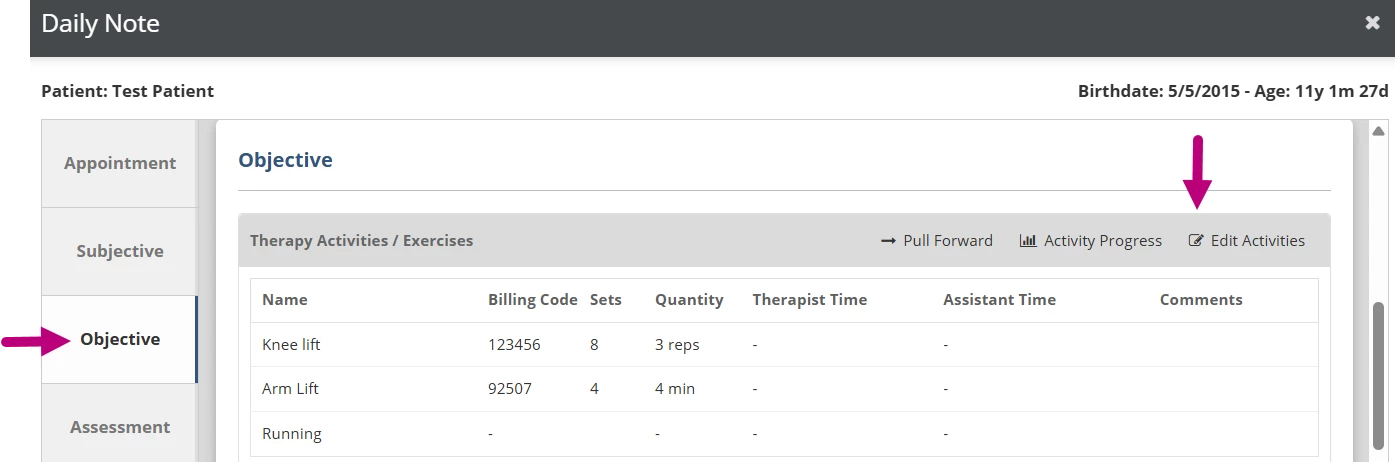
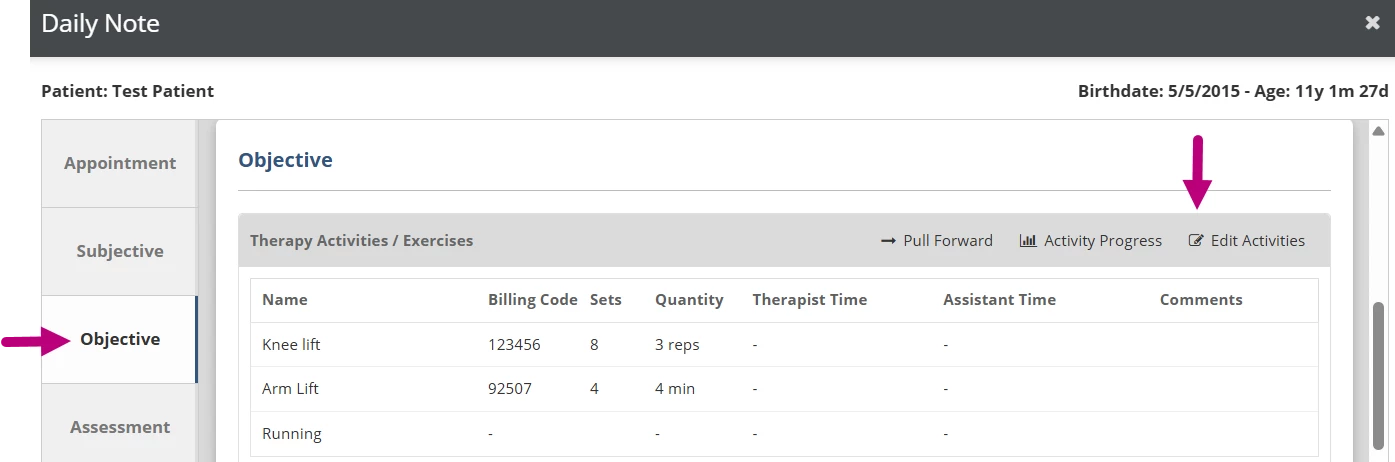
- Click the Objective tab or scroll to the Objective section.
- Click Edit Activities.
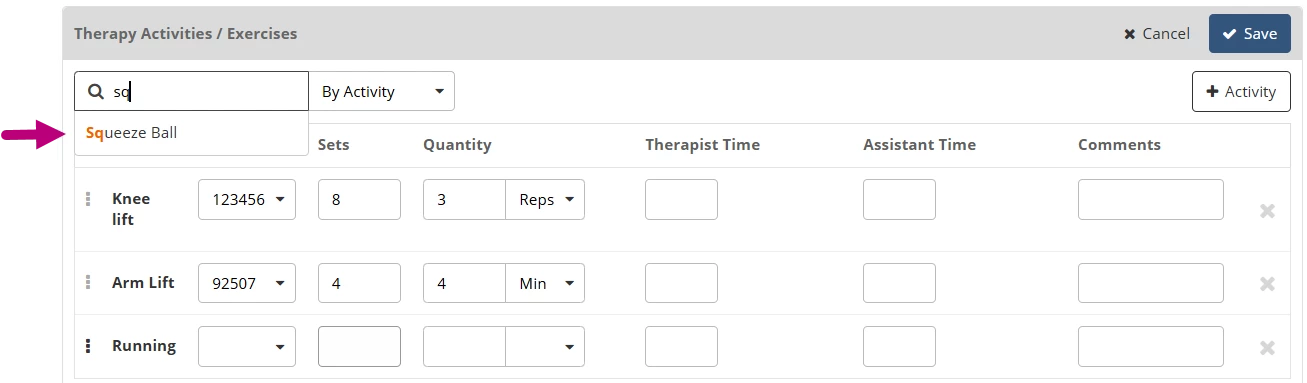
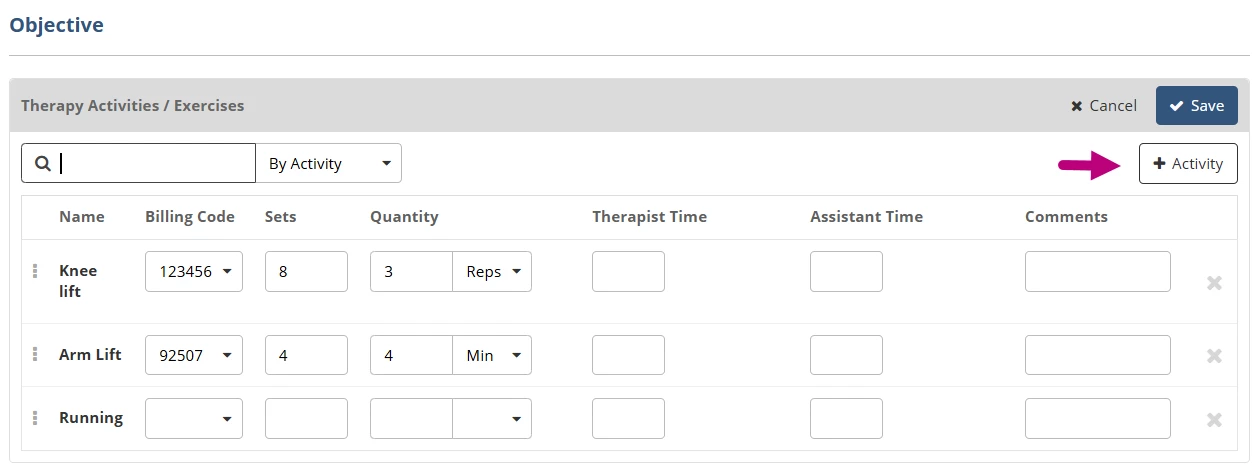
- Click inside the Search field to search By Activity or By Activity List.
- Search by Activity to add an individual activity.
- Search by Activity List to pull in a predefined set of activities configured by a clinic administrator.

- Click the activity or activity list to add it to the note.
- Document on the activity. You have the option to document the following information:
NOTE: Certain settings and documentation fields for therapy activities are managed at the clinic level and can be configured by clinic administrators. Activity lists may pull in billing codes and default sets and reps that have been set by an administrator. Each activity, along with any associated default values or billing codes, can be edited or removed as needed.
Billing codes configured on activity lists will also pull into the Charges section unless the activity is removed.- Billing Code: The billing code for the activity to be used when submitting charges.
- Sets: Number of sets for the activity.
- Quantity: The Quantity per set (Reps, Minutes or Seconds).
- Therapist Time: Therapist time for the activity.
- Assistant Time: Assistant time for the activity.
NOTE: For billing, Assistant Time is calculated against the total activity time. If the Assistant provides more than 10% of the total time, the system automatically applies the appropriate CO/CQ modifiers when charges are submitted.
- Comments: Comments from the therapist about the activity.
Add a New Therapy Activity to the System
- Click the Docs tab.
- Click Daily Notes in the menu on the left.
- Click the Daily Note.
- Click the Objective tab or scroll to the Objective section.
- Click Edit Activities
- Click the + Activity button.
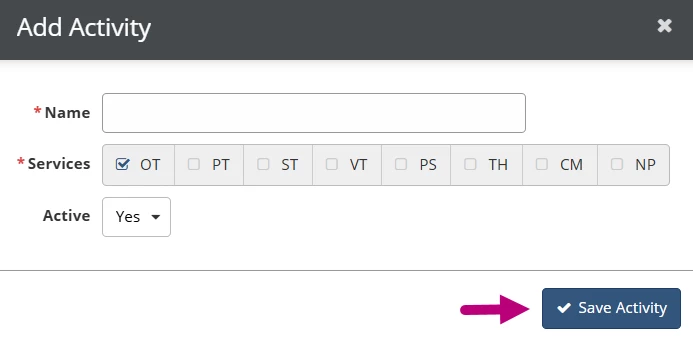
- Enter activity details:
- Name: The Name of the Activity that will appear in notes.
- Services: The services the activity is available to.
- Active: Select Yes to be able to add this activity to notes.
- Click Save Activity.
NOTE: Saving the activity here does not automatically add it to the note. To add the newly created activity to the note, use the Activity Search field to find and select the activity. Once selected, it will be added to the note for documentation.
View or Print Activity Progress
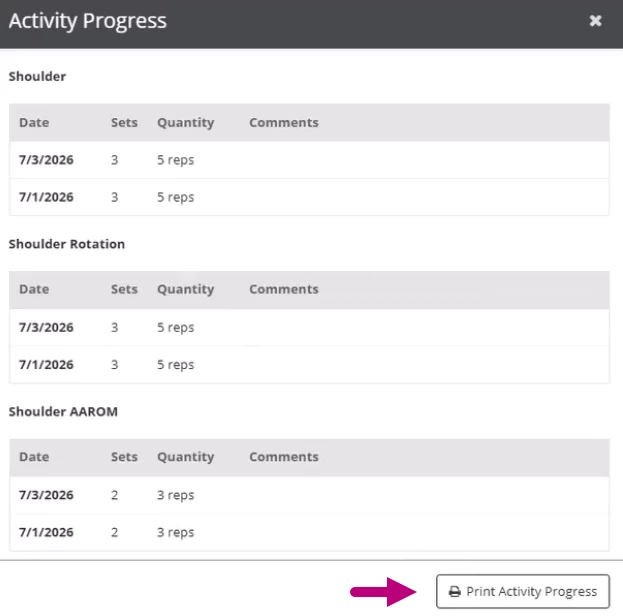
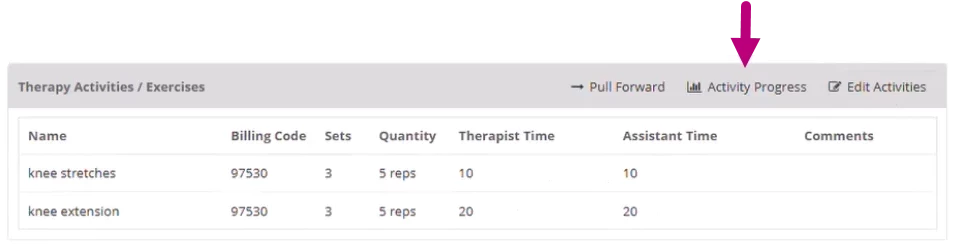
Click Activity Progress for a consolidated view of activity history across visits. This allows you to review how documented activities have changed over time without having to leave your note.
- Click Activity Progress to view a record of the patient’s documented activities.
- Click Print Activity Progress to print a PDF version.