


Jump to Section:
Review the Request Parameters
Prior to loading, you should review the following information regarding the test patient and the doctor. Confirm that the test provider has been registered for the service level that is being requested.
- Log into the Preproduction Customer Maintenance Portal at
https://preproduction.newcropaccounts.com/CustomerMaint/CustLogin.aspx - Select the Maintain Top-Level Account Kids link.
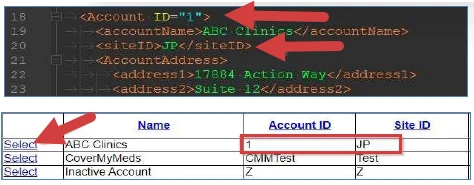
- Select the Account Name as listed in the PartnerName field in the submitted XML.
- Select the Account that has an AccountID and SiteID that both match the Account ID and
siteID as listed in the submitted XML.
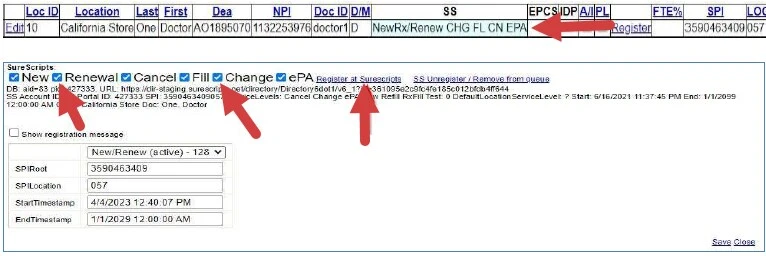
- Search for the prescriber via the Last and First Names as listed in the submitted XML, and click Query.

- Confirm if the user is registered for the services requested. If the user is not registered, select the Register link
and add them.
Create a Pharmacy Message
https://preproduction.newcropaccounts.com/v7/webservicesdemo/pharmacyemulator.aspx
- Enter your Partner Name, Account ID, Site ID, Location ID, Licensed Prescriber ID, Patient ID,
and PrescriptionGuid from CreateRXBatch into the labeled input fields.
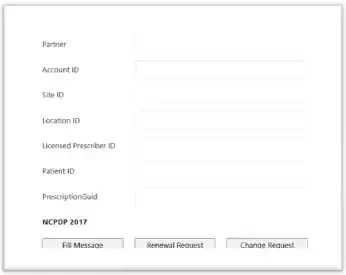
- Select the type of Pharmacy Message you want to emulate from Fill Message, Renewal
Request, or Change Request - Edit the message to include any specific details you would like to change
- Click Upload to send the request to your test provider in the system, where you can then
respond to it.
[Back to Top]