


A Progress Note can be required for a specific Service Definition. This allows the same Progress Note to be made available for the Service Definition, during Service Entry, system-wide for all users granted permissions to the client and the Services menu option.
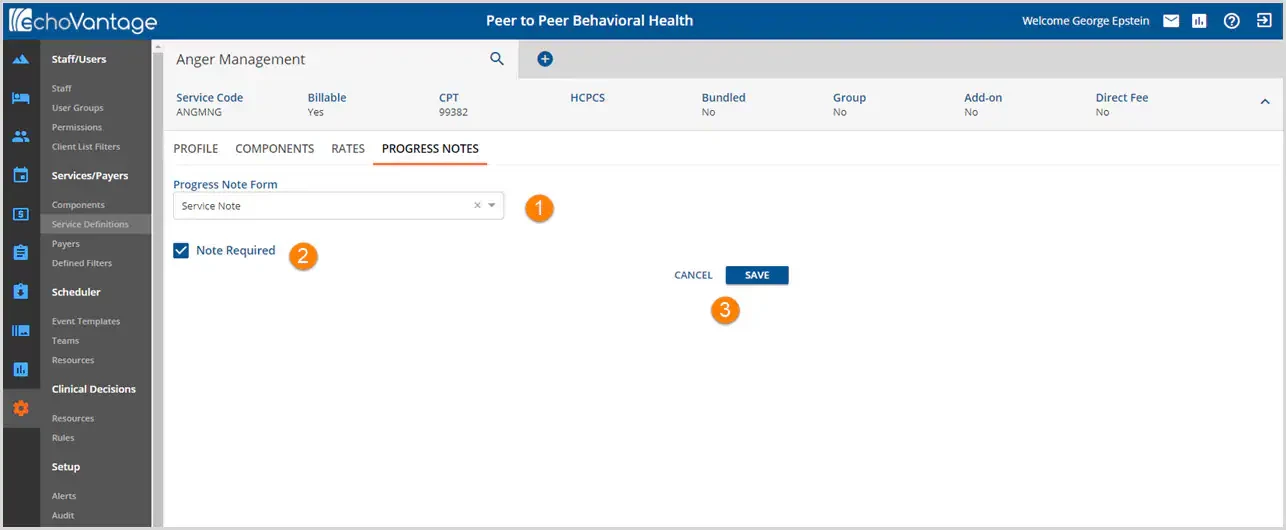
1. Progress Note Form - Select the Progress Form that will be displayed in the Service Entry for this Service Definition. If a progress note form for your organization was created in Form Designer but is not showing, check to make sure it is set up as a progress note in Form Designer.
2. Note Required - Select the check box if a progress note is required to mark a Service Ready that is for this Service Definition.
- This does not prevent the Service from being created or from being marked Ready.
- It will change the Progress Note icon on the Services screen from blue to orange.
- An Alert will also be triggered for the Service staff and supervisor (if entered) when the Service Missing Progress Note Alert has been configured. (Configurations>Setup>Alerts>Service Missing Progress Note)
3. CANCEL/SAVE - Select SAVE to record changes or choose CANCEL to exit without saving.