



Jump to Section:
Reports Menu Location
The Reports menu is located on the Application Information Bar. Select the Reports icon (three bars) to display the drop-down list of Report headings. See Navigation for more information.
The Reports Menu Permissions page is configurable by User Group in Configuration - Staff/Users > Permissions > Reports Menu. See Permissions for more information.
- Select the Report name to open the Report parameters screen.
- Log in with the user's SSRS credentials.
-
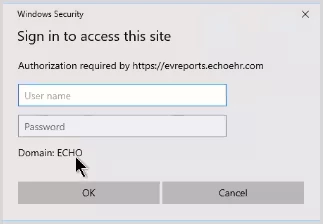
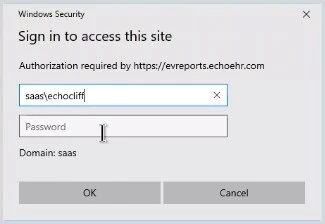
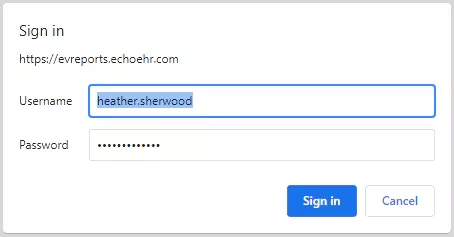
NOTE: If you are using the Microsoft Edge browser, the Windows Security Sign in screen displays. SaaS-hosted customers need to add saas\ before their Username to ensure that the correct domain is accessed. Chrome and Firefox do not use the Windows Security Sign in and correctly default to the SaaS domain for SaaS-hosted customers. Example sign-in screens are shown below:
-
Windows Sign in - Local Domain
Windows Sign in - SaaS Domain
Chrome Sign in - No Domain Issues
The parameter screen changes for each report depending on the prompts available. An on screen error message displays when trying to view a report with required prompts that were left blank. Prompts include but are not limited to:
- Start Date
- End Date
- Program
- Space Name
- Client Code
- Defined Filter
- Staff Code
- Location Code
- Episode Type
- Staff Role
- Supervisor Code
All parameter screens have a small arrow that allows the user to Hide or collapse the parameters. Clicking this again will expand the parameter area. A sample parameter screen is shown below.
Reports Available
The following reports are available and are organized into the following folders: Administration, Billing Reports, Client Reports, Fiscal Configuration, and Fiscal Reports.
Administration
- Admissions by Date Range - Lists client admissions sorted by admission date in descending order.
- Caseload by Enrollment Primary Staff - This core report lists the detailed staff caseload information for the Primary Enrollment Staff person only.
- Clients Missing Payer - Lists clients without a Client Payer record or clients with no active Payers (Client Payer End Date < Today)
- Clients By Payer - The Clients by Payer report lists all Clients grouped by Payer. Each Payer, Payer Code, Payer Plan, Policy Number, Payer Priority, Client Name (and Client Code), Staff assigned to Client, and Payer Start and End Dates are listed. A Client count is included at the bottom of each Payer Group. The available filters are Staff, Payer Start Date, and Payer End Date.
- Enrollment Census Report
- Enrollments Summary
- Events Missing Services
- Expiring Credentials Report - Report pulls all staff members who have a credential that expired in the last 30 days or will expire within the next 30 days. This report can be sorted by Team.
- Missing Client Documents - This report is driven by the DocumentDate in the dbo.DocumentMetaData table and returns a list of Clients that are missing documents of Type C (Client) in the specified date range. The report defaults to a one-month date range, ending the date the report is run. Documents without a date are not considered missing but unexpired. The report rows are grouped by Category and sorted by Client.
- Occupancy Characteristics
- Payers List - The Payers List report lists all Payers by Name, Category Code, Description, Type, Payer Plan as found in the Configuration - Services/Payers > Payers > Profile tab. The report also includes Start and End Dates if entered.
- Placements Report
- Schedule Report - Lists all Services and Events that meet the parameter criteria entered in descending date order and grouped by staff.
- Staff Caseload Detail
- Staff Caseload Summary
- Staff Productivity Report
- Wait List Report
- Staff List
- Staff Time Events - Lists all Staff time Events that fall within the specified date range including, Reason, Short Description, and Reminder Note if entered. The list is grouped by Staff Name.
Billing Reports
NOTE: Reports in this folder have an underscore "_" prefix which does not allow them to be viewed from the reports menu.
- _837Audit
- _837IAudit
- _ClientPaymentReceipt
- _ClientPaymentSummary
- _CMS1500
- _GL Audit Report
- _SelfPayStatement
- _SelfPayStatementSubReport
- _UB04
- _UB04_TEST
Billing reports are accessed from the following Fiscal Overview screens:
- Unprocessed Services
- Unbilled Charges
- Unprocessed Remittances
- Unposted GL Transactions
Client Reports
- Attendance Report - This is the renamed and updated No Show Report. Filters are available for Start Date, End Date, Staff, Program, Location, and Attendance codes. It produces a listing of Services and Events that have not been turned into a service that meets the filter criteria entered. Summaries by Location, Program, and Staff are available at the end of the report.
- Client List
- Client Medications Detail
- Client Medications Summary
- Clients by Enrollment
- _Clients By Enrollment For Export.rdl (Only accessible from Main Report)
- Clients Without Appointments
- Clients Without Treatment Plans
- Group Note
- Medical Face Sheet
- PHQ-9 Adolescent Scores Over Time
- PHQ-9 Scores Over Time
- Progress Note Basic
- _Signatures.rdl - This new sub-report fetches the Staff Title and Attestations for the Progress Note Basic report.
- Services Without Progress Notes
- Treatment Plan
- Vital Signs Report
Fiscal Configuration
- Bundle Setup
- Duplicate Service Definition Components - Lists Service Definitions and their Component Code values that overlap for easier identification and resolution.
- Service Definition
Fiscal Reports
- AR Status Report Export - This detailed report is intended for export as a CSV file for working accounts receivable.
- The report includes additional information such as Charge, Adjustment, Payment, Balance, Diagnosis Code, Billing Code, Charge Status, Billed Date, Denial Reason, and Auth Number
- Aging Detail By Payer
- An accounts receivable detailed aging report that is grouped by Payer, then by Program, and then by Aging Bucket.
- Individual charge transactions are listed.
- Service Date is used to determine the age.
- _Aging Detail For Export - The CSV-friendly report is available within the main report above.
- Aging Detail By Program
- An accounts receivable detailed aging report that is grouped by Program, then by Payer, and finally by Aging Bucket.
- The transaction detail is not listed.
- Service Date is used to determine the age.
- Uses same Export Report.rdl as Aging Detail By Payer
- Aging Report By Payer
- A summary accounts receivable aging report that is grouped by Payer, then Program, and finally by Aging Bucket.
- The transaction detail is not listed.
- Service Date is used to determine the age.
- Aging Report By Program
- A summary accounts receivable aging report that is grouped by Program, then Payer, and finally by Aging Bucket
- The transaction detail is not listed.
- Service Date is used to determine the age.
- Average Days in A/R
- Calculates the average number of days it takes to collect the payments due to the agency.
- Lists current and prior year's average days' calculation by month with a graph of the same at the bottom.
- The calculation is the Sum of charges over the last 6 months/total days (180).
- Billed vs Received - The Billed vs Received Report provides details for all Billed and Unbilled Services within a date range grouped by Payer.
- The report lists the Client (Name and Code), Staff, Transaction Date, Service Date, Service Activity, Service Program, Service Location, Billing Code, Unbilled and Billed amounts, and the amount Received if any.
- Filters can be defined for Service or Transactions Date, Date Range, Staff, Payer, Program, and Location.
- _Billed vs Received for Export.rdl - The CSV-friendly report is available within the main report above.
- Bundled Services
- Lists Services that are bundles that meet the report parameters entered.
- Includes bundle detail
- Includes services detail that is included in the bundle
- The bundle services information is summarized at the end in the:
- Summary By Client and Billcode
- Summary By Staff and Billcode
- _Bundled Services for Export - The CSV-friendly report is available within the main report above.
- Lists Services that are bundles that meet the report parameters entered.
- Cash Receipts Journal
- Lists payments received that meet the report parameters entered.
- Includes payer remittances and client payments.
- Client payments are only included on the day they are received from the client.
- The subsequent process of applying all or part of the payment to a service does not generate another entry for this report.
- Useful for reconciling bank deposits to payments received.
- May be filtered by Remittance Date, Status, Payer, and Batch ID
- Remittances are included/excluded using the dbo.Remittances RemittanceDate column.
- Client Payments are included/excluded using the dbo.ClientPayments PayementDateTime column.
- _Cash Receipts Journal for Export - The CSV-friendly report available within the main report above.
- Claims Report
- Detailed listing of Claims information grouped by Client Code.
- Filters included Start Date, End Date, Client Code(s), Staff Code(s), Charge Status, and Service Status.
- Information is pulled from dbo.Services, dbo.Charges, and dbo.Remittances tables.
- _Claims Report for Export - The CSV-friendly report available within the main report above.
- Client Account Inquiry - Provides a full inquiry on all or open Claims with an option to include or exclude Client Payments/Unapplied Transactions.
- Similar to the Full Inquiry on All Claims report in Revenue Manager.
- Charge information is listed in the Service Transactions section which is displayed first.
- Client Payments and Unapplied Transactions follow on a new page.
- Client Payment Allocation Report
- Allows entry of client code and payment date in the parameters to view a list of services and how the client payment was applied.
- All client services are listed showing both those that have had a client payment applied and those that have not.
- Expiring Authorizations - Lists Clients with authorizations that have expired in the previous 90 days or will expire in the coming +0 days as of the current date. The results are grouped, and may also be filtered, by Payer.
- GL Activity Report – Lists any transaction between a user-entered date range that affects the GL
- Historical Aging - Provides an aging list by GL Period. This report may be grouped by Location or Program and filtered by Location Code, Program Code, and Payer. It has a clickable link for a CSV-friendly version.
- _Historical Aging Report for Export - The CSV-friendly report is available within the main report above.
- Monthly Fiscal Summary Report
- Displays Beginning and Ending Accounts Receivable (A/R) based on the Start and End dates entered.
- Lists Charges, Payments, Credits, and Adjustments for the same period.
- Includes a graph of this same information.
- Outstanding Charges
- A list of all Outstanding Charges as of the date range entered for the report.
- Report is subtotaled by Payer, then subtotaled by Client, and a report Grand Total is provided.
- Outstanding charges are pulled from the dbo.Charges table where Status is 'O'.
- In addition to Start and End Dates, the report may be filtered on Payer Code, Client Code, and Service Code.
- _Outstanding Charges for Export - The CSV-friendly report available within the main report above.
- Payment Detail - The Payment Detail report lists all payments within a date range grouped by Payer.
- The report lists Client Names and Code, Transaction Date, Service Date, Batch number/id (if entered), PCCN (if entered), Service Program, Service Location, Billing Code, General Ledger Debit /Credit entries, and Payment Amount.
- The report can be filtered by Service or Transaction Date, Date Range, Finalized or Not Finalized, Staff, Payers, Program, and Location.
- _Payment Detail for Export - The CSV-friendly report available within the main report above.
- Payment Summary - The Payment Summary Report lists all Payers grouped by Category.
- Totals are provided for each Payer, subtotals for each Category, and a report Grand Total is also included.
- Columns include From Where (the payment source), Name, Payer Code, Plan, and Payments broken down by Unposted and Posted to GL.
- The report can be filtered by Payer category and Transaction Start and End Dates.
- Refunds - Lists Payer Refunds for tracking purposes. Filters are available for Service Start and End Date, Client Code, and Payer.
- Remittance Report
- _Remittance Report for Export - The CSV-friendly report available within the main report above.
- Service Authorization Status
- _Service Authorization Status for Export - The CSV-friendly report is available within the main report above.
- Service Definition and Payer Rates - This report is grouped by Service Definition and by Payer with detailed rows for the credential rate(s). The default rate for the Service Definition is displayed in the grouping header. A CSV-friendly export version of the report is available.
- _Service Definition and Payer Rates for Export - The CSV-friendly report available within the main report above.
- Service Detail by Defined Filter
- _Service Detail by Defined filter For Export - The CSV-friendly report available within the main report above.
- Service Detail With Charges
- _Service Detail With Charges for Export - The CSV-friendly report available within the main report above.
- Service Detail With Charges By Client
- _Service Detail With Charges By Client for Export - The CSV-friendly report available within the main report above.
- Service Detail With Charges By Staff
- _Service Detail With Charges By Staff for Export - The CSV-friendly report available within the main report above.
- Service Processing Report
- _Service Processing Report for Export - The CSV-friendly report available within the main report above.
- Service Status Report - Lists information about Events and Services before the charge creation and billing processes. The following status types are grouped and subtotaled.
- Events not recorded as Services, Service not created from Event
- Services that are Not Ready, status = N
- Ready Services not yet selected for processing, status = R
- Services that are processed but a charge has not been created, status = H
- _Service Status Report for Export - The CSV-friendly report available within the main report above.
- Services List - This report lists Services sorted by Client in descending Start Date order.
- The report date range is user-defined.
- There is an option to include only billable, only non-billable, or All Services.
- The following filters may be used to further refine the report:
- Defined Filter
- Service Status
- Supervising Staff
- Staff Code
- Client Code
- Client Last Name
- Unapplied Payments - Lists both Client and Payer unapplied payments for the user-defined date range. The Client Payment source is listed first, followed by the Payer Payment Source.
- Unprocessed Services - Lists each Unprocessed Service sorted by Client Name in ascending order by Service Date.
- The report date range is user-defined.
- Filters are available for Staff Code and Client Code. Leave blank for all.