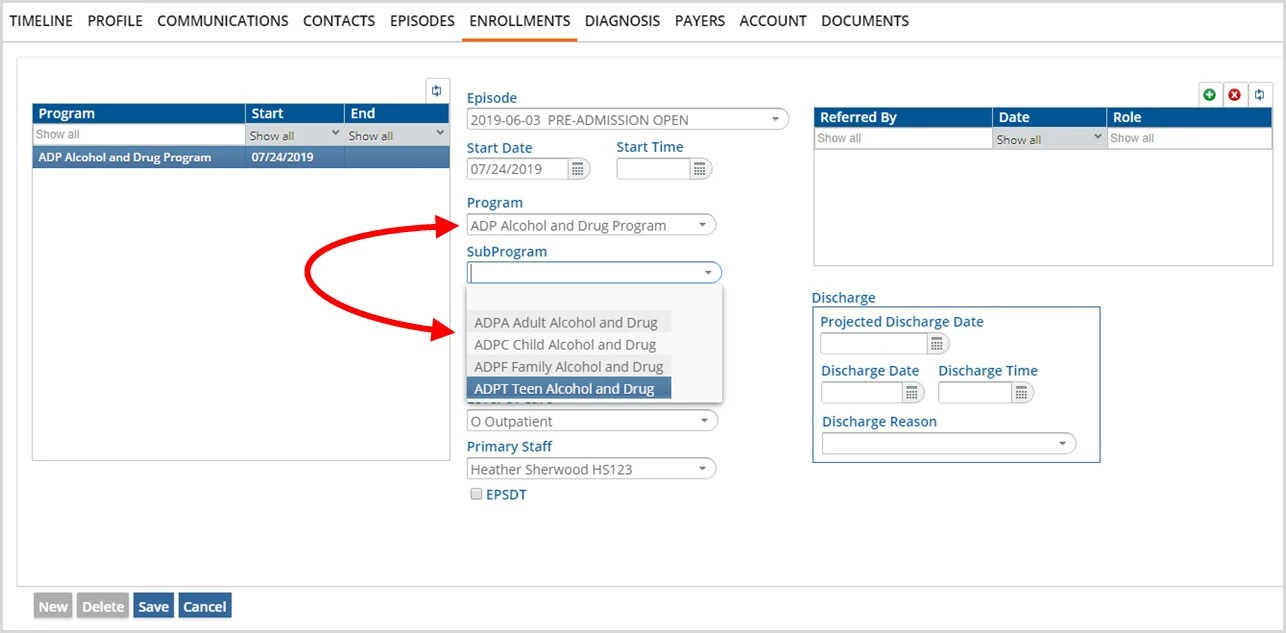
The Programs menu option allows an agency to define SubProgram information for use on the Clients > Enrollment tab. Users select a Program from a drop-down list and assign SubProgram values to the selected Program that include: Name, Description, and Start and End Dates.
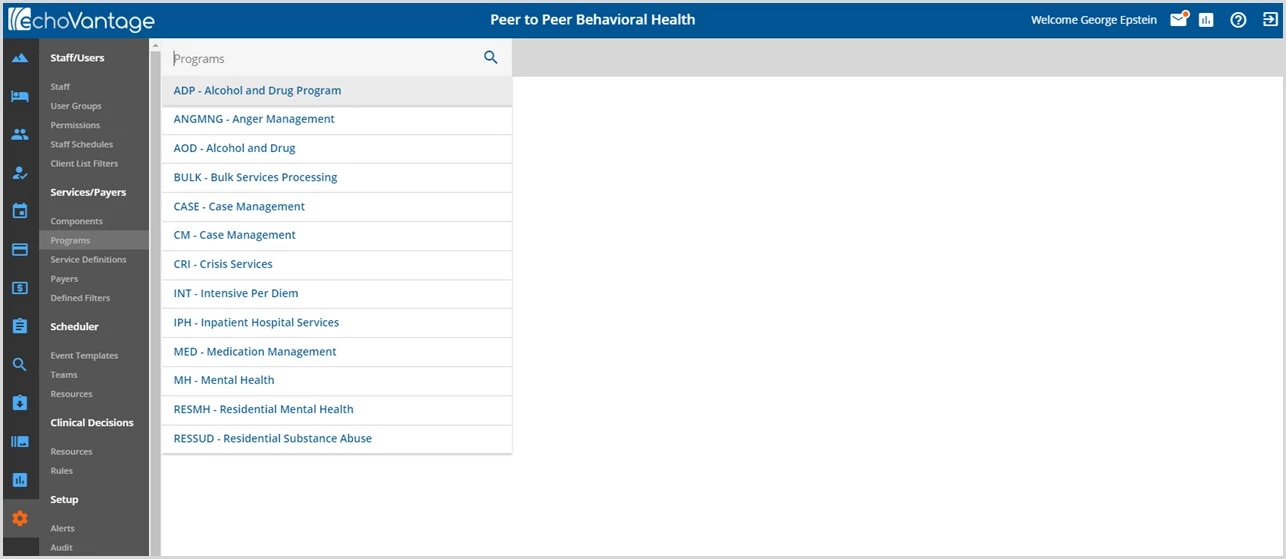
The listing of programs is taken directly from the Program Service Component. This component may have a different name if the agency opted to rename this core PLAAR component.

Add a SubProgram
Select the blue +ADD SUBPROGRAM to add values to the currently selected Program.
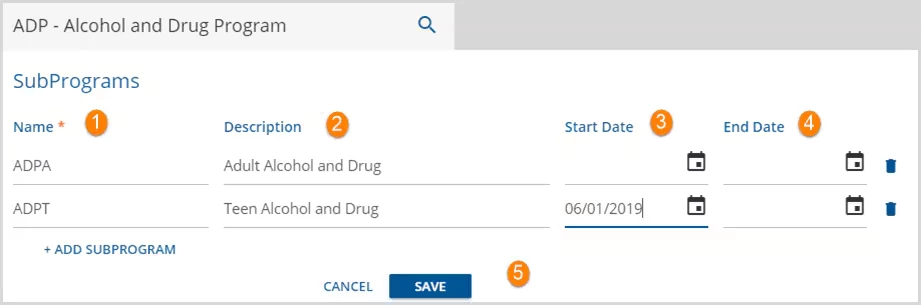
1. Name - Name is the only required field when creating a new SubProgram. This Name is displayed in the Program drop-down listing on the Clients Enrollments tab.
2. Description - This optional field provides more information about the SubProgram. This Description is displayed in the Program drop-down listing on the Clients Enrollment tab.
3. Start Date - This optional field is the start date of the SubProgram.
4. End Date - This optional field may be used to enter an end date for the SubProgram. For historical purposes, it is recommended to end-date a SubProgram rather than delete a program using the trash can icon.
5. Action buttons - Select SAVE to add a SubProgram or record changes. Select CANCEL to exit without adding or recording changes.
Edit a SubProgram
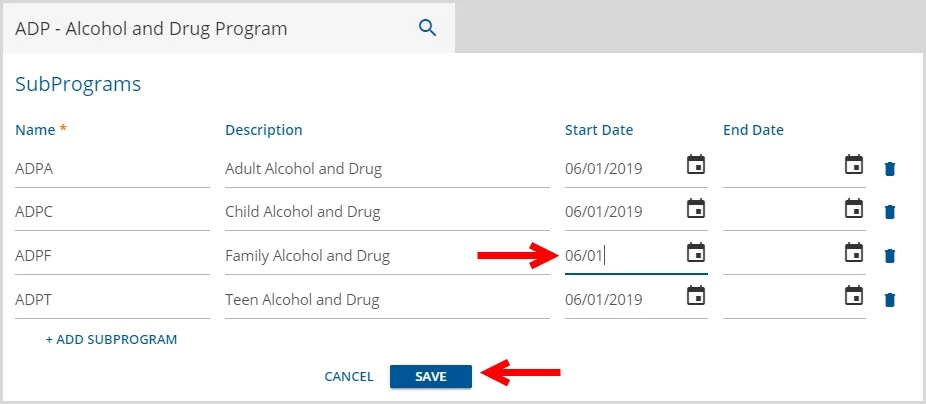
SubPrograms may be edited by selecting the appropriate Program from the drop-down list and then selecting the field of the SubProgram to be changed.
In the example below, a Start Date is being added to the ADPF SubProgram. Once an edit has been started, the SAVE button is enabled.
SubPrograms in Client Enrollment Screen
When a Program is selected in the Client's Enrollment tab, only the SubPrograms associated with that Program are available for selection in the drop-down listing.