


Occupancy defines the spaces available for use in the Placements menu. Each space is named and assigned characteristics. This may be actual beds or rooms in a foster or residential facility or it may be a seat in an organization-owned van. As long as the space is defined in this Occupancy setup, it will be available for use in the Placements menu.
Add a Parent Space
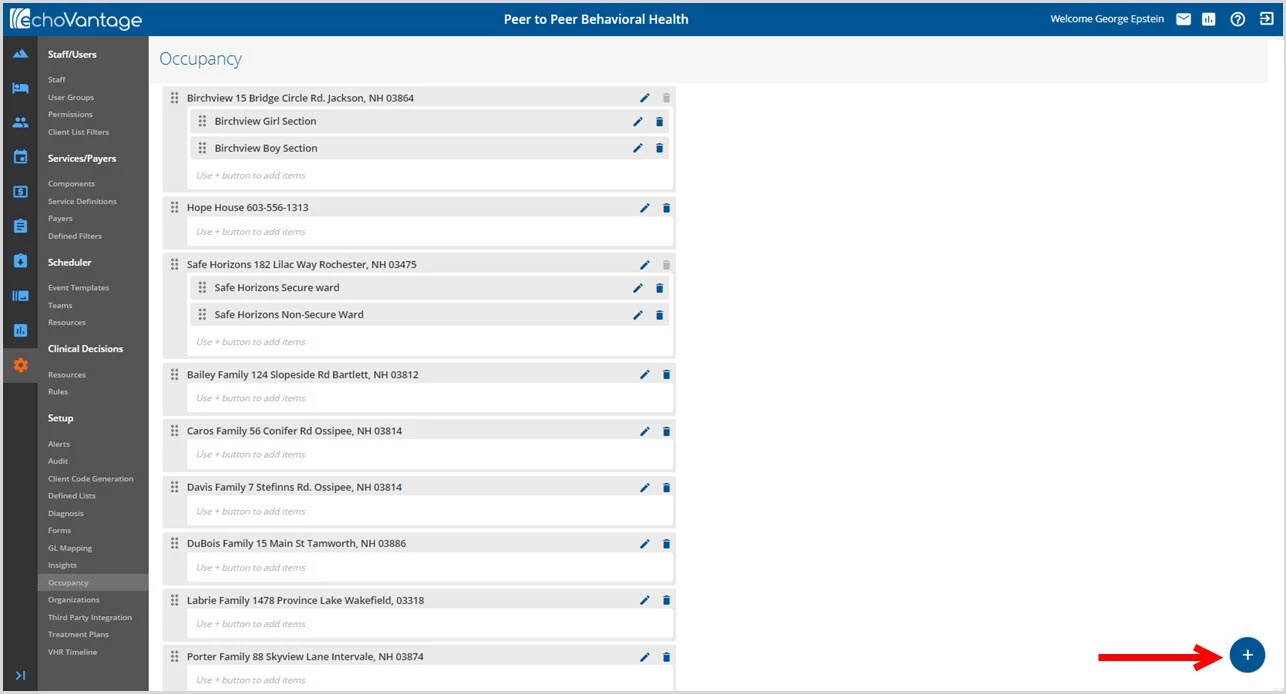
Start by clicking the blue plus "+" to open the Add Space screen.
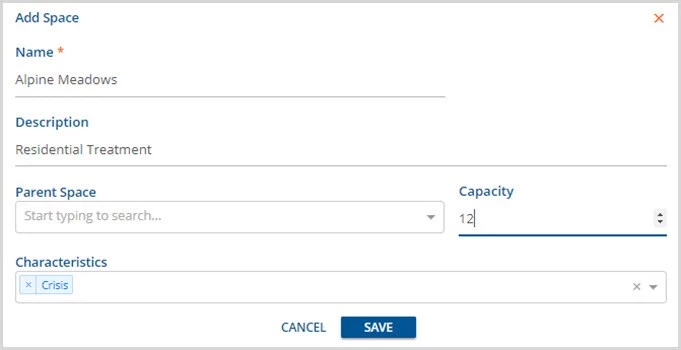
- Name is the only required field to enable the blue SAVE button.
- This is a 200-character free text field.
- Click SAVE to add the newly named Space to the Occupancy list.
- Only child spaces will select a Parent Space from the drop-down list.
- Entering a Capacity number is recommended for full use of the Placement menu functions.
- Characteristics are defined in Configuration - Setup > Defined Lists > Space Characteristics.
Edit a Parent Space
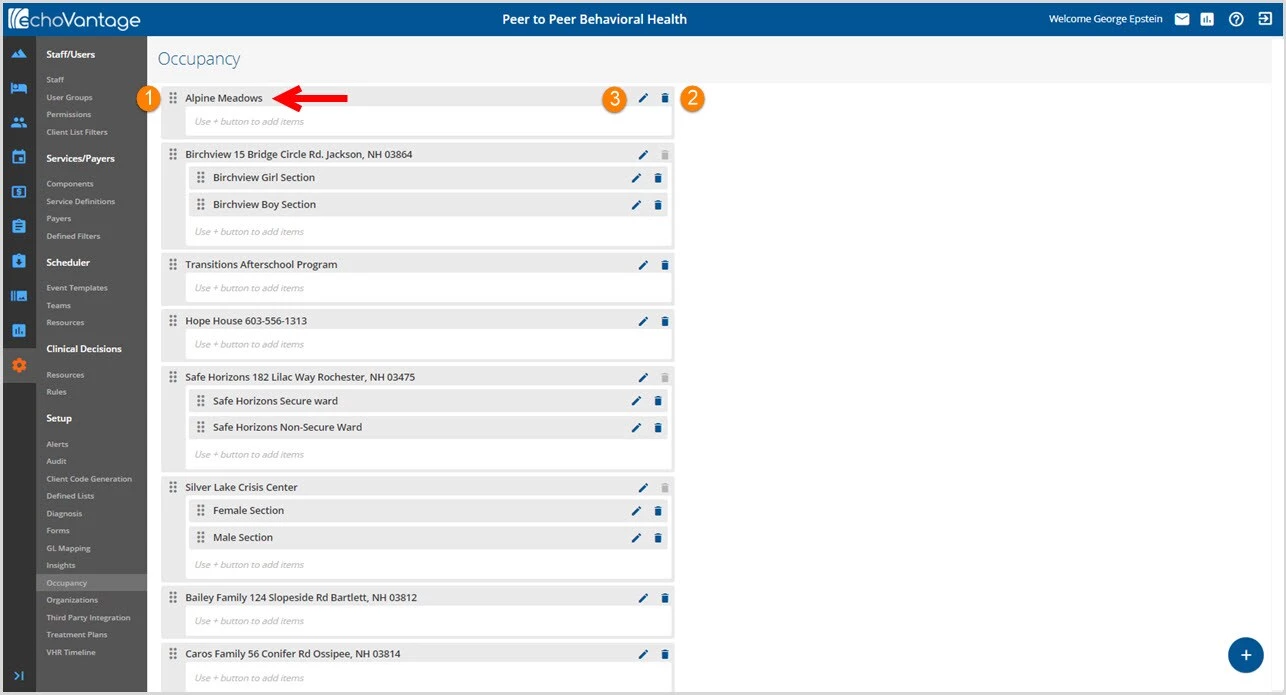
1. Click on the ellipsis (dots icon) to drag and drop the Occupancy spaces to reorder the list.
2. Click on the trash can icon to delete an Occupancy space created in error or no longer needed.
3. Click on the pencil icon to edit the Occupancy space, parent or child depending on the location of the pencil selected. The Edit Space screen will display.
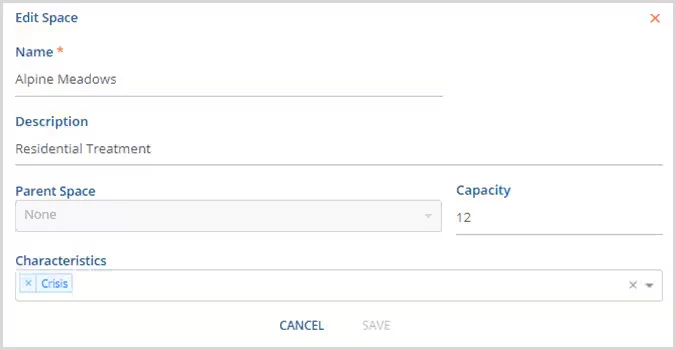
Add a Child Space
To Add a Child Space, click on the blue plus "+" found on the Occupancy home screen. The Add Space screen will again display.
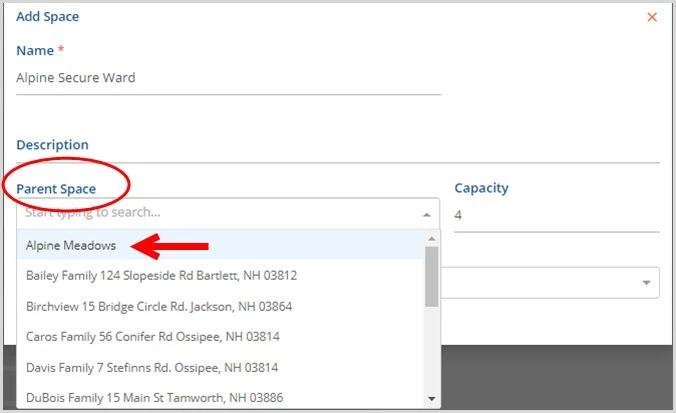
- To add a Child Space, the Parent Space needs to be defined.
- In the example above, the Parent Space will be Alpine Meadows.
- The blue SAVE is enabled when all required fields are completed.
Edit a Child Space
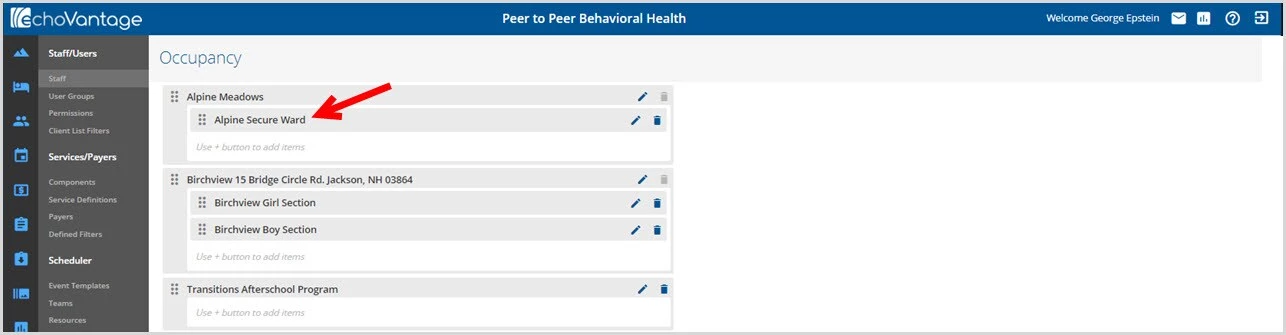
- Just like the Parent Spaces, child spaces can be reorganized by clicking on the ellipsis (dots icon) and dragging and dropping the space. However, the child space must remain within the defined Parent Space.
- Use the trash can icon to delete a Child Space.
- Use the pencil icon to edit the Child Space.