


Defined Lists allow administrative users to enter and maintain drop-down lists within the product. To configure a Defined List, navigate to Configuration - Setup > Defined Lists.
NOTE: If a billing or state-specific Acorn is installed, there may be additional Defined Lists within the system. The list below represents the core Defined Lists.
Client Contact Roles
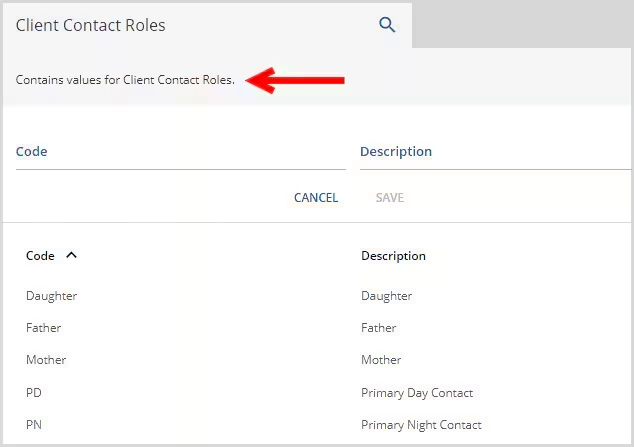
This list populates the values in the [Client] > Contact Info > (Edit) Contacts > Role drop-down box in the Roles/Relationship grid. The user has the option to assign Contact Roles to each Contact entered.
-
- Roles and Relationships are determined by the Agency and stored in the Client Contact Roles Defined List.
- Entering Roles and Relationships requires a Code and Description. Click on the blue SAVE button to record the entry.
A sample Client Contact Roles Defined List is shown below.
Client Payment Refund Reasons
This list populates values in the Reason field in the [Client] > Account > Refund Payment screen.
Document Categories
This list is selected when uploading a file on a Client's Documents tab. The permissions for these categories are granted in Configuration - Staff/Users > User Groups.
-
- To add a category, click on the Name field.
- Enter the information up to 20 characters maximum.
- Click on the blue, enabled SAVE button.
Employment Status
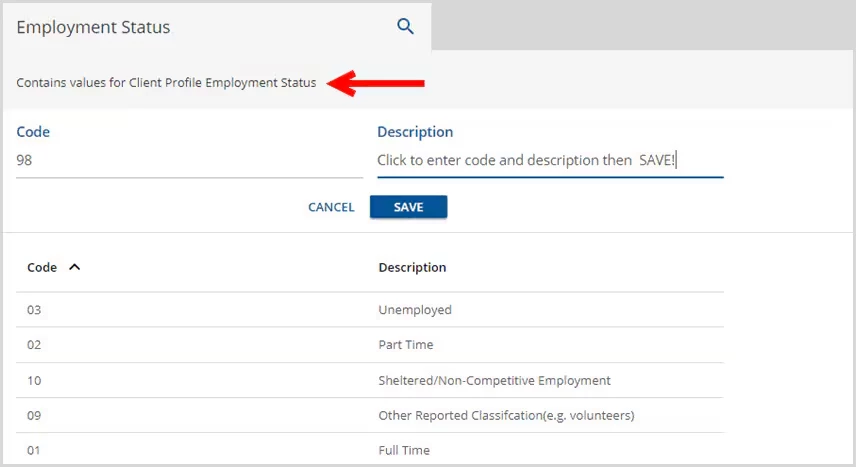
This list is selected for Client Profile Employment Status.
-
- Click on Code and enter values up to 6 characters maximum length.
- Click on Description and enter information up to 100 characters maximum length.
- Click on the blue, enabled SAVE button.
Enrollment Admission Reasons
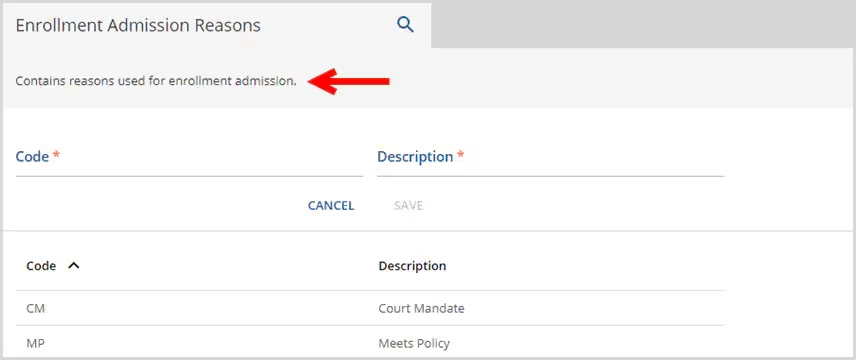
Contains reasons for admissions.
-
- Entered on the Client Enrollment tab.
- Code - may be up to 10 characters maximum length.
- Description - may be up to 30 characters maximum length.
Enrollment Discharge Reasons
Contains the reasons for discharge.
-
- Entered on the Client Enrollment tab.
- Code - may be up to 10 characters maximum length.
- Description - may be up to 30 characters maximum length.
Episode Categories
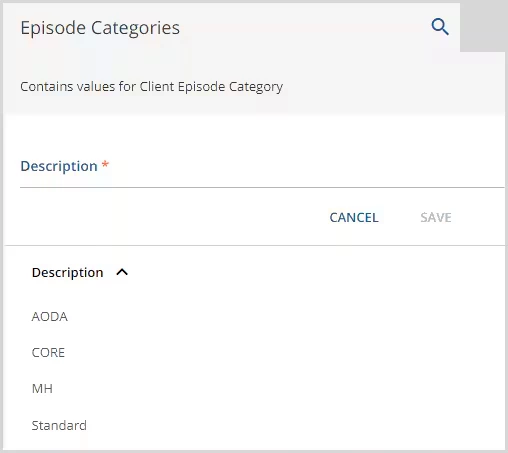
Agency defined Episode Categories.
-
- Entered in Clients > Episodes > Category field.
- Description may be up to 50-characters maximum length.
- Episode Categories were introduced to manage multiple open Episodes for a Client. A Client can have multiple open Episodes at one time with the restriction of only one open Episode per Episode Category.
- Any existing Episodes prior to upgrade are assigned the default Category of Standard.
- The default Category description may be renamed if desired.
-
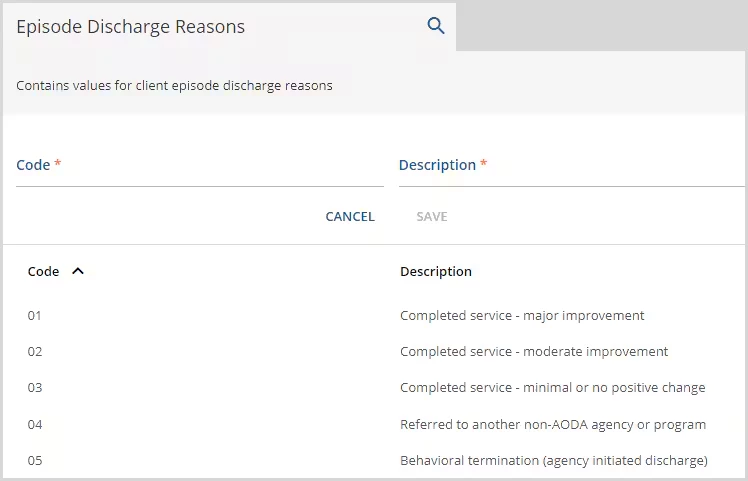
Episode Discharge Reasons
Contains the agency defined values for a Client's Episode Discharge Reason.
-
- Entered in Clients > Episodes > End Reason field.
- Code - may be up 10 characters maximum length.
- Description - may be up to 100 characters maximum length.
-
Episode Status
Contains values for the status.
-
- Entered on the [Client] > Episode tab.
- Code - may be up to 10 characters maximum length.
- Description - may be up to 100 characters maximum length.
Event Resources Types
Contains resources used for event scheduling.
-
- Entered on the add Event screen, navigate to Vantage Point > Clinical Home > Scheduler.
- Name may be up to 50 characters maximum length.
Form Unlock Reasons
Contains reasons for unlocking a form.
-
- This drop-down list will display when a user selects the Unlock Form button on a signable form, typically from the Timeline.
- Code - may be up to 25 characters maximum length.
- Description - may be up to 100 characters maximum length.
Gender Identities
Contains values for Client Gender Identities.
-
- Entered in Clients > Profile > Gender Identity field.
- Description - may be up to 200 characters maximum length.
Income Sources
Contains values for the income source.
-
- Entered in Clients > Profile > Income Source field.
- Code - may be up to 25 characters maximum length.
- Description - may be up to 100 characters maximum length.
Legal Status
Contains values for the Legal Status.
-
- Entered in Clients > Profile > Legal Status field.
- Code - may be up to 5Â characters maximum length.
- Description - may be up to 100 characters maximum length.
Levels of Care
Contains values for Enrollment Levels of Care drop-down listing.
-
- Entered in Clients > Enrollments > Levels of Care field.
- Code - may be up to 10 characters maximum length.
- Description - may be up to 30 characters maximum length.
Living Arrangements
Contains values for the living arrangement field.
-
- Entered in the Clients > Household > Living Arrangement field.
- Code - may be up to 5 characters maximum length.
- Description - may be up to 100 characters maximum length.
Marital Status
Contains values for the marital status field.
-
- Entered on the Client Profile tab.
- Code - may be up to 15 characters maximum length.
- Description - may be up to 100 characters maximum length.
Message Subjects
Contains the subjects which Clients may choose from when sending a message within the Client Portal.
-
- Used when clients send a message from the client portal.
- Subject - may be up to 200 characters maximum length.
Payer Categories
Contains the available categories for Payers.
-
- Entered in Configuration - Services/Payers > Payers > Profile > Category field.
- Code - may be up to 50 characters maximum length.
- Description - may be up to 255 characters maximum length.
Payment Locations
Contains values for Client Payment Locations.
-
- Entered in Clients > Account in the Payment Location field when adding a Client Payment.
- Description - may be up to 200 characters maximum length.
Places of Service
Contains value for Places of Service. Prior to version 3.18 these values were stored in the code and not accessible through the UI.
-
- Accessed in Configuration - Services/Payers > Payers > POS Mappings > Payer Place of Service, the drop-down list is populated with these values.
- Code - may be up to 2 characters maximum length.
- Description - may be up to 255 characters maximum length.
Referral Types
Contains the referral types for Wait List requests.
-
- Entered in Placements > Wait List.
- Description - may be up to 200 characters maximum length.
Religious Preferences
Contains values for Client Religious Preferences.
-
- Entered in Clients > Profile > Religious Preferences field.
- Description - may be up to 200 characters maximum length.
Removal Reasons
Contains the reasons for removal from the Wait List.
-
- Entered in Placements > Wait List.
- Description - may be up to 200 characters maximum length.
Sexual Orientations
Contains the values for Client Sexual Orientations.
-
- Entered in Clients > Profile > Sexual Orientations field.
- Description - may be up to 200 characters maximum length.
Space Characteristics
Contains the types of characteristics a space may have.
-
- Accessed when adding or editing Occupancy found in Placements > Occupancy.
- Description - may be up to 200 characters maximum length.
Staff Credentials
Contains the types of credentials that staff may have.
-
- Entered in Configuration - Staff/Users > Staff > Credentials.
- Credentials - may be up to 10 characters maximum length.
- Description - may be up to 30 characters maximum length.
- Type - There are three types available to assign:
- C - Certification
- D - Degree
- L - License
Staff Roles
Labels staff roles of an Episode staff.
-
- Entered in Clients > Episodes > Staff Role column of the Staff grid.
- Description - may be up to 255Â characters maximum length.
Staff Schedule Categories
contains the values for Staff Scheduler Categories. The Staff Schedule Category is an available filter in the Scheduler's Search for Next Available feature.
-
- Entered when adding a Staff's schedule in Configuration - Staff/Users > Staff Schedules.
- Code - may be up to 15 characters maximum.
- Description - may be up to 100 characters maximum.
Staff Skills/Characteristics
Contains list of staff skills or characteristics.
-
-
Entered in Configuration - Staff/Users > Staff > Credentials.
-
Name - may be up to 30 characters maximum length.
-
Staff Time Categories
Contains the available categories for staff time events.
-
- Description is the only requirement to create the Staff Time Category.
- Maximum length is 255 characters.
-
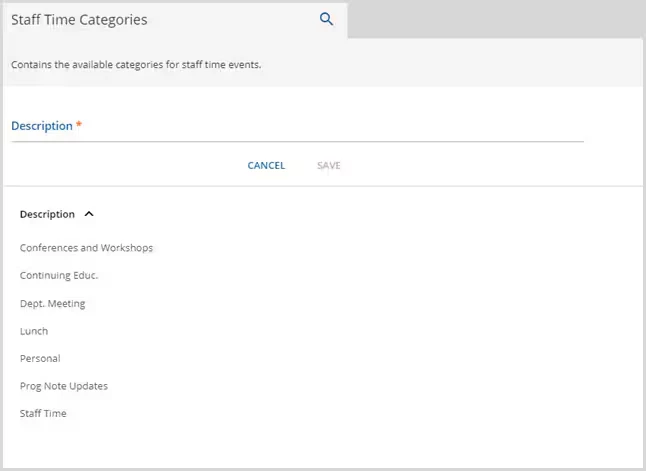
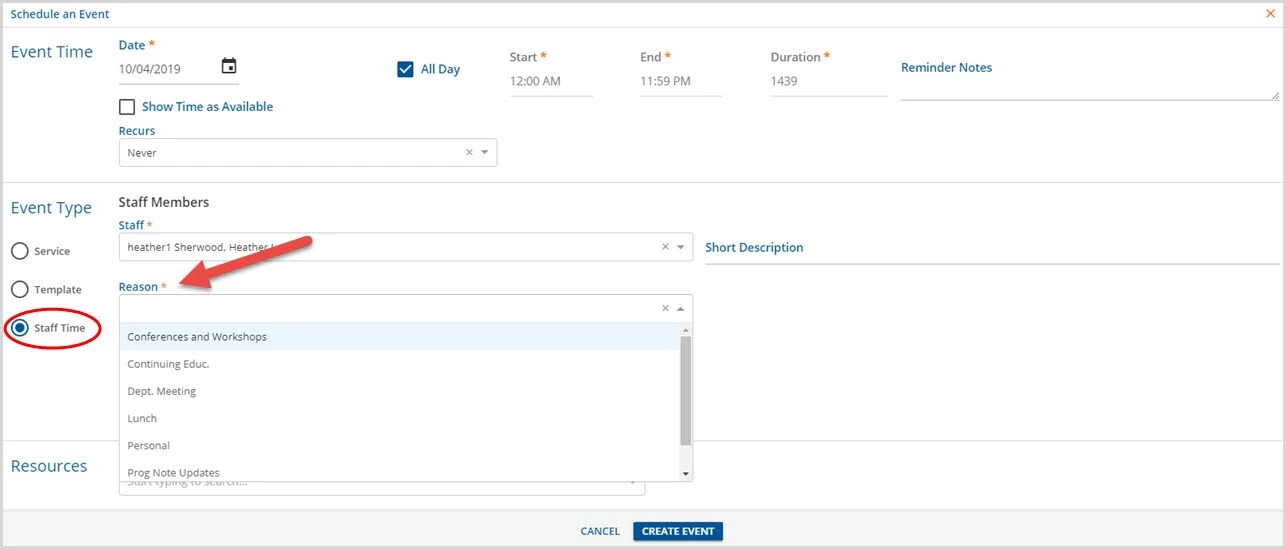
- These categories populate the drop-down list of the required Reason field when scheduling a Staff Time Even in the Fiscal Overview > Clinical Home > Scheduler.
-
State Reporting Ethnicities
Contains the state reporting ethnicities.
- Entered in Clients > Profile > Ethnicity (State) field.
- Code - may be up to 2 characters maximum length.
- Description - may be up to 100 characters maximum length.
Service Definition Categories
Contains the service definition categories.
- Description is the only required field.
- EndDate - optional field
- StartDate - optional field.
- Populates the Service Definition Category field in Configuration - Services/Payers > Service Definitions > Profile.
Veteran Status
Contains values for Veteran Status.
- Entered in Clients > Profile > Veteran Status field.
- Code - may be up to 5 characters maximum length.
- Description - may be up to 100 characters maximum length.