


Components contain the details of the Services available for Staff during the setup of Service Definitions and for use in Service Entry.
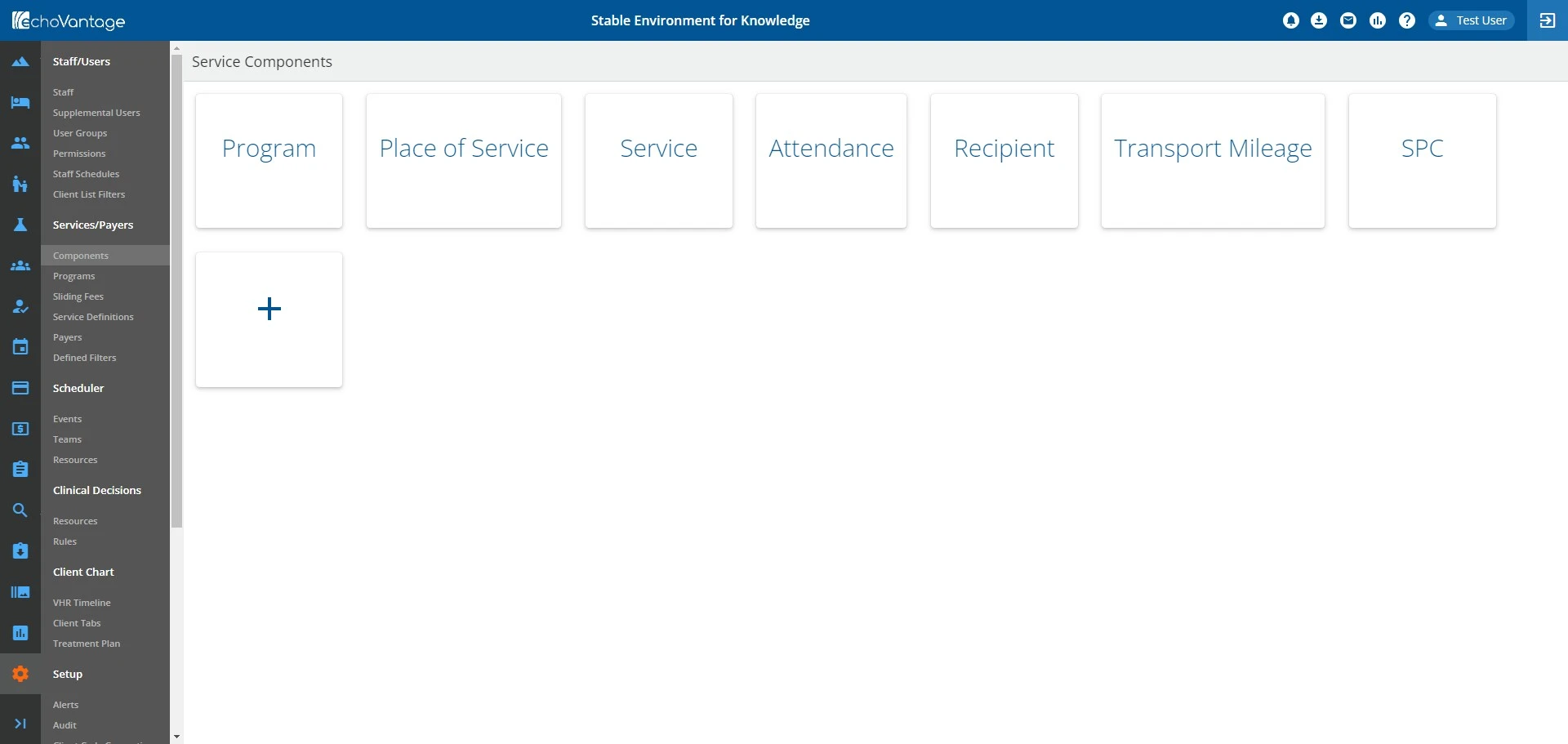
Component labels in Service Entry and throughout the application duplicate the configuration and values setup in this screen. As a minimum, the five base components will always be present (Program, Place of Service, Service, Attendance, and Recipient), and any custom additions made by the organization. The labels can be changed.
Add a New Component
To add a new component, click the white box with the + sign. Use the grid to enter the component name.
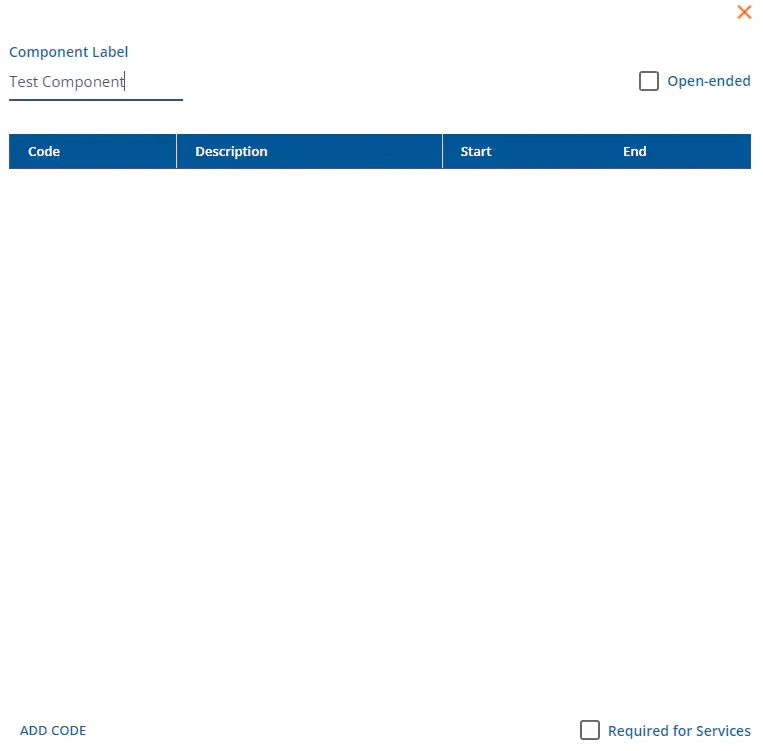
Click within the Component Label to add or change the Component Name.
Check the Open-Ended box if the component will not use a dropdown list.
Click the blue Add Code text button to add the options that will be available to select in the dropdown list associated with the component.
- Code - Enter the Code that will be used for Service Entry.
- This field has a maximum length of 20 characters.
- Codes may be entered out of numerical sequence.
-
NOTE: Use of any special characters ("-", "/", "#", "@") will prevent the code from saving but no error displays.
-
NOTE: The application sorts the entire list in ascending code order upon exiting the form.
- Description - Enter description of the component, up to 100 characters.
- Start Date - This is the date the component becomes active in the system.
- End Date - This is the date the component is no longer active.
- Both Start Date and End Date are entered in "mm/dd/yyyy" format.
- The information of each field is recorded once the user clicks out of the field or navigates to the next field.
Check the Required for Services check box if the component will be required during Service Entry.
Edit a Component
Click on any existing component box to edit.
IMPORTANT: Codes previously entered in the Code field cannot be deleted. The user must enter an End Date to mark the code inactive. A warning message will appear when attempts to edit Code information are performed.
Click within any field and make changes.
Additional codes can be added by following the Add Code process steps, as described in the Add a New Component section.
Recorded information will be saved when the user navigates away from the field or closes the window.