


Permissions Required: You must have Administrator Permissions or higher.
You can track and notify administrators and staff members about document expiration dates. This will allow them to renew documents in a timely manner.
Note: View client document tracking actions in your organization's Activity Log: document added, document deleted, document alert turn on/off, document type added, document type deleted, document type edited.
Jump To Section:
View Client Documents
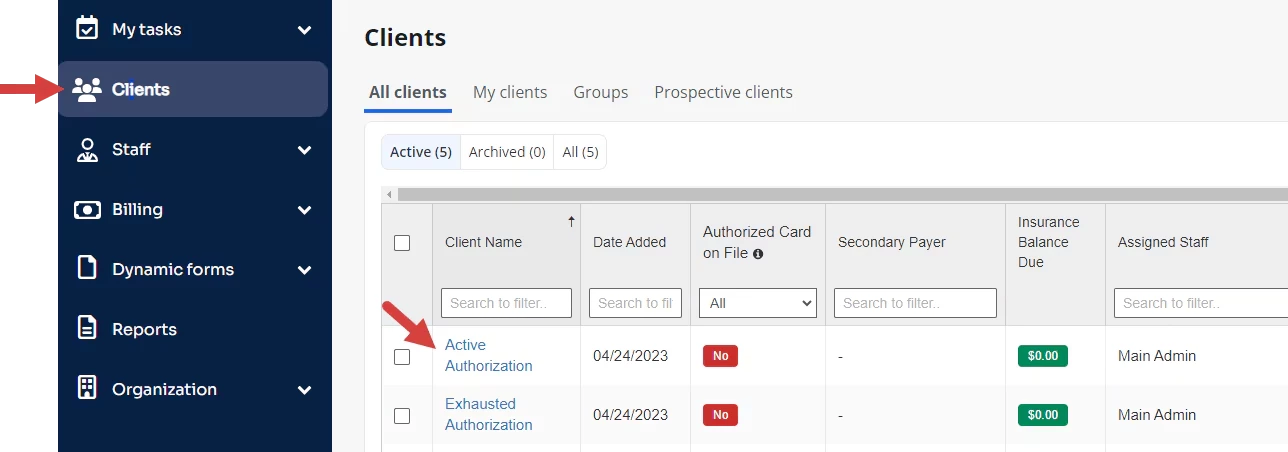
- Click client name from the Clients page.
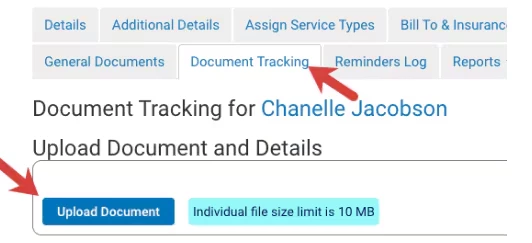
- Click the Document Tracking tab.
Note:
The Document Tracking tab will be hidden if you do not have the Can view/edit Client Document Tracking permission.

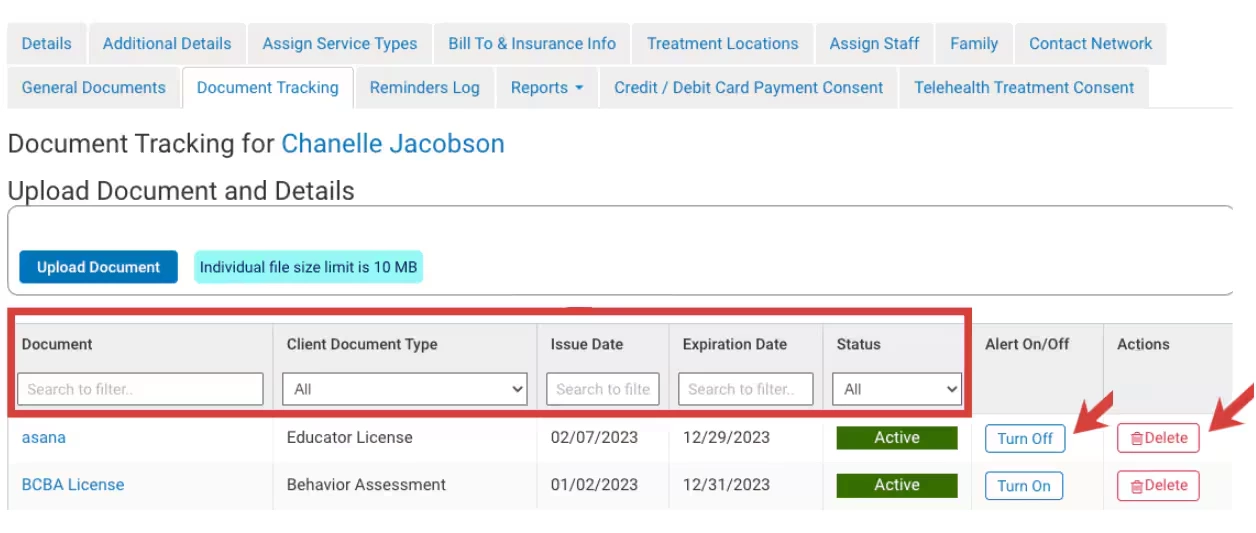
- View document details according to:
- Document Name - click on the document name to download.
- Client Document Type
- Issue Date
- Expiration Date
- Status
- Turn notifications on to send staff and administrators alerts when documents are set to expire.
- Click Delete to delete the document.
Credential Document Alerts
- Turn notifications on to send staff members and administrators alerts when credential documents are set to expire.
- Alerts will trigger 30 days in advance of the Expiration Date and will be sent once a week within the 30-day period until they are stopped by either: The Alert being manually turned off by a user on the Document Tracking page OR the expiration date has passed.
- If a client document is expired the alert button will be inactive.
- Staff and administrators are notified of expirations through the alert bell at the top of the page.
Upload Documents
You can upload any file type up to 50mb.
- Navigate to the client Document Tracking tab and click Upload Document.
- Choose the file you want to upload and enter Document Name (required)
- Enter Document Name (required)
- Enter Client Document Type (required)
- Enter Issue Date if it is an expiring document type.
Note: This field will not display if it is a non-expiring type.
- Enter Expiration Date (required if it is an expiring document)
- Select Turn on Alert if you want to be notified when a document is set to expire.
- Click Save
Upload Document with Expiration Date
Upload Document without Expiration Date
Delete Documents
- Click Delete for the desired document.
Note: A warning message opens to let you know the document and its tracking data will be permanently deleted.
- Click Delete again to remove the document.
