Client Details entered here are pulled into many functions within the system such as scheduling, notes, appointment reminders, and billing. It's important to enter correct information here to avoid receiving errors in the system.
First, Add a New Client or activate a Prospective Clients, and then add or edit client details.
Jump to Section:
Access Client Details
- Click Clients in the navigation bar, then select All Clients from the drop-down.
- Scroll to or search for the Client.
- Click Client Name to open Client Details.
- Edit or enter Client information.
- Click Save button.
Client Details Display
The Client Details page displays key information about the client in a series of tiles.

There are permission-based visibility and data requirements for these tiles. Below is an overview of the logic applied to each tile:
- Client Balance Due
-
PERMISSIONS REQUIRED: Billing permissions
-
- Client Credit
-
PERMISSIONS REQUIRED: Billing permissions
-
- Insurance Balance Due
-
PERMISSIONS REQUIRED: Billing permissions
- Additional Conditions: Must have either an active payer, or an insurance balance.
-
- Primary Insurance
-
PERMISSIONS REQUIRED: Billing permissions
- Additional Conditions: Must have an active primary payer.
-
- Secondary Insurance
-
PERMISSIONS REQUIRED: Billing permissions
- Additional Conditions: Must have an active secondary payer.
-
- Primary Copay
-
PERMISSIONS REQUIRED: Billing permissions
- Additional Conditions: Must have an active primary payer, and a copay entered.
-
- Next Appointment
- No permission restrictions.
Example Layout
Tiles appear at the top of the Client Details page, as described below:
- Client Balance Due: Displays the client’s outstanding balance.
- Client Credit: Shows any available credit.
- Insurance Balance Due: Displays insurance-related balances.
- Primary Insurance: Shows the active primary payer.
- Secondary Insurance: Displays the active secondary payer.
- Primary Copay: Indicates the copay amount if applicable.
- Next Appointment: Displays the client’s upcoming appointment status.
Add or Edit Client Details
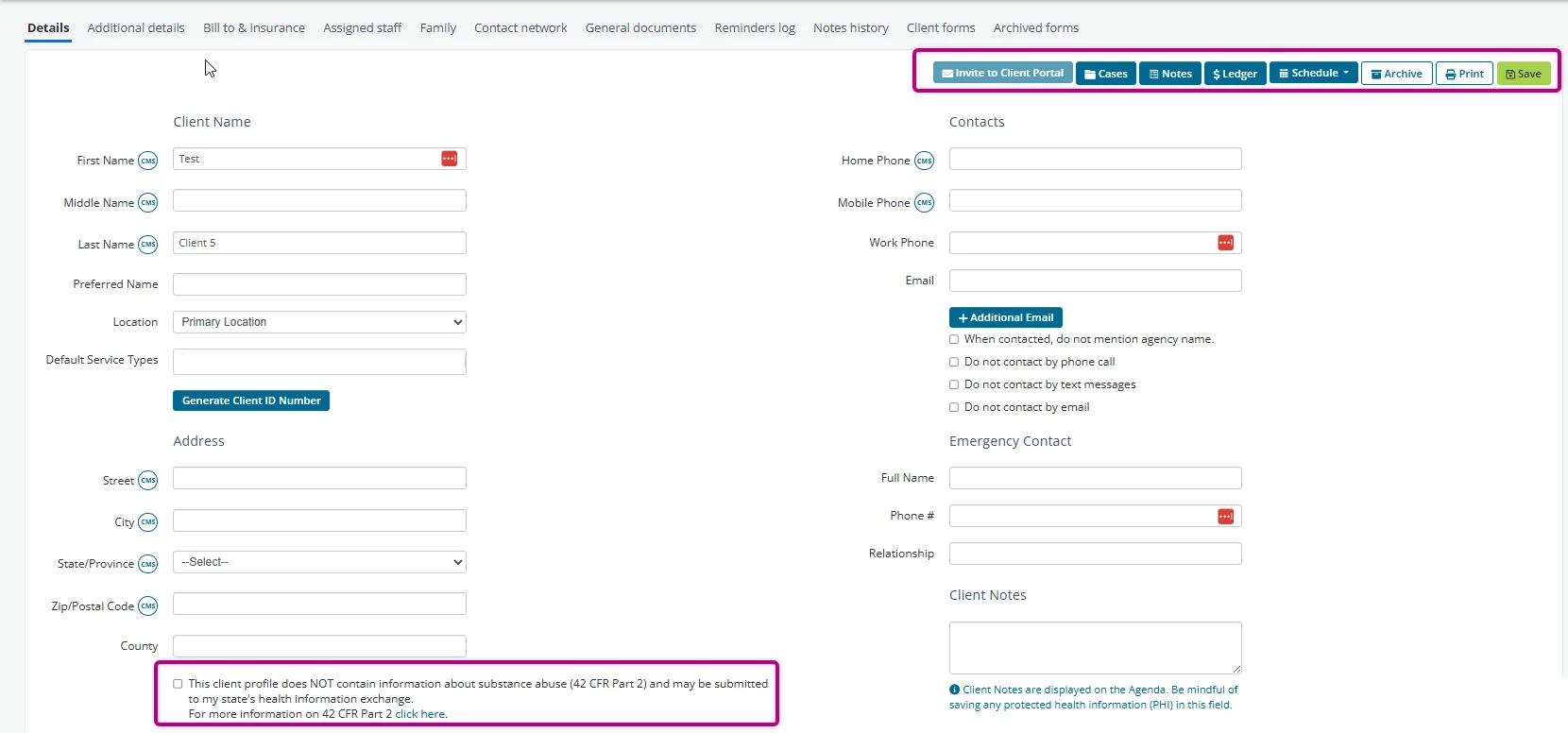
- Fields with the CMS icon are included on the CMS 1500 when submitting to insurance.
Click the CMS icon to see what field is populated on the CMS 1500 form. - If billing to insurance the following fields must be included to prevent claims from being rejected:
- First and last name
- Client ID Number
- State (2 characters only)
- Birth Date
- Legal Sex
NOTE: If using insurance, select the sex on file with your insurance policy. Insurance companies require this information for billing.
- Mobile Phones must be included to use phone or text notifications.
- Email must be included to use email notifications and/or the client portal.
- Select the checkbox if the client's profile does not contain information about substance abuse. You will then be able to submit the client's information to your state's health information exchange.
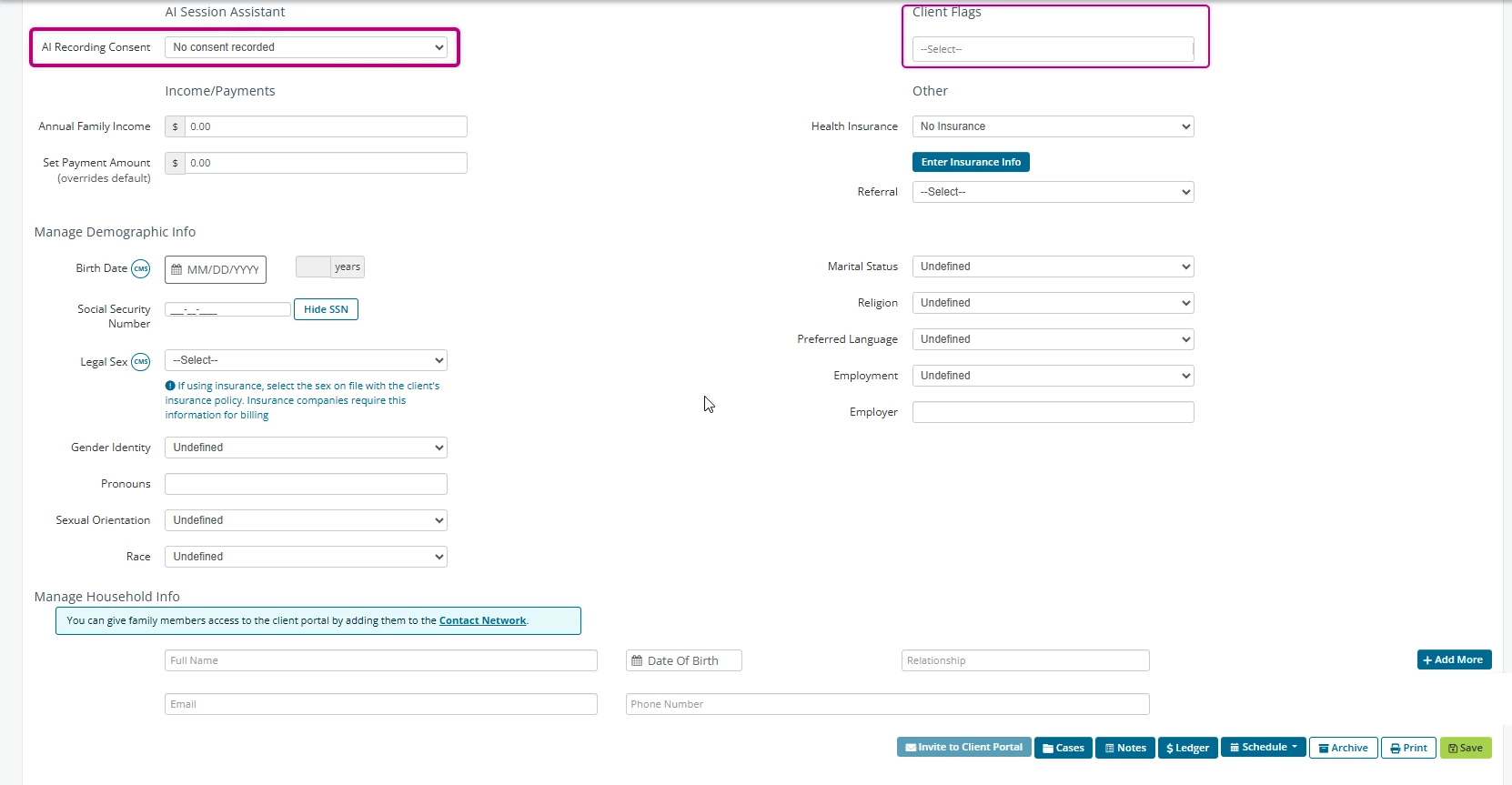
- Client Flags may be added to mark the Client EHR with important information related to their billing, scheduling, or clinical status.
- For clients using the AI Session Assistant add-on, an AI Recording Consent field is available. This field indicates whether a client has provided consent for recorded sessions. The default value is “No consent recorded,” which requires providers to obtain consent before each recorded session. Providers can update the field to “Yes - client consents” or “No - client does not consent” using the dropdown, to document the client’s current consent status.