


Permissions Required: You must be Therapist assigned to Case.
Jump To Section:
Group Notes
You can add Group Notes. This is different than adding Group Progress Notes and applying it to ALL Group Members.
- Click Clients tab in primary navigation bar.
- Click Groups tab.
- Click Notes button. The Group Notes and Attendance tab opens.

- Click Details from the appropriate summary.

- Select Appointment from drop-down.
- Add a summary for the overall session.
- Click Save, or Save and E-Sign to sign the document.
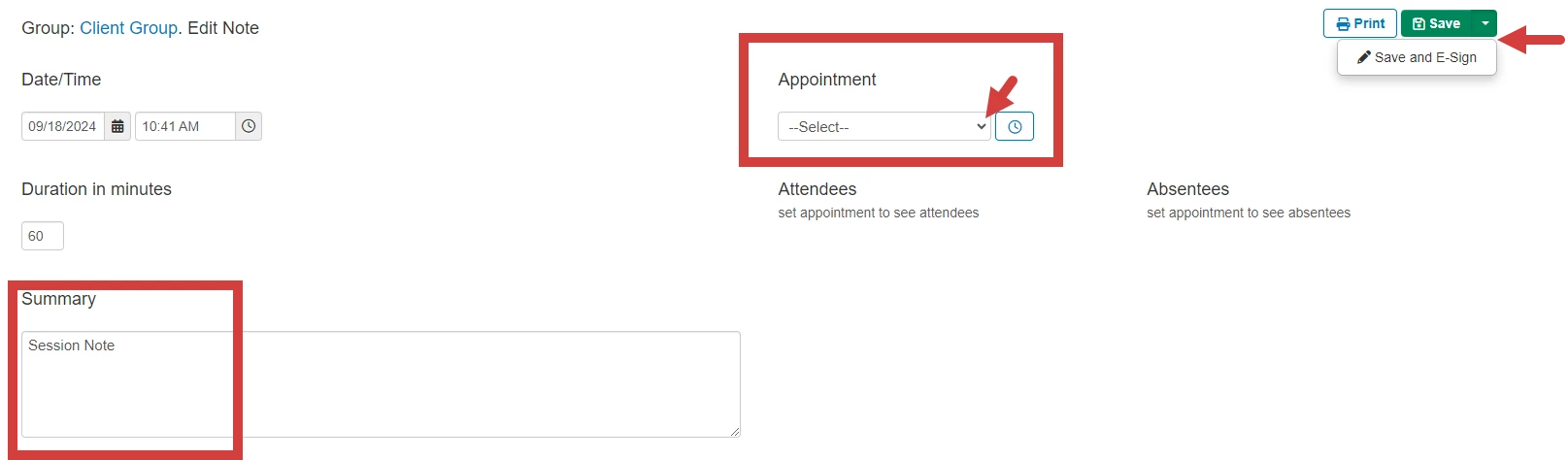
Note: If a therapist's permissions require a supervisor's approval or signature on notes, the therapist will select Save & Submit to Supervisor(s). Select Save and submit all from the drop down if you want submit all group notes.

Create Group Note from Agenda
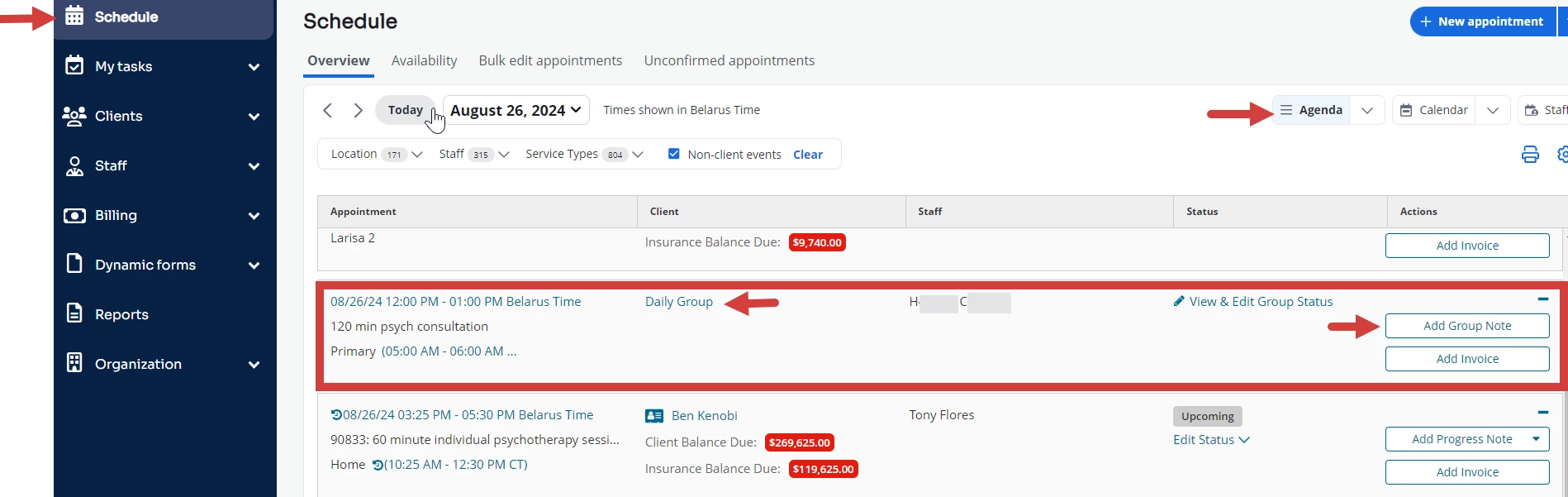
- Click Schedule from primary navigation bar.
- Click Agenda.
- Click Add Group Note for the appointment.
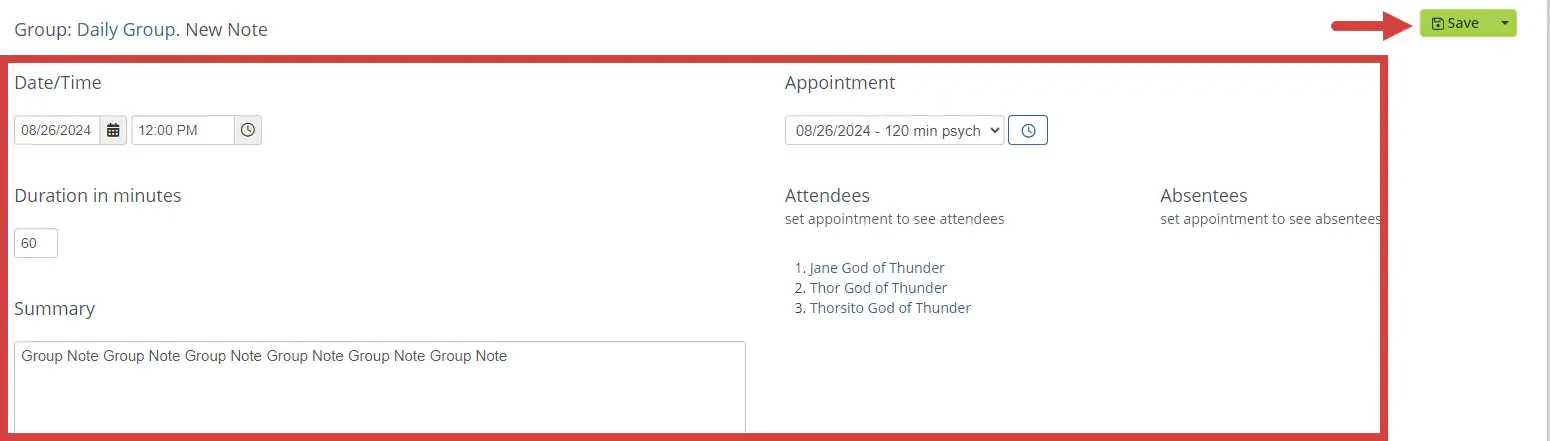
- Enter note information
- Click Save.
Co-Sign Group Notes
- Click Clients tab in primary navigation bar.
- Click Groups from side navigation.
- Click Notes button and Group Notes and Attendance tab opens.
- Select Details for the desired Appointment.
- A notification displays at top. "This document is signed and no further editing is allowed. Click here to view or co-sign the document."
- Click the here link.
- Click Sign the Document button.

You'll then see both Staff Signatures on the document.