



The Mental Status Exam (MSE) is one of the Core Assessments included standard within the product. This form is based on a modified APA MSE template and is a tool to assess the mental status of a patient.
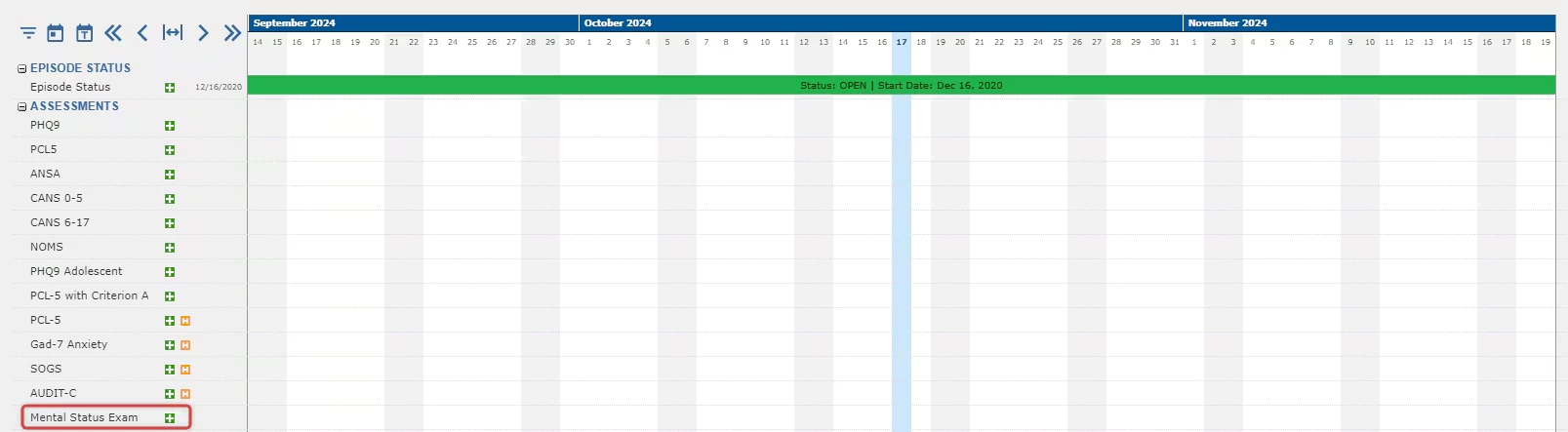
The user can access the form directly in the Timeline by clicking the green + sign to the right of the form header. The form window will pop-up displaying the form.
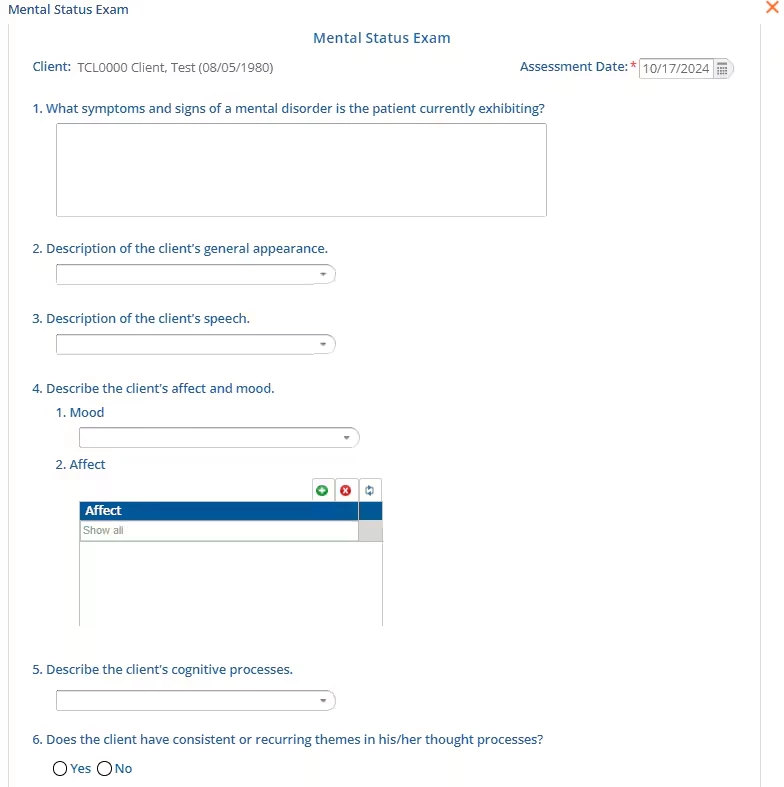
(Statement) 1. What symptoms and signs of a mental disorder is the patient currently exhibiting? - The field is free text to be entered by the user.
(Statement) 2. Description of the client's general appearance. - This field is populated with configured options from the MSE General Appearances defined list in Configuration - Setup > Defined Lists.
(Statement) 3. Description of the client's speech. - This field is populated with configured options from the MSE Client Speech Descriptions defined list in Configuration - Setup > Defined Lists.
(Statement) 4. Describe the client's affect and mood.
- Mood - This field is populated with configured options from the MSE Client Moods defined list in Configuration - Setup > Defined Lists.
- Affect - This field is populated with configured options from the MSE Client Affects defined list in Configuration - Setup > Defined Lists. Click the green + button icon to add a value to the Affect table. Multiple values can be added. Click the red x button icon to remove a selected value from the table.
(Statement) 5. Describe the client's cognitive processes. - This field is populated with configured options from the MSE Client Cognitive Processes defined list in Configuration - Setup > Defined Lists.
(Statement) 6. Does the client have consistent or recurring themes in his/her thought processes? - The user can select from a set of available responses. These responses are:
- Yes
- No
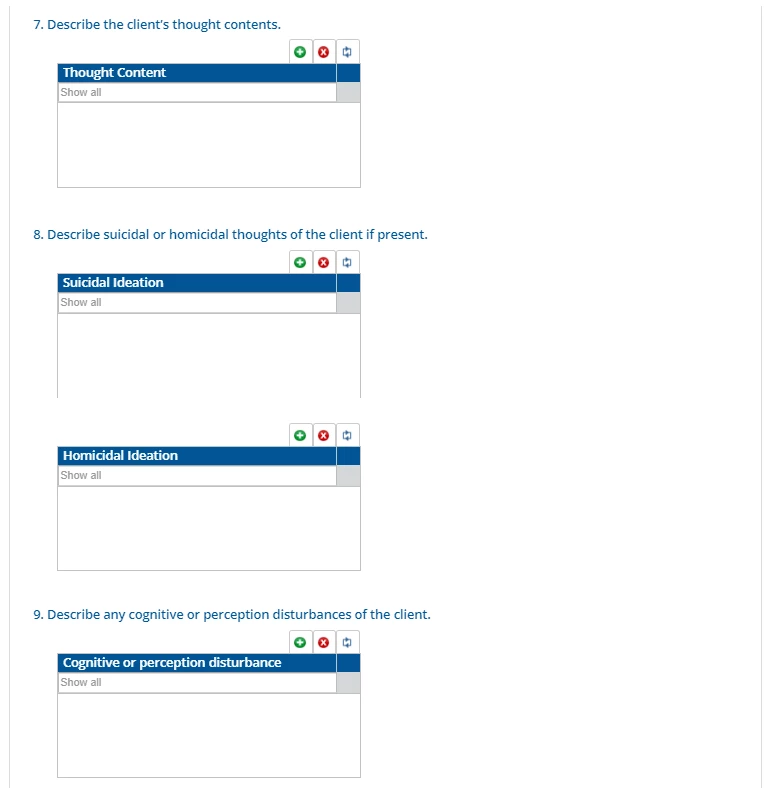
(Statement) 7. Describe the client's thought contents. - This field is populated with configured options from the MSE Client Thought Contents defined list in Configuration - Setup > Defined Lists.
(Statement) 8. Describe suicidal or homicidal thoughts of the client if present.
- Suicidal Ideation - This field is populated with configured options from the MSE Suicidal Ideations defined list in Configuration - Setup > Defined Lists. Click the green + button icon to add a value to the Suicidal Ideation table. Multiple values can be added. Click the red x button icon to remove a selected value from the table.
- Homicidal Ideation - This field is populated with configured options from the MSE Homicidal Ideations defined list in Configuration - Setup > Defined Lists. Click the green + button icon to add a value to the Homicidal Ideation table. Multiple values can be added. Click the red x button icon to remove a selected value from the table.
(Statement) 9. Describe any cognitive or perception disturbances of the client.
- Cognitive or perception disturbance - This field is populated with configured options from the MSE Cognitive or Perception Disturbances defined list in Configuration - Setup > Defined Lists. Click the green + button icon to add a value to the Cognitive or perception disturbance table. Multiple values can be added. Click the red x button icon to remove a selected value from the table.
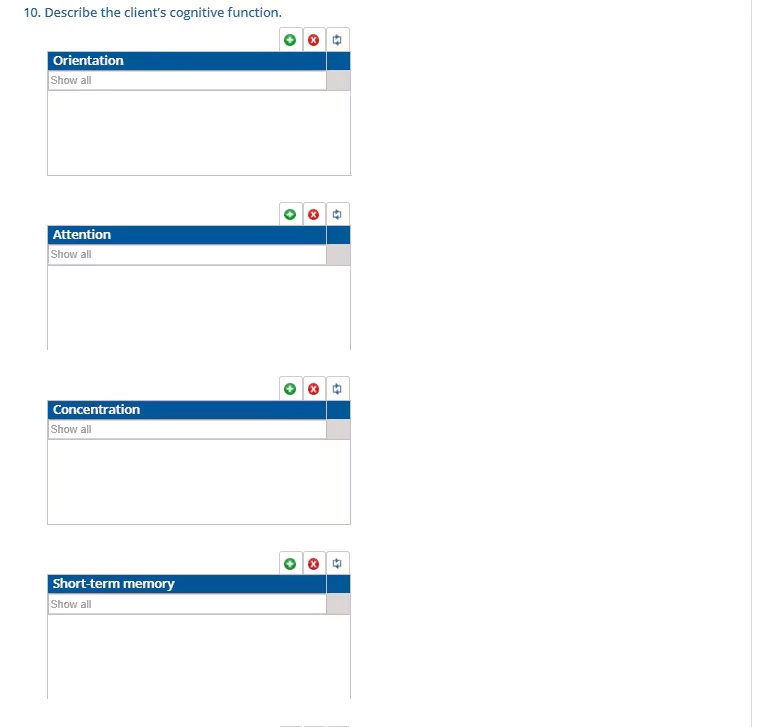
(Statement) 10. Describe the client's cognitive function.
- Orientation - This field is populated with configured options from the MSE Client Cognitive Orientations defined list in Configuration - Setup > Defined Lists. Click the green + button icon to add a value to the Orientation table. Multiple values can be added. Click the red x button icon to remove a selected value from the table.
- Attention - This field is populated with configured options from the MSE Client Cognitive Attentions defined list in Configuration - Setup > Defined Lists. Click the green + button icon to add a value to the Attention table. Multiple values can be added. Click the red x button icon to remove a selected value from the table.
- Concentration - This field is populated with configured options from the MSE Client Cognitive Concentrations defined list in Configuration - Setup > Defined Lists. Click the green + button icon to add a value to the Concentration table. Multiple values can be added. Click the red x button icon to remove a selected value from the table.
- Short-term memory - This field is populated with configured options from the MSE Client Short-term Memory Ranges defined list in Configuration - Setup > Defined Lists. Click the green + button icon to add a value to the Short-term memory table. Multiple values can be added. Click the red x button icon to remove a selected value from the table.
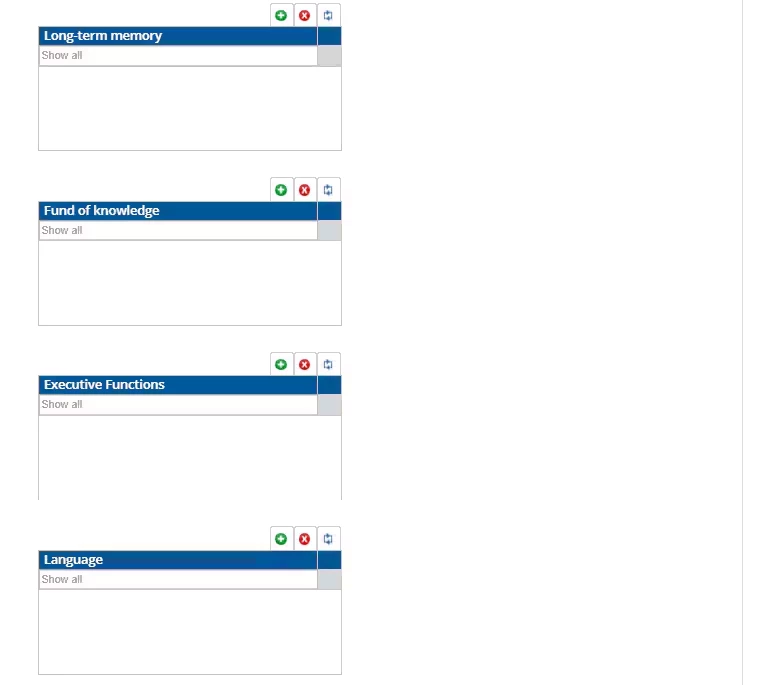
- Long-term memory - This field is populated with configured options from the MSE Client Long-term Memory Ranges defined list in Configuration - Setup > Defined Lists. Click the green + button icon to add a value to the Long-term memory table. Multiple values can be added. Click the red x button icon to remove a selected value from the table.
- Fund of knowledge - This field is populated with configured options from the MSE Client Knowledge Funds defined list in Configuration - Setup > Defined Lists. Click the green + button icon to add a value to the Fund of knowledge table. Multiple values can be added. Click the red x button icon to remove a selected value from the table.
- Executive Functions - This field is populated with configured options from the MSE Client Executive Functions defined list in Configuration - Setup > Defined Lists. Click the green + button icon to add a value to the Executive Functions table. Multiple values can be added. Click the red x button icon to remove a selected value from the table.
- Language - This field is populated with configured options from the MSE Client Language Impairments defined list in Configuration - Setup > Defined Lists. Click the green + button icon to add a value to the Language table. Multiple values can be added. Click the red x button icon to remove a selected value from the table.
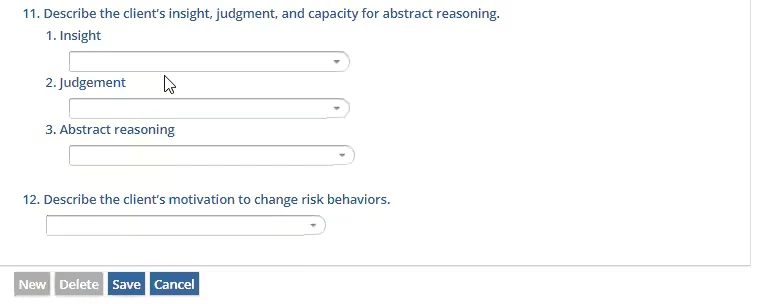
(Statement) 11. Describe the client's insight, judgement, and capacity for abstract reasoning. -
- Insight - This field is populated with configured options from the MSE Client Insights defined list in Configuration - Setup > Defined Lists.
- Judgement - This field is populated with configured options from the MSE Client Judgements defined list in Configuration - Setup > Defined Lists.
- Abstract reasoning - This field is populated with configured options from the MSE Abstract Reasonings defined list in Configuration - Setup > Defined Lists.
(Statement) 12. Describe the client's motivation to change risk behaviors. - This field is populated with configured options from the MSE Client Motivation to Change defined list in Configuration - Setup > Defined Lists.
Once responses have been selected for the statements, remember to click Save to record the entered information.
Another user can be notified that the MSE was completed by selecting the SEND button. By selecting SEND and Review Requested, the message will show in their inbox with a link to the MSE to be reviewed. Select Request Signature to require the message recipient's signature.
A completed MSE form will also display on the Timeline. For this assessment, a blue circle icon is the configured depiction.