After the 270 file has been created and submitted, the 271 Response to Eligibility Request will be returned by the Payer. To view and work with the results of the 271 file, it will need to be imported into the system.
- Hover the mouse over the blue plus "+" until the orange cloud icon appears.
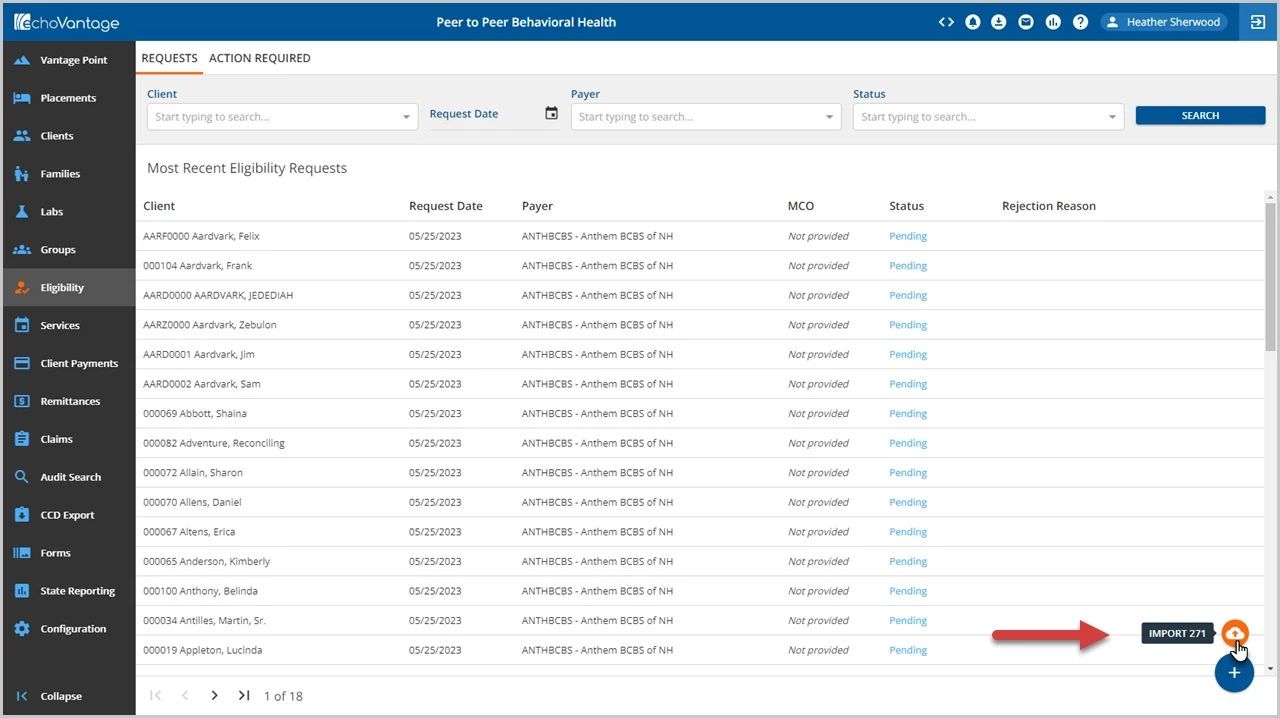
- Select the Import 271 (cloud) icon. A file browser window opens.

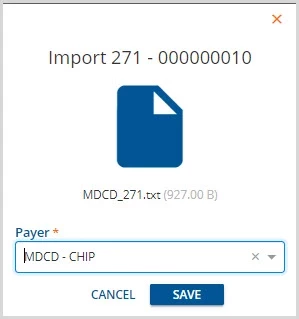
- Locate the 271 file to import and select Open. The Import 271 screen displays. Use the Payer drop-down list to select the Payer for which the 271 is being imported. Click save to begin the Import process.
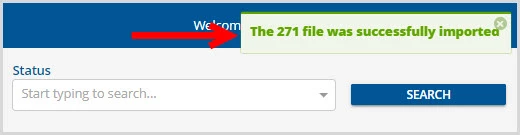
- An on-screen action box will appear to indicate the file was imported successfully. This process is used to update the Client Requests on the Eligibility Requests screen.