


The Client Search from the Clients main menu option that allows searching in an expanded list of fields and field combinations. This new search is fuzzy, which results in faster, fault-tolerant searches and returns a higher number of partially matching results (even if it contains additional or missing characters or other types of spelling errors) for the user to determine the best match. The new search includes the following Client fields:
- Client Code
- Last Name
- First Name
- Date of Birth
- Alias
- Social Security Number
- Phone Number
- Preferred Name
- Enrollment Location
Client Code, Client Name (Last, First), and Birth Date always display on the results card; Aliases only display when one exists. Matches on any of the remaining four fields show on the results card after Birth Date and Aliases. The search results take into account Client List Filters, Emergency Access, and Confidential Client settings as before. When searching, note that:
- The search list displays up to 30 of the top matching results. If the desired Client is not listed, search again using a revised query to refine the results.
- Fields have weights assigned that determine how high in the results a match ranks.
- For example, searching on 1212 displays the following results in the User Guide's test database
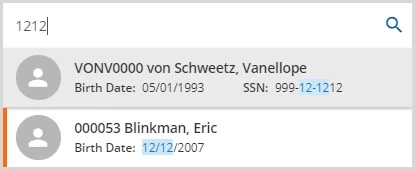
- Both results have exact matches but a Social Security Number match is weighted higher than a Birth Date match so it is displayed earlier in the results.
- Exact matches always outweigh fuzzy matches.
- For example, searching on 1212 displays the following results in the User Guide's test database
- Entering three or more characters triggers the search automatically - press the enter key to search using just one or two characters.
- Keep in mind that a short search will likely have many matches.
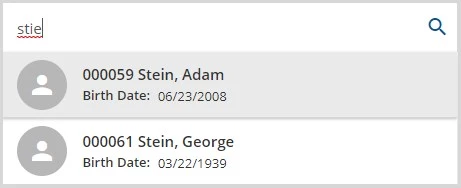
- Exact matches will be listed first in the results, followed by the fuzzy matches.
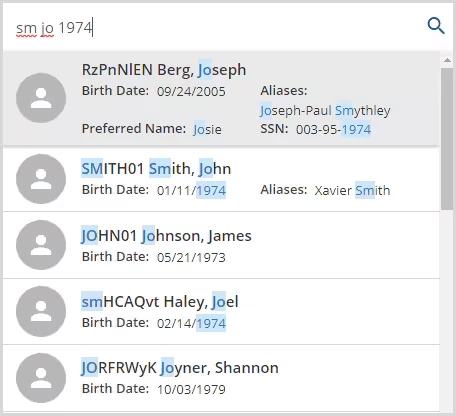
- Matched field information displays with highlighting when there is an exact full or partial match and without any highlighting when there is a fuzzy match.
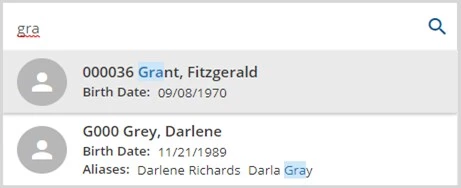
| 
|
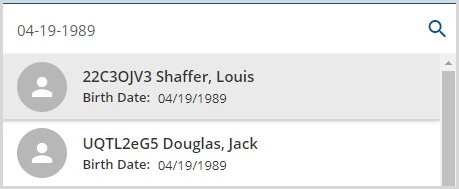
- Numeric searches (Date of Birth, Social Security Number, and Phone Number) result in exact matches when entered with no formatting or correct formatting. The use of incorrect formatting results in fuzzy matches.
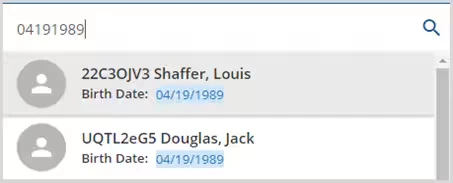
| 
|
- Search for matches in multiple fields by entering multiple search terms.
Advanced Client Search
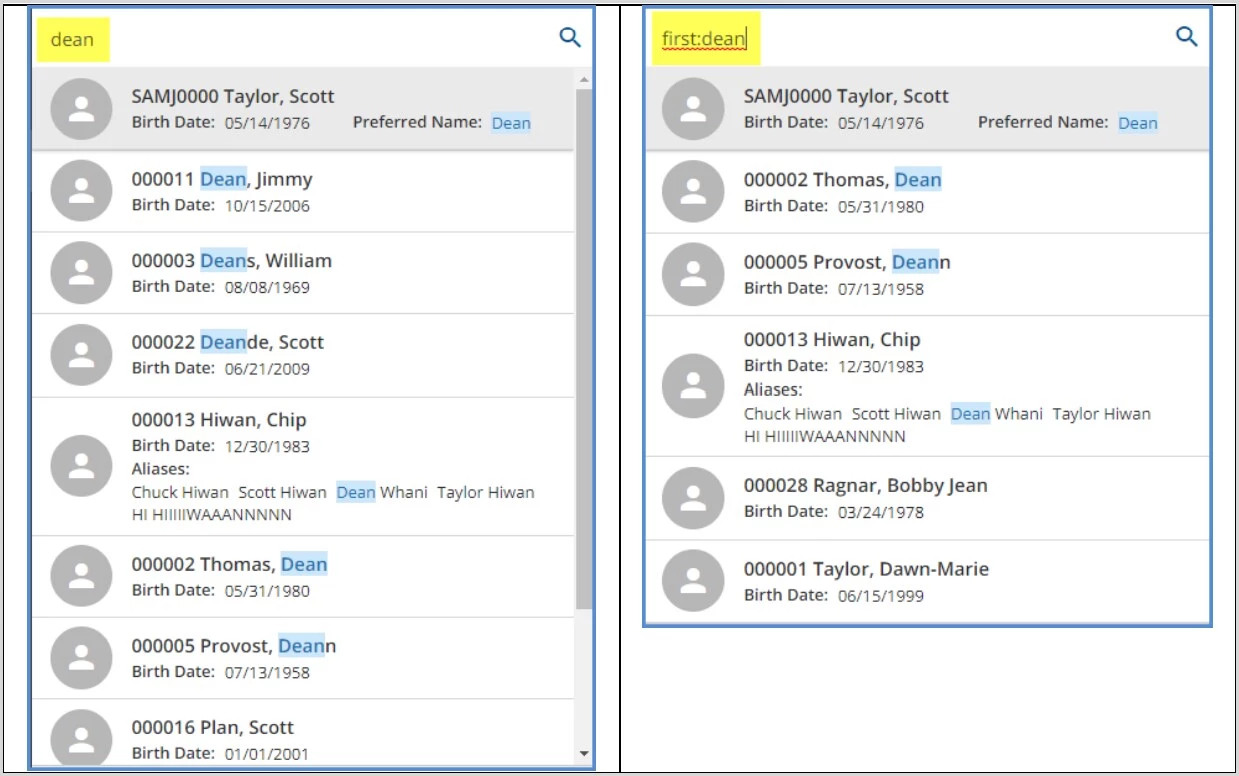
Users have the ability to query specific fields using keywords and group search terms together. When using a field-specific keyword search, the results must match the field searched to display, resulting in more targeted results. For example, a standard simple search for Dean (no data field specified) returns all matching results, exact or fuzzy, with exact matches highlighted. Using the advanced search syntax, first: dean in the example, the search is more specific and returns matches, exact or fuzzy, with Dean in the first name, alias first name, or preferred name but not last name. Just like the smart search, exact matches are highlighted.
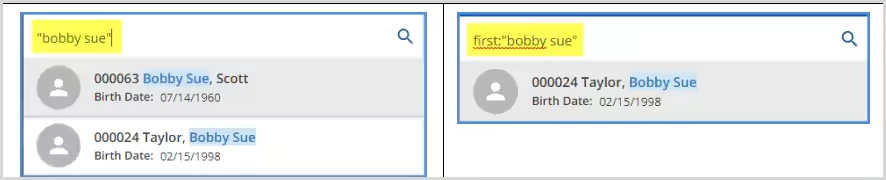
Enclose search text in quotes to group multiple words for treatment as a single search term, such as a location of "Main Office" or a multi-word name like "Bobby Sue." Combine grouped terms with an advanced search keyword, i.e. first: "Bobby Sue" for more specificity.
Simple search (no keyword used) and advanced search (field-specific keyword used) terms can be combined.
The following table lists the Search Term (keyword), the associated data fields in the application, and examples of each:
| Search Term | Data Field Searched in the application | Examples |
|---|---|---|
| ssn, social | Clients > Profile > Social Security # | SSN 999999999 or Social 999999999 |
| dob, birthday, birthdate | Clients > Profile > Birth Date | DOB 19551013, Birthday 10131955, or Birthdate 10/13/1955 |
| The date can be entered in any order with or without formatting | ||
| code, clientCode | Client Code generated when Client was first added to EchoVantage | Code CANT0000 or Client Code CANT0000 |
| phone | Client Phone Numbers (Not Contacts) | Phone 6034478600 or Phone 603-447-8600 |
| The phone number can be entered with or without formatting | ||
| location | Clients > Enrollment > Location | Location 53 |
| first, firstname | Clients > Profile > First Name, Alias First Name, or Preferred Name | First Dean or Firstname Taylor |
| last, lastname | Clients > Profile > Last Name or Alias Last Name | Last Taylor or Lastname Smith |