


Add a Family
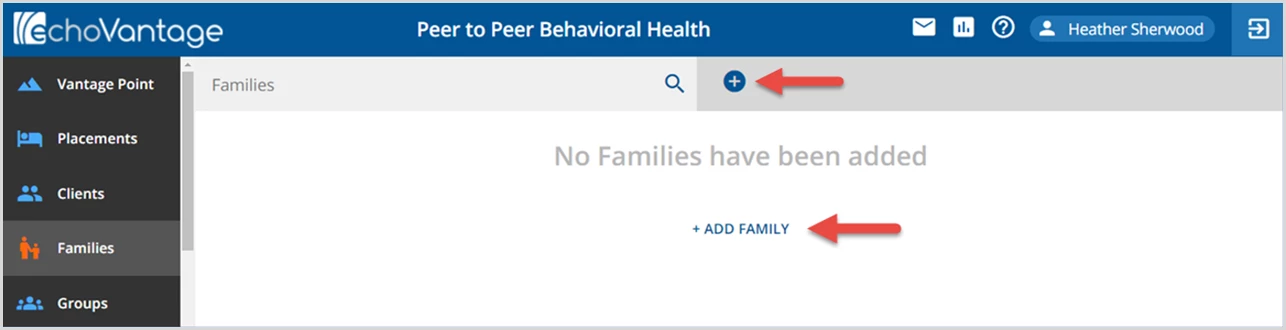
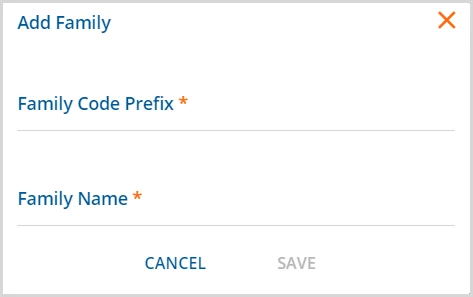
After selecting the Families main menu option, click on the blue +ADD FAMILY button or the blue "+" plus to the right of the search bar. The Add Family screen displays.
| 
| 
|
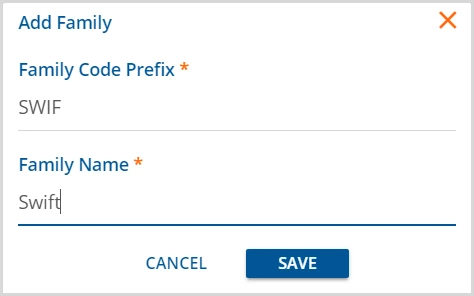
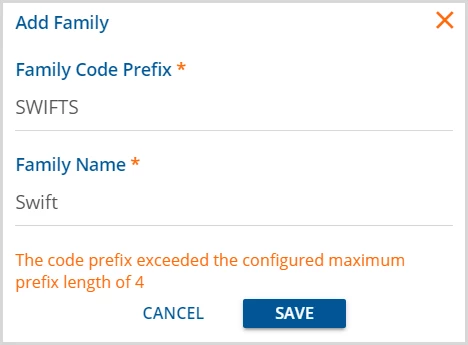
- Family Code Prefix - The prefix is limited to 4 characters by default. An error displays on Save if more than 4 characters are entered.
- A 4-digit suffix, beginning with 0000, is appended to the Prefix to create the Family Code (dbo.Families.Code). These digits are incremented by 1 for each Family added with the same Prefix.
- The addition of a configuration screen, like the one used for Client Code generation, is planned for a future release.
- If needed, the default Max Prefix Characters or Max Suffix Digits can be updated in dbo.ConfigCodeGeneration.
- Family Name - The name can be up to 200 characters.
After a Family is successfully added, the search list is updated.
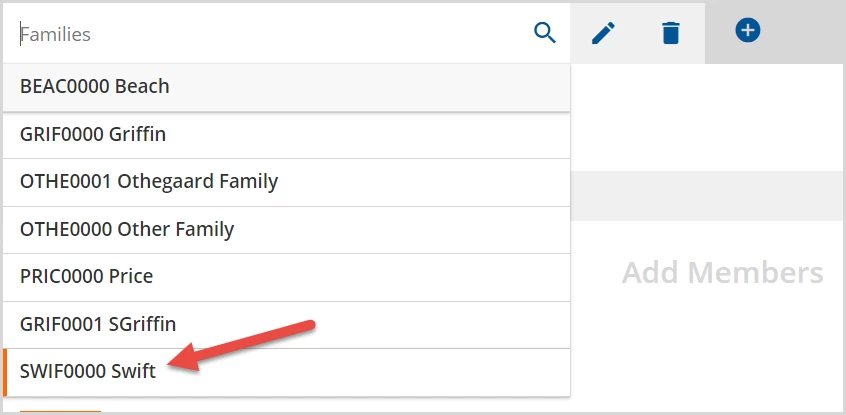
- The Families list is sorted by Family Name.
- When a card is selected, the Family Name displays in the search bar.
- Delete a Family by selecting the delete icon (blue trash can) to the right of the search bar.
- The delete icon is not present when there are existing relationships with the Family Members, Forms, or Documents.
Add Family Members
Select the blue +ADD MEMBER button to add Members to a Family.
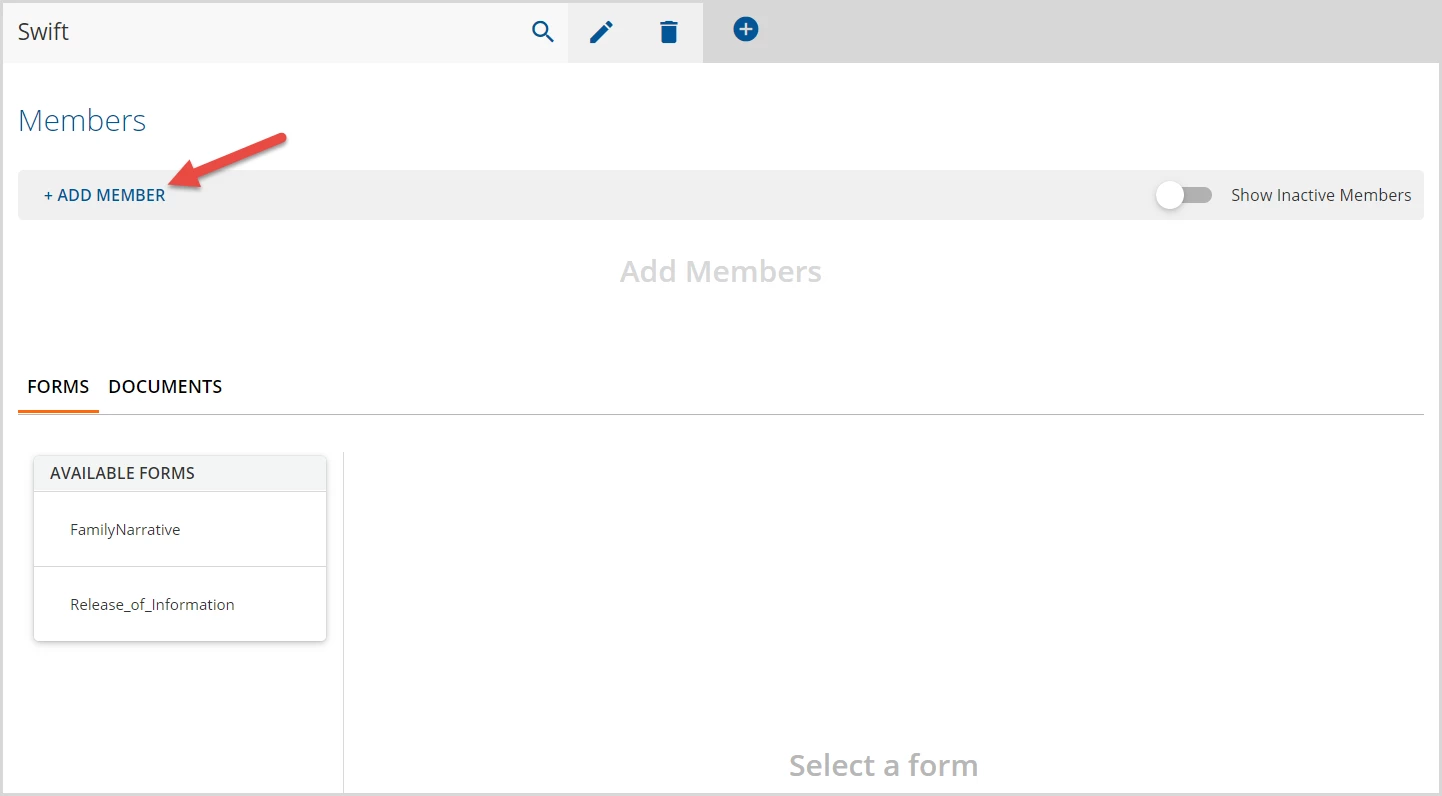
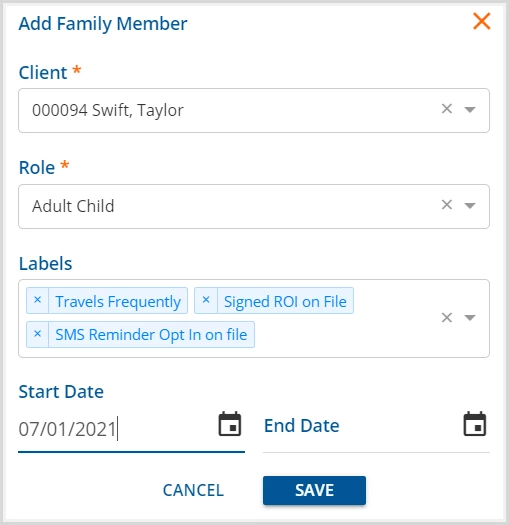
The Add Family Member screen displays.
|
|
Manage a Family
A Family name can be edited if entered in error or the entire Family can be deleted as long as there are no relationships, forms, or documents. To edit a Family name, select the pencil icon to the right of the search bar.

Selecting the edit icon opens the Edit Family screen.
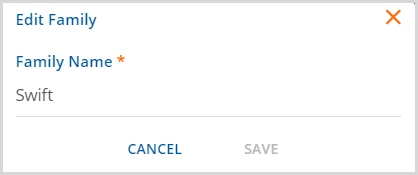
- Enter the correct Family Name and then select SAVE to record the changes.
- Please note that changes cannot be made to the Family Code Prefix.
Manage Family Members
As members are added to a Family, the Client List is populated on the Family screen. From the Family screen, you can edit or delete Members, show or hide inactive members, or view the Client record.
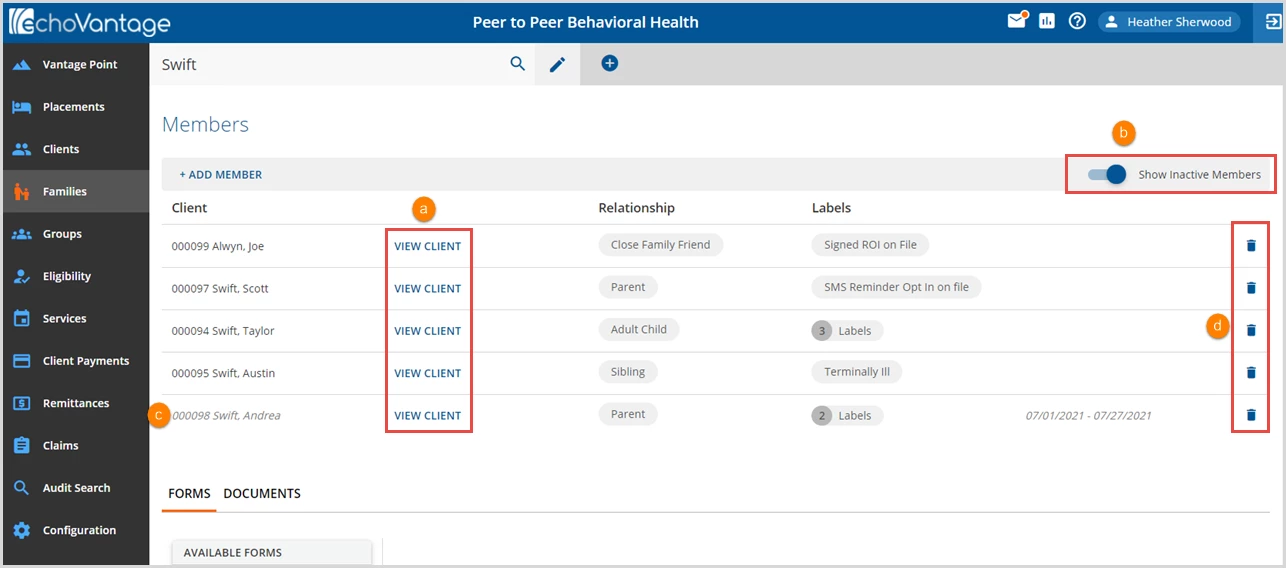
- (a) Select the blue VIEW CLIENT button for quick access to the Clients menu for that Client.
- (b) Toggle the Show Inactive Members slide to enable (blue) or disable (grey).
- (c) Inactive Members Code, Name, and Participation Periods are italicized.
- (d) Note that a previously inactive member can be added to a Family again as long as the effective dates do not overlap.
- (e) Use the delete icon (blue trash can) to remove a Client Member from a Family.
Click anywhere on a member row to Edit a Family Member.
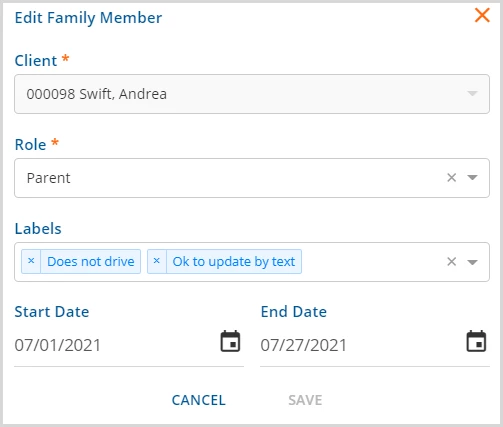
- The Client field is locked but Role, Labels, Start Date, and End Date may be updated.