Jump to Section:
Overview
The Account tab within Clients provides the Client's self-pay balance and primary payer at a glance. Users can also enter payments received from the Client and generate a receipt. Payments entered here may be viewed in a table with other Client payments received throughout the day in the Client Payments main menu option.
NOTE: Access to the type is configured in Configuration - Staff/Users > User Group > Menu Access. The Client Account tab can be designated as Read Only. Users with Read Only access can view payment details and print receipts. Users with Read Only access cannot add a new payment or void an existing payment.
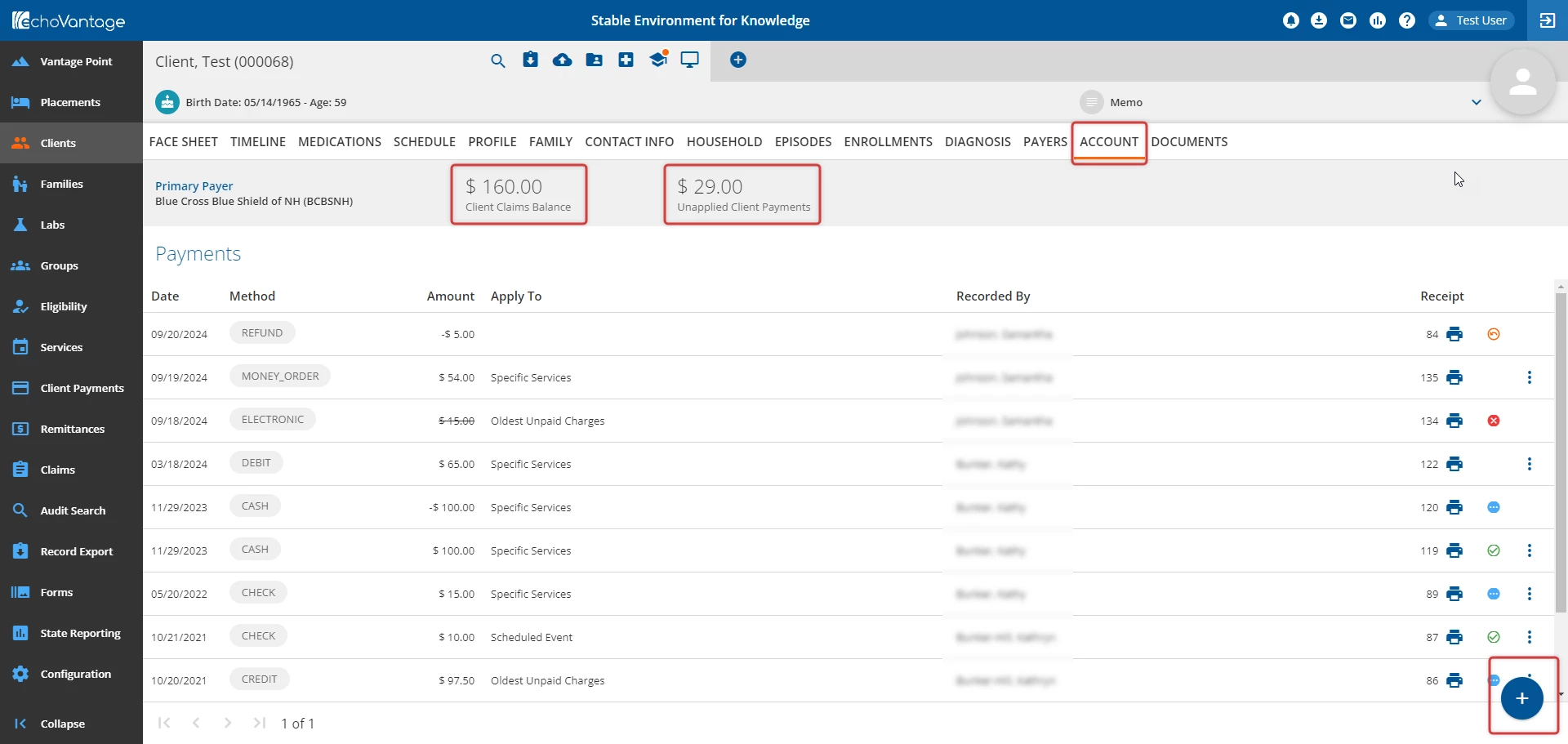
Primary Payer -This displays the current Primary Payer based on the Clients > Payers tab.
Client Claims Balance - This displays the amount currently due from the Client.
Unapplied Client Payments - This displays the total amount from all unapplied payments for the specific Client.
Payments - The Payments table is a list of payments received from the selected Client.
- Date - Listed in descending date order. The payment date defaults to the date of entry.
- Method - The type of payment tendered: Cash, Credit, Debit, Electronic Payment, Money Order, Refund, and Check.
- Amount - The amount of the payment.
- Apply To - Indicates what the client payment was applied to: Oldest Unpaid Charges, Specific Services, or Scheduled Event.
- Recorded By - The name of the user that entered the client payment.
- Receipt - The transaction number assigned to the payment.
A status icon is present at the end of each payment line item to display its processing stage.
-

- Blank (No icon) - New/Unreconciled payment
- Payment was not marked ready in Client Payments > Reconcile.
- This type of payment can be voided. To void a payment:
- Click the dark blue ellipsis icon to the end of the line item.
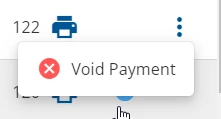
- Click the Void Payment button. A confirmation window will display. Click the blue Void button to confirm the action.
- Click the dark blue ellipsis icon to the end of the line item.
- Blue ellipsis icon - Pending status
- Payment was marked ready in Client Payments > Reconcile and is not applied in Client Payments.
- Green checkmark icon - Applied status with date payment was applied.
- Payment has been fully applied in Client Payments. The resulting remittance is ready for processing or has been processed.
- Red X icon - Voided status
- Orange curved arrow icon - Refunded status
- Payment was refunded to Client.
- Blank (No icon) - New/Unreconciled payment
Add a Payment
Click on the blue + icon to open the New Payment screen and enter a new client payment.
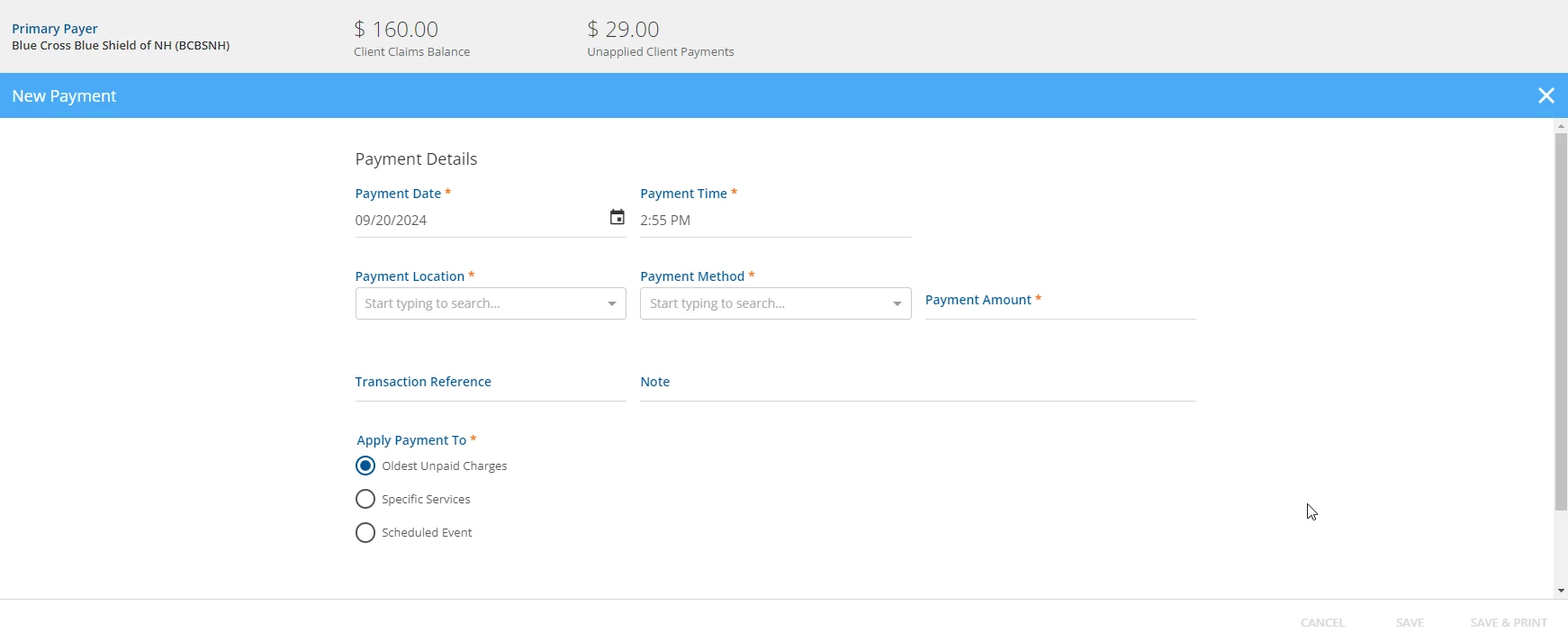
The Payment Date and Payment Time fields default to the current date and time but may be edited to reflect the actual date and time received if payments are entered later.
Payment Location - Select a Payment Location from the drop-down. These locations must be defined by the agency in Configuration - Setup > Defined Lists > Payment Locations.
Payment Method - Select a Payment Method from the drop-down. This is not a defined list and the selections include:
- Cash
- Credit Card
- Check
- Debit Card
- Electronic Payment
- Money Order
Payment Amount - Enter the dollar amount of the payment received.
Apply Payment To - Select how the payment is to be applied. The selection here determines how the payment is applied to Charges and how the payment processes through the system. The options include:
- Oldest Unpaid Charges - The system automatically applies the payment to the oldest invoices after it is reconciled in the Client Payments menu option.
- Specific Invoices - user must manually apply the payment to an invoice or invoices in the Client Payments > Apply Payments tab after the payment is marked as Ready.
- Scheduled Event - When this option is selected, Event Date and Event fields display.
- The drop-down for the Event field only lists scheduled Events for the current Client based on the Event Date selected.
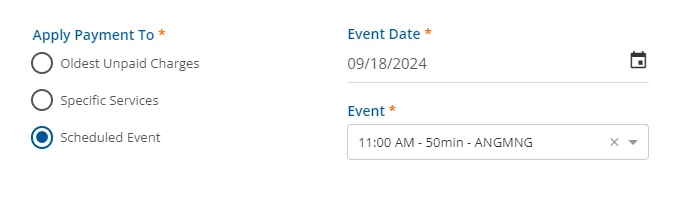
- The drop-down for the Event field only lists scheduled Events for the current Client based on the Event Date selected.
- Click the blue Save button to save the payment. Click the blue Save & Print button to save the payment and open the payment receipt to be printed.
NOTE: Once saved, the Client Payment is then allocated to the selected Event and remains attached until:
-
- The Client Payment is fully applied to the Self Pay Charge resulting from the Service related to the Event. The Payment Status is updated to Applied on the Clients > Account tab. This is automatically handled by the system.
- The Client Payment is partially applied, and the Service created from the specified event has a status of Done.
- The Client Payment remains in Pending status until the associated Services has a Done status.
- After the Service is set to Done and the automated APPLY_CLIENT_PAYMENTS job runs again, the Client Payment Apply To type is updated to Specific Service in place of Scheduled Event.
- The remaining amount is available to apply in the Client Payments > Apply Payments tab when the Client has an Active or Outgoing Self Pay balance.
- The event is deleted.
- A warning displays if deleting an Event with an allocated Client Payment.
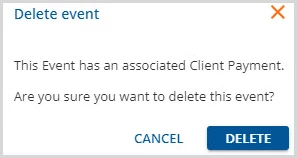
- If the Event deletion is confirmed, the allocated payment will convert to apply to Specific Services.
- A warning displays if deleting an Event with an allocated Client Payment.
- Once a Client Payment is allocated to an Event, and a Self Pay Charge related to that event is generated, the automated APPLY_CLIENT_PAYMENTS job automatically applies the Client Payment and generates a "Ready" remittance. This process is automated.
-
Transaction Reference - This is an optional free text field that accepts a maximum of 20 characters.
NOTE: This is an optional free text field that accepts a maximum of 250 characters. May be used to record additional direction or instruction for the user that reconciles the client payments.
When required fields have been completed, the action buttons will be enabled:
- Cancel - Allows the user to exit without saving or recording changes.
- Save - Allows the user to save the client payment entered.
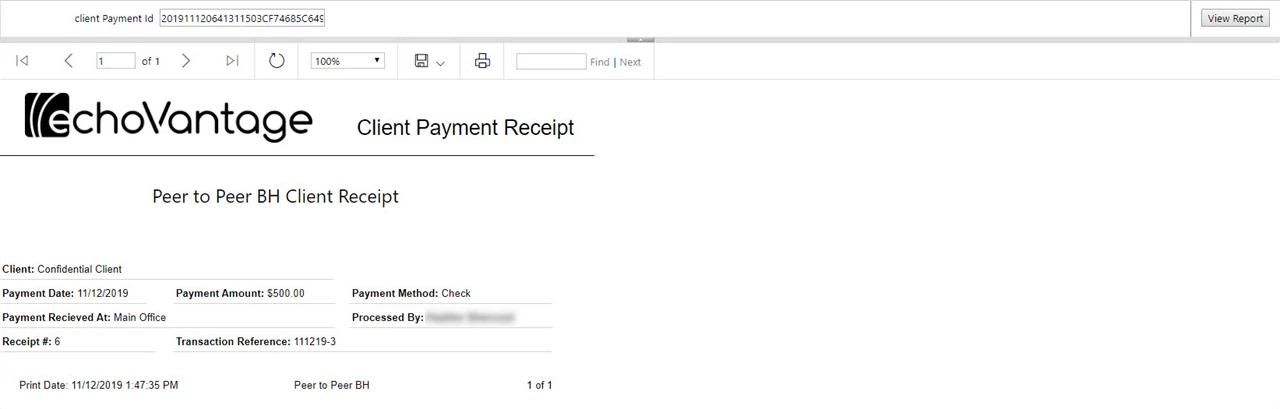
- Save & Print - Allows the user to Save the client payment entered and will open a printable receipt in a new tab. The receipt will be formatted similar to the example below:
View Claims Associated with Payment
Users can view claims associated with a payment with Applied status. These payments will have a green checkmark icon.
- Click within the payment row item to open the Edit Payment screen.
- The Applied To Claims section will display all claims associated with the payment:
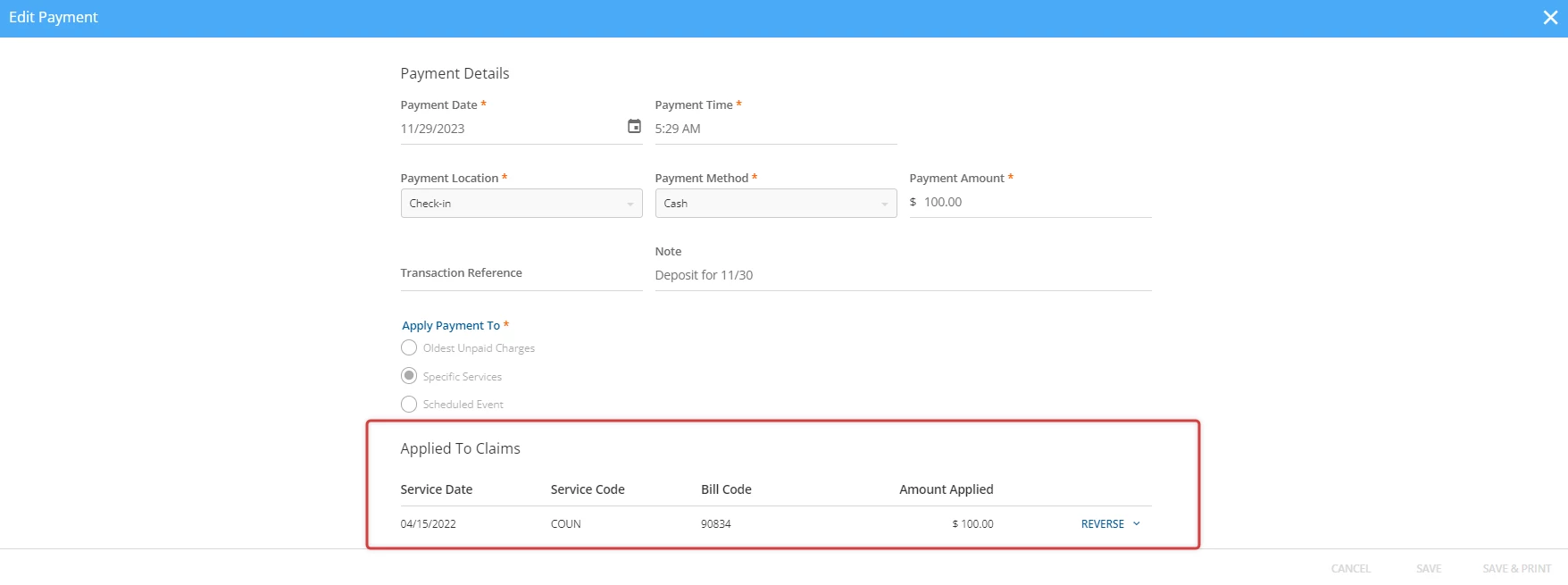
Payment data is present within the Service Date, Service Code, Bill Code, and Amount Applied columns.
Users can reverse a payment within this screen. The blue Reverse text button allows for the payment and/or charge to be reversed.
- Click the Reverse button to open the dropdown options.
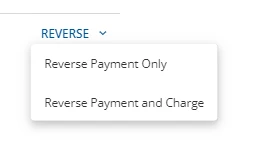
- Click Reverse Payment Only or Reverse Payment and Charge to reverse the payment.
To view the details of a claim:
- Click within the row item.
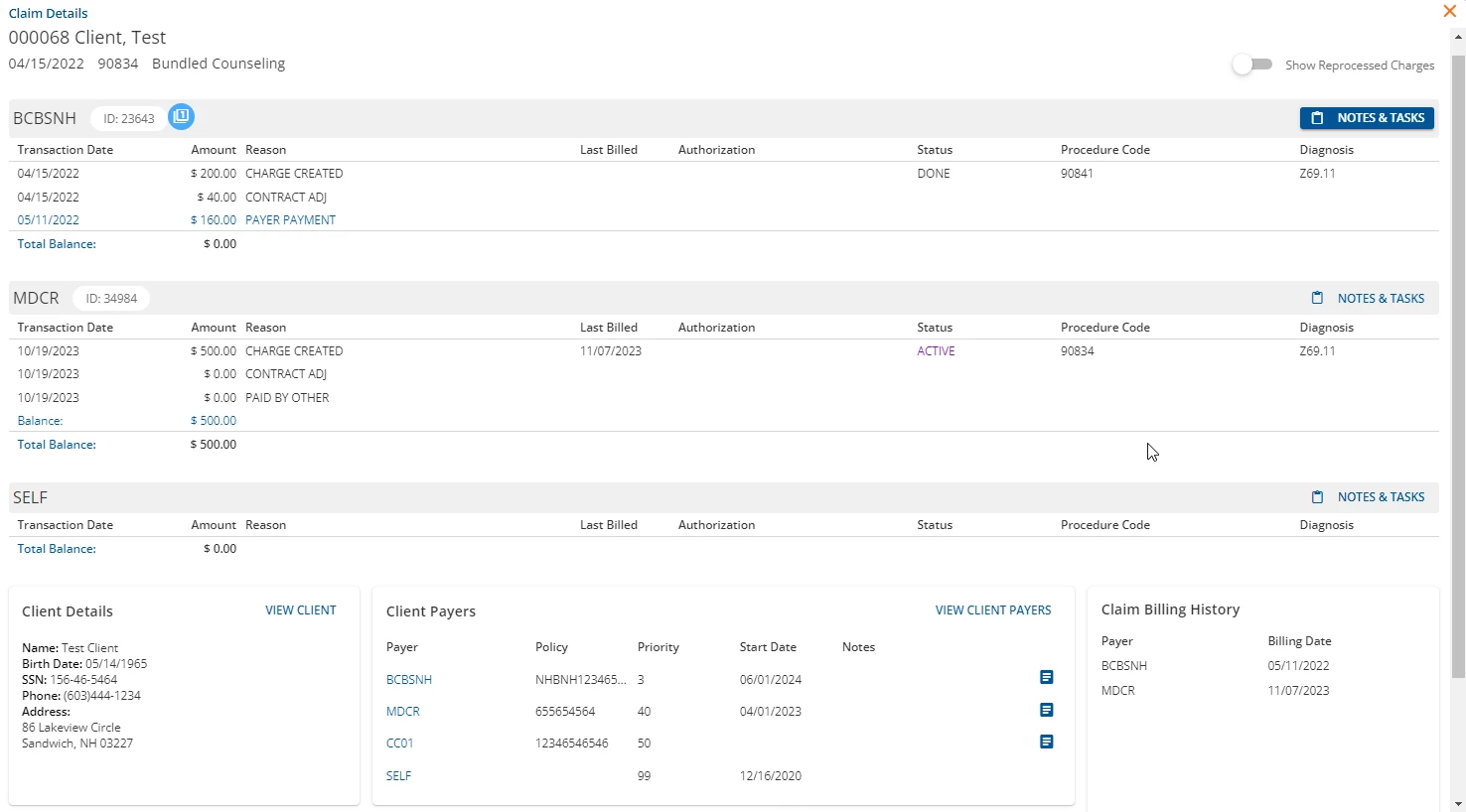
- The Claim Details modal will display, allowing the user to view further billing history and data for the specific claim.