You can send your Client's Intake Forms through the Client Portal. In order to do this:
- You must have a My Clients Plus Account
- You must have a Jituzu Client Portal Subscription
- Your client must create a Client Portal Account.
In the system, select the templates from the template library that you wish to use: How to Select Progress Notes Templates
Once you have set up your Client Portal subscription and your client has set up their Client Portal account: Client Portal and Telehealth
Jump to Section:
Send Intake Forms with Jituzu Client Portal
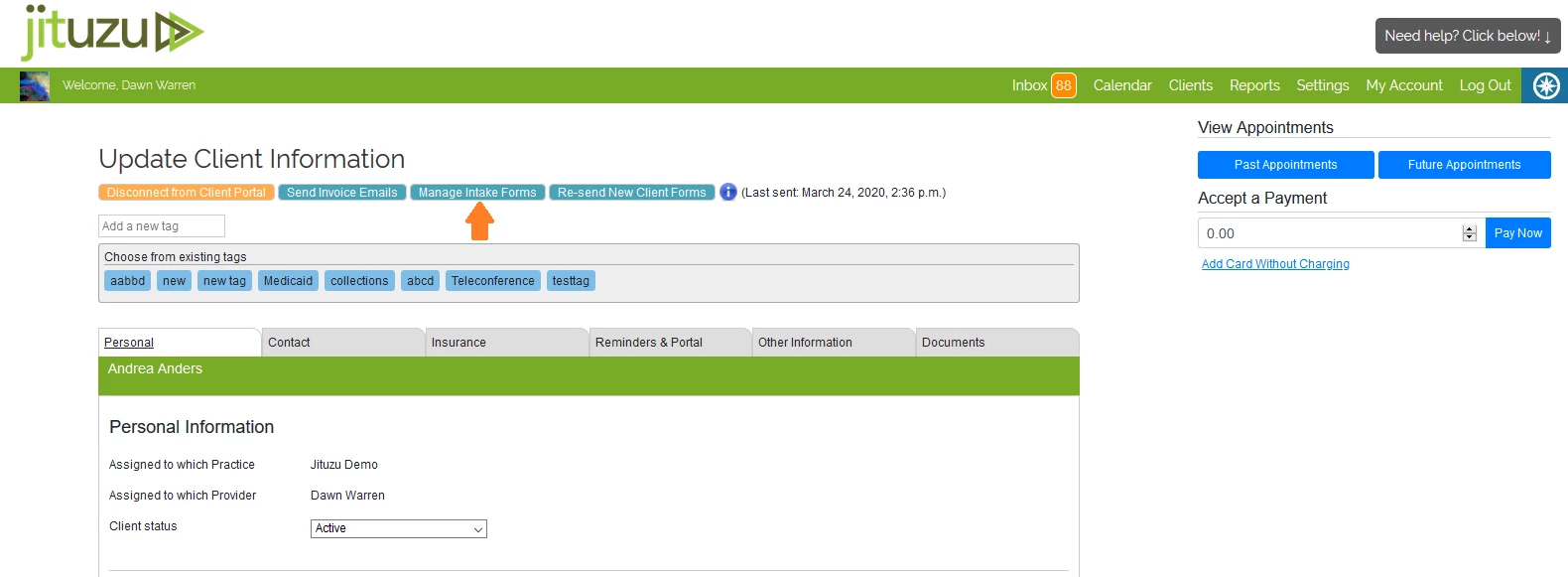
- Click on Clients at the top and choose the Client.
- Click Manage Intake Forms.
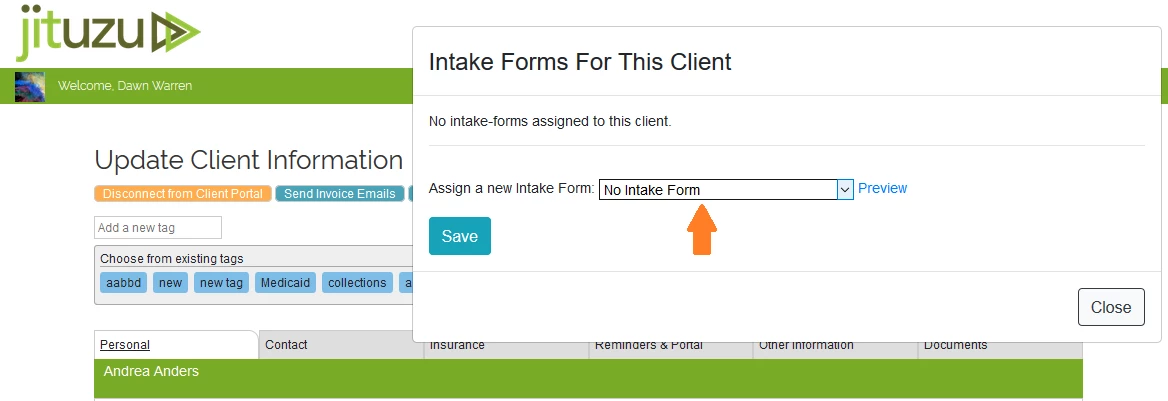
- Click the drop-down box and select the Intake Form you wish to send to the Client's Portal.
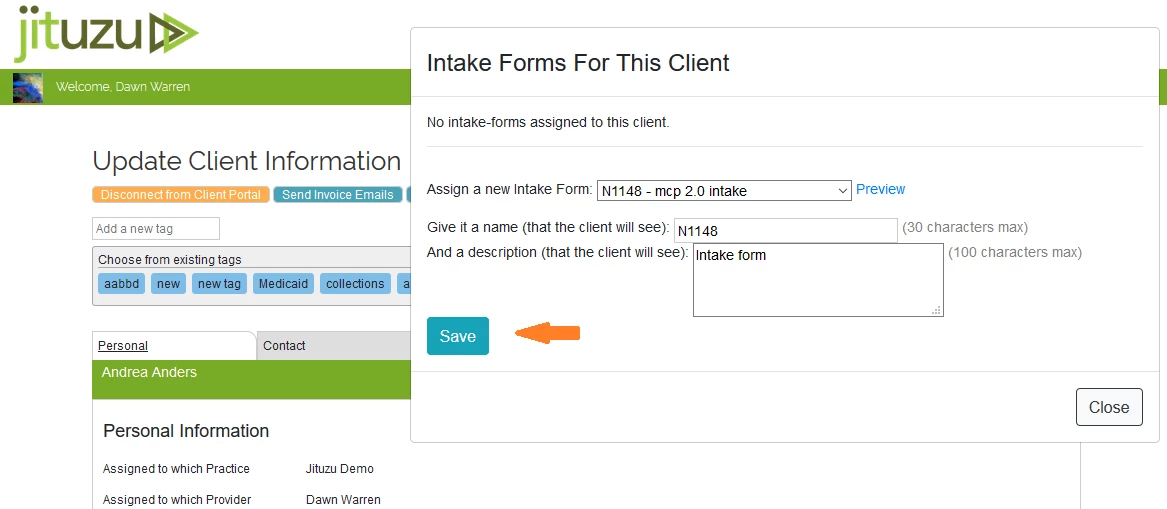
- Enter a Name (this will be visible to the Client) and a Description.
- Click Save to send it to the Client's Jituzu Client Portal.
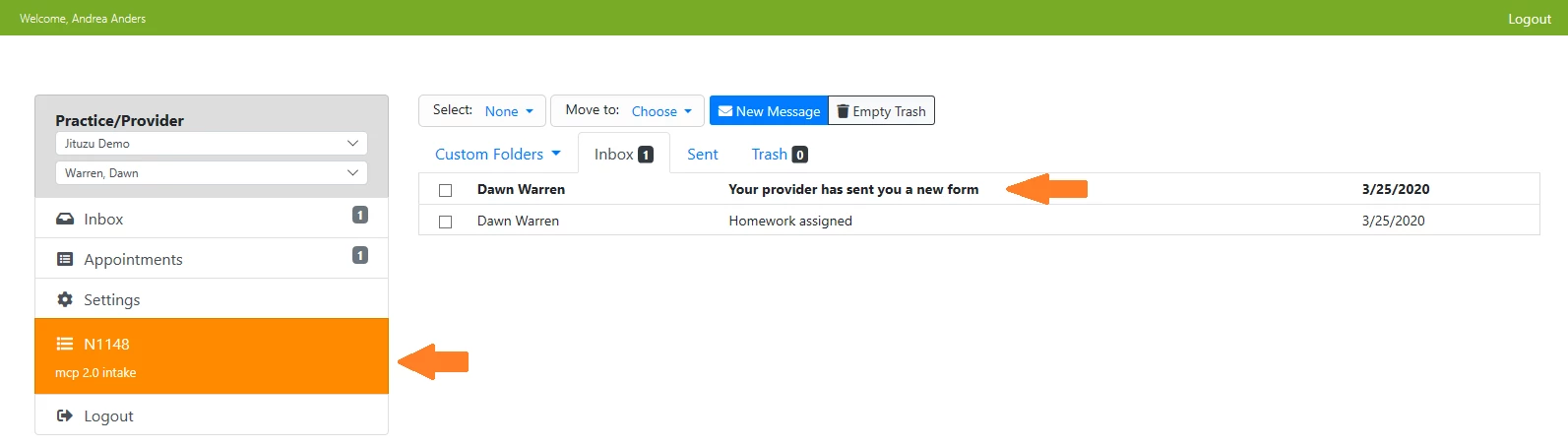
- The Client will receive a Client Portal Inbox Message to alert them when Intake Forms are assigned. The system will email the client at the email address associated with their account, to let them know they have a new Client Portal message. In the Client Portal, the client will receive an Inbox Message letting them know they have received a form. The client must be logged into the Client Portal on an internet browser to fill out the intake form. The client can click on the form, complete it and click Submit.
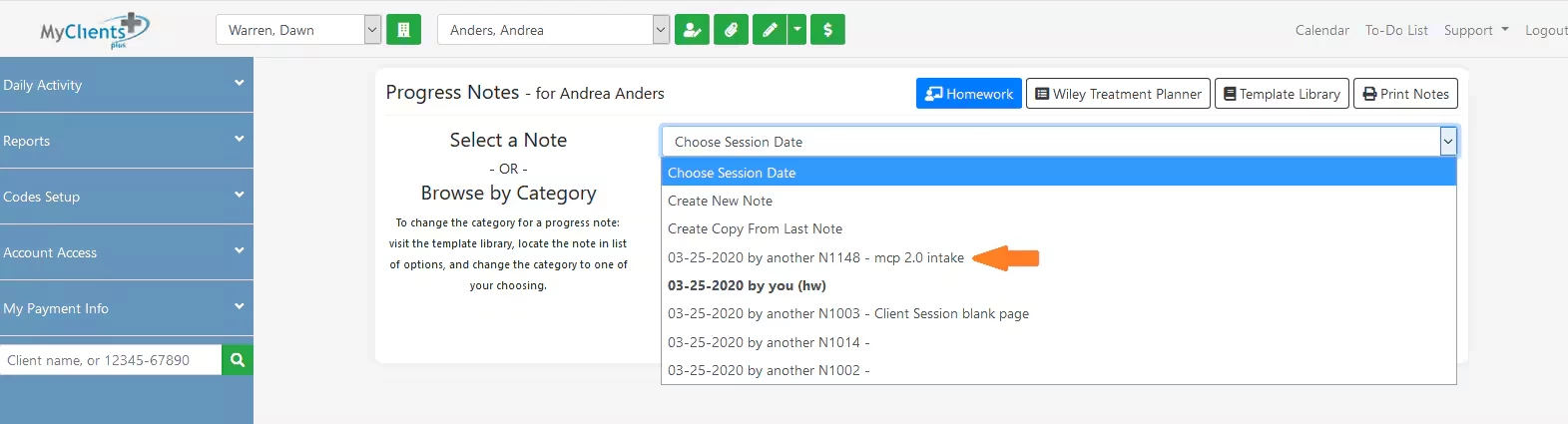
- Once the client has submitted the Intake form, it can be seen by the provider in Progress Notes.
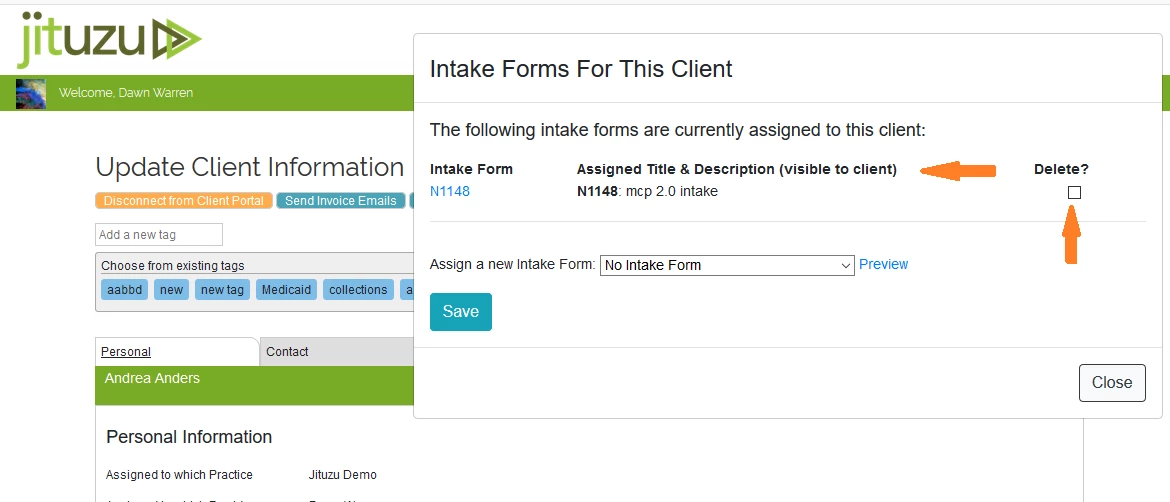
Delete Intake Forms
You can only delete an Intake Form if a client has not filled it out yet. If they have begun to fill it out, you will want to talk to the Client to advise them not to fill it out and assign the new or correct Intake Form.
- Click Manage Intake Forms.
- Click select Delete checkbox.
- Click Save.