


PERMISSIONS REQUIRED: You must have Billing Permissions.
NOTE: New invoice creation is only available with a subscription
Edit Invoice
After an Invoice has been created, you can make changes to it before you send it to the Payer. You can change things like the Amount field for Insurance, Client, or the number of units. You can also add invoice items as well.
Related Article: Make Changes to a Fully Paid Invoice
- Locate Client and open Client Profile.
- Click Ledger in side menu.
- Click appropriate tab to locate Invoice.
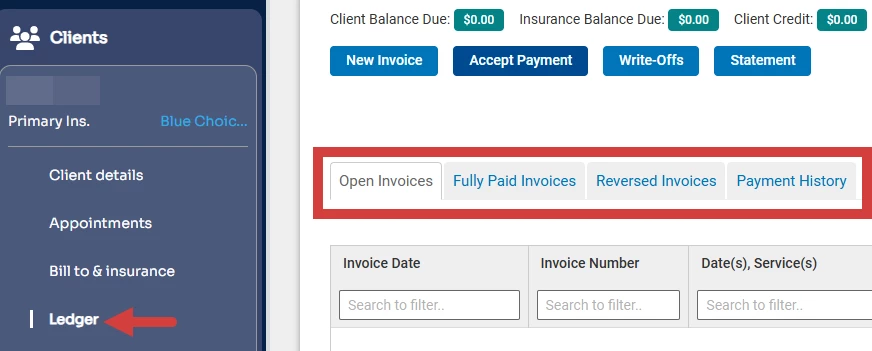
- Click Select an Action drop down and select View Details for appropriate Invoice .
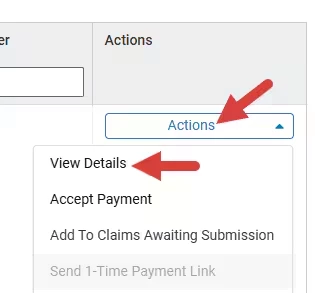
- Edit Invoice as needed. Greyed out items cannot be changed.

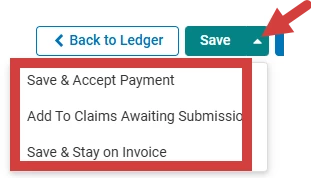
- Click Save to save and return to the ledger or the Save drop-down to:
- Save & Accept Payment
- Add To Claims Awaiting Submission
or - Save and Stay on Invoice
Delete Invoice
You can delete an open (unpaid) or a fully paid Invoice. Deleting a fully paid invoice does not delete the client payment itself. If you delete an Invoice that already has a payment applied to it, the Invoice will be deleted and the client payment will be moved to the Unapplied Payment section of the Client's Ledger. You can reapply that payment to a different Invoice. See Apply an Unapplied Payment/Credit to an Invoice for more information.
IMPORTANT: Invoices can be deleted provided an insurance payment is not associated with the invoice. If an invoice is deleted, the claim will also be deleted. If a claim is adjudicated and you received payment, the insurance payer invoices cannot be deleted.
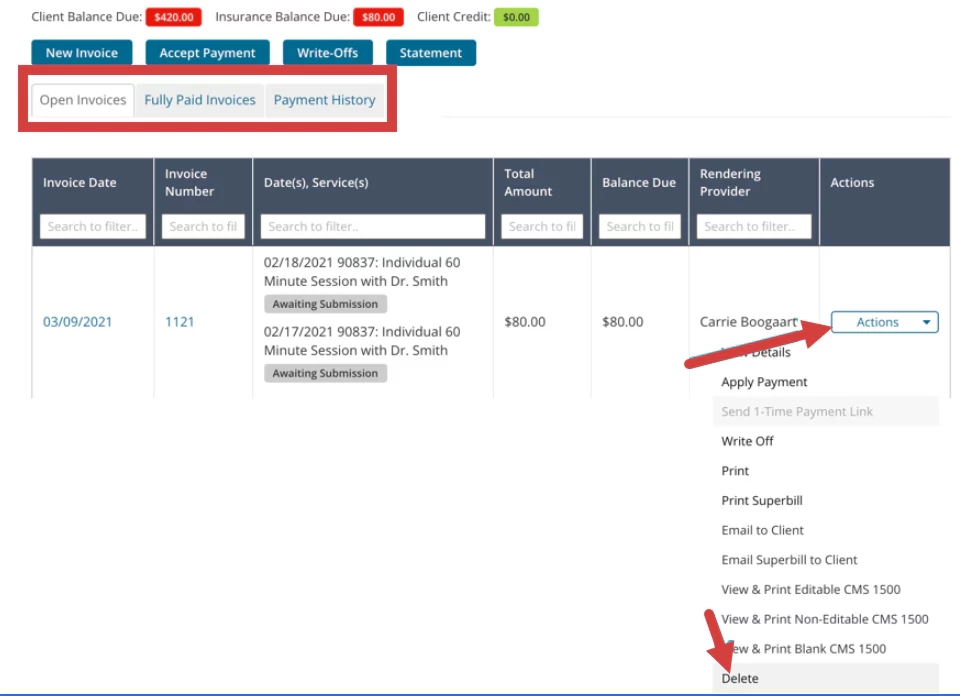
- Click appropriate Ledger tab to locate Invoice.
- Click Select an Action for desired Invoice and select Delete.
- Click Delete Invoice button to confirm deletion.
Related Articles: