



PERMISSIONS REQUIRED: You must have Billing Permissions to process payments.
You must Enroll in Payment Processing to be able to process payments in the system. The system processes payments using two different secure payment processors: Vantage, and Ensora Payments with Stripe. The steps to process a payment in the system depend on your payment processor.
To determine while payment processing system is used at your practice, see How Does the System Process My Payments?
Depending on which payment processor your practice is using, click the appropriate link below to learn how to process your payments in the system.
NOTE: For payment-related questions, please contact the Ensora Payments Team at payments.support@ensorahealth.com or 877-288-5583 (option 2 then 6 for Payments)
Jump to Section:
Process Invoice Payments: Ensora Payments & Stripe
You must Enroll in Payment Processing to be able to process payments in the system. Once enrolled, you can accept credit card payments from clients from within your agenda or by using the client ledger. You can also Process Multiple Credit Cards at Once with Batch Payments, and set up Automatic Transaction Receipts.
NOTE: At this time, Stripe is not compatible with terminals or USB card readers.
NOTE: Stripe accepts international payments. See Stripe: Global Payments for more information.
Before You Begin: To Enable Payment Processing or Troubleshoot Payment Processing Issues, make sure your browser, device, and operating systems are configured correctly.
Process a Payment from the Schedule
- Click on the Schedule tab in the menu bar, then locate the Appointment you are accepting payment for.
- Click the Add Invoice button, or click the Invoice Number if an invoice has already been created.
- Click Apply Payment.
- Under Payment Info, select Client Payment.
- Enter the Total Amount you are charging.
- Under Payment Method, select Credit/Debit Card.
- Click the green Charge Payment Method button.
NOTE: Use the Record Payment button to record cash/check payments or credit card charges that were processed outside of the system.
- Click the dropdown to select a Saved Payment Method or select New Payment Method. If you select New Payment Method, fill in the Card Number, Expiration, CVC, Country and Zip fields, and select the Save for Future Use checkbox to save this payment method for the patient.
NOTE: Click the Cancel button to return to the client ledger.
- Click the Submit button.
IMPORTANT: Do not close or refresh the page while your transaction is processing.
- The payment window closes and you return to the client ledger. A green banner displays in the top right corner indicating the payment processed successfully.
Process a Payment from the Client Ledger
You can process payments for one or more invoices for a single client at the same time using the Client Ledger. This is helpful when processing payments for clients who have a balance and want to pay off multiple invoices at the same time.
- Click on the Client tab in the menu bar, then select the Client you are accepting payment from to open their Client Profile.
- Click Ledger under the client's name in the side menu.
- Click the Accept Payment button.
- Under Payment Info, select Client Payment.
- Enter the Total Amount you are charging.
- Under Payment Method, select Credit/Debit Card.
- Use the Checkboxes to select the invoice(s) you are applying payment to.
- Click the green Charge Payment Method button.
NOTE: Use the Record Payment button to record cash/check payments or credit card charges that were processed outside of the system.
- Click the dropdown to select a Saved Payment Method or select New Payment Method. If you select New Payment Method, fill in the Card Number, Expiration, CVC, Country and Zip fields, and select the Save for Future Use checkbox to save this payment method for the patient.
NOTE: Click the Cancel button to return to the client ledger.
- Click the Submit button.
IMPORTANT: Do not close or refresh the page while your transaction is processing.
- The payment window closes and you return to the client ledger. A green banner displays in the top right corner indicating the payment processed successfully.
Process Invoice Payments: Vantage
You must Enroll in Payment Processing before you will be able to process payments in the system. Once enrolled, you can accept credit card payments from clients from within your agenda or by using the client ledger. You can also Process Multiple Credit Cards at Once with Batch Payments, and set up Automatic Transaction Receipts.
From Schedule/First Credit Card Transaction for Client
The first time you run a Credit Card transaction for a Client you will need to enter their Credit Card information. Once entered for a Client you will be able to run it just by entering the CVV.
NOTE: You can manually enter Credit Card Details or swipe the Credit Card using a USB Card Reader that connects to your PC via a USB. While this is an option, we cannot guarantee a device will work. Card readers issued from other processors will not work. We are currently unable to process international credit cards.
- On the Schedule tab, locate Appointment you want to accept payment for.
- Click Add Invoice OR click the Invoice number if Invoice has already been created.
- Click Apply Payment button on Invoice screen.
- Be sure to select Client Payment if Client has Insurance.
- Click Payment Method and select Credit/Debit Card.
- Click Enter Card Details.
- Manually add Client's Credit Card information OR select Scan from USB Card Reader and swipe the card.
- Click Save.
- Back on the Payment screen, enter the Credit Card CVV.
- Click Save.
- Click Yes, I'm Sure to confirm.
End Result: You will then be navigated to the Client's Ledger. If that card was saved for later use the next time you generate an Invoice for a Client the payment method will default to Credit/Debit Card and the card information will repopulate. Â You'll just repeat steps 9-11.
Credit Card Expiration
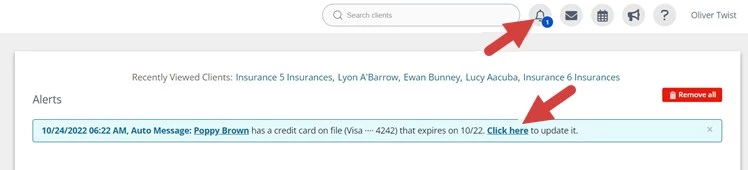
- You will receive an alert notification to let you know the card is going to expire. It will show the client's name, card type, last four digits on the card and expiration date.
- Click the link to update the card information.
Accept Payment on the Client's Ledger
If the Client has a balance and wants to pay off multiple Invoices at once this would be a great solution.
- Locate Client and open Client Profile.
- Click Ledger in side menu and click Accept Payment button.
- Select Invoice(s) you wish to apply the payment to.
- At top, choose Credit/Debit card as the Payment Method.
- Click Save.
On the Payment Screen
This screen may look different depending on if the Client has insurance or not. If the Client does NOT have insurance, ensure you select Client Payment option.
- The full amount of the Invoice(s) will populate in the total amount field. Locate the Payment Method drop down and change it to Credit/Debit.
- Click Enter Card Details.
- A window "Add Credit Card" will appear. Fill out all fields with client's card information manually or select "Scan from USB Card Reader" and swipe the card.
- Click Save
- You will be returned to the payment screen. Be sure to enter the CVV.
- Click Save in the right corner of the payment screen.
- Receive confirmation that you want to charge the card. Click, "Yes, I'm sure."
- Receive confirmation bubble that card type ending in xyzz was charged. Click OK.
End Result: You will then be navigated to the client's ledger. If that card was saved for later use the next time you generate an invoice for a client the payment method will default to Credit/Debit Card and the card information will repopulate. You'll just repeat steps 10-12.
NOTE: If 3 failed attempts to process a credit card charge occur in 10 minutes, the card will be blocked for 24 hours.