


How Do I Catch Up on Unbilled Appointments?
The system offers two powerful tools to help you quickly generate and manage invoices for unbilled appointments: Batch Invoicing and Process Existing Invoices. Here is an overview and step-by-step guide on how to use these tools effectively.
Why Use These Tools Together?
- Batch Invoicing helps you catch up on missed billing by creating invoices for unbilled appointments.
-
Process Existing Invoices ensures you can quickly submit, email, or print those invoices in bulk.
1. Batch Invoicing
Purpose:
Creates single invoices per client for multiple dates of service within a selected date range.
How It Works:
- Looks for unbilled appointments (appointments without an attached invoice).
- The date range you select applies to appointment dates.
Example:
If you need to bill for March appointments, set the date range to 03/01/2023 – 03/31/2023. Click Search and the system will generate invoices for all unbilled appointments in that range.
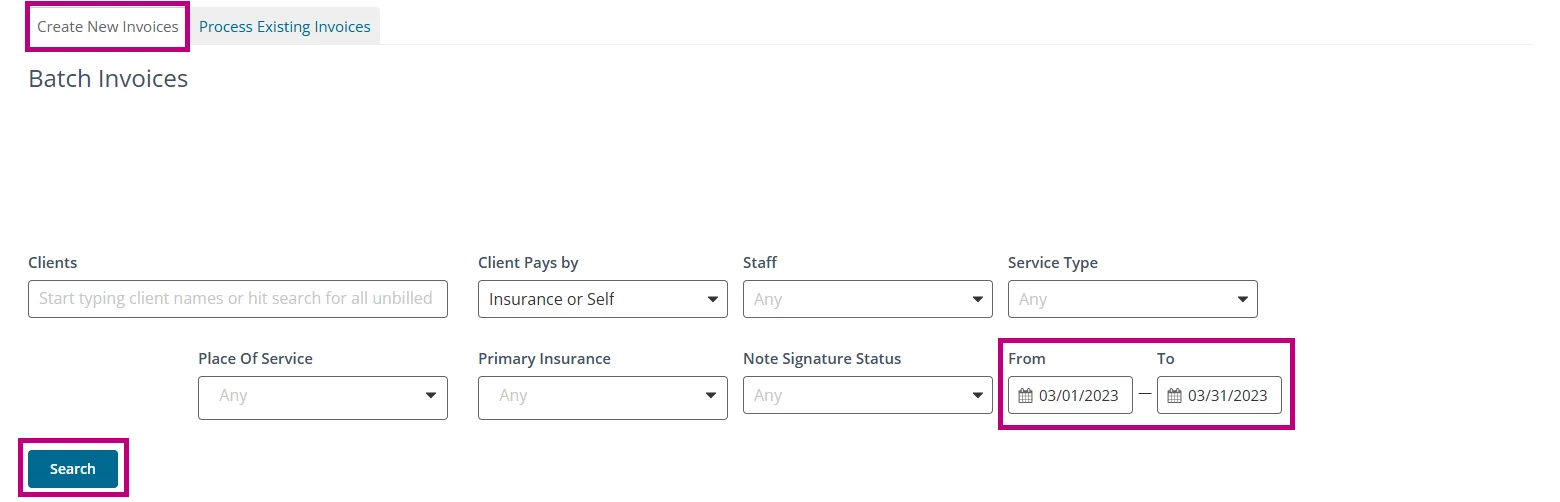
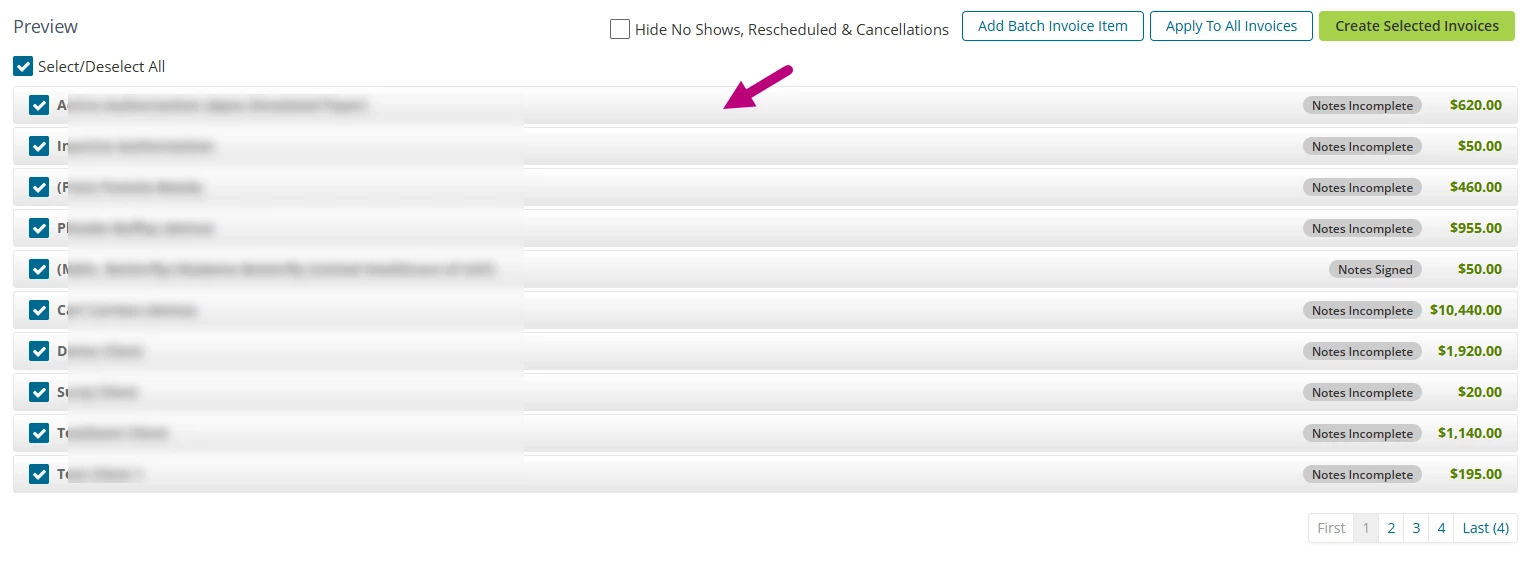
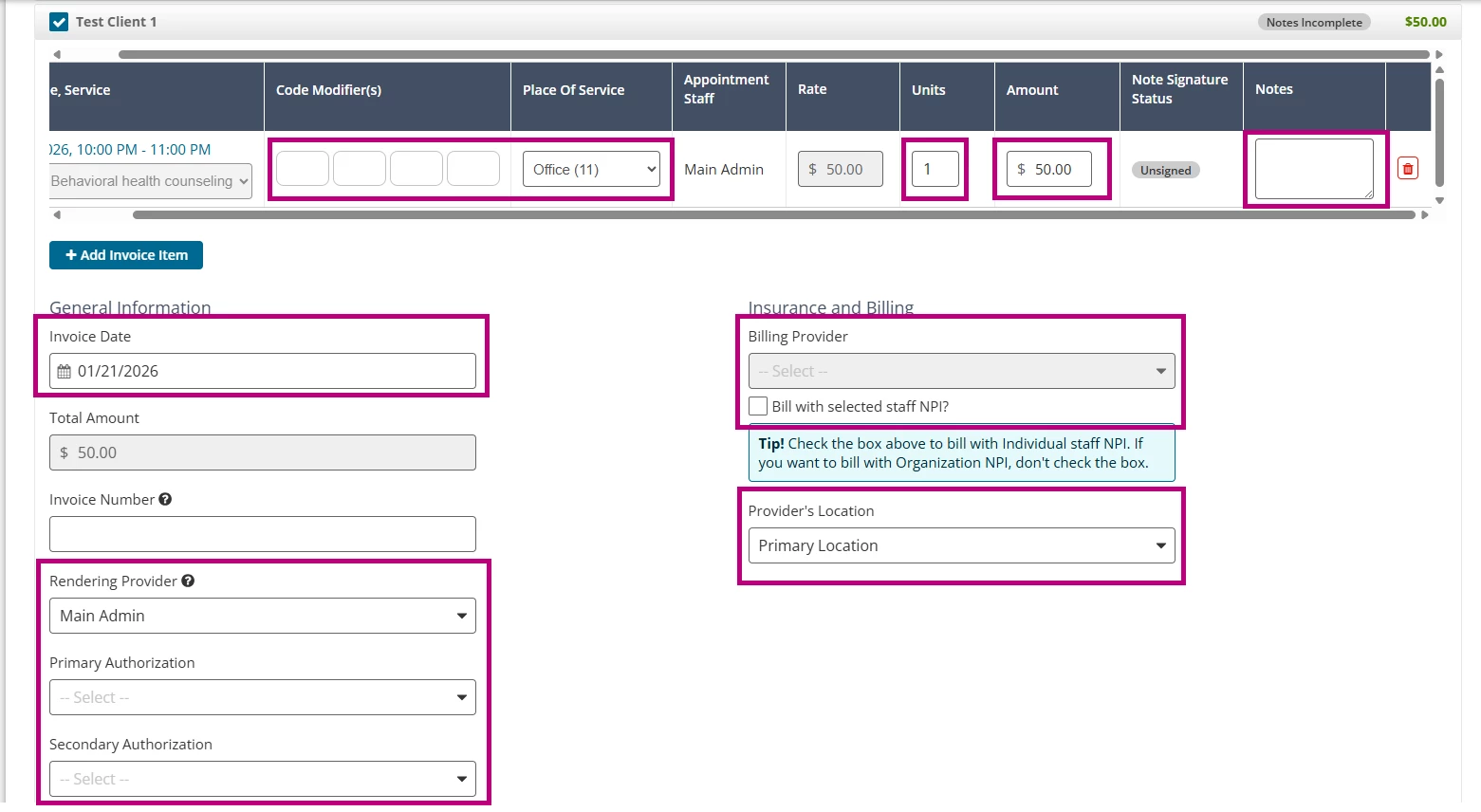
IMPORTANT: Before creating invoices, click the grey bar where the client name appears to expand Invoice Details as highlighted in the example below. This allows you to:
- Edit Rendering Provider and Billing Provider
- Adjust Amount, Units, and Place of Service
- Add Modifiers, Notes, and confirm Provider Location
- Review and update any required fields
Collapse the details when finished, then select the rows and click Create Selected Invoices.

2. Process Existing Invoices
Purpose:
Manages invoices that have already been created.
Features:
- Send multiple invoices to claims awaiting submission.
- Print or email invoices and superbills for multiple clients and dates of service.
How It Works:
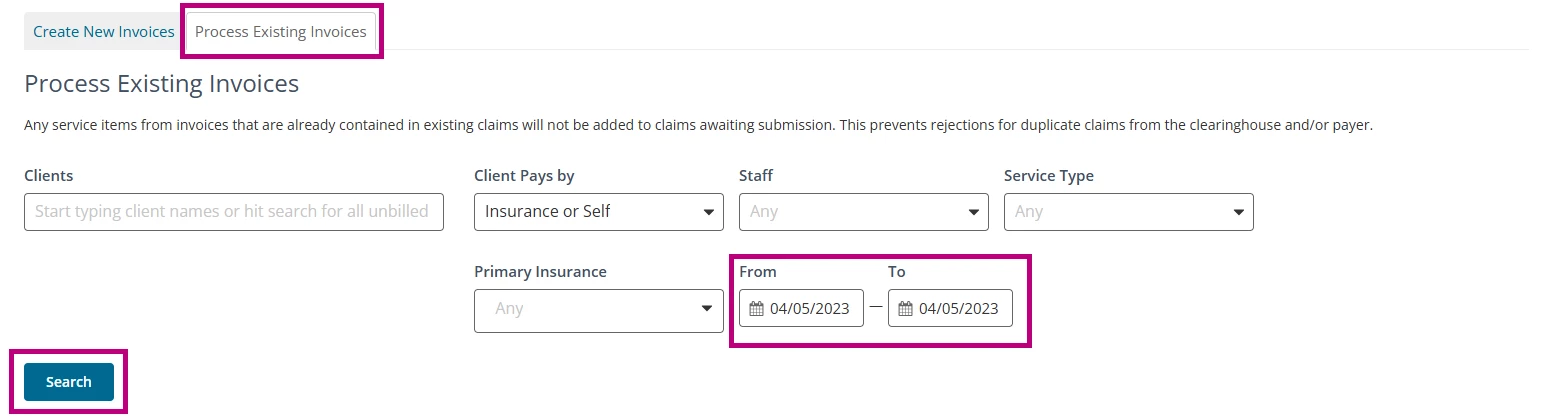
The date range here applies to invoice creation dates.
Example:
After creating March invoices on 04/05/2023, use Process Existing Invoices with the date range set to 04/05/2023, and click Search to find and manage those invoices.

TIPS:
- To send more than 10 invoices at a time, scroll down and select 250 (or your preferred number) from the dropdown.

- To prevent billing for No Shows, Reschedules, and Cancellations, make sure the Hide No Shows, Rescheduled, and Cancellations box is checked under Invoice Details or Billing > Batch Invoicing.

Related Article: Batch Invoicing: Create, Print or Email