


Permissions Required: You must have Billing Permissions to manage payment methods.
You can add and remove saved payment methods for your patients in the Bill To & Insurance Info section of their Client Profile.
My Clients Plus by Ensora Health processes payments using two different secure payment processors: Vantage, and Ensora Health Pay with Stripe. The steps to manage your clients saved payment methods in My Clients Plus by Ensora Health depend on your payment processor.
How do I know which payment processor My Clients Plus uses for my practice?
Depending on which payment processor your practice is using, click the appropriate link below to learn how to manage your clients' saved payment methods in My Clients Plus.
NOTE: For payment-related questions, please contact the payments team at 844-311-2570 or payments@therapybrands.com.
Jump to Section:
Manage Saved Payment Methods: Therapy Brands Pay & Stripe
You can add and remove saved payment methods for your patients in the Bill To & Insurance Info section of their Client Profile.
Jump to Section:
Add a Saved Payment Method
- Click on the Clients tab in the menu bar and locate the appropriate client.
- Click on the Client Name to open their Client Profile.
- Click on the Bill To & Insurance Info tab.
- Click the Manage Payment Methods button.
- Click Add Payment Method.
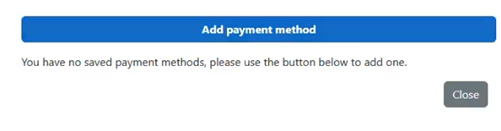
- Enter a Name for This Payment Method.
NOTE: The name you enter for the payment method displays in the Saved Payment Methods list.
- Click Submit.
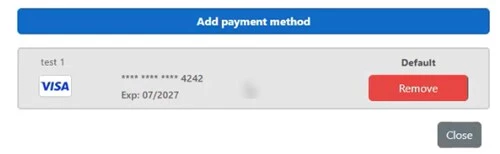
- The new payment method and displays in the Saved Payment Methods list.
NOTE: If you have multiple cards saved, you can choose which card will be the patient's default payment method.
Remove a Saved Payment Method
- Click on the Clients tab in the menu bar and locate the appropriate client.
- Click on the Client Name to open their Client Profile.
- Click on the t Bill To & Insurance Info tab.
- Click the Manage Payment Methods button.
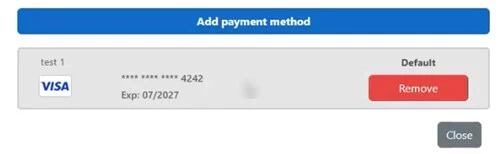
- Click the red Remove button to remove a payment method.
Manage Saved Payment Methods: Vantage
If you are enrolled in Credit Card Processing with My Clients Plus, you can add/store credit cards for Client in the Client's Bill To & Insurance Info tab.
You can choose to store a Client's Credit Card details during the Client's first transaction, OR you can manually store details.
Jump to Section:
Add Client Credit Card to My Clients Plus by Ensora Health
- Locate Client and open Client Profile.
- Click Bill To & Insurance Info tab.
- Click Add Credit Card button.
- Click Enter Card Details.
IMPORTANT: If you are adding another Credit Card to My Clients Plus by Ensora Health, type over previous card numbers entered. The original card will not be lost.
- Manually add Client's Credit Card information OR select Scan from USB Card Reader and swipe the card.
- Ensure the Save Payment Details for Later Use is marked.
- Click Save.
Process Credit Card Payments
After a Credit Card has been stored in My Clients Plus by Ensora Health for a Client, when you process payment, you will only need to enter the following:
- Enter the Credit Card CVV Code. The CVV Number is the 3- or 4-digit number located on the back or front of the card.
- Enter the billing zip code.
If there are multiple cards on file for a client, the default card stored will be indicated by a default icon.
NOTE: Deleting a default card makes the next stored Credit Card (if one exists) the new default and will be indicated by the default icon.
Remove Client's Stored Credit Card
- Locate Client and open Client Profile.
- Click Bill To & Insurance Info inside menu.
- Click X to remove appropriate cards.
- Confirm deletion.
- Click Save Billing Info.