


NOTE: If you are setting up a Clearinghouse with the system for the first time, your instructions will be slightly different. Click here to Setup Ensora Clearinghouse for the First Time.
If you are switching from a non-Ensora Clearinghouse, there are 5 steps you will need to complete.
Jump to Section:
1. EDI and ERA Enrollment
You should have already completed any EDI Enrollments for those Payers that require it and received an email letting you know it was complete. Do NOT switch to Ensora Clearinghouse unless you have an APPROVAL email from the system or the Payer stating you are enrolled for EDI (claims submissions).
If you have not pre-enrolled for any Payer, you begin by going to Codes Setup > Insurance Companies and click on Ensora Clearinghouse Payer Enrollment.
Additional information on setup can be found in our knowledge base document How to Switch Your Clearinghouse to Ensora Clearinghouse
2. Ensora Clearinghouse Electronic Billing Subscription
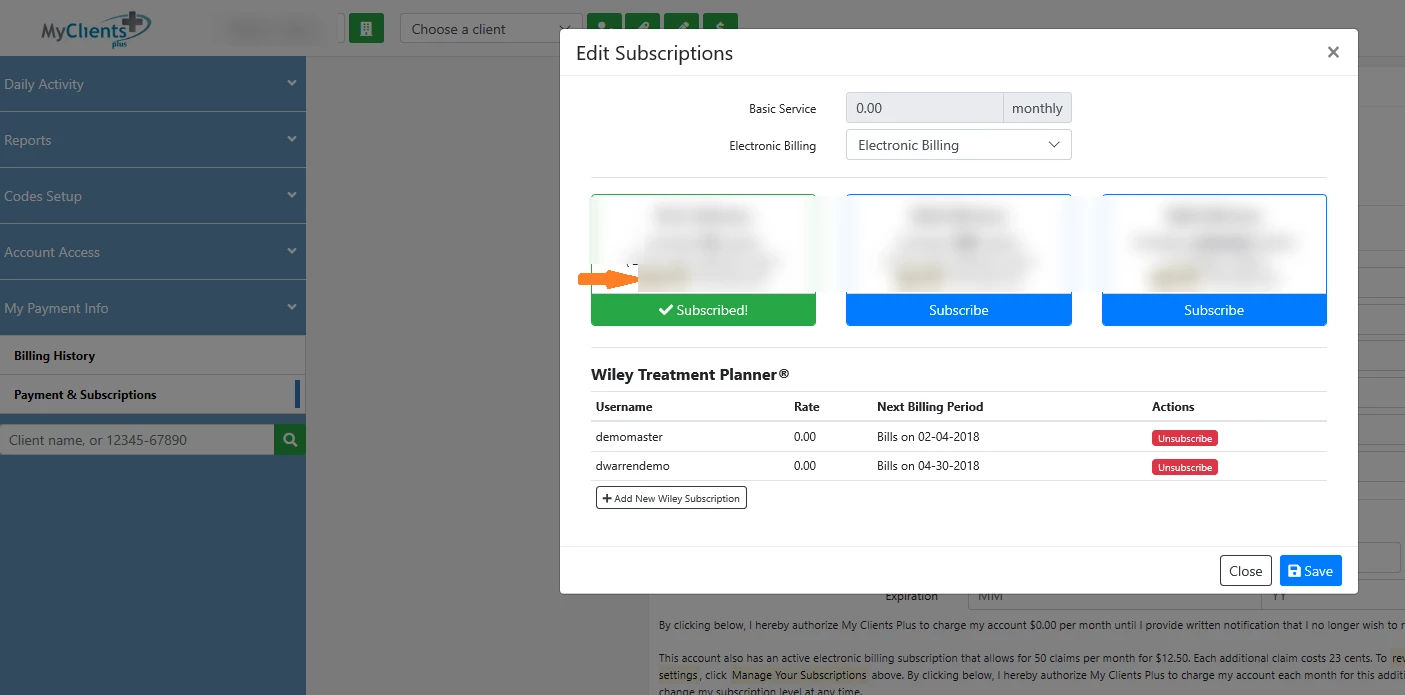
Once your EDI enrollments were APPROVED (not just submitted) and you switched your subscription, your electronic billing subscription should be switched to one of the three subscriptions depending on the level of claims submitted. It will look something like this:
3.Office Ally Payers should be converted to Ensora Clearinghouse Payers
The Electronic Claim Activity report has the utility used to transition your Office Ally payer overs to Ensora Clearinghouse payers. In the example below, you can see where the AAG Benefit Plan was selected in the drop-down box. Once the payer is chosen and has been updated, that listing will be removed from your screen.
To verify that you have switched all your payers, this field should no longer have any payers listed.
This is an Ensora Clearinghouse payer change that has been completed:
4.Invoice Clients and Insurance
As you begin billing, you will notice in Invoice Clients and Insurance, that the clearinghouse is now listed next to each payer in the Payer column.
To correct any incorrect payers, you can simply click on the blue Client name to go to the Client Setup for that client. You can update the Primary Insurance there and save. Once you have updated the payer record, you can return to Invoice Clients and Insurance to submit your electronic claim.
5.Client List
Once your clients have been converted to payer on the Ensora Clearinghouse payer list, you can view the payers listed on the Client List with an AP after them. If you see OA after the payer name, then that client is still set up with Office Ally.