PERMISSIONS REQUIRED: You must be assigned as Supervisor for Staff Member with Must Review and Co-Sign all Notes Role.
After your assigned Staff Member has created and saved their Initial Assessment, Treatment Plan or Progress Note, you will receive a notification when there is an Initial Assessment, Treatment Plan or Progress Note for you to review. You can review their document and then approve and sign it.
Once you have approved and signed the document, the supervisee will receive a notification alert that their document has been reviewed.
NOTE: You can prevent your staff from submitting and signing progress notes that do not have a diagnosis code entered. See Prevent Staff from Submitting/Signing Progress Note without a Diagnosis for more information.
Jump to Section:
Approve Assigned Initial Assessment, Treatment Plan or Progress Note
- Click Alert icon at top of page or open the notification email for the document.
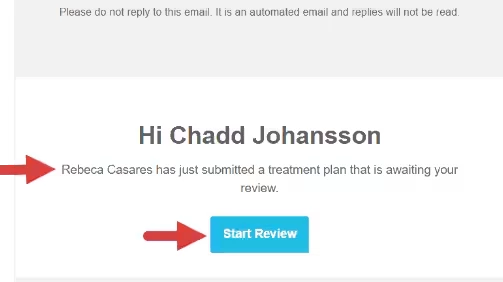
- Start the review process from the email or alert page.
- Click Start review from the email.
Email
- Click New Initial Assessment, New Treatment Plan or New Case Notes link from the alert page.
NOTE: Select click here If there are multiple documents awaiting your review.
Alert Page
- Click Start review from the email.
-
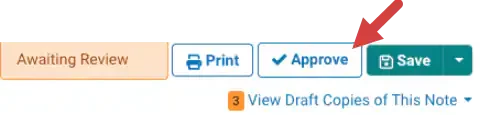
Review and click Approve for the document.
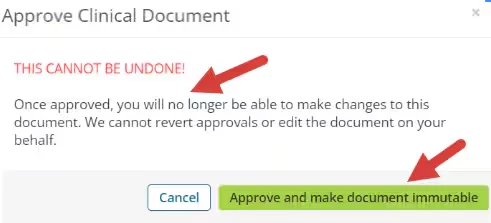
- The approval confirmation pop-up window opens. Click Approve and make document immutable.
NOTE: Once approved, changes cannot be made to the document.
Sign Initial Assessment, Treatment Plan or Progress Note After Approval
- View the approved document.
- A notification displays: This document was approved, therefore further editing is not allowed.
- Click E-sign.

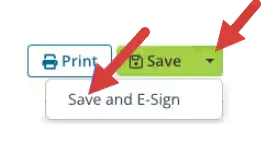
Save and E-Sign Initial Assessments, Treatment Plans or Progress Notes
- Click Alert icon at top of page or open the notification email for the document.
- Review the document.
- Click Approve.
- Click Save drop-down and select Save & E-Sign.