


PERMISSIONS REQUIRED: You must have Therapist Permissions or higher.
Once a Dynamic Form has been created, it can be edited. However, we strongly recommend doing so only if you are certain the form has not been used, or if you fully understand the associated risks. Editing a form under Dynamic Forms impacts data across the entire practice.
If a form displays “Limited” next to its name, it indicates the form has already been used and is linked to client data. Editing a form with existing submissions — particularly when adding, removing, or rearranging fields — can affect how data appears in the User Interface and may result in data loss.
To avoid this, we recommend duplicating the form and editing the copy instead.
IMPORTANT:
- If completed forms have already been signed, editing the Dynamic Form will still affect how the data displays in the User Interface. The printed version of previously signed documents will remain unchanged.
- If data loss occurs due to form edits, TheraNest by Ensora Health cannot restore or reinsert lost data into the system under any circumstances.
Edit a Dynamic Form
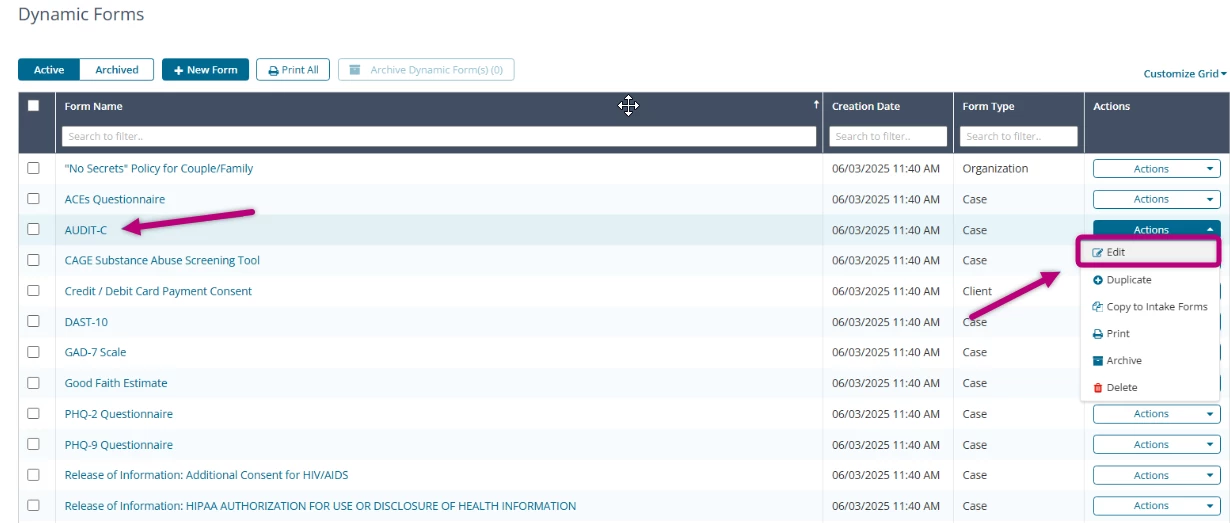
- Click the Dynamic Forms tab in the primary navigation bar.
- Open the form to edit by either:
- Click the Form Title, or
- Click Actions > Edit.
- When you access the Dynamic Form Editor, you may see a banner notifying you that the form contains printing properties that are no longer supported.
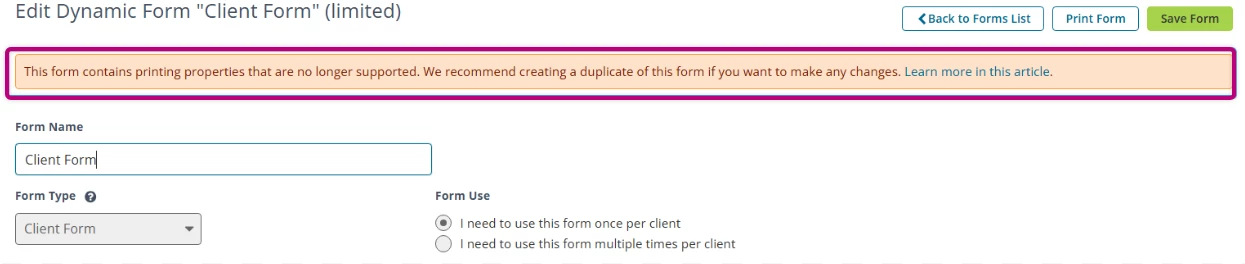
- If this banner appears, you must duplicate the Dynamic Form before making any changes.
- If you edit without duplicating, the form will no longer print the same way, and the original print behavior cannot be preserved.
- Duplicating the form allows you to make updates while keeping the existing printing properties intact.
- If this banner appears, you must duplicate the Dynamic Form before making any changes.
- Make the necessary edits to your form.
- Click Save Forms.
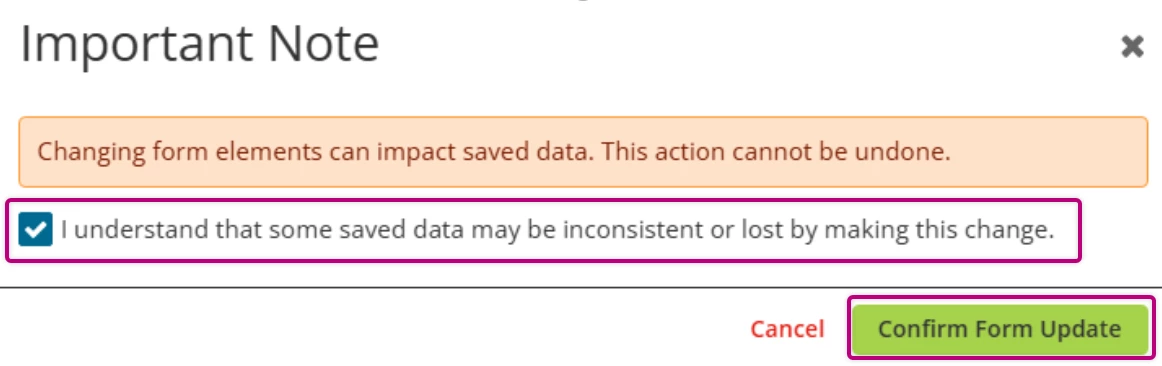
- If you removed or modified any fields, a warning pop-up will appear.
- If you are certain you wish to proceed, select the “I understand that some saved data may be inconsistent or lost by making this change.” checkbox.
- Click Confirm Form Update to saved the edited Dynamic Form.
For more information on form elements or what type of form you need, see the Create a Dynamic Form: Client, Case or Organization article for more information.