


Permissions Required: User must have access to the Progress Note or Document.
Once you have created your e-Signature in My Clients Plus, you can apply that to Progress Notes and Documents. After a Signature is added, only Administrators can remove them.
NOTE: You can prevent your staff from submitting and signing progress notes that do not have a diagnosis code entered. See Prevent Staff from Submitting/Signing Progress Note without a Diagnosis for more information.
IMPORTANT: Progress notes linked to appointments with service type durations have restrictions on how supervisors & non-supervisors sign, submit & approve them. See Add & Edit Service Types for more information. To correct this Issue, from the Edit Note page, change the duration or select another service type that aligns with the service type duration setting.
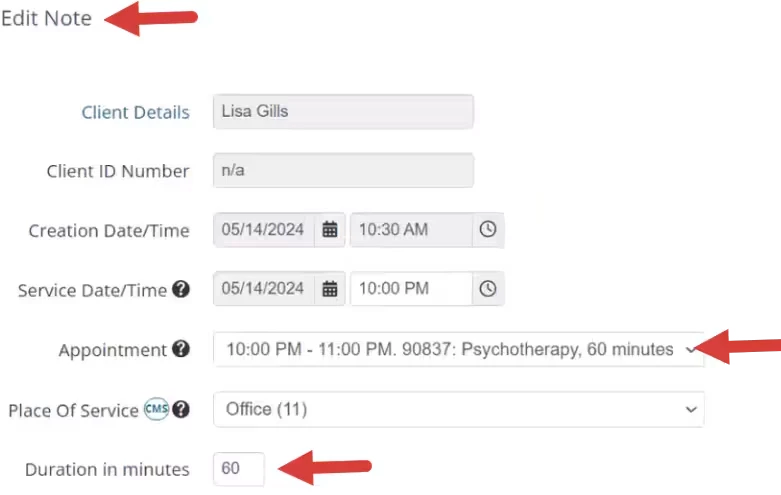
- You will be unable to sign a progress note if the note duration is not within the appointment service type duration.

- You will be unable to submit a progress note if the note duration is not within the appointment service type duration.

- You will be unable to approve a progress note if the note duration is not within the appointment service type duration.

My Clients Plus allows you and your Client to sign the following Documents:
|
|
NOTE: My Clients Plus does not require Signatures on Documents. It is up to you to determine for your Organization if/when documents require you and/or your Client's Signatures. All signed documentation will reflect the organization's time zone.
- Locate Client and open Client Profile.
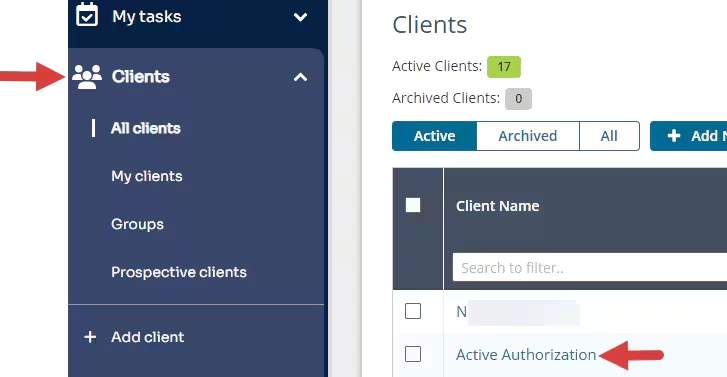
- Click Notes in the left side menu.

- Choose the appropriate Case IF the Client has multiple Cases. If they only have one open Case, the Notes tab will automatically display.
- Click the Details button for the appropriate Note.

- Click the drop-down on the Save button.
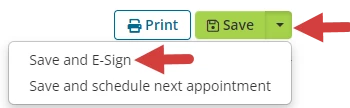
- Select Save and E-Sign.
NOTE: If a therapist's permissions require a supervisor's approval or signature on notes, the therapist will select Save & Submit to Supervisor(s) from the Save button.

- Click the Sign the Document button in the Document Info screen after you have reviewed the Note.

After a Note or Document is signed, it cannot be edited by a Therapist. Only users with Administration level Permissions will be able to remove Signatures.