


Permissions: You must have Therapist Permissions or higher.
Dynamic Forms allow you to collect and store supplemental data in My Clients Plus. Information or data entered in a Dynamic Form cannot be pulled into My Clients Plus sections (i.e. demographics, reports, etc.) and information in My Clients Plus cannot pre-populate in a Dynamic Form. Dynamic Forms truly exist as a way to store extra or supplemental Client information. Learn More: Dynamic Forms Overview
Once a Dynamic Form is created, an Organization Administrator can copy it over to the Client Portal. Learn More: Copy Custom Forms to Client Portal
The form will be added to the Intake Form packet Clients complete in their Client Portal. Learn More: Client: Create Client Portal Account & Complete Intake Forms
NOTE: You cannot upload your own intake forms at this time. You must either create a new dynamic form or edit existing forms.
Jump to Section:
Create a Dynamic Form: Client, Case, or Organization
- Click the Dynamic Forms tab in the primary navigation bar.
- Click the New Form button.
- Enter the Form Name.
- Select the Form Type being used.
- Select Form Use:
- I need to use this form once per Client - Only a single copy of this form is used and updated. There will only be one copy of this form filled out per Client. You can edit the form but you cannot create a duplicate entry.
- I need to use this form multiple times per Client - A new copy of this form is used/updated every time e.g. a new form is created and saved per client visit.
- Select to display Form with 1 or 2 columns.
- Click and drag the appropriate element to add to Dynamic Form. (See descriptions below.)
- Drag elements to the desired order.
- Click Save Form when complete.
Regular (Customizable) Elements
Form fields allow you to request information from the Therapist/Client when they are filling out the Form. Regular Form fields are purple. See below for Dynamic Fields.
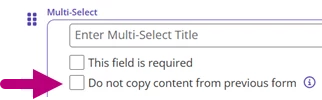
Some form elements have a Do not copy content from previous form checkbox. When copying from a previous form or note, if this setting is checked, the content from within this field will not copy forward into the newly created note. This setting is always unchecked by default for existing and newly created forms.
Section Header
Add a headline/title for a section or field. Section Headers appear bolded in form.
Short Answer
This adds a field for short answers. Text box is for one-word answers such as email address, date, number, or URL. Dashes and special characters are not allowed in text boxes.
NOTE: You cannot have duplicate or same-name text boxes. Example: Phone number. You must use differentiators such as Mobile Phone number, Work Phone Number, Home phone number, etc.
Paragraph Answer
Paragraph Answer adds a field for longer answers. You cannot limit the amount of information that you can enter. This is for larger explanation-type answers.
Check Box
This allows you to add selectable options. Users can select multiple checkboxes. You can drag and drop options to the desired order.
Dropdown
Dropdown allows you to add a multiple-choice selection. Add dropdown responses in the order you would like them displayed to the Client.
Select the checkbox if you would like to make this a required field.
Text Box
Text Box allows you to enter form text such as instructions or information. Text boxes do not require action. Copy and paste any text in. Hit enter to create space/paragraphs within the text.
External Link
The External Link Box allows you to enter an external link. This form element is not available in the Organization Form.

Multi-Select
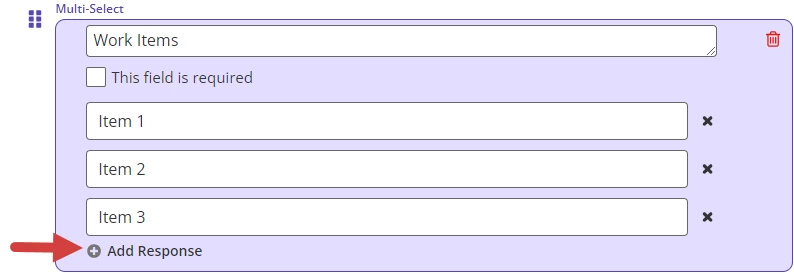
The Multi-Select Box allows you to create multiple responses. Users can then select one or more responses (users are required to select at least one response). Click Add Response to enter more.
NOTE: Responses cannot be exact duplicates.
Dynamic Form elements
Dynamic Form Elements pull information from the system into the Form for you. For example, you can insert a Client Full Name Dynamic Dynamic Form Element, and the sytem will pull the Client Name into the Form for you. Currently, this is one way (from the system to the Dynamic Form) but we are continuing to expand our Dynamic Fields options and the way the operate.
The following are Dynamic Fields (indicated by being grayed out):
- Client Full Name
- Client Email
- Client Mobile Number
- Client ID Number
- Client Date of Birth
- Client Address
| What it looks like while creating: | What it looks like in the Form: |
Dynamic Forms Elements Displayed
- Dynamic Fields
- Regular (customizable) Fields