


PERMISSIONS: Therapist can add Treatment Goals for their assigned Cases, Administrators or higher can add Treatment Goals for all Cases.
You can add multiple Goals and Objectives, along with Goal Status to your Treatment Plan Notes.
Treatment plans are meant to be created, reviewed with the client and signed. If changes are made to a plan a new plan is added, details from the previous plan are automatically included, revisions or updates made, reviewed with the client and then resigned. This creates an ongoing record of the progress and adjustments to treatment plans.
IMPORTANT: Treatment plans can be edited until they are signed but no new treatment plans can be created. Once a Treatment Plan is signed changes or updates cannot be made on that Treatment Plan. You can add a new Treatment Plan and the Goals and Objectives you entered on the previous Treatment Plan are included for you to make changes and track progress.
Jump to Section:
Add Treatment Plan
- Locate Client and open Client Profile.
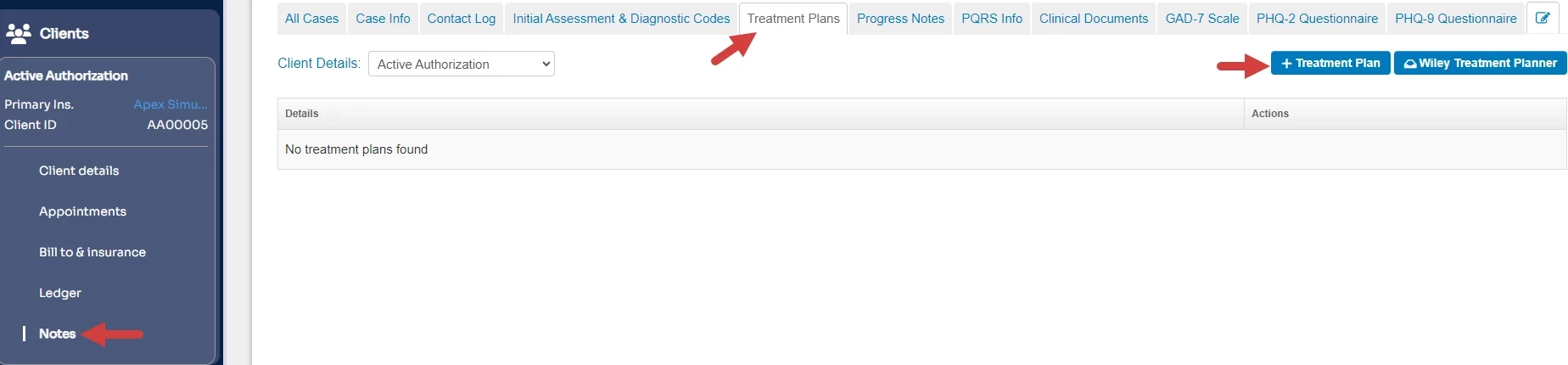
- Click Notes in left side menu.
- If a Case has not been created for this Client a new one will be created.
- If there are multiple Cases you are assigned to, you will need to select appropriate Case.
- Click Treatment Plans tab.
- Click +Treatment Plan. Information from any previous plans will be included in the new plan.
NOTE: If +Treatment Plan is greyed out sign the previous Treatment Plan to add a revised plan.
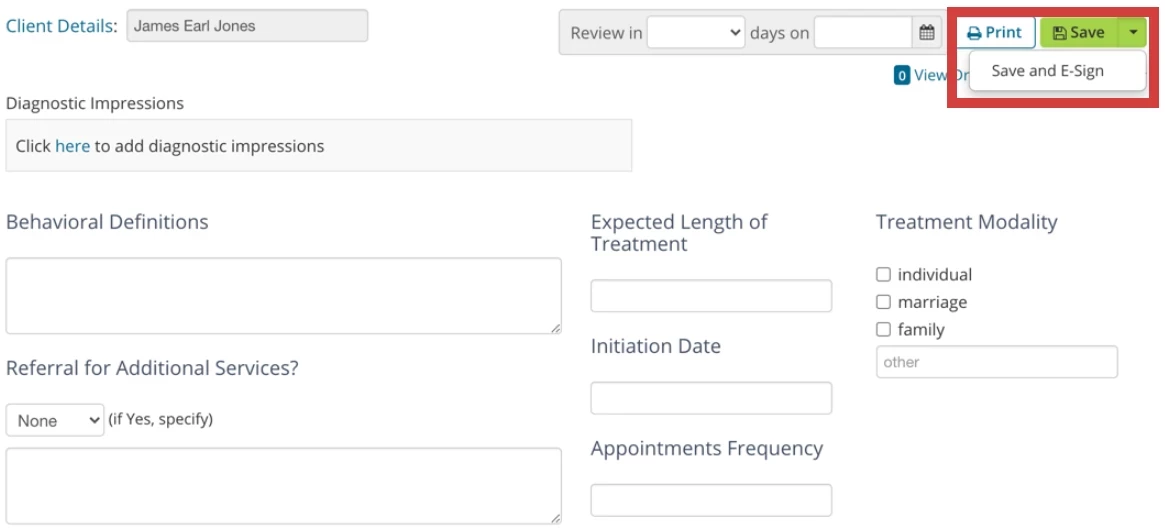
- Fill out appropriate Treatment Plan details.
- Diagnostic Impressions - Diagnosis codes will pull in from the Initials Assessment tab based on when the treatment plan is created. See Add Client Diagnosis for more information.
- If the treatment plan is created before codes are entered on the initial assessment, the codes will not display automatically.
- If the treatment plan is created after codes have already been entered on the initial assessment the codes will display automatically from the initial assessment or most recent addendum.
- Any changes to diagnosis codes will not affect existing treatment plans, regardless if they are signed or unsigned.
-
If a diagnosis code is no longer active for the case, it will not be removed from existing treatment plans. A tooltip will appear next to the code in the treatment plan letting you know the code is no longer active.
-
- Behavior Definitions: Generally refers to Behaviors you wish to target for treatment.
- Diagnostic Impressions - Diagnosis codes will pull in from the Initials Assessment tab based on when the treatment plan is created. See Add Client Diagnosis for more information.
- Click Save or the drop down on the Save button and select Save and E-Sign.
Edit Treatment Plan
IMPORTANT: Treatment Plans can only be edited before they are signed.
- Locate Client and open Client Profile.
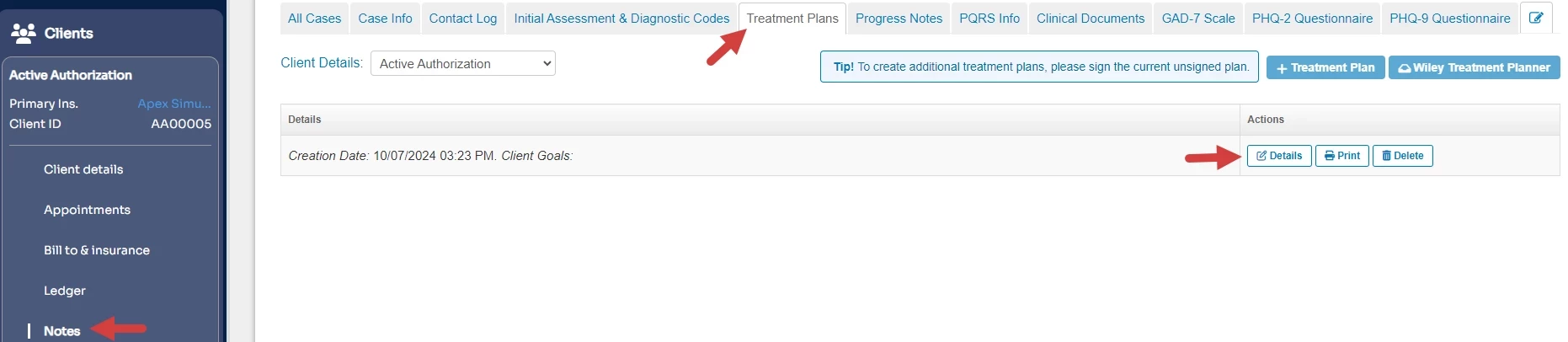
- Click Notes in left side menu.
- If a Case has not been created for this Client a new one will be created.
- If there are multiple Cases you are assigned to, you will need to select appropriate Case.
- Click Treatment Plans tab.
- Find the Treatment Plan to be edited and click Details.
NOTE: If the plan has been signed, it will be indicated in the details and you will have to add a new treatment plan.
- Add or edit Treatment Plan details.
- Click Save or the drop down on the Save button and select Save and E-Sign.
