


| Permissions Required: Must have Billing Manager designation in Staff Details. |
Follow the steps below to post payment details to Notes that are a part of claims.
NOTE: Use when the ERA is not connected and does not appear on the Remittance Advice/EOB screen.
Use when the ERA is not connected and does not appear on the Remittance Advice/EOB screen.
Jump To Section:
Post Manual Payments
- Obtain the EOB from the Payer Insurance.
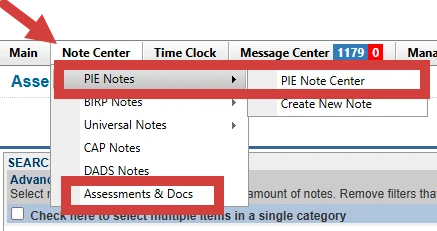
- Click the Note Center and select PIE Note Center or Assessments & Docs
- Enter the Date Range (date of service), Client, Billing Status, or Fund Source (payer) to search for the claim for which to post payment
- Click Show Notes if working from Note Center PIE or Show Assessments if working from Assessments & Docs.
- Select the line item.
- Click Notes/Activity Log and Billing/Payroll.
- Select Set Billing Comment from the Actions tab.
- Enter Billing Comments and click Do Billing/Payroll Action.
NOTE: Billing Comments display in the line item.
- Select the line item again from Billing/Payroll.
- Select Set Amount Paid, Date Paid from the Actions menu.
- Enter Date - date of the check.
- Enter Amount Paid - payment amount made by the insurance company.
- Click Do Billing/Payroll Action to save the entry.
- Change the Billing Status to Closed (Paid, Billed, Received w/Adjustments) or Closed (Paid, Billed, Received).
- Click Update Billing Status.
NOTE: The Billing Status updates in the service note details.
Post Manual Denials
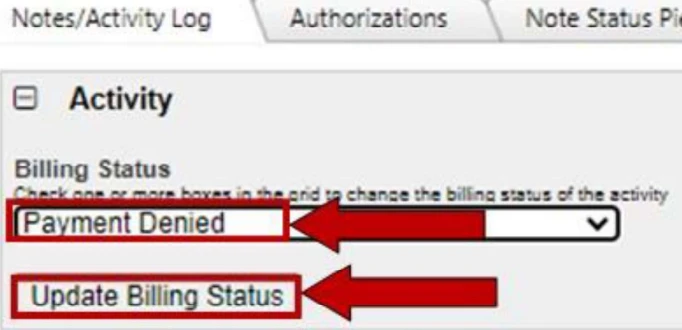
- Select Payment Denied from the Billing Status menu and click Update Billing Status.
- Select Set Denial Code from the Billing Payroll menu.
- Enter payment of zero in the Amount Paid field.
- Click Do Billing/Payroll Action.
- Add a comment if patient has any responsibility for payment.
- Select Direct Billing and Transaction History from the Managers tab.
- Click View for the transaction.
- Confirm the date of service.
- Navigate back to the transaction history page and select and click Add New to add a billing transaction comment. The comment window opens.
- Add transaction comments and click Add.
NOTE: Enter the claim number in the ICN field in case the claim is denied.
Key Terms
- 835 - The transaction file used by the Payer to make payments to providers or provide EOBs, or both.
- Claim - Contains the line items which are dates of services to be billed.
- Checkwrite - A Payer's cycle for processing and releasing EFT payment.
- Date of Service - The note or line item to bill for services and supports rendered.
- EOB - Explanation of benefits.
- ERA - This is an electronic version of EOB. It gives details of insurance claim payments and is designed to comply with HIPAA standards.
- EFT - Electronic funds transfers are transactions that move funds electronically to include ACH, echecks, etc.
- Patient Responsibility
- PR01 - Deductible Amount
- PR02 - Coinsurance Amount
- PR03 - Co-payment Amount
- Post - Apply payment details, change billing status.