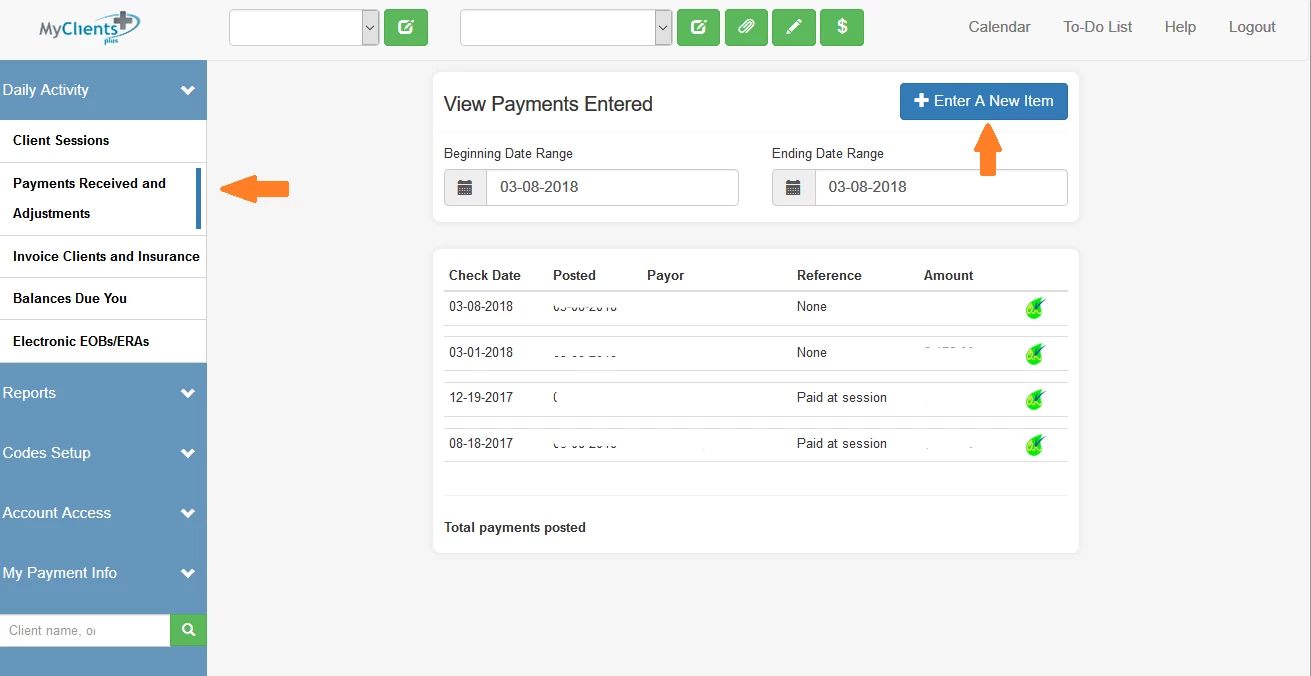
If too much payment has been applied to an individual client session, it will appear as a negative session balance. To apply this credit to another client session, click on Payments Received and Adjustments.
- Click Enter a New Item.
- Select Payment Type of "From client"
- "Click here to choose" and select the client's name
- Select today's date
- The Total Amount of the Check is $0 when completing an adjustment
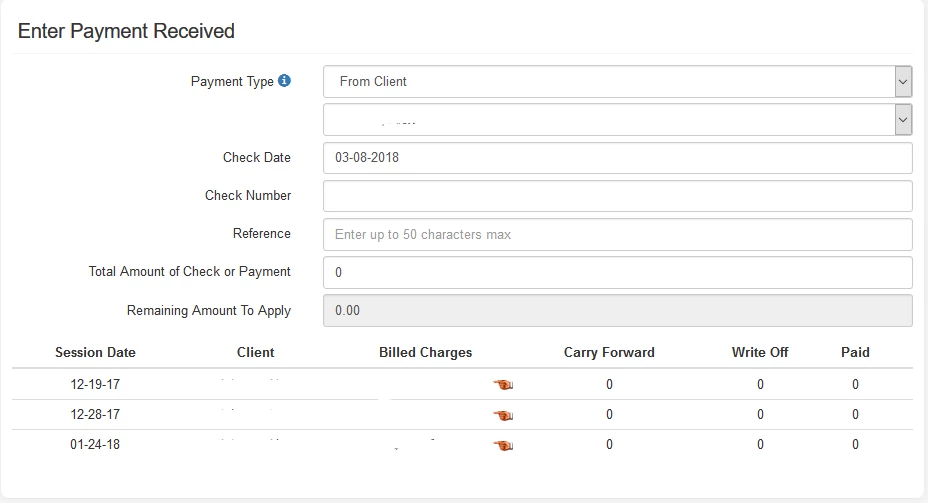
- Click on the hand next to the credit. Click Apply Payment.
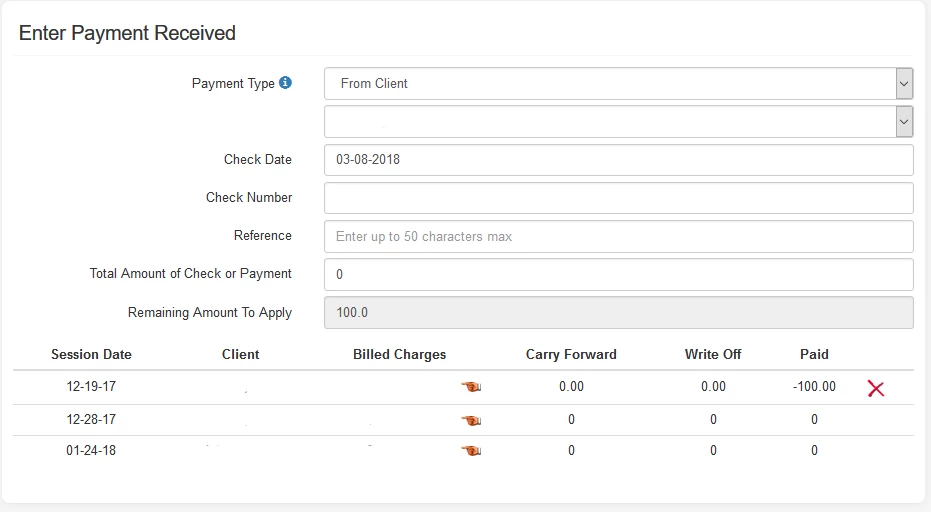
- Click on the hand icon next to a client session that shows an amount due and click Save.
- If there are more than one session, click on the hand next to the next client session with a balance due.
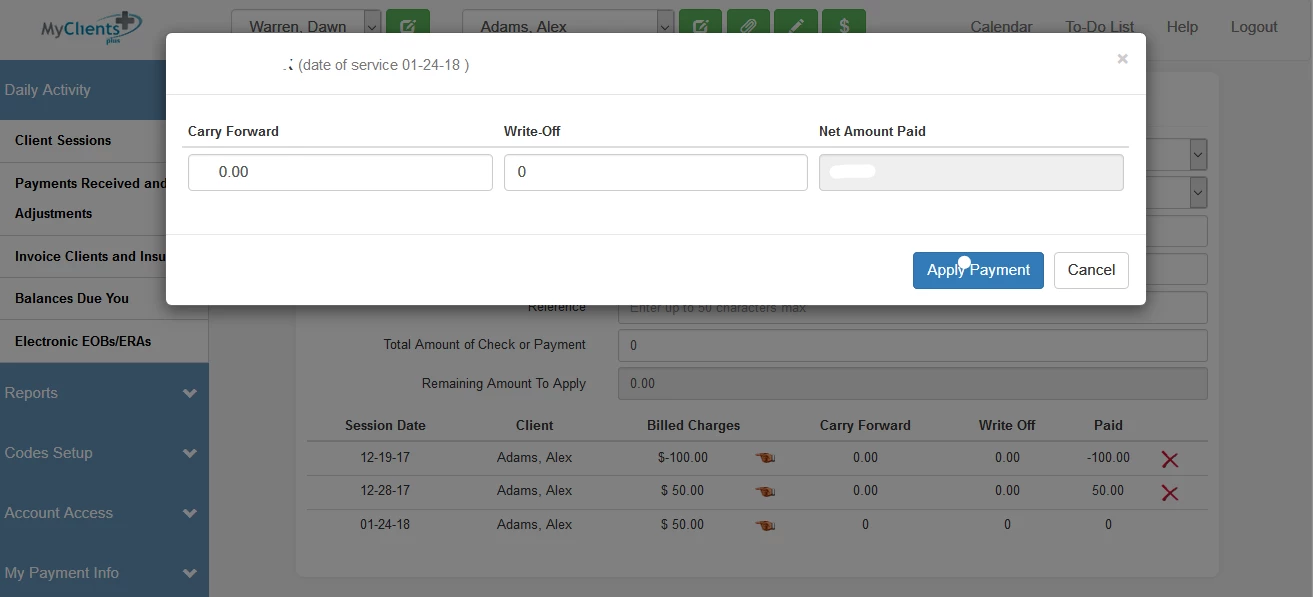
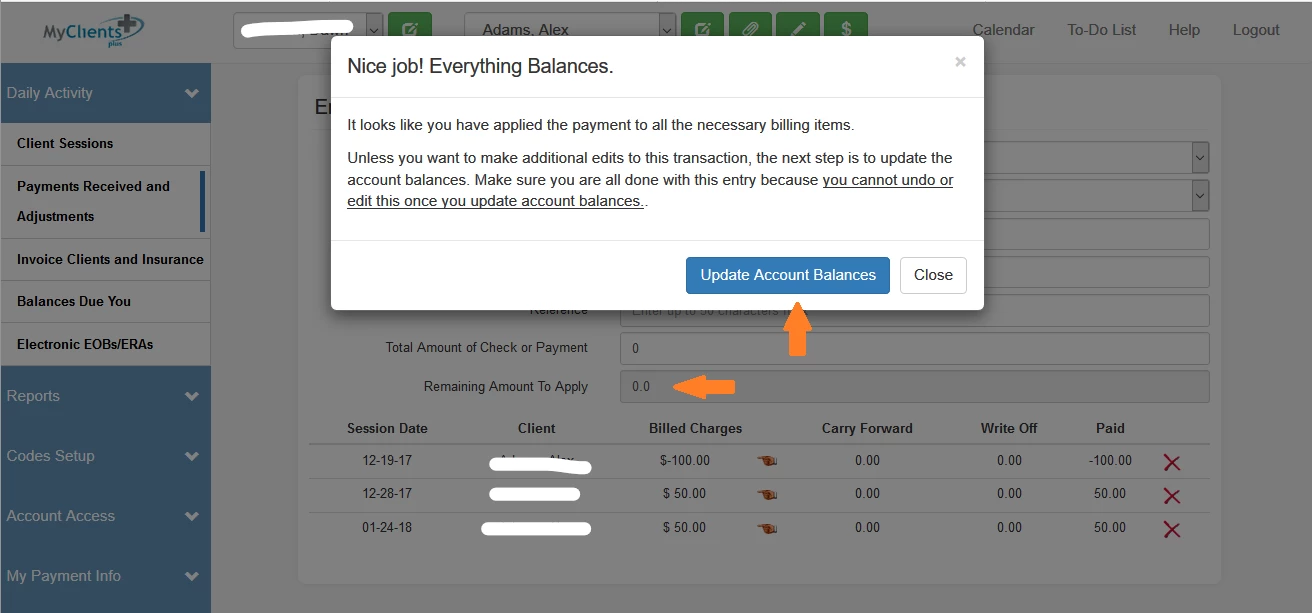
- When the Remaining Amount to Apply is 0.0, then the box will pop up to allow you to Update Account Balances.
NOTE: When the Remaining Amount to Apply does not equal 0.0, use the Carry Forward box to keep the remaining balance due or credit. If there's still a positive Remaining Amount to Apply, enter a negative Carry Forward amount to show a credit remains. If the Remaining Amount to Apply is a negative number, add a positive Carry Forward amount to show a balance is still due.
- Click on Update Account Balances to POST the adjustment.
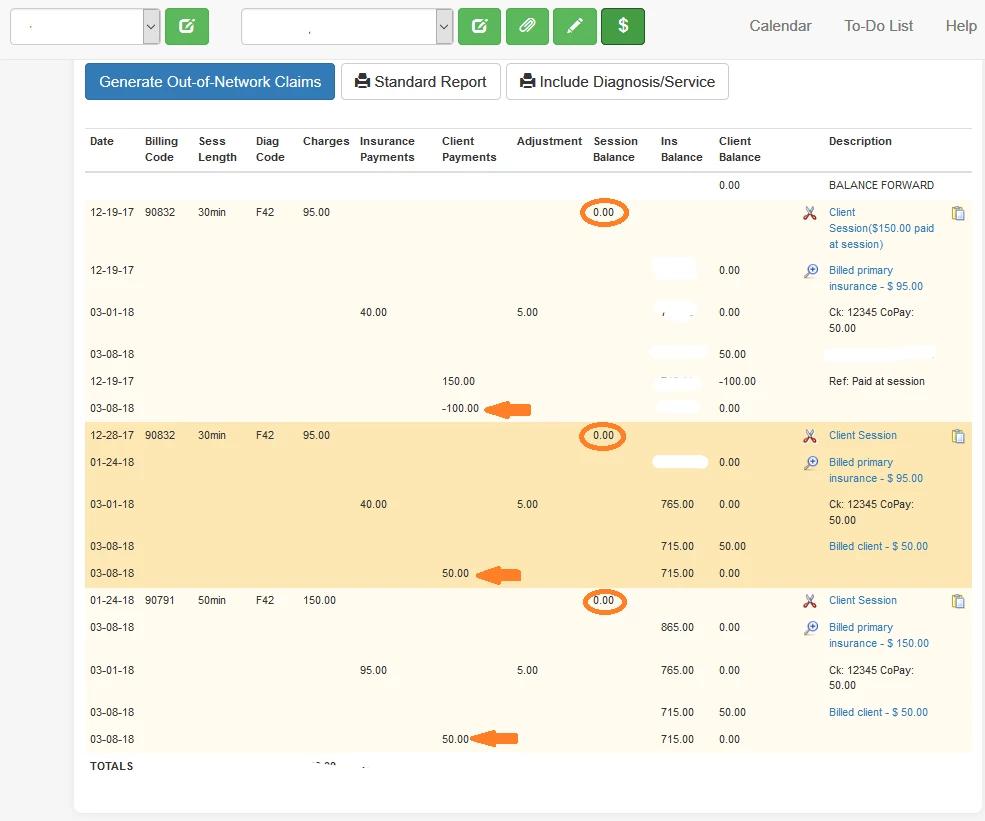
- To review adjustments to the client account, select the Client in the drop-down box and click on the green $ icon to access the Account Activity by Client. You can see that the session balance on each of the three client sessions is now $0 and the credit has now been applied to the other client sessions.