It's important to understand how charges move through the system and what action should be taken throughout the process as a claim is submitted, received by insurance, paid, and finalized to a patient account.
Jump to Section:
Submit Charges
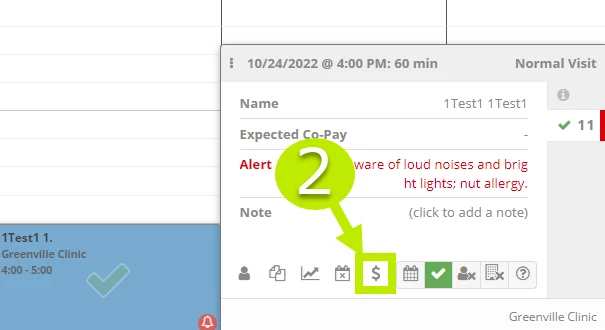
Accept Co-Pay:
- Hover the cursor over the appointment
- Select the $ icon
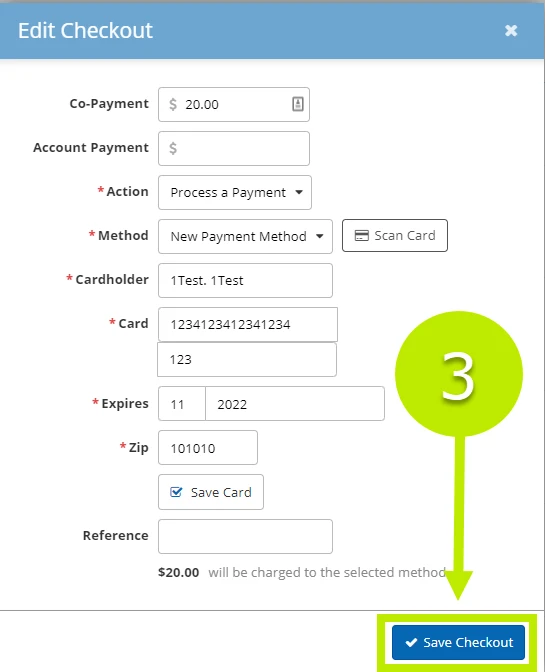
- Complete any needed information and select Save Checkout
Refresh Claims
- In the Billing Tab, select Reviewing under Claims in the left-hand menu.
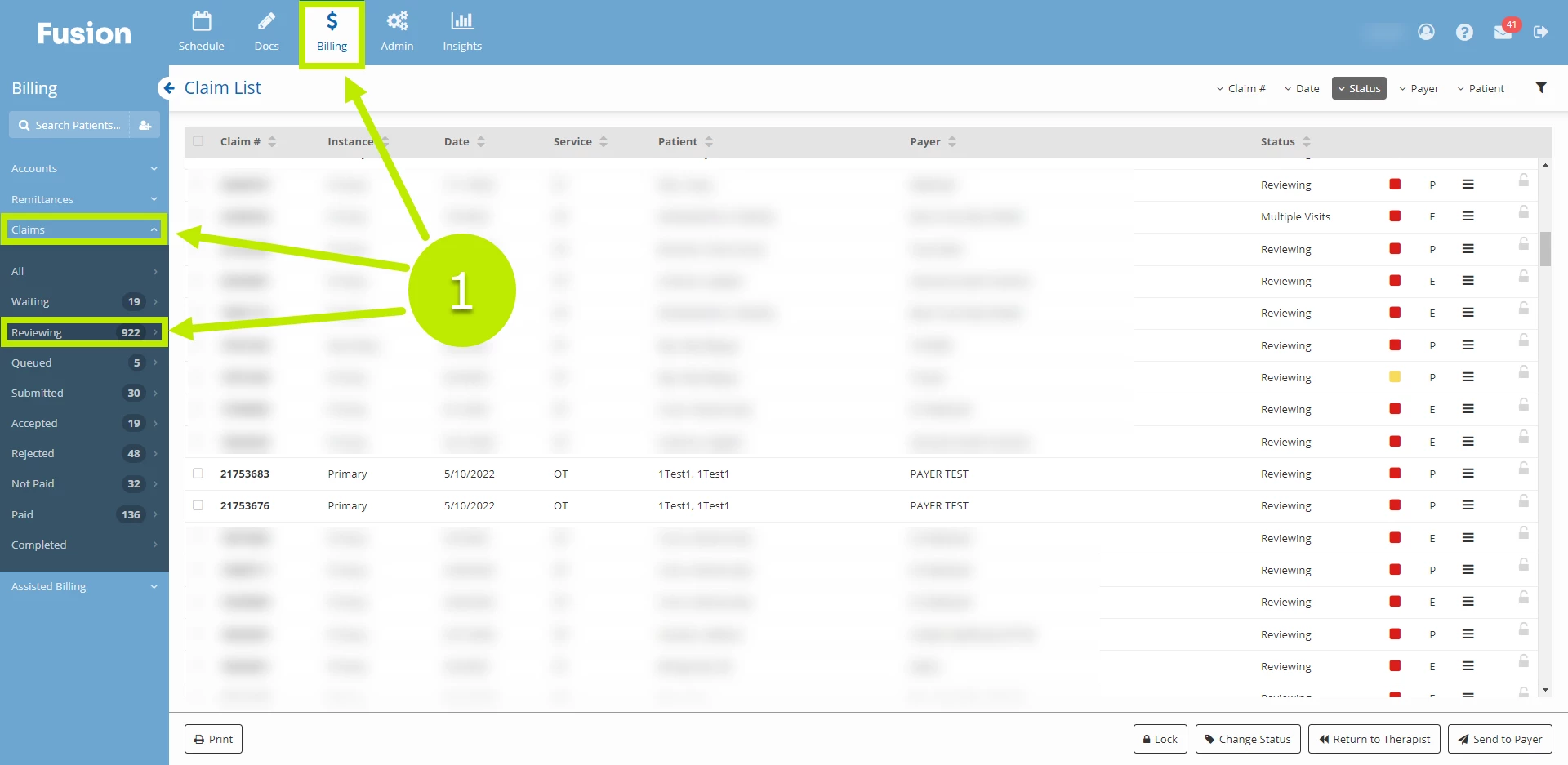
- Select the desired claim.
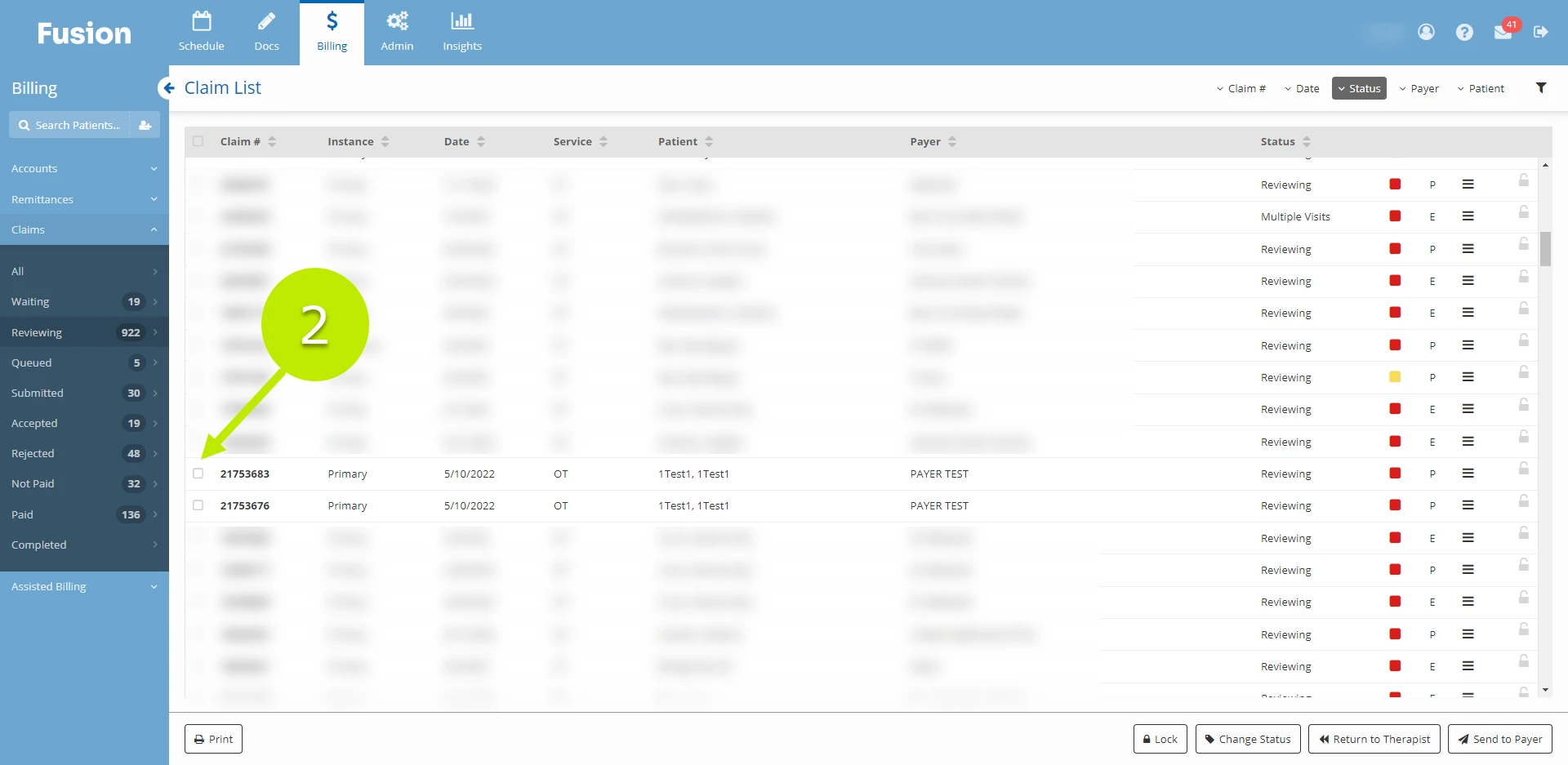
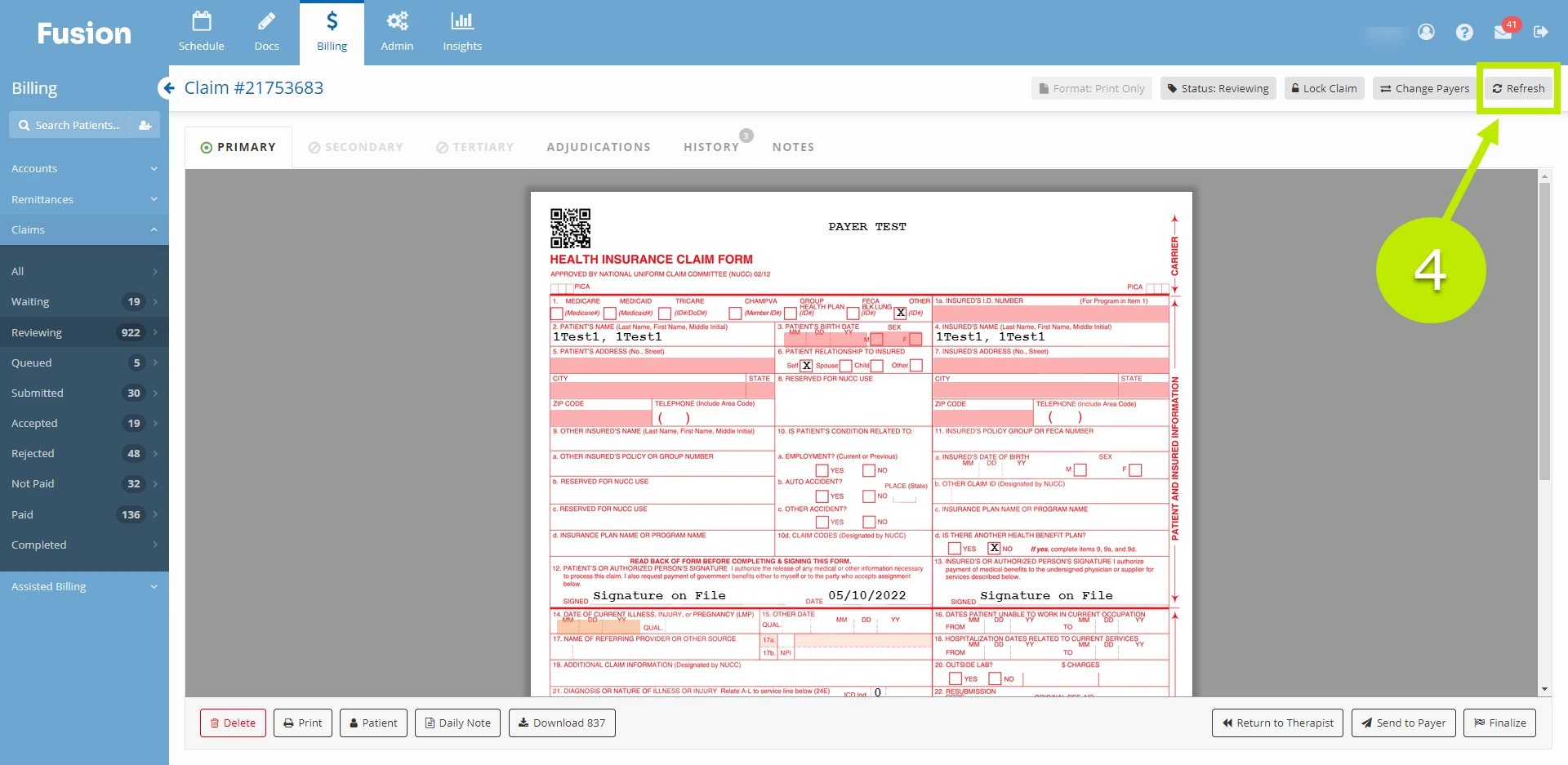
- Correct any needed information.
NOTE: Items that are highlighted in RED on the claim need correction
- Select Refresh.
- Confirm items to be Refreshed and select Refresh Claim.
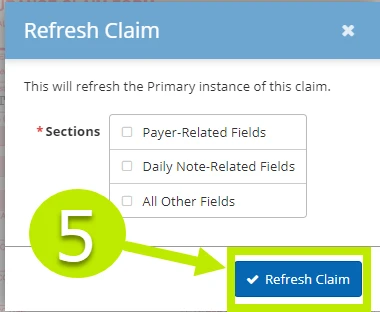
NOTE: Changing something in patient information will not correct previous claims.
Submit Claims
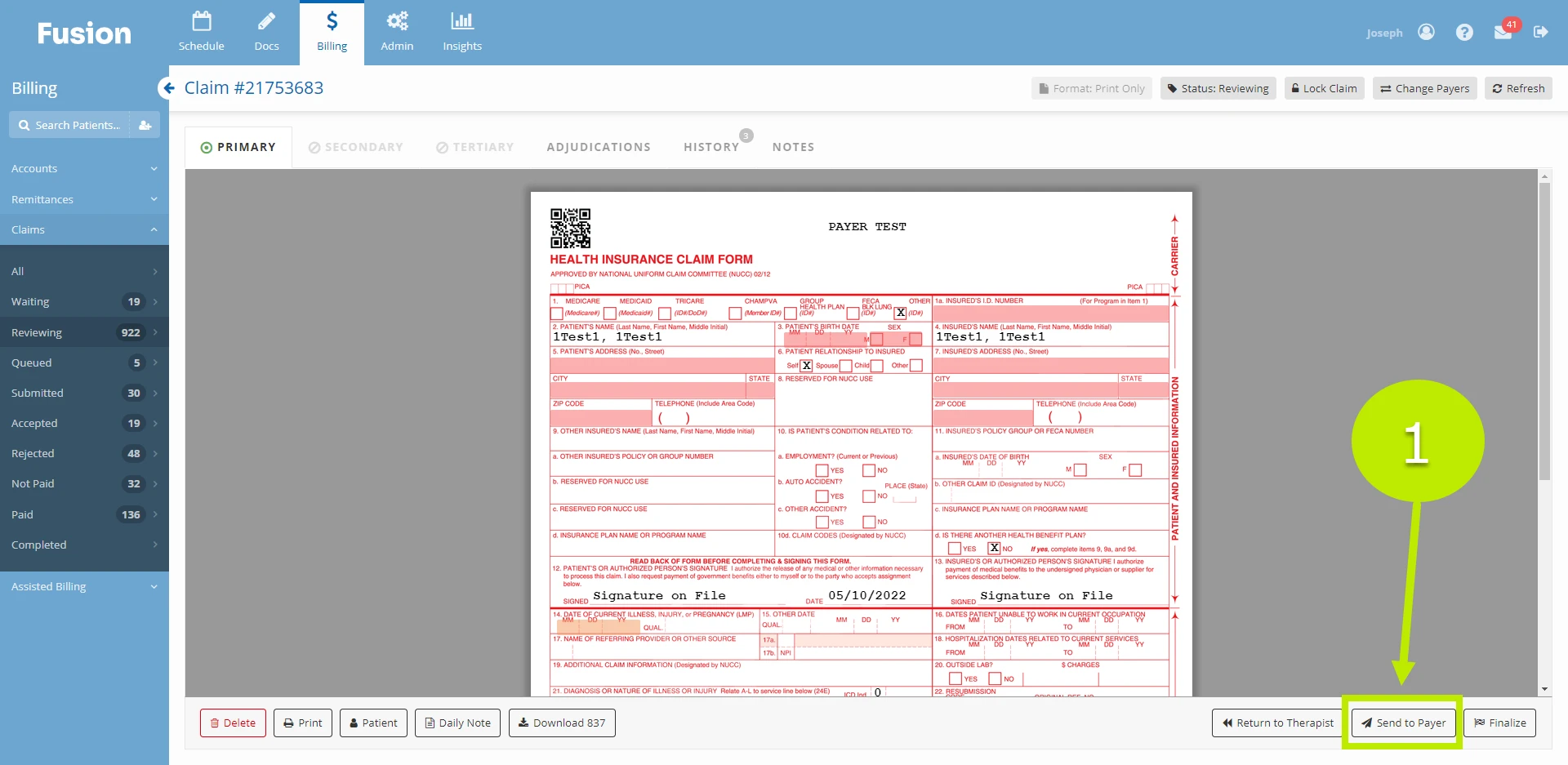
When all corrections have been made to the claim, select Send to Payer in the lower right.
Remittances
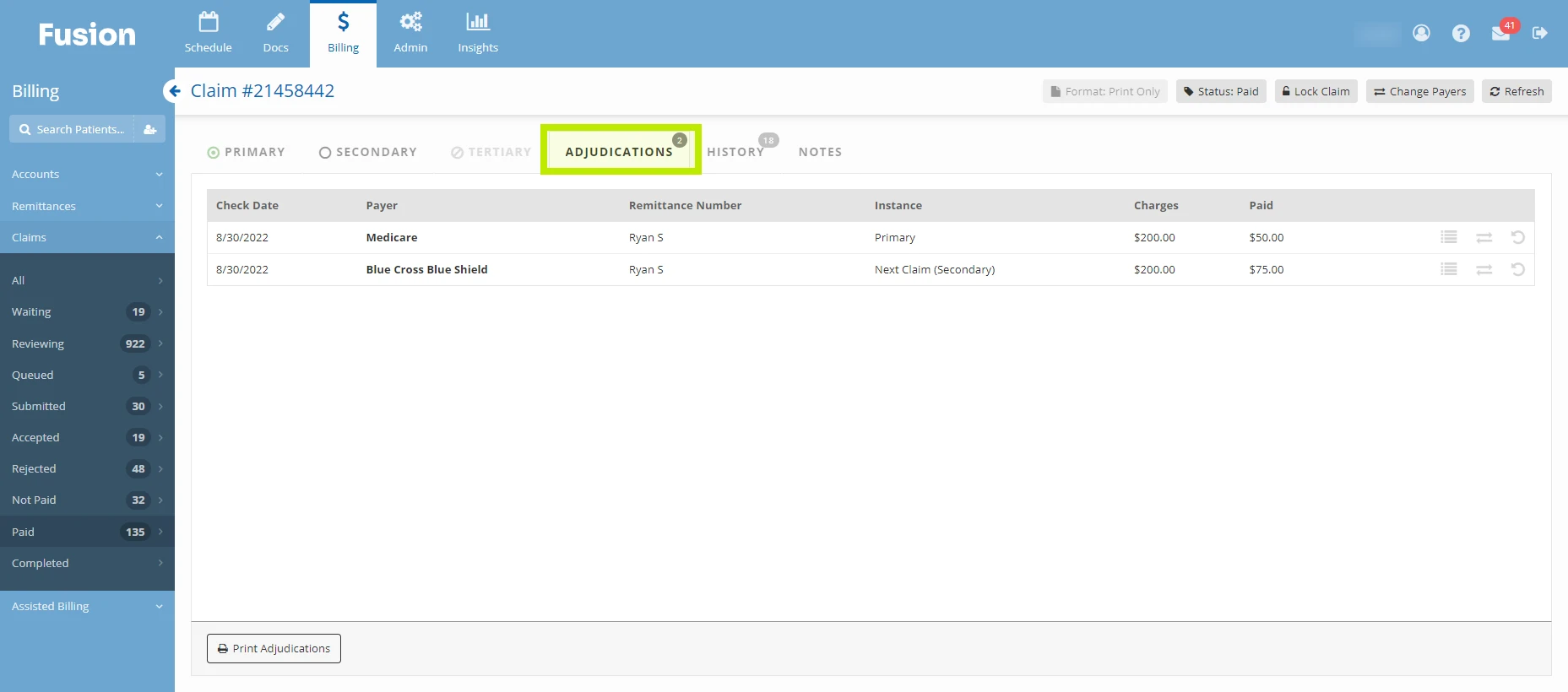
Click the Adjudications tab to see remittances associated with this claim
Adjudication Info
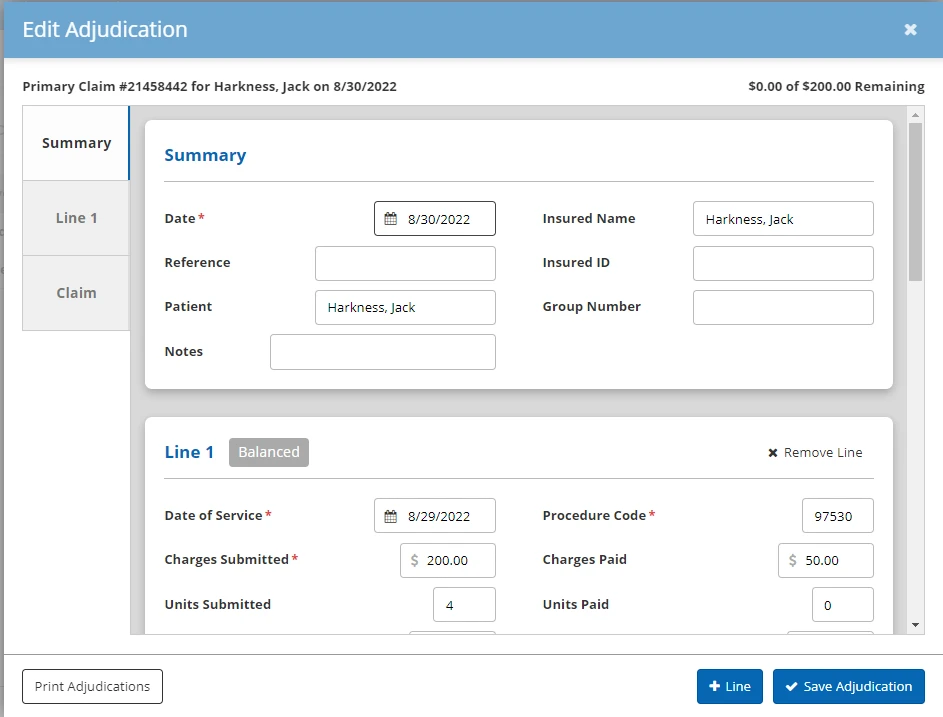
Click anywhere on the row to open additional Adjudication information.
Finalize Claims
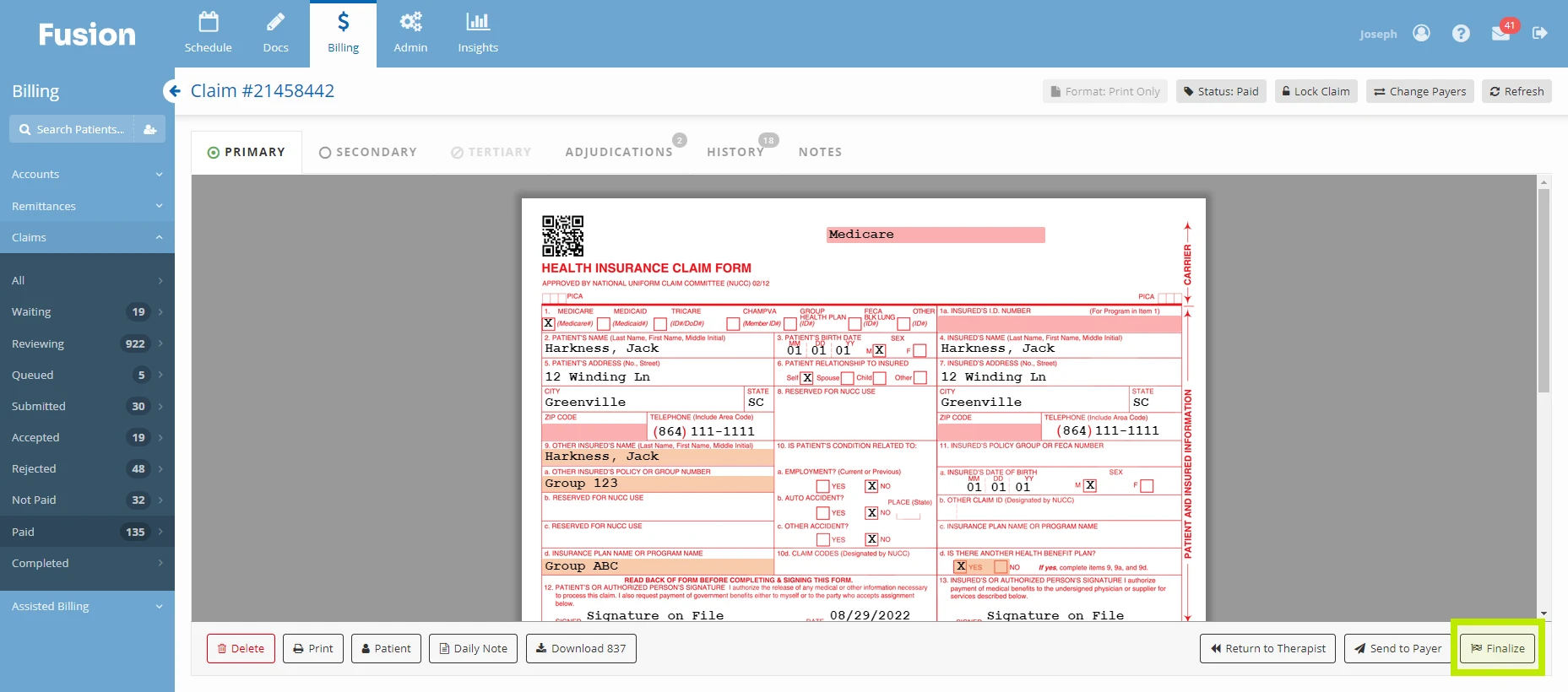
When everything is correct with a claim, it is time to finalize the claim. Select Finalize. At this point, if there is a secondary payer associated with the claim it will move to that payer. Otherwise, any remaining fees to be included to the patient's account.
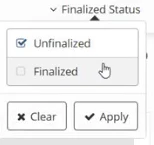
NOTE: Multiple claims can be finalized at the same time. Any claims that require additional steps will automatically be skipped. Use the Finalized Status filter to identify any remaining claims that you need to work through.