



PERMISSIONS REQUIRED: You need the Scheduling permission to use checkout or the Billing permission to add a line to a billing account.
You must Enroll in Payment Processing to be able to process your clients' payments in the system. The system processes payments using two different secure payment processors: Vantage, and Ensora Payments with Stripe. The steps to process a payment in the system depend on your payment processor.
How do I know which payment processor the system uses for my practice?
Depending on which payment processor your practice is using, click the appropriate link below to learn how to process your payments in the system.
NOTE: For payment-related questions, please contact the Ensora Payments Team at payments.support@ensorahealth.com or 877-288-5583 (option 2 then 6 for Payments)
Jump to Section:
Process Payments: Ensora Payments & Stripe
If you have Enrolled in Payment Processing, you can accept and process your clients' payments within the system. You can process a payment when checking out a patient on the schedule, or from a patient's billing account. For information on how to process payments via an account, see Add a Charge or Credit to an Account.
NOTE: Stripe accepts international payments. See Stripe: Global Payments for more information.
NOTE: At this time, Stripe is not compatible with terminals or USB card readers.
Before You Begin: To Enable Payment Processing or Troubleshoot Payment Processing Issues, make sure your browser, device, and operating systems are configured correctly.
- From your Schedule, hover over your patient's appointment and click the $ Checkout icon.
- Enter the Co-Payment or Account Payment.
NOTE: If you need to process or record both a co-payment and an account payment for the appointment, you will do these one at a time. After you process the first payment, you can return to the appointment on your schedule to process or record the second payment.
- Enter a Reference (Optional).
- Click Process a Payment to charge a credit card or debit card.
NOTE: Click Record a Payment to save information about a cash payment or a payment that was made outside of the system.
- Select a Saved Payment Method or select New Payment Method. If you select New Payment Method, fill in the Card Number, Expiration, CVC, Country and Zip fields, and select the Save for Future Use checkbox to save this payment method for the patient.
NOTE: Click the Cancel button to the previous screen.
NOTE: Getting documented permission from the patient to save and re-use their payment information may help reduce the chance of disputed charges.
-
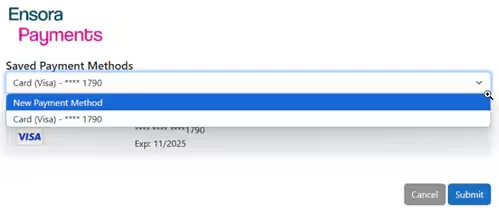
- Click the Submit button.
IMPORTANT: Do not close or refresh the page while your transaction is processing.
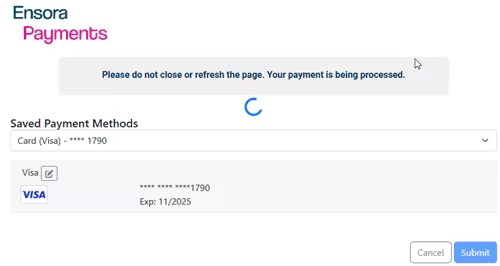
- The payment window closes. A green banner displays in the top right corner, indicating the payment was processed successfully.
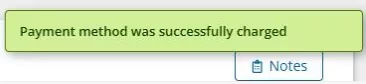
- Select Print Receipt to print the receipt or select Email Receipt to email the receipt to the patient. If you select Email Receipt, you will be prompted to enter an Email for the patient.
- Click Process Receipt. Or, click Nope to finish without creating a receipt for the transaction.
Process Payments: Vantage
If your clinic has integrated payment processing, you can process your clients' credit cards.
- Go to either use patient checkout or add a credit to a billing account.
- Fill in information about the payment:
Action Select "Process a Payment" to process a credit or debit card in the system. Method Choose whether to use a new payment method or one that's been saved in the system. If you have a card reader, you can click the Scan Card button to scan a card's information into the fields below. Cardholder The name on the credit or debit card. Card The credit or debit card's number and CVV. Expires The month and year the credit or debit card will expire. Zip The credit or debit card's billing address zip code. Save Card Save the card as a payment method for this patient. You should consider getting documented permission from the cardholder to save and reuse their card information. This can also help reduce the chance that a client will dispute a charge you process for them. Reference A reference number for the payment. - Click the Save Checkout or Save Line button to submit the payment for processing.
- If you want to print or email a receipt, select the checkbox next to that option and click the Process Receipt button. Otherwise, click the Nope button.