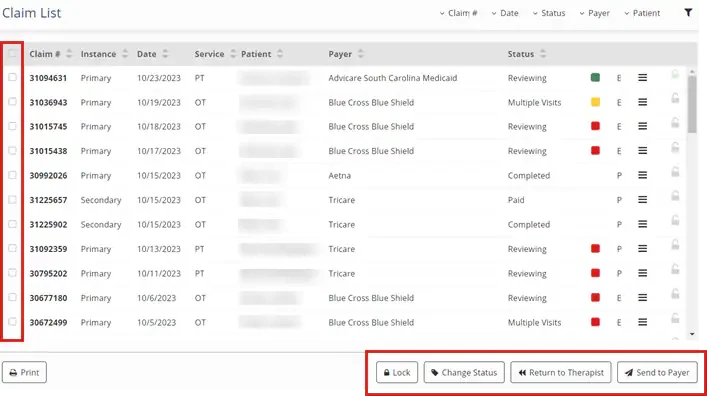
Use the Claim List to locate your clinic's claims and see where claims are in the process of being sent, received, and adjudicated by payers. You can view claims according to claim status, then sort and filter claim lists to find claims that meet specific criteria. Lock a claim, change a status, send a daily note back to a therapist, and submit a claim to a payer directly from the claim list using the claim list buttons. You can also open a claim from the claim list to view the claim and for more information and options.
Jump to Section:
Locate and Navigate in the Claim List
- Click the Billing tab at the top of the screen.
- Click Claims in the menu on the left.
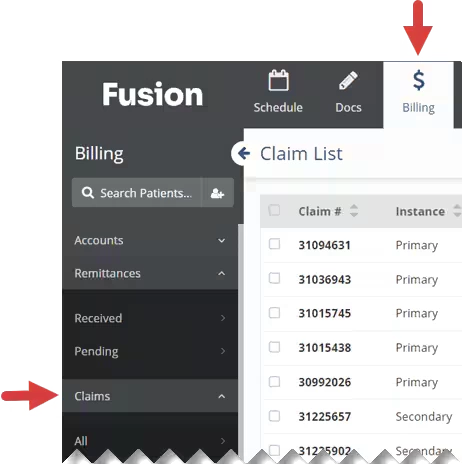
- Click All to view all claims, or click a Claim Status to view claims in that status.
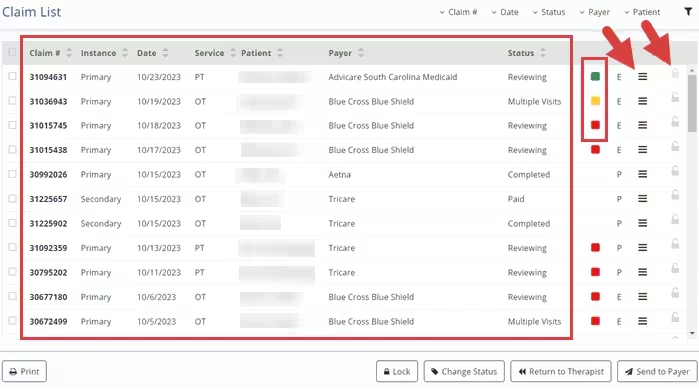
- The Claim List displays.
- Columns display the Claim Number, Instance, Date, Service, Patient, Payer, and Status.
- The Status Color icon indicates potential errors on a claim.
- A Red Square icon indicates that a required field is missing or invalid
- A Yellow Square icon indicates that something on the claim form is different from the source information.
- A Green Square icon indicates no potential errors were identified.
NOTE: Even if a claim displays a green icon, you must still review the claim to make sure everything is correct before you submit the claim to the payer.
- Hover over the Claim Info Icon for more information about the provider, codes, total charge, and amount paid.
- The Lock icon indicates if a claim is locked or unlocked. When a claim is locked, only the user who locked it is allowed to make changes.
View the Claim List According to the Claim Status
Claim Statuses categorize claims according to where they are in the process of being sent, received, and adjudicated by payers. Claims start in Reviewing Status after a therapist submits charges in a daily note for a patient who has a primary payer. Claims finish in Completed Status when they have been finalized to a billing account.
NOTE: Claims never automatically appear with a Waiting status. Claims with a Waiting status have been manually assigned this status, or have been returned to a therapist so corrections can be made on the daily note.
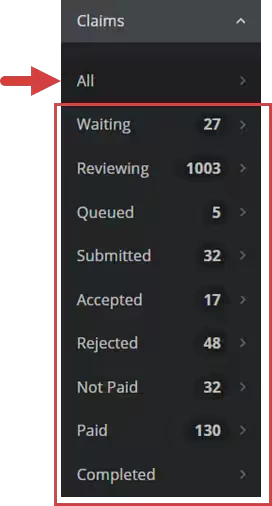
Click on a Claim Status under Claims to view the Claim List for that status.
| All: A list of all claims in every status. Waiting: Claims returned to a therapist for corrections, or claims that were manually assigned a Waiting status. Reviewing: Claims that can be reviewed and submitted to the payer. Queued: Claims that the system is processing and submitting to the clearinghouse. Submitted: Claims that have been received by the clearinghouse and sent to the payer. Accepted: Claims that have received an acceptance message from the payer and are being processed. Rejected: Claims that have received a rejection message from the payer. Not Paid: Claims that have been processed by the payer and are linked to a remit with a denial. Paid: Claims that have been processed by the payer and are linked to a remit with a paid amount. Completed: Claims that have been finalized to a billing account. | 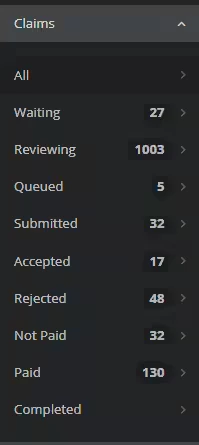
|
Sort and Filter the Claim List
Click the Claim List Filter icon to customize the Claim List filter options. Use the checkboxes in the drop-down to select and remove filters. Once a filter has been selected, it displays at the top of the claim list. Use selected filters to narrow down the information that displays in the Claim List.
- Click the Filter icon and use the Filter Checkboxes to select filters.
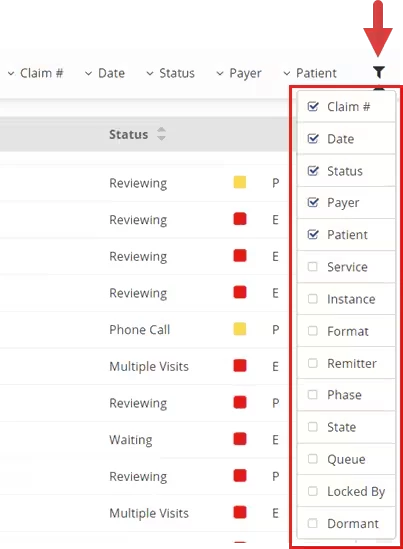
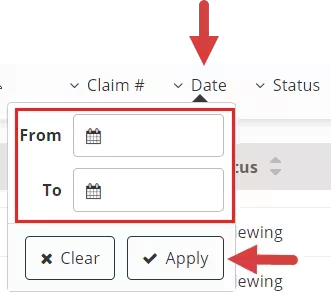
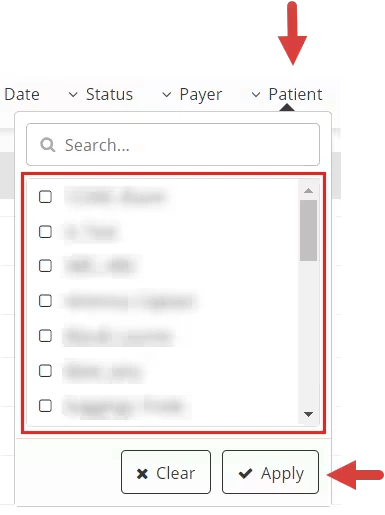
- Click a Filter, then select or enter filter criteria.
- Click the Apply button.
Date Filter:
Patient Filter:
Lock a Claim, Change a Status, Return to Therapist, or Send to Payer with Claim List Buttons
Use the buttons at the bottom of the claim list to lock a claim, change the status of a claim, return a daily note to a therapist, or send a claim to a payer.
- Click the Claim Checkbox next to the claim number to select the claim.
- Click the Lock button to prevent others from editing a claim.
- Click the Change Status button to move a claim from one status to another.
- Click the Return to Therapist button to send a daily note back to the therapist for corrections.
- Click the Send to Payor button after you have reviewed the claim to submit the claim to the payer. Click a button at the bottom of the screen to perform that action.