PERMISSIONS REQUIRED: You need the Billing permission to email an invoice.
After you Create an Invoice, you can email that invoice through the system. The email recipient will see a summary of the invoice and have a link to view the full invoice online. If your clinic has enrolled in Ensora Payments and enabled payments on emailed invoices, the email will contain a Click-To-Pay link, which allows the recipient to pay the invoice online. See Enroll in Ensora Payments for more information.
Jump to Section:
- Email an Invoice
- Click-To-Pay Invoices (For Clinics with Payment Processing)
- Click-To-Pay Invoices: Ensora Payments & Stripe
Email an Invoice
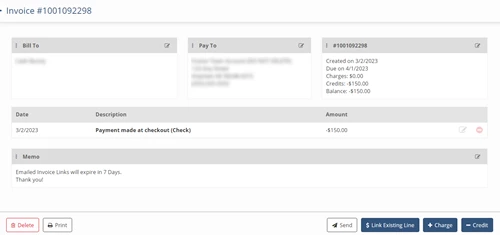
- Navigate to Billing > Invoices and click on the Invoice you want to email.
- Click the Send button at the bottom of the screen.
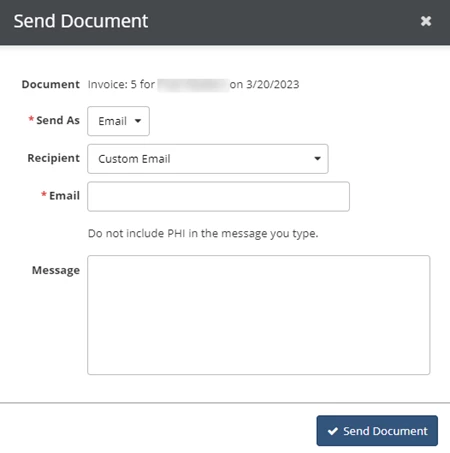
- Select the Email option in the Send As field.
- Select a contact associated with the patient in the Recipient field, or select Custom Email and enter a new email address in the Email field.
- Enter a Message (Optional) that will display within the email.
- Click Send Document.
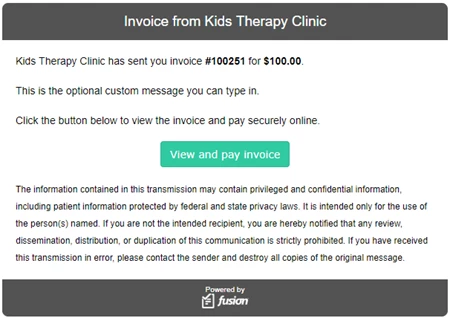
- The recipient will receive an email with a summary of the invoice and a link to view and/or pay the invoice online.
Click-To-Pay Invoices (For Clinics with Payment Processing)
NOTE: For payment-related questions, please contact the payments team at 877-288-5583 opt 2 opt 6 or payments.support@ensorahealth.com.
If you are enrolled in payment processing and allow payment on emailed invoices, your clients can make payments online using the Click-To-Pay link in their invoice email.
Click-To-Pay Invoices: Ensora Payments & Stripe
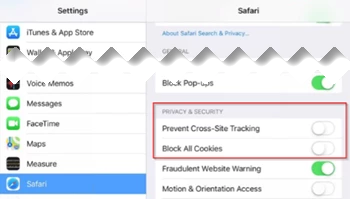
Clients can click to pay their invoices online. To enable payments from iPhones, clients should go to Settings → Safari and toggle off Prevent Cross-Site Tracking and Block All Cookies.
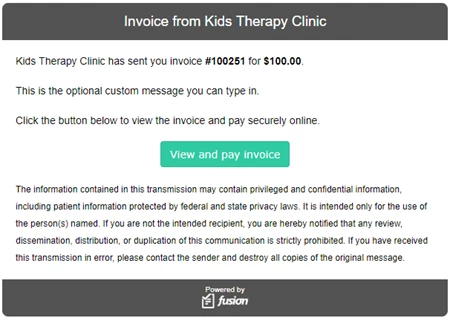
- The recipient will receive an email with a summary of the invoice and click the View and Pay Invoice button to open the invoice online.
NOTE: If the Allow Payment on Emailed Invoices option in Clinic Options is turned off, the button will instead only say "View invoice".
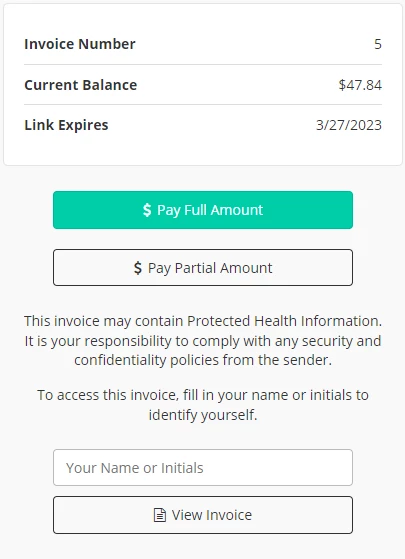
- The payer clicks Pay Full Amount to pay the full invoice, or Pay Partial Amount to make a a partial payment. If the payer selects Pay Partial Amount, they are prompted to enter a payment amount.
NOTE: To view or print the full invoice, the payer can enter their name or initials and click View Invoice.
- The payer enters payment information and clicks Submit.
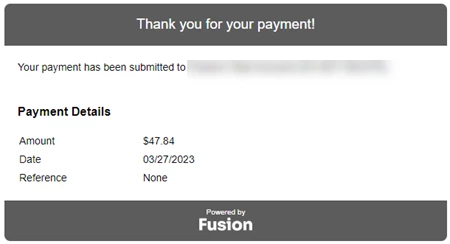
- The payer receives a receipt in their email.