


Information on the CMS 1500 form pulls directly from the system. This guide explains how information entered in the system populates in the fields on the CMS 1500 form.
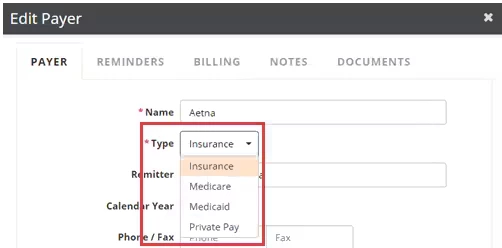
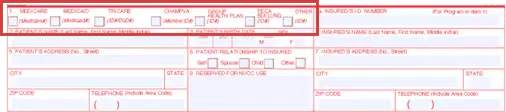
Field 1: Payer Type
Information in Field 1 comes from the Payer Type. To locate the Payer Type, click the Admin Tab, select Basic Setup, select Payers, then click the Payer's Name to open the payer details.
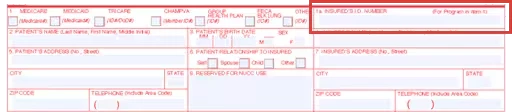
Field 1a: Insured's ID Number
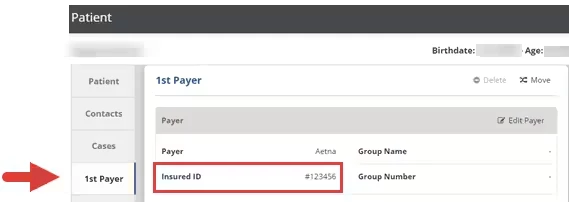
Information in Field 1a comes from the Insured ID in the Payer section of the Patient Chart. To locate the Insured ID, open the Patient Chart, then scroll down to the Payer tab and Payer section.
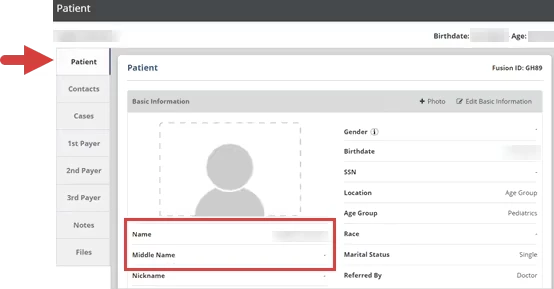
Field 2: Patient's Name
Information in Field 2 comes from the Name in the Basic Information section of the Patient Chart. If there is a Middle Name entered for the patient, the first initial of the middle name will also pull into the Patient's Name field. To locate the Patient Name, open the Patient Chart. Basic Information is located at the top of the Patient tab.

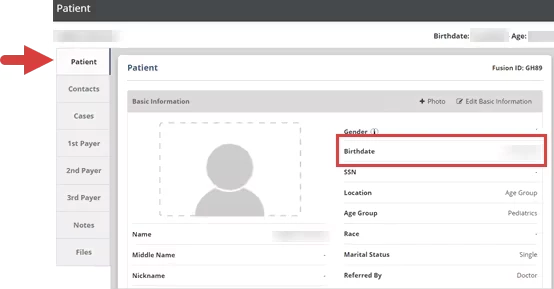
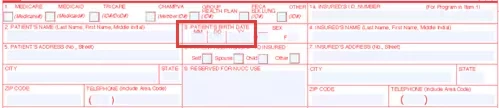
Field 3: Patient's Birth Date
Information in Field 3 comes from the Birthdate in the Basic Information section of the Patient Chart. To locate the Birthdate, open the Patient Chart. Basic Information is located at the top of the Patient tab.
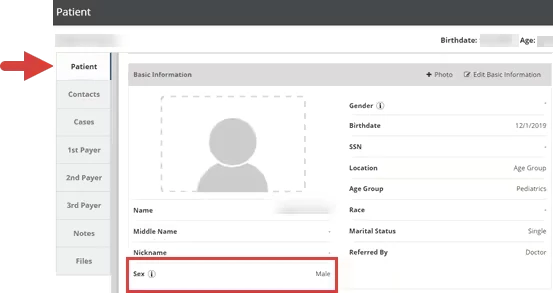
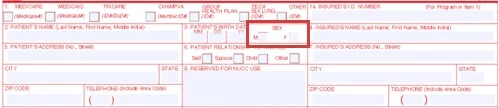
Field 3: Sex
Information in Field 3 comes from the Sex in the Basic Information section of the Patient Chart. To locate the Sex, open the Patient Chart. Basic Information is located at the top of the Patient tab.
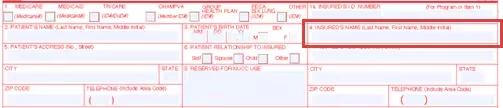
Field 4: Insured's Name
Information in Field 4 comes from the Name in the Guarantor section of the Patient Chart. To locate the Guarantor Name, open the Patient Chart, then scroll down to the Payer tab and Guarantor section.
NOTE: If the Guarantor Relationship to Patient is Self, the Patient's Name will pull into the Insured's Name field.

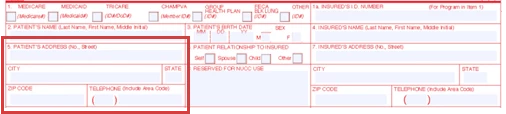
Field 5: Patient's Address
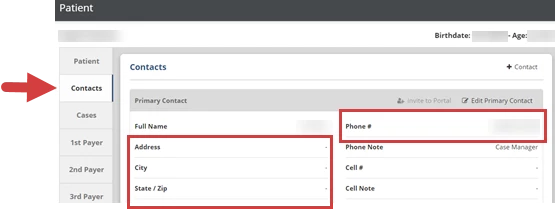
Information in Field 5 comes from the Address, City, State/Zip, and Phone in the Primary Contact section of the Patient Chart. The Primary Contact section is located at the top of the Contacts tab.
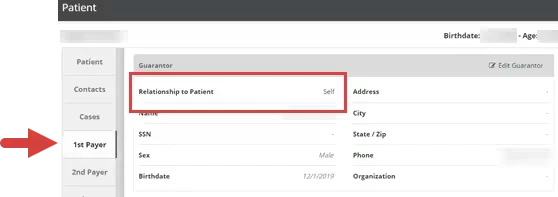
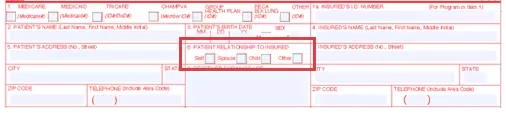
Field 6: Patient Relationship to Insured
Information in Field 6 comes from the Relationship to Patient in the Guarantor section of the Patient Chart. To locate the Relationship, open the Patient Chart, then scroll down to the Payer tab and Guarantor section.
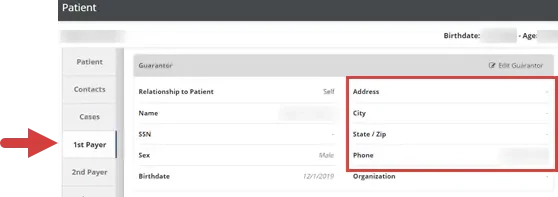
Field 7: Insured's Address
Information in Field 7 comes from the Address, City, State/Zip, and Phone in the Guarantor section of the Patient Chart. To locate the Address, open the Patient Chart, then scroll down to the Payer tab and Guarantor section.

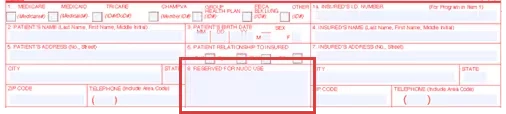
Field 8: Reserved for NUCC Use
Field 8 is not used and will appear blank.
Field 9: Other Insured's Name/Field 9a: Other Insured's Policy or Group Number/Field 9b: Reserved for NUCC Use/Field 9c: Reserved for NUCC Use/ Field 9d: Insurance Plan Name or Program Name
For claims where there is another claim in the sequence (i.e. primary claims), Field 9, Field 9a, and Field 9d are populated with the information for the next payer in the sequence. For claims that are the last claim in the sequence (i.e. secondary), this is not populated on the claim form, but the information is sent electronically through the EOB. Some payers (e.g. SC Medicaid) require that this information be populated on paper claims. Field 9b and Field 9c are not used and will appear blank.

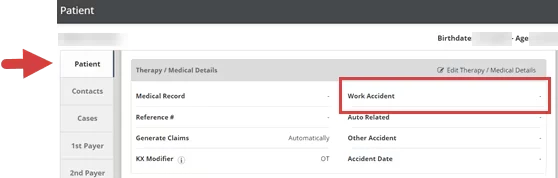
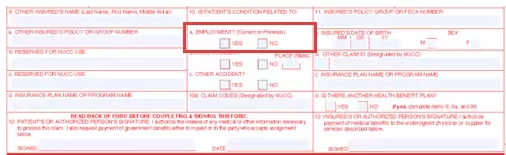
Field 10a: Is Patient's Condition Related to Employment?
Field 10a comes from Work Accident in the Therapy/Medical Details section of the Patient Chart. To locate Work Accident, open the Patient Chart. The Therapy/Medical Details section is located on the Patient tab.
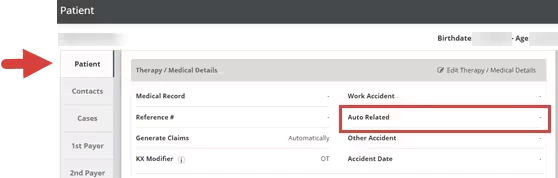
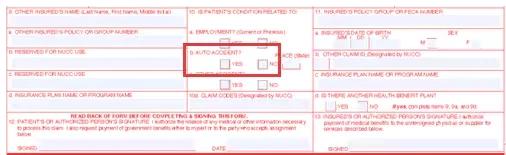
Field 10b: Is Patient's Condition Related to Auto Accident?
Field 10b comes from Auto Related in the Therapy/Medical Details section of the Patient Chart. To locate Auto Related, open the Patient Chart. The Therapy/Medical Details section is located on the Patient tab.
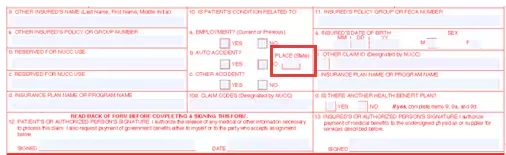
Field 10b: Place (Auto Accident State)
Field 10b comes from Auto Related in the Therapy/Medical Details section of the Patient Chart. To locate Auto Related, open the Patient Chart. The Therapy/Medical Details section is located on the Patient tab.

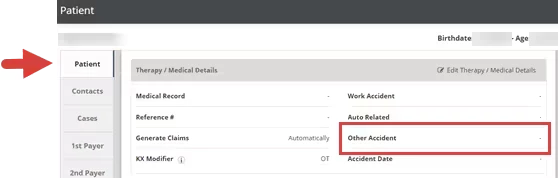
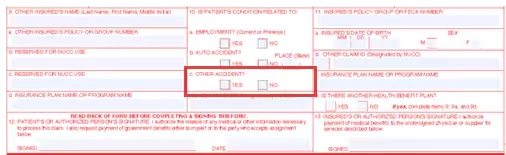
Field 10c: Is Patient's Condition Related to Other Accidents?
Field 10c comes from Other Accident in the Therapy/Medical Details section of the Patient Chart. To locate Other Accident, open the Patient Chart. The Therapy/Medical Details section is located on the Patient tab.
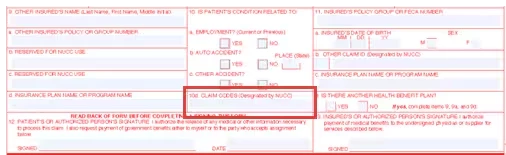
Field 10d: Claim Codes (Designated by NUCC)
Field 10d is not used and will appear blank.
Field 11: Insured's Policy Group of FECA Number
Field 11 comes from the Group Number for the Payer. To locate the Group Number, open the Patient Chart, then scroll down to the Payers tab and Selected Payer section.


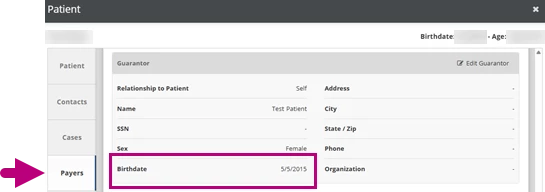
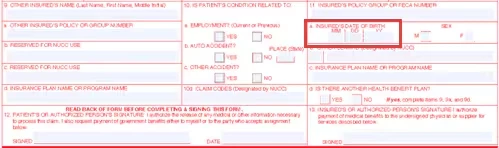
Field 11a: Insured's Date of Birth
Information in Field 11a comes from the Birthdate in the Guarantor section of the Patient Chart. To locate the Birthdate, open the Patient Chart, then scroll down to the Payers tab and Guarantor section.
NOTE: If the Guarantor Relationship to Patient is Self, the Patient's Birthdate will pull into the Insured's Date of Birth field.
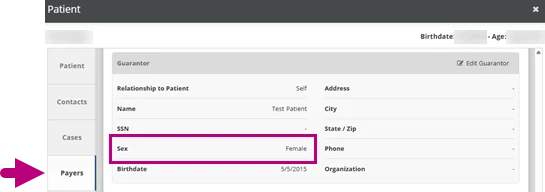
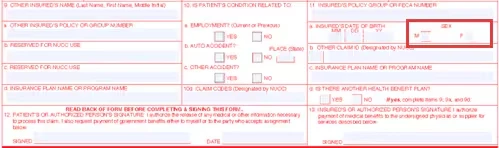
Field 11a: Insured's Sex
Information in Field 11a comes from the Sex in the Guarantor section of the Patient Chart. To locate the Sex, open the Patient Chart, then scroll down to the Payers tab and Guarantor section.
NOTE: If the Guarantor Relationship to Patient is Self, the Patient's Sex will pull into the Insured's Sex field.
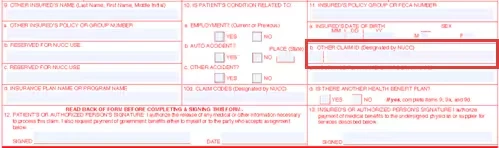
Field 11b: Other Claim ID (Designated by NUCC)
Field 11b is not used and will appear blank.
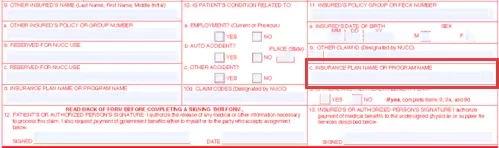
Field 11c: Insurance Plan or Program Name
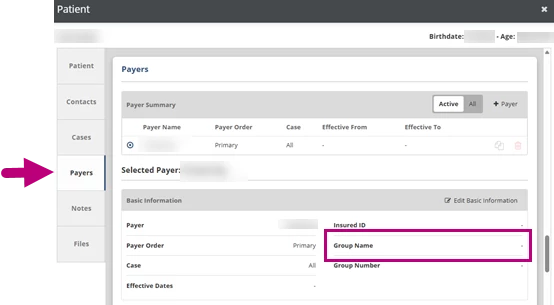
Information in Field 11c comes from the Group Name for the Payer. To locate the Group Name, open the Patient Chart then scroll down to the Payers tab and Selected Payer section.
Field 11d: Is there Another Health Benefit Plan?
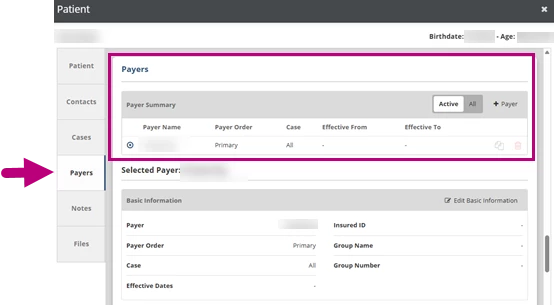
Information in Field 11d indicates if there are additional payers linked to the claim after the current claim instance. If the patient has one payer, this will be set to NO. If there are additional payers, this will be set to YES.
If you go to a claim and click the Change Payers button at the top right, you can see what payers are linked to the claim. Payer information pulls from the patient chart, but changing the chart does not automatically change the payers linked to the claim.

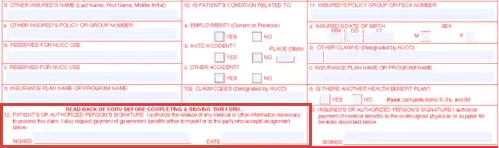
Field 12: Patient or Authorized Person's Signature
Field 12 always says Signature on File unless it is changed directly on the claim form.
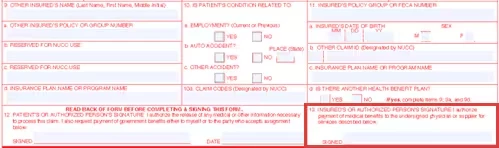
Field 13: Insured's or Authorized Person's Signature
Field 13 always says Signature on File unless it is changed directly on the claim form.
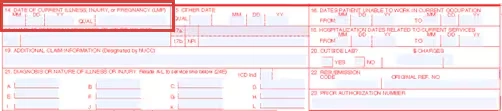
Field 14: Date of Current Illness, Injury or Pregnancy (LMP)
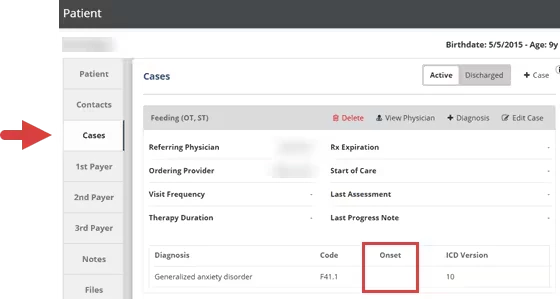
Information in Field 14 comes from the Onset for the diagnosis in the Patient Case. To locate the Onset, open the patient chart, then scroll down to the Cases tab and the Patient Case.
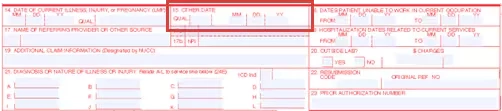
Field 15: Other Date
Field 15 is not used and will appear blank.
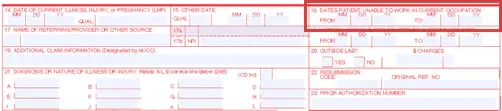
Field 16: Dates Patient Unable to Work in Current Occupation
Field 16 is not used and will appear blank.
Field 17: Name of Referring Provider or Other Source
Information in Field 17 comes from the Referring Physician in the Patient Case. To locate the Referring Physician, open the patient chart, then scroll down to the Cases tab and the Patient Case.

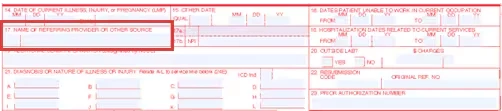
NOTE: The Ordering Provider will pull into Field 17 if the Patient Case has no Referring Physician.
NOTE: The Ordering Provider shows in the background when claim is electronically submitted.

Field 17: Name of Referring Provider or Other Source Qualifier
Field 17 defaults to DN if there is a referring physician. If there isn't a referring physician and there is instead an ordering provider, the field defaults to DK.

Field 17a: Referring Provider ID
Field 17a is not used and will appear blank.
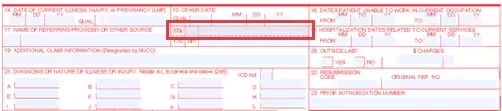
Field 17a: Referring Provider ID Qualifier
Field 17a is not used and will appear blank.
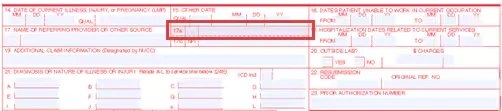
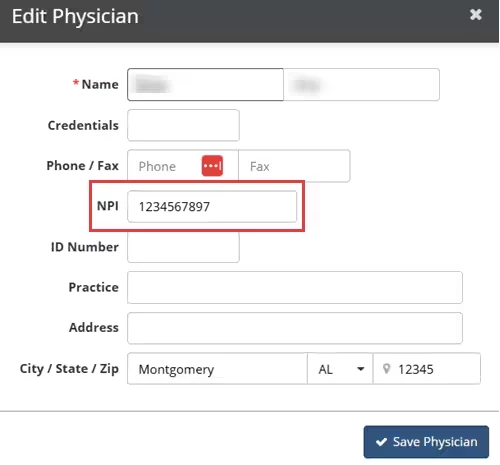
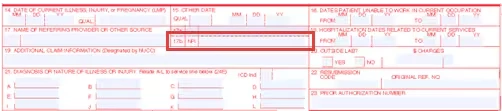
Field 17b: Referring Provider NPI
Information in Field 17b comes from the NPI for the Referring Provider. To locate the NPI, click the Admin tab, select Physicians, then click the Physician name to open the physician details.
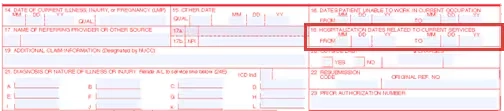
Field 18: Hospitalization Dates Related to Current Services
Field 18 is not used and will appear blank.
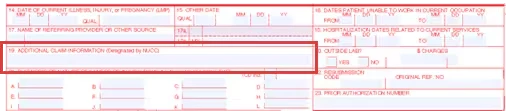
Field 19: Additional Claim Information (Designated by NUCC)
Field 19 is a notes field and not automatically populated.
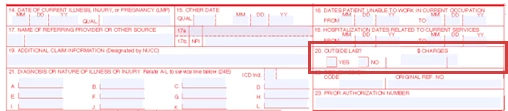
Field 20: Outside Lab?
Field 20 is not used and will appear blank.
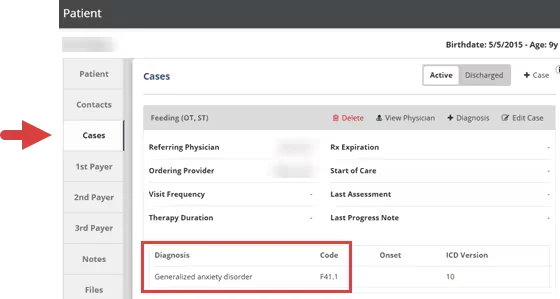
Field 21: Diagnosis or Nature of Illness or Injury
Information in Field 21 comes from the Diagnosis in the Patient Case. To locate the Diagnosis, open the patient chart, then scroll down to the Cases tab and the Patient Case.
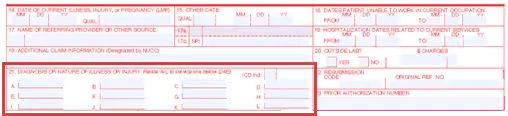
Field 21: Diagnosis ICD Indicator
Field 21 will default to 0 if the date of service (or appointment date) is after 10/1/2015. If not, the field defaults to 9.

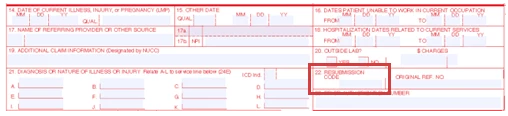
Field 22: Resubmission Code
Field 22 is not automatically populated.
- Enter 7 for Void Replace
- Enter 8 for Void
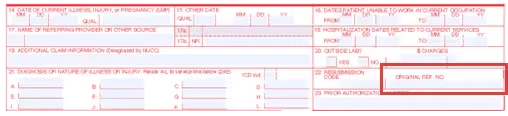
Field 22: Original Reference Number
Field 22 automatically populates with the most recent electronic remit payer reference number. If the payer requires the original claim payer reference number, manually enter this in box 22.
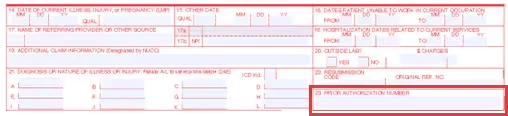
Field 23: Prior Authorization Number
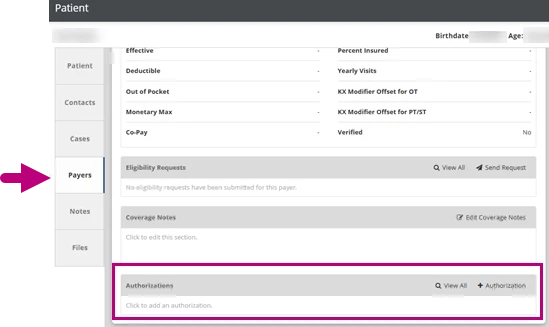
Information in Field 23 comes from the Number of the first authorization in the Payer Authorization list where all the criteria are met. To locate the Payer Authorization Number, open the patient chart, then scroll down to the Payers tab and the Authorizations section.
NOTE: You can reorder the Payer Authorization list to change which number automatically populated in Field 23.
Field 24a: Date(s) of Service
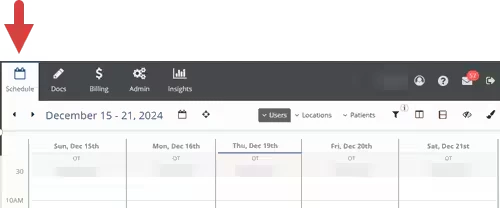
Information in Field 24a comes from the Date of the Appointment. To locate the appointment date, open the Schedule. You can use the filters to search for specific dates and patients.

Field 24b: Place of Service
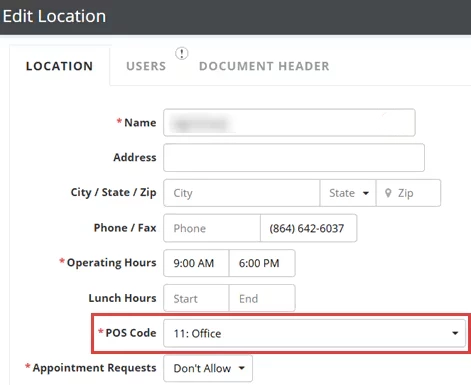
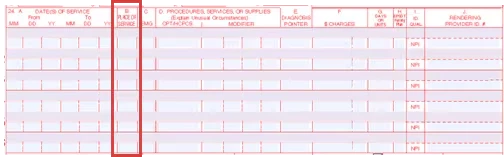
Information in Field 24b comes from the POS Code for the Location of the Appointment. To locate the the appointment location, open the Schedule. You can use the filters to search for specific dates and patients. To locate the POS code for a Location, click the Admin tab, select Locations, then click the name of a Location to see the location details.
Field 24c: EMG
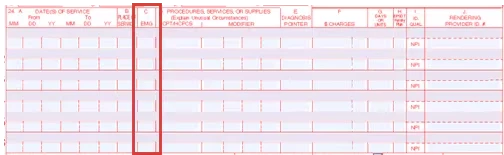
Field 24c is not used and will appear blank.
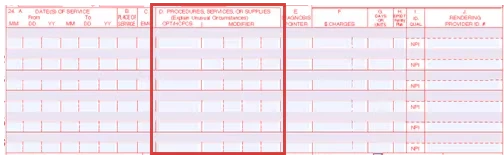
Field 24d: Procedures, Services, or Supplies CPT/HCPCS
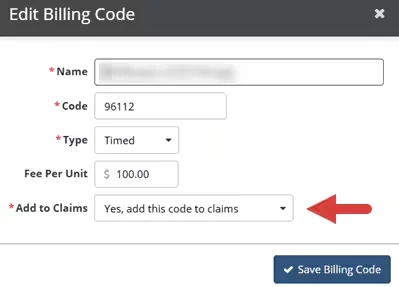
Information in Field 24d comes from Billing Codes on the Daily Note and only populated with billing codes set to show on claims. To view billing codes set to show on claims, Click Admin, select Basic Setup, then select Billing Codes. Click on the name of a billing code to see if the code is set to Yes, add this code to claims.

Field 24d: Procedures, Services or Supplies Modifier
Field 24d is usually blank, but it will auto-fill with Modifier 59 when needed based on NCCI edits. The therapist noted that the services were provided separately in the daily note. Because of this, the codes in the "Requires 59 Modifier" column will get Modifier 59. For more info, see the Modifier 59 Handling guide. If you need certain modifiers added regularly, contact Support to set up a claim rule.
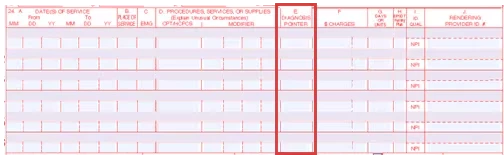
Field 24e: Diagnosis Pointer
Field 24e contains up to four diagnosis codes, represented by the letters in box 21, that are associated with this service charge. Specific diagnosis codes can be chosen in the daily note.
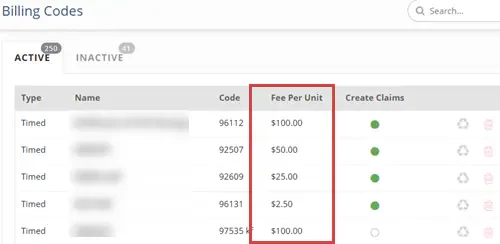
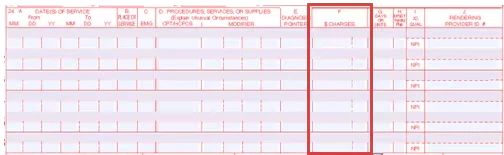
Field 24f: $ Charges
Information in Field 24f comes from Number of Units multiplied by the Charge Amount (Fee Per Unit) on the billing code. To locate the Fee Per Unit on the Billing Code, click Admin, then select Billing Codes.
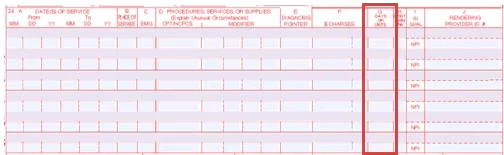
Field 24g: Days or Units
Field 24g depends on if the service is Timed, Untimed or Equipment:
- Untimed: 1
- Timed: the number of units listed in the Daily Note, calculated from the number of minutes entered, following the rule chosen in the payer's settings.
- Equipment: The number entered in the last step of the Daily Note.
Field 24h: EPSDT Family Plan
Field 24h is not generally used and will appear blank if it is unused.
NOTE: Field 24h can also be set by a claim rule. To set up claim rules, contact Support.

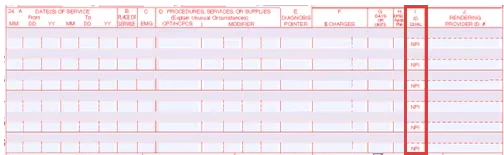
Field 24i: ID Qualifier
Field 24i usually defaults to ZZ.
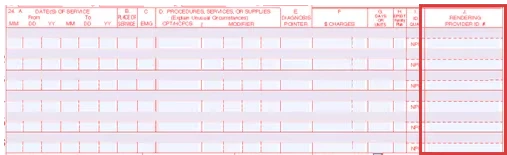
Field 24j: Rendering Provider ID
Information in Field 24j comes from the taxonomy for OT, OTA, PT, PTA, SLP, or Speech assistant based on rendering provider's therapy type and signoff permissions.
NOTE: The rendering provider is the primary therapist on the appointment unless the primary therapist doesn't have signoff permissions, and the payer is set to "Bill using supervisors NPI" or updated by a claim rule.
NOTE: This can be updated to be pediatric specific using a claim rule. This can also be set up to populate a specific way for users with different therapy types. To set up claim rules, contact Support.
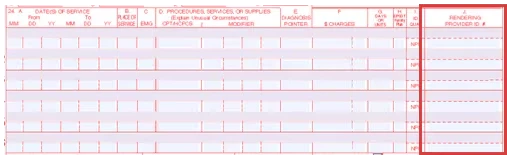
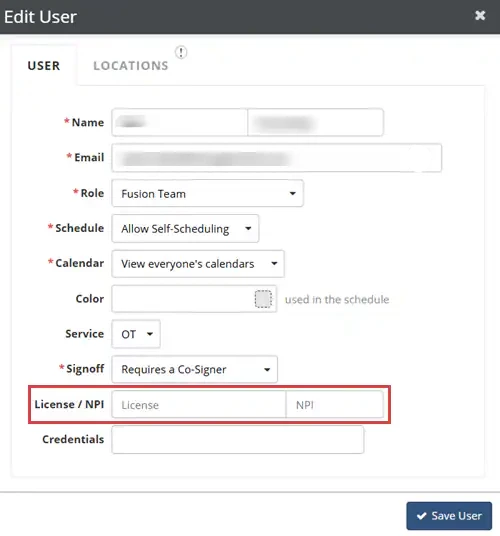
Field 24j: Rendering Provider NPI
Information in Field 24j comes from the rendering provider's NPI. To locate the NPI, click Admin, select Users, then click the name of the User to view their information.
NOTE: The rendering provider is the primary therapist on the appointment unless the primary therapist doesn't have signoff permissions, and the payer is set to "Bill using supervisors NPI" or updated by a claim rule.
Field 25: Federal Tax ID Number
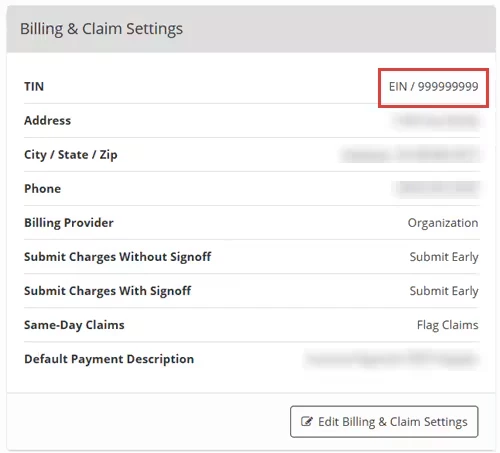
Information in Field 25 comes from the TIN. To locate the TIN, click Admin, select Basic Setup, select Clinic Options, then scroll down to the Billing & Claim Settings card.
NOTE: This may need to be edited if you are billing as an individual vs. organization for some payers.

Field 25: Federal Tax ID Number Type
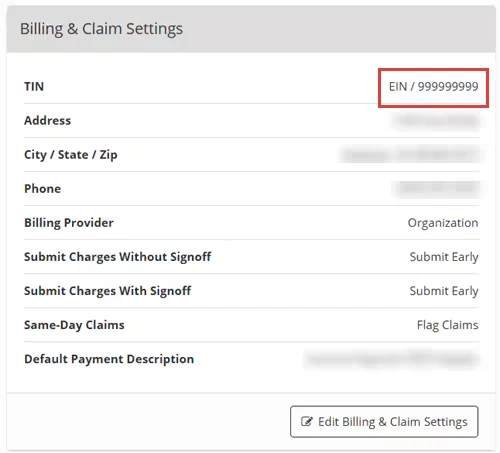
Information in Field 25 comes from the TIN. To locate the TIN, click Admin, select Basic Setup, select Clinic Options, then scroll down to the Billing & Claim Settings card.
NOTE: This may need to be edited if you are billing as an individual vs. organization for some payers.

Field 26: Patient's Account Number
Field 26 contains a letter (P, S or T) followed by the Claim Number with leading 0s to make 11 digits. The letter (P, S or T) represents whether this is the Primary, Secondary, or Tertiary claim.

Field 27: Accept Assignment
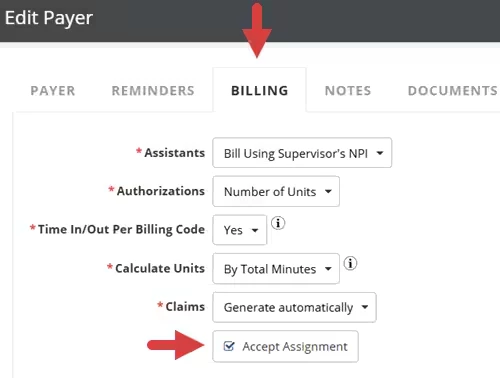
Information in Field 27 comes from the Accept Assignment field for the payer. This indicates whether or not you are willing to accept payment on behalf of the patient. If the Accept Assignment field is selected for the payer, Yes will be selected in Field 27. If the Accept Assignment field is not selected for the payer, No will be selected in Field 27. To locate the Accept Assignment field, click Admin, select Basic Setup, then select Payer. Click on the Payer name, then click the Billing tab for the payer.

Field 28: Total Charge
Field 28 is the sum of all charge lines from Field 24f on the claim form.

Field 29: Amount Paid
Field 29 is the sum of the amount paid on all remits attached to the claim and the copay paid by the patient (Not the copay indicated by the payer).
NOTE: You can edit this field if you need to change or remove a copay after a claim has been created.

Field 30: Reserved for NCCI Use
Field 30 is not used and will appear blank.

Field 31: Signature of Physician or Supplier
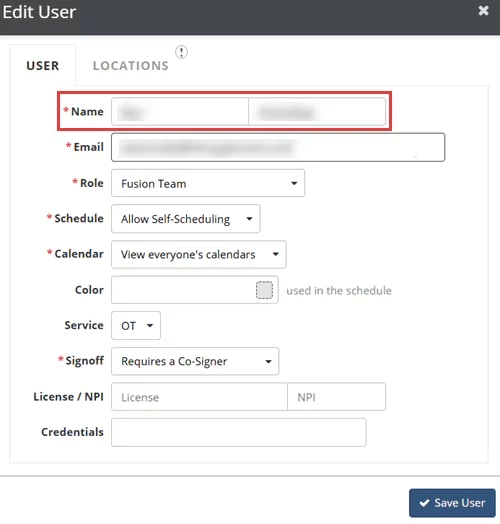
Information in Field 31 comes from the rendering provider's name and will display as Last Name, First Name. To locate the name, click Admin, then select Users.
NOTE: The rendering provider is the primary therapist on the appointment unless the primary therapist doesn't have signoff permissions, and the payer is set to "Bill using supervisors NPI" or updated by a claim rule.

Field 31: Signature Date
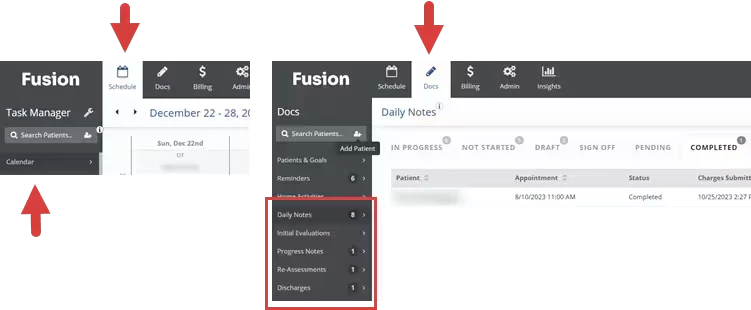
Information in Field 31 comes from the date of the appointment. The date of the appointment will be on the schedule and in the appointment note.

Field 32: Service Facility Location Information
Information in Field 32 comes from the Location where the appointment is scheduled. This will be blank if the location's POS code is 13, 14, 16, 18, or 99.
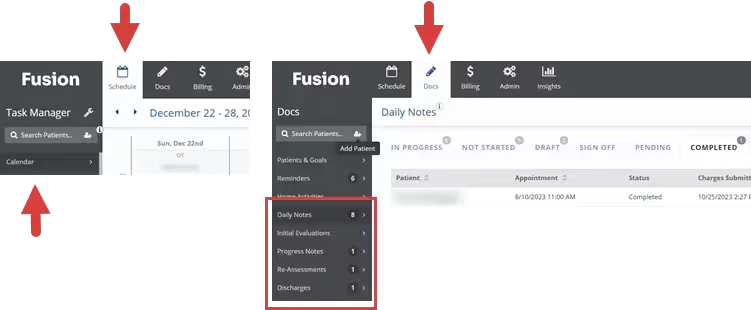
The Location of the appointment will be on the schedule and in the appointment note.

Field 32: Location Address
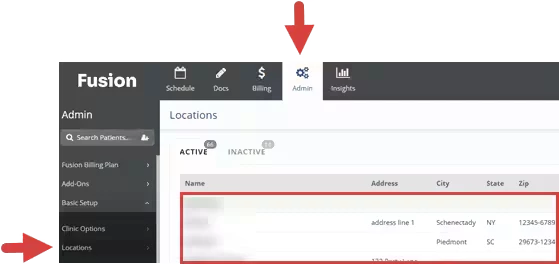
Information in Field 32 comes from the Location when the POS code is 11, 22, 03, 49, or 02, and is otherwise blank. The Location of the appointment will be on the schedule and in the appointment note. To locate the address for the location, click Admin, click Basic Setup, then select Locations.

Field 32a: Location NPI
Field 32a does not automatically populate. For claim rule assistance, please contact Support.

Field 32b: Location ID
Field 32b does not automatically populate. For claim rule assistance, please contact Support.

Field 32b: Location ID Qualifier
Field 32b does not automatically populate.

Field 33: Billing Provider Name
Information in Field 33 comes from the Clinic Name. To locate the clinic name, go to Admin and select Clinic Options. The clinic name is on the upper left.

Field 33: Billing Provider Address
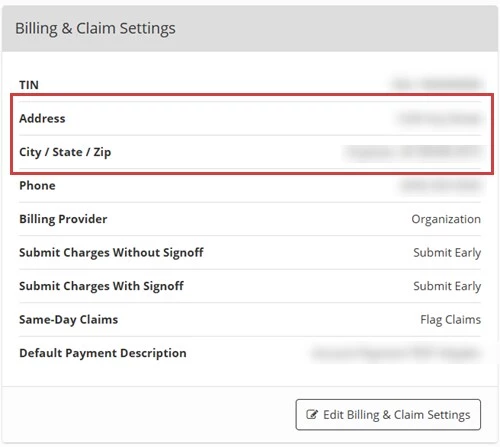
Information in Field 33 comes from the Billing Provider Address. To locate the Billing Provider Address, click Admin, select Clinic Options, then scroll down to the Billing & Claim Settings card.

Field 33: Billing Provider Phone Number
Information in Field 33 comes from the Billing Provider Phone. To locate the Billing Provider Phone, click Admin, select Clinic Options, then scroll down to the Billing & Claim Settings card.


Field 33a: Billing Provider NPI
Information in Field 33a comes from the Default Billing NPI for claims. To locate the Default Billing NPI, click Admin, then select Reserved NPIs.


Field 33b: Billing Provider ID
Field 33b is not generally used or populates with information set in claim rule. For claim rule assistance, please contact Support.

Field 33b: Billing Provider ID Qualifier
Field 33b is not generally used or populates with information set in claim rule.
