


In order to take data in the app, a Target must first be created, opened, and at an In Treatment status in the Portal.
NOTE: To learn more about creating Targets in the Portal, please visit Targets: Create, Rename, Delete, Clone or Move.
About Conditional Discrimination Target Trials
The Conditional Discrimination Target can be used when working on receptive identification of targets by helping to prompt the therapist on what order to present the targets so that it will continually randomize the order to prevent the student from experiencing faulty stimulus control.
This target is scored in two parts by first probing what level of prompt is needed for each target in order for them to get a correct response. After Probe Trials have been conducted, the user will then go into a Teaching Session where the order of the Targets are presented will change for each trial until all possible combinations have occurred.
Understand Options for Probe Trials
You will see the word "Probe" on the screen if you are in Probe Trials.
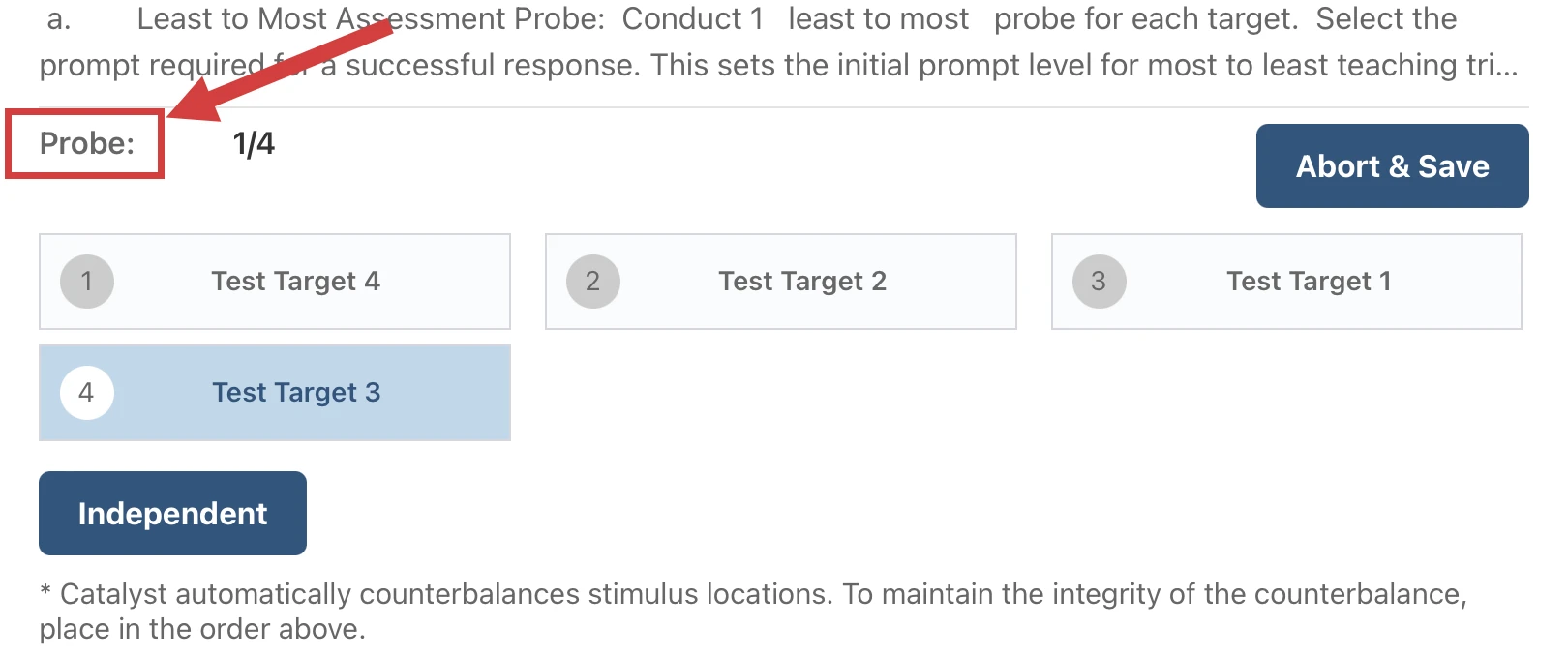
Arrange your Targets based on the order presented on the screen either by having 2 rows as shown (if you have more than 3 targets) or by making one row by putting any targets shown on the second row on the device to the right of the top targets to make one line. You will then see one of the Targets has been highlighted. This is the Target that you Prompt the Student to find while also using the Prompt that is listed in the bottom left. You will do least-to-most prompting for Probe Trials.
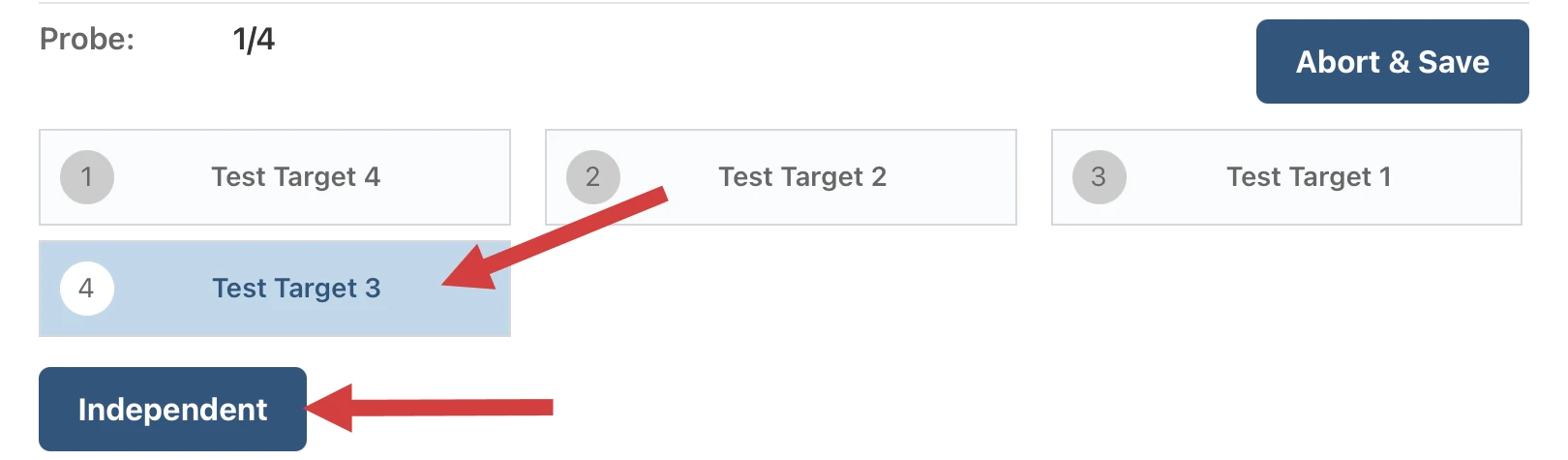
There are 2 different ways to take data for each Trial in Conditional Discrimination. You can either select the Target that the student chooses on the currently selected Prompt Level (even if it's the wrong target) and click Score Trial. If they did select the wrong target the placement will stay the same and the Prompt Level will go up to the next intrusive level.
Or you can manually select the highest Prompt Level that was needed for the student to make the correct selection by clicking on the Prompt Level, selecting the Prompt needed, keeping the highlighted Target selected, and then clicking Score Trial. This will then take you to the next Probe Trial.
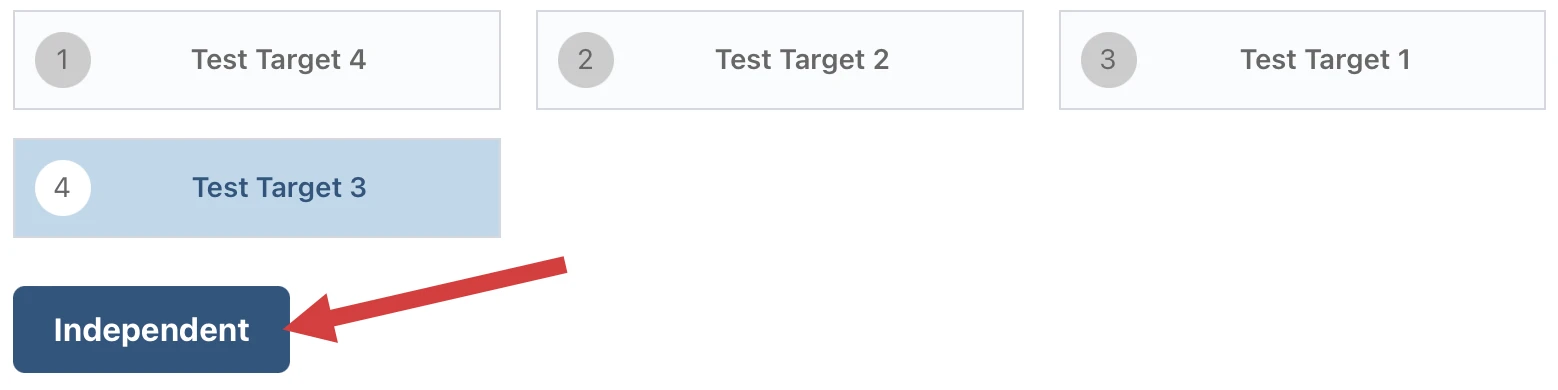
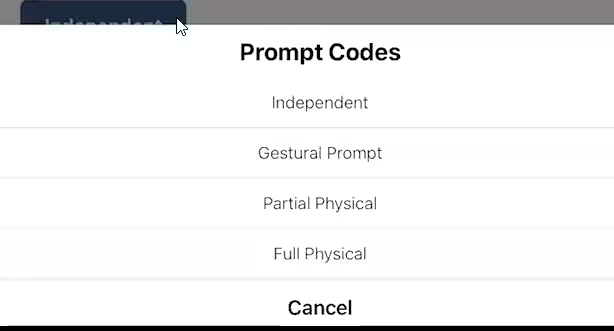
After you have finished taking data on your probe trials showing what prompt was needed in order for the student to make the right selections, this Prompt Level will be suggested for each of those individual Targets when entering into Teaching Mode. You will then see the word "Probe" change to "Trial" when you are in Teaching Mode. Follow the same procedure of presenting the Targets in the order suggested on the app, using the Prompt that is suggested as well (this prompt will be what prompt was needed for this target in the probe trials), and then asking the student to find the highlighted item.
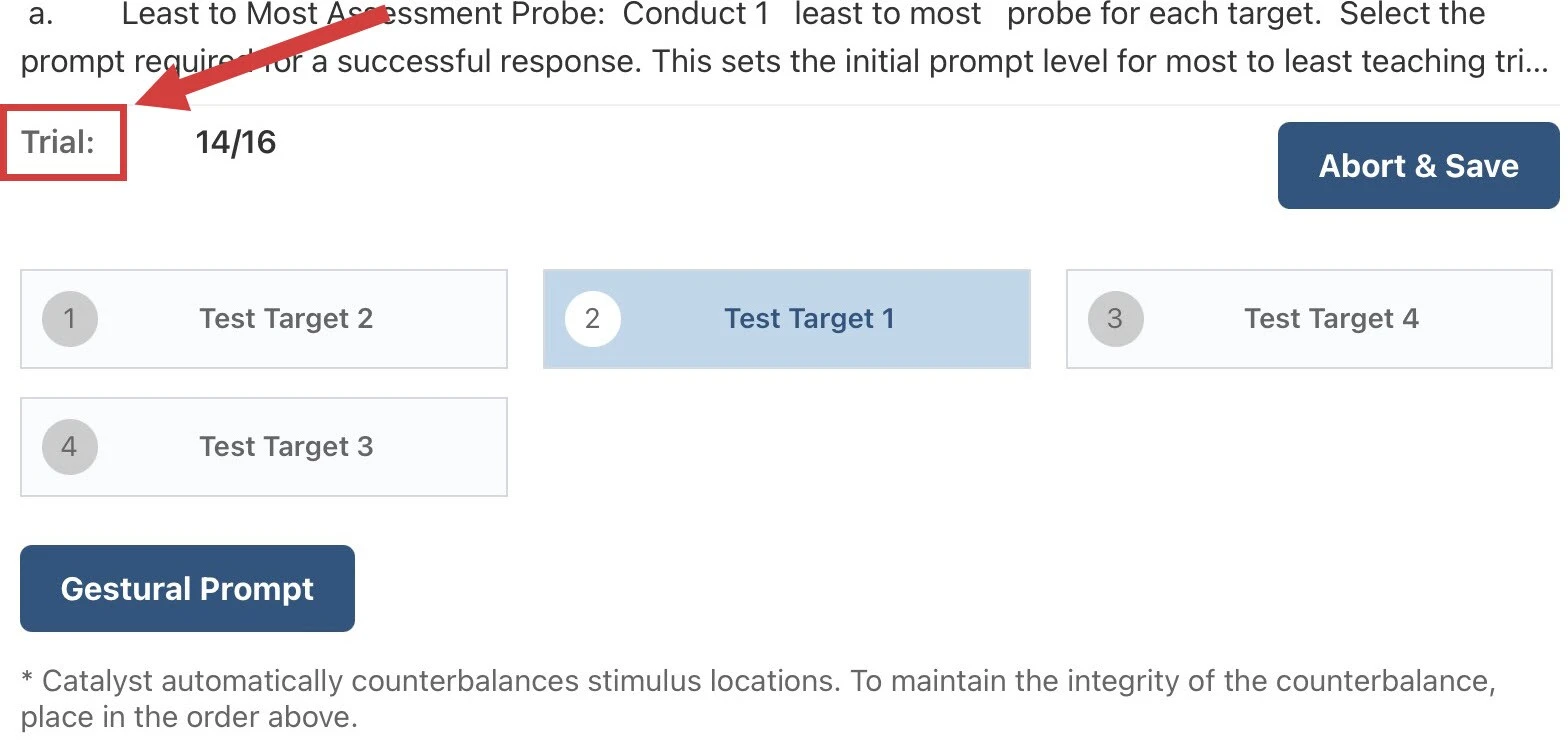
There are also 2 ways to collect data in this step. One way is if the student selects a different item than the correct one with the Prompt that was suggested then select the Target that the student selected and hit Score Trial. You will see the suggested Prompt change to the next intrusive Prompt Level if they made an error. Continue this procedure until the student selects the correct target.
A second way that you can take data during Teaching Trials is to also present the cards in the order suggested and ask them to find the highlighted one while using the suggested Prompt Level. Use most-to-least prompting and when the student finds the correct item record the Prompt Level that was used and then hit Score Trial. In order for one full Conditional Discrimination trial to occur, all Probe Trials and all Teaching Trials must occur. If you are not able to complete all of the trials before clicking on another target to score, hit the Abort & Save button and the data you collected so far will be saved to the Portal.
IMPORTANT: If you leave the Conditional Discrimination Target when you are in the middle of Trials it will start over at the beginning of Probe Trials when you return and will not save where you left off, so it's important to either finish all Probe and Teaching Trials or click Abort & Save before going to another target.
After you have finished one full Conditional Discrimination Trial, when you want to run this Target again it will always start you over with re-probing with the student to see if the Prompt Levels needed to find the Targets accurately have changed at all before going into another Teaching session.
Run Playlist Session to Score Data
After you select your Student in the App, you will be brought to the Student Dashboard. From here you can view your Playlists (such as Baseline, All Targets, Maintenance, and any Custom Playlists you have created). You may adjust your Session Settings and Select Programs to Run as shown in Data Collection Overview (Skill Acquisition Playlists & Behavior Reduction).
- Click the arrow to the right of the Playlist you want to use to start the Session and the Targets screen will display.
- Select the Conditional Discrimination Target you wish to score by tapping it on the Program Target List on the left-hand side.
Place items in the order they are displayed on the screen.
Either Click the corresponding item that the Student chooses and click Score Trial.
- OR select the Prompt Level the student ultimately needed to get the Target correctly and click Score Trial.
- If you are not able to complete all of the trials before clicking on another target to score, hit the Abort & Save button and the data you collected so far will be saved to the Portal.