Looking for the site to log in to the system? http://secure.datafinch.com/
With the system App login process, the App will be able to save/accommodate multiple user logins per device. Each user will be able to log in using their Username and Password and then unlock the app with only their PIN each time they use it.
NOTE: You must have your Username and Password (Your Username contains the organization prefix followed by a period (.) followed by a specific username e.g., cat.lucy) as well as your PIN.
Jump to Section:
Login to Device for the 1st Time
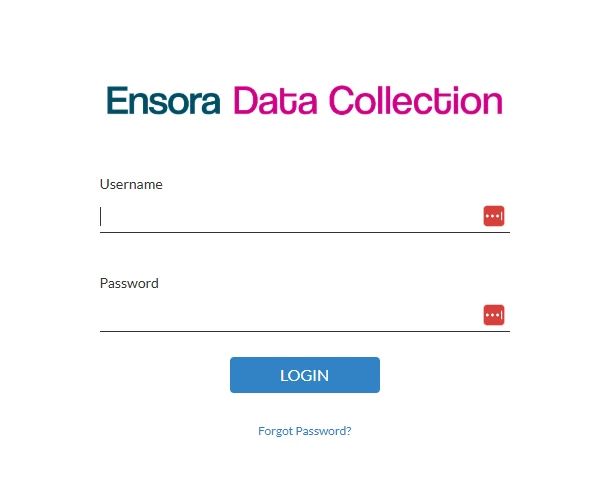
- Click the Login button if you are the first person to log in on this device.

- Enter Username and Password and click Login.
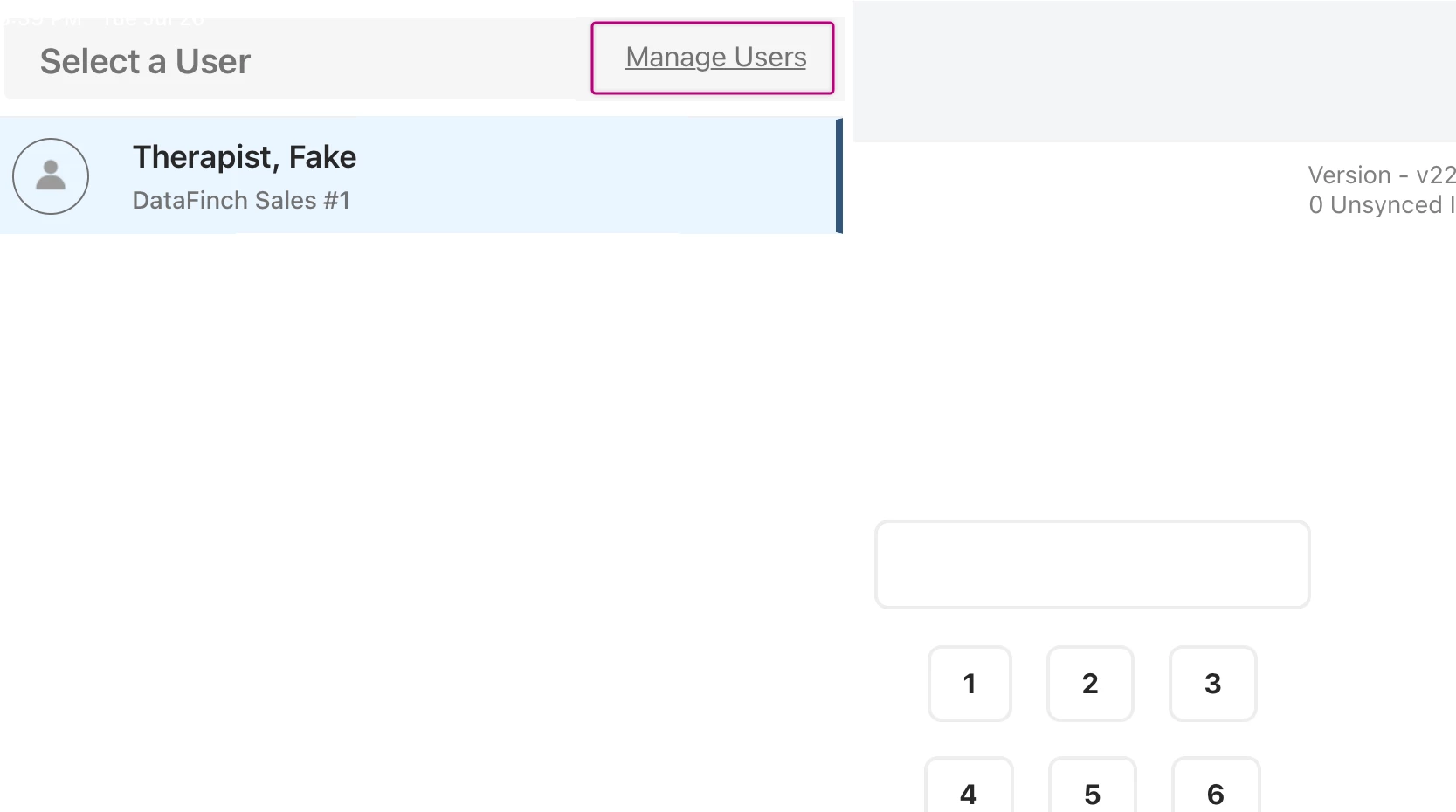
- OR Tap the Manage Users link if someone has already logged in to the device first.
- Tap the Add User button on the bottom of the screen.
NOTE: The system app can accommodate multiple Users per device.

- Repeat Step 2
After you have logged into a device you will need to Unlock the App.
See Manage Users on the Catalyst App to Add or Remove more Users.
Unlock the system App
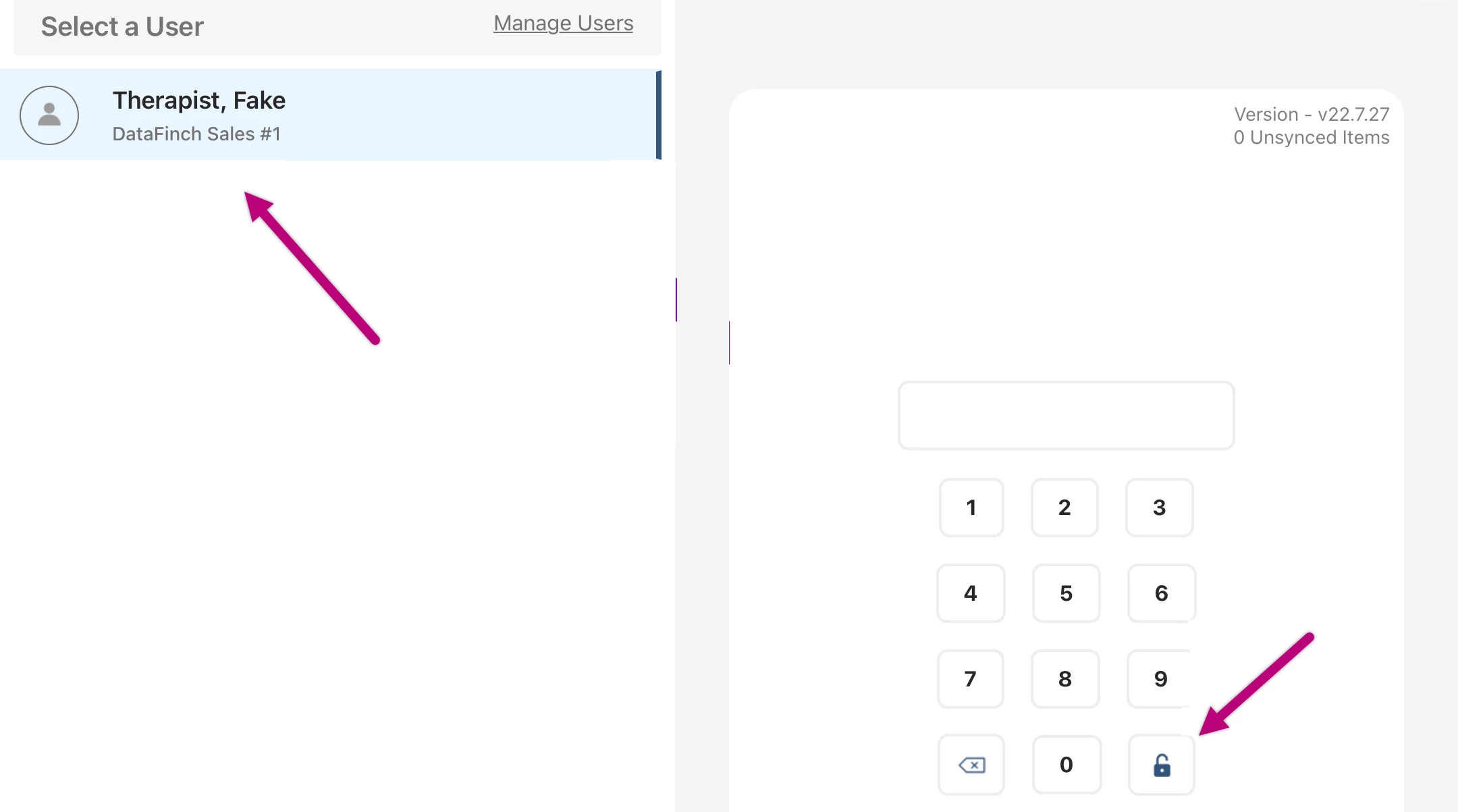
Once you have logged into a device, each time thereafter you will only need to enter your PIN to unlock the App.
- Once you have logged into the system App, tap your Name on the left to select your user profile.
- Enter your PIN on the PIN pad.
NOTE: Your PIN is 6-10 digits. If you do not have a PIN contact your System Administrator.
- Tap the Unlock icon in the bottom-right of the keypad.