


Permissions Required: Clinic Staff must have Administrator Permissions assigned in order to manage the General Information Module.
General Information: General
In this article, we will break down the General section found within the General Information tab. You can follow the article or jump to the section needed below.
See these related articles for information on other sections within the General Information Module:
- General Information: Billing
- General Information: Case
- General Information: Schedule
- General Information: Users/Therapists
- General Information: Validations
Jump To Section:
Auxillary Bios
The Auxiliary Bios section shows biographical information on various classes of individuals who may be assigned to a case or carrier.
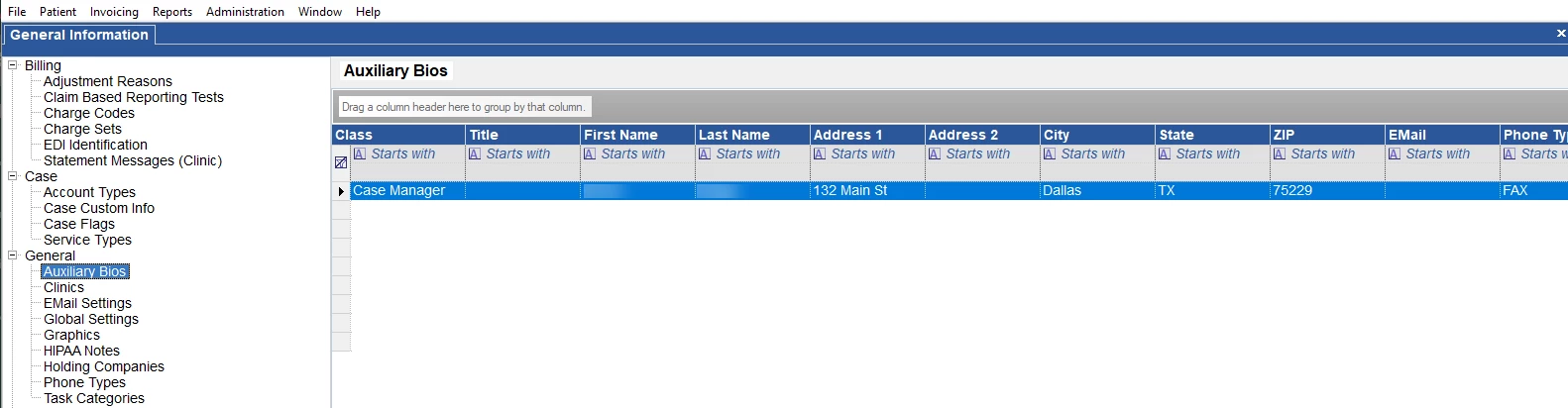
The four available classes are Adjuster, Case Manager, Third Party Adjuster, and Therapist. Adjuster and Case Manager can be assigned to a case, much like a Service or Account Type. Third Party Adjuster is assigned to a Carrier in the Carriers table. The Therapist class is not currently used.
Right-clicking the list provides you with the following menu:
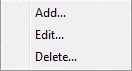
Choosing Add allows you to add a new Bio. Deleting an entry will make it unavailable for use with future cases but will still appear if currently assigned to a case or carrier.
Clinics
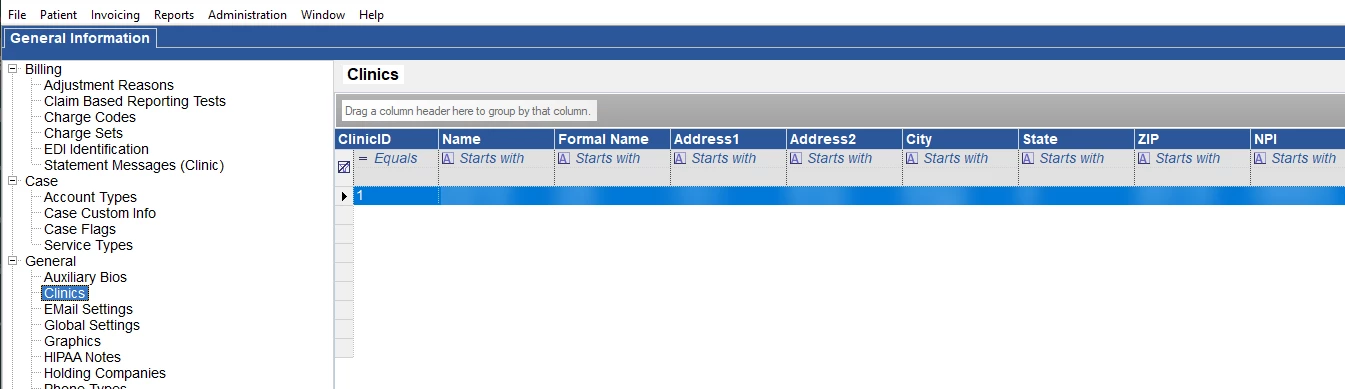
The Clinics section shows the details for each Clinic you have in Fusion Enterprise. The information can be edited by choosing Edit from the right-click menu.
The clinic Name will appear within Fusion Enterprise – such as the Schedule dropdown.
The Formal Name refers to how the clinic name will appear on claims and therapist documentation.
Email Settings
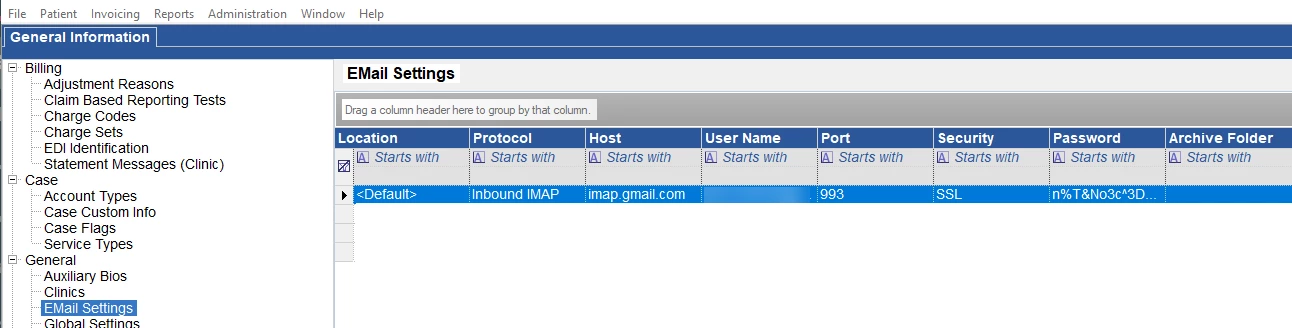
The Email Settings are where you can enter your Default Outbound email to work within the system. See Messaging: Email Setup for more information.
Global Settings
The global settings section allows you to modify many of the settings we have preset into the system at the time of installation.
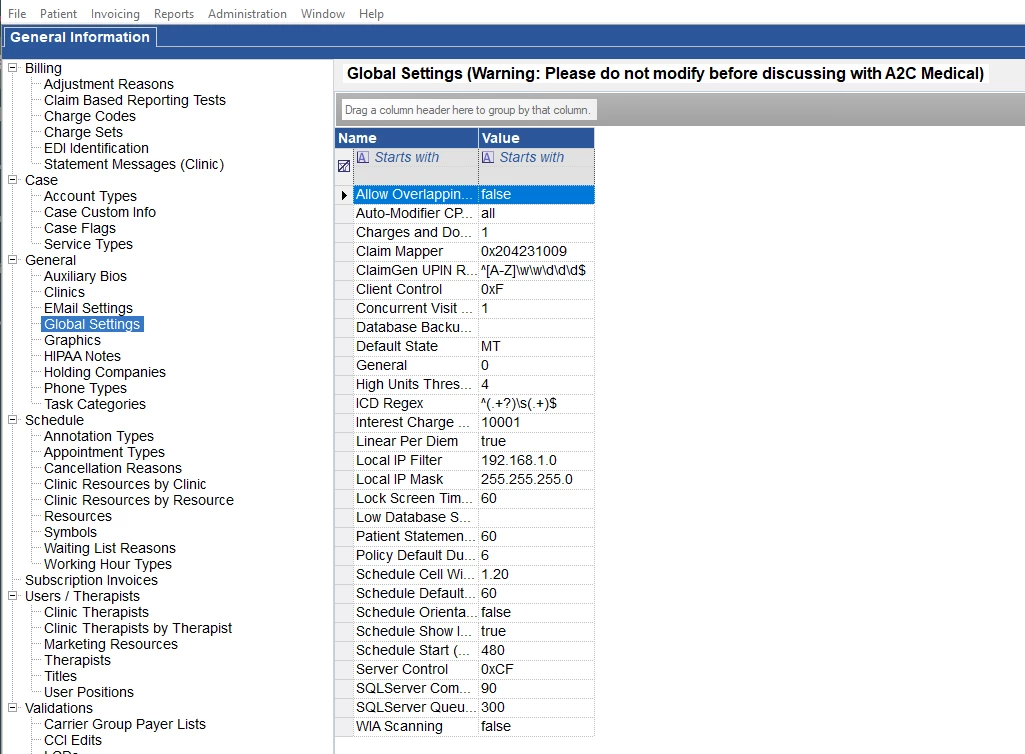
Important: Many of these values are here for convenience and should only be changed if directed to do so by the system. Changing these values to invalid values may lead to problems in other parts of the system.
Global Setting Values
| Allow Overlapping Visits | Allows you to have a patient scheduled for two appointments at the same time. 0 = false, 1 = true. |
| Auto-Modifier CPT Exclusions | Please consult with the support team before changing this value. |
| Charges and Documentation | Please consult with the support team before changing this value. |
| Claim Mapper | Please consult with the support team before changing this value. |
| ClaimGen UPIN Regex | Please consult with the support team before changing this value. |
| Client Control | Please consult with the support team before changing this value. |
| Concurrent Visit Warning Level | Please consult with the support team before changing this value. |
| Database Backup Failed Warning | If your backup resulted in an error, the message will be displayed here. |
| Default State | The default state shows when entering a new patient. By default, we set this to the state you live in when we build your installation CD. |
| General | Please consult with the support team before changing this value. |
| High Unites Threshold | The number of units required to trigger the High Units Warning in the Charge Entry module. |
| ICD Regex | Regular Expression to validate ICD9 codes. Default value is: ^(.+?)\s(.+)$ |
| Interest Charge CPT | Identifies which CPT code has been marked to be the Interest charge code when interest is added. |
| Linear Per Diem | Determines whether Per Diems are applied Linearly or Proportionately. true or false. |
| Local IP Filter | Please consult with the support team before changing this value. |
| Local IP Mask | Please consult with the support team before changing this value. |
| Lock Screen Timeout (Minutes, Max 60) | The duration of time before the Lock Screen pops up. The range is 1-60 min. |
| Low Database Space Warning | If your database is running low on space, the error will be displayed here. |
| Patient Statement Interval | Please consult with Fusion Enterprise before changing this value. |
| Policy Default Duration | Determines the default duration when adding a policy in a case. |
| Schedule Cell Width Multiplier | Please consult with the support team before changing this value. |
| Schedule Default Visit Length (Minutes) | The maximum time for which a visit may be scheduled. Value is in minutes. The default is 240. |
| Schedule Orientation Horizontal | If true, the default schedule orientation is Horizontal. If false, then the default schedule orientation is Vertical. |
| Schedule Show Icons | Turns the co-pay status dots on and off. true or false. |
| Schedule Start (Minutes from 12:00 AM) | Please consult with the support team before changing this value. |
| Server Control | Please consult with the support team before changing this value. |
| SQL Server Command Timeout | Please consult with the support team before changing this value. |
| SQL Server Queued Report Timeout | Please consult with the support team before changing this value. |
| WIA Scanning | Please consult with the support team before changing this value. |
Graphics
In Fusion Enterprise, the graphics for the Patient Calendar, Visit Forms, Patient Statements, and Patient Receipts can be loaded with your company’s logos or designs.
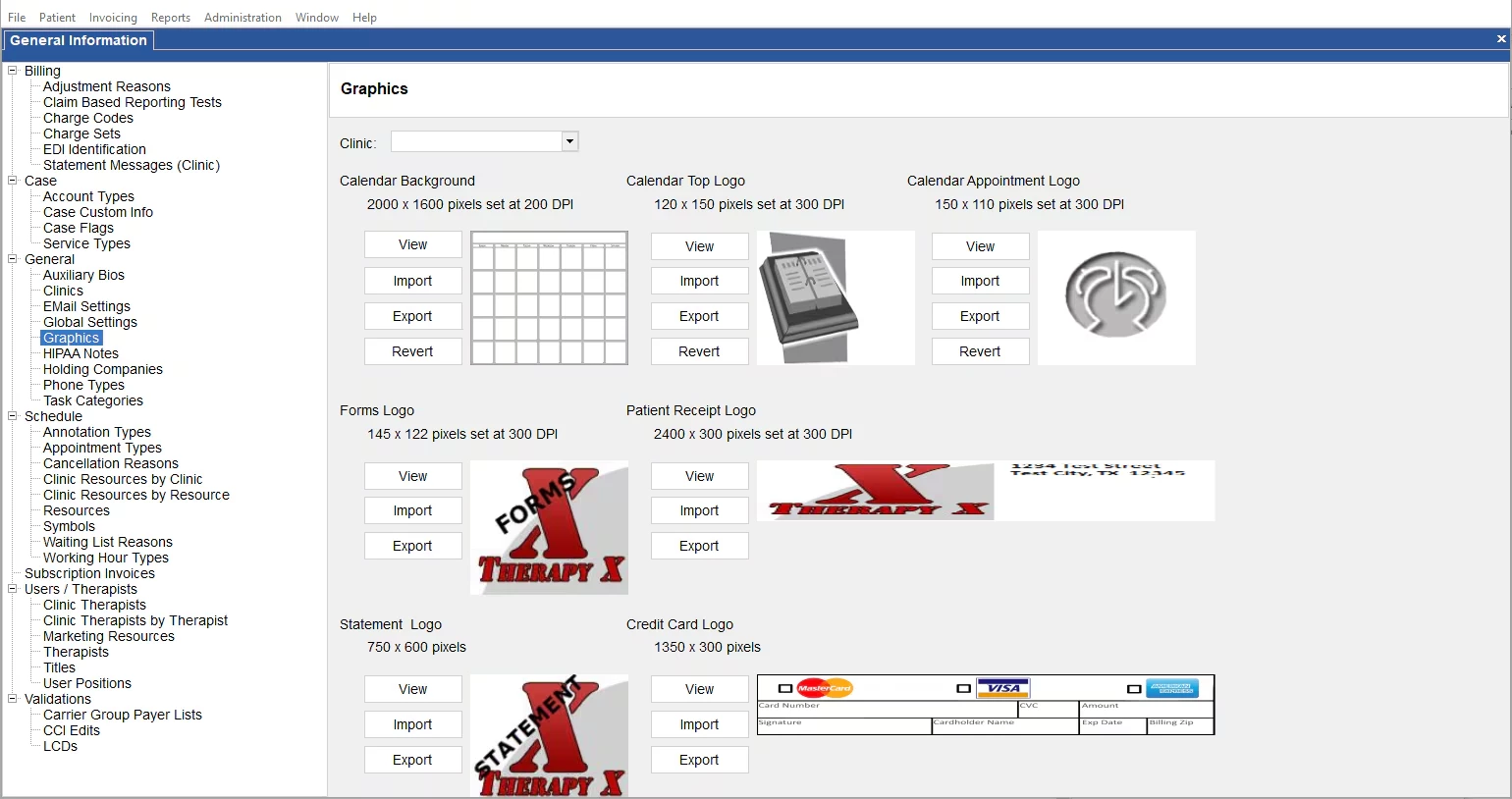
Graphics Buttons
| View | Allows you to view the graphic on the screen. |
| Import | Allows you to select a graphic file and save it into the system. |
| Export | Allows you to save a graphic file to a disk that is already in the system. |
| Revert | Allows you to restore the graphic to the default image when the system was installed. |
The graphic files may be in many different formats, PNG, BMP, or JPEG. We strongly recommend the PNG format, as it results in higher quality and smaller file size than the other formats. Graphics with a large file size can slow down the operations that utilize these images.
Note: it is important that the DPI (dots per inch) be set correctly.
HIPAA Notes
The HIPAA Notes section allows you to add predetermined text for Outbound Messages within the system. Any HIPAA Notes added here, will appear as dropdown options in the Messaging | Outbound module.
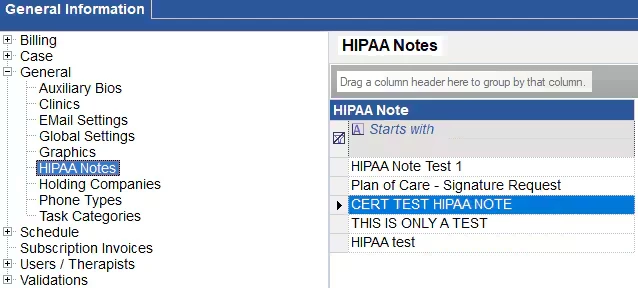
Right-clicking provides you with the following menu:
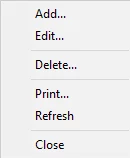
Choosing Add... allows you to add a new HIPAA Note that can be selected as a dropdown option in the Messaging | Outbound module.
Holding Companies
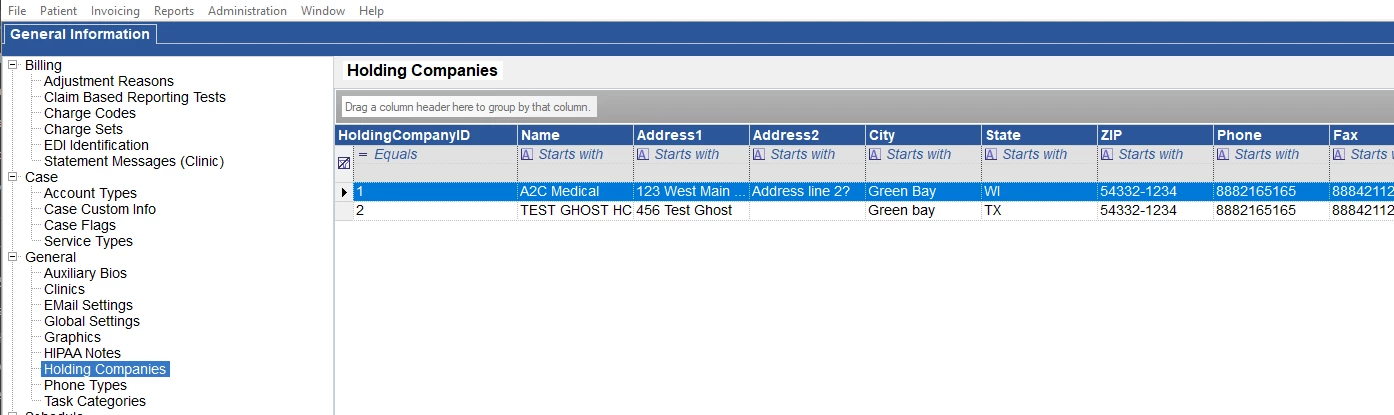
The Holding Companies table shows the details for each Holding Company you have in Fusion Enterprise. The information can be edited by choosing Edit from the right-click menu.
Phone Types
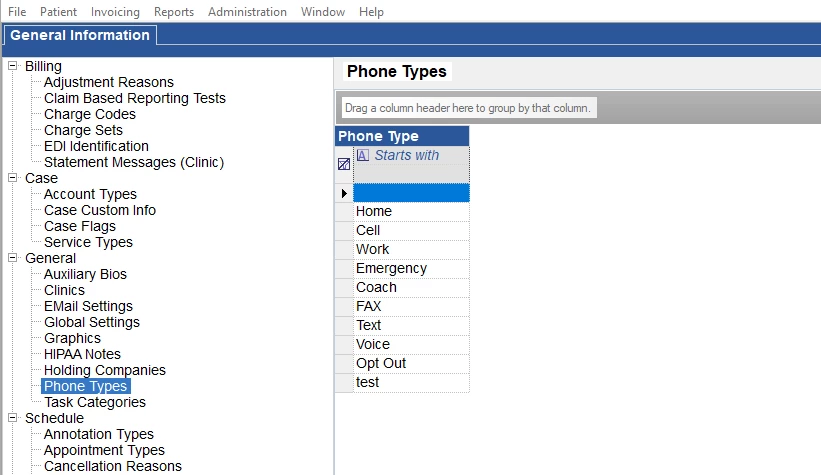
Each case has four available phone fields with the capability to label them with a Type. This type is set here.
Right-clicking the list provides you with the following menu:
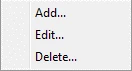
Choosing Add allows you to add a new Phone Type. Deleting an entry will make it unavailable for use with future cases but will still appear if currently assigned to a case.
Task Categories
When creating tasks in the Task module, you are given the ability to assign a category to the task. The list of categories to choose from is maintained here.
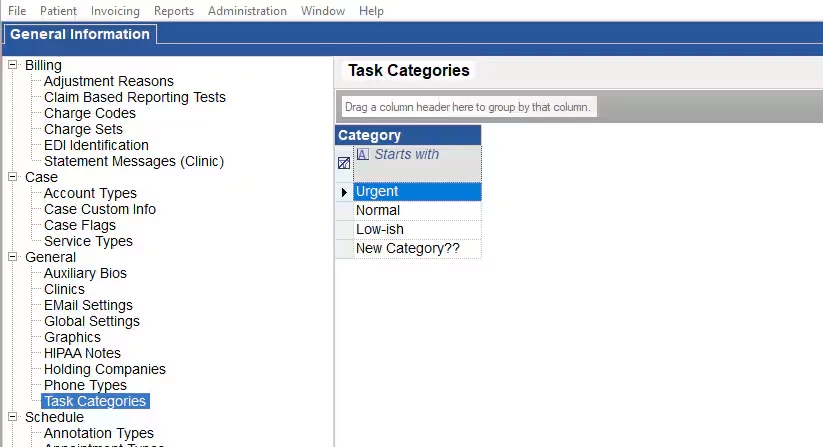
Right-clicking on the grid populates the following menu:
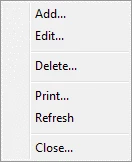
Task Categories Menu
| Add | Allows you to Add a task category. |
| Edit | Allows you to Edit a task category. |
| Delete | Allows you to prevent a category from being used in future tasks. |