After Remote Therapeutic Monitoring (RTM) is activated for your clinic, an administrator must configure the billing codes before staff can use the feature. RTM codes are set up and managed similarly to other billing codes, and the RTM column on the active billing codes list indicates which codes are for RTM. To make it clear which RTM code should be used on claims when billing information is pulled back into Fusion, only one active version of each RTM code can exist at one time.
NOTE: Admins can also set a default default place-of-service (POS) code for RTM notes and claims in Clinic Options. The default POS can still be changed manually on claims or through claim rules for exceptions.
IMPORTANT: Your Wibbi representative can provide guidance on the appropriate RTM billing codes to use in your clinic.
Add RTM Billing Code
- Click the Admin tab at the top of the screen.
- Click Basic Setup in the menu on the left.
- Click Billing Codes.

- Click the + RTM Code button.

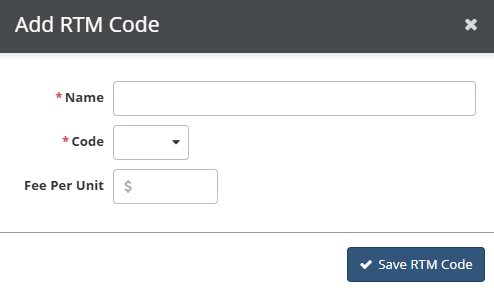
- Fill in the RTM billing code information.
- Click Save RTM code.
Name: The billing code's name, which will appear on documents and billing accounts.
Code: The billing code that will appear on documents, billing accounts, and claims.
Fee Per Unit: The amount billed for this code per unit. For example, a fee per unit of $10 for 4 units will become a $40 charge.