PERMISSIONS REQUIRED: You must have the Admin permission to turn on Multifactor Authentication for your clinic.
Multifactor Authentication (MFA) allows clinics to require that their users use both a password and a code sent via email or text message to log into the system. MFA adds an additional layer of security to validate user identity and prevent unauthorized account access. Once an administrator has turned on MFA for the clinic, users will be prompted to Set Up MFA with the email associated with their user account or a US phone number the next time they log into the system.
Turn on Multifactor Authentication (MFA) for Clinic
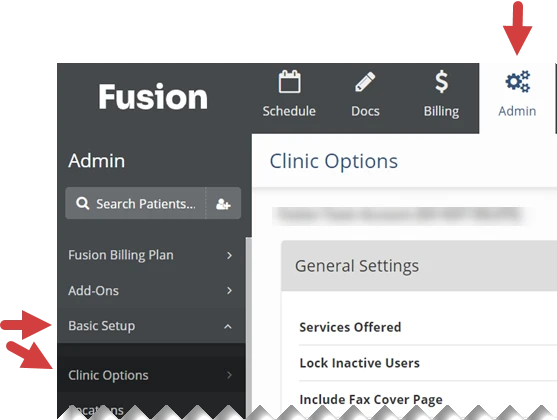
- Click the Admin tab at the top of the screen.
- Click Basic Setup in the menu on the left.
- Click Clinic Options.
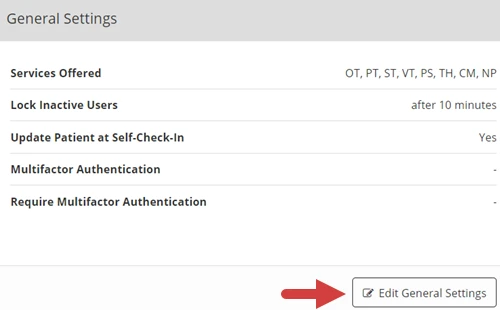
- Click the Edit General Settings button.
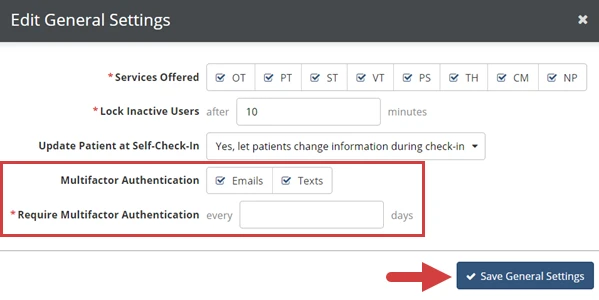
- Select the Enable Multifactor Authentication Emails and/or Texts checkboxes.
- Select Emails to have users use email as the required authentication method.
NOTE: The system will use the email address that is associated with the user account.
- Select Texts to have users use texts as the required authentication method.
- Select both Emails and Texts to give users the option to choose to use either emails or texts as the required authentication method.
- Select Emails to have users use email as the required authentication method.
- Enter a number (of days) in the Require Multifactor Authentication field to indicate how often users will be required to Log in with MFA. This can be anywhere from three days to 90 days.
NOTE: If a user logs into the system from a new device or browser, they will be required to log in with MFA even if it has been less than the number of days set in the Require Multifactor Authentication field.
- Click the Save General Settings button.