Multifactor Authentication (MFA) allows clinics to require that their users use both a password and a code sent via email or text message to log into the system. MFA adds an additional layer of security to validate user identity and prevent unauthorized account access.
Users with the Admin permission can Turn on MFA for the Clinic. Once MFA has been turned on, each user must set up MFA the next time they log into the system.
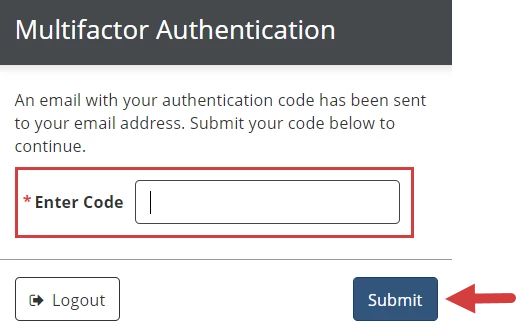
- If the clinic is using emails for the required authentication method, users will enter the code they received via email. The code is sent to the email address associated with the user's account.
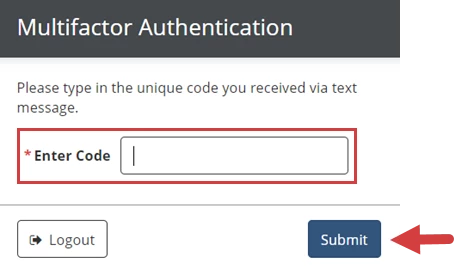
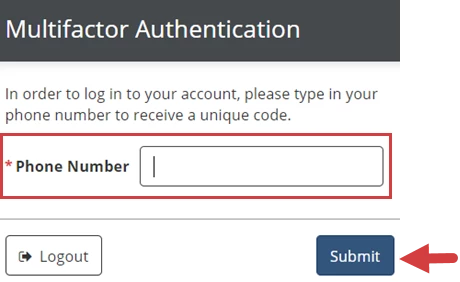
- If the clinic is using texts for the required authentication method, users will enter their US mobile phone number, then enter the code they received via text.
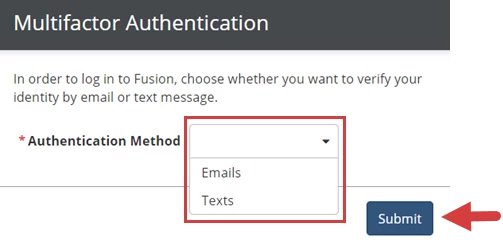
- If the clinic is allowing users to choose either emails or texts for the required authentication method, users will select their authentication method preference, then follow the prompts for authentication.
NOTE: Setting up MFA for your clinic does not impact users logging into the patient portal.
Set up Multifactor Authentication (MFA) for User
- Log into the system using your email address and password.
- Select either Emails or Texts for your required Authentication Method preference, then click the Submit button. (Users in clinics that do not allow users to choose their authentication method preference will not have this option.)
- Follow the prompts for authentication via email or authentication via text message.
Authenticate via Email
Authenticate via Text Message
- Enter the Authentication Code in the Enter Code field.
- Click the Submit button.
NOTE: Your Authentication Code expires 10 minutes after it is sent.
- Enter your Mobile Phone Number in the Phone Number field. This must be a United States phone number. Your Authentication Code will be sent to this number via text.
- Click the Submit button. You will receive a text message with your Authentication Code.
NOTE: Your Authentication Code expires 10 minutes after it is sent.
- Enter the Authentication Code in the Enter Code field.
- Click the Submit button.