PERMISSIONS REQUIRED: You must have the Admin Permission to set up appointment reminders for the clinic.
Admins can set up practice-wide email and text message appointment reminders for the clinic. Admins control the type of reminder patients can choose to receive (email and/or text), the timing of the reminders, and the number of reminders that will be sent prior to an appointment.
In order for a patient to receive reminder messages, you must enable reminders in their Patient Chart. To learn about how to enable appointment reminders for a patient, see Set Up Appointment Reminders for a Patient.
NOTE: Appointment reminders sent by text message follow quiet hours from 8:00 PM to 8:00 AM in your clinic’s time zone. If a text message reminder would be sent during that time based on how reminder settings are configured by the clinic Admin, the text reminder will be sent before quiet hours begin, between 7:00 PM and 7:59 PM.
IMPORTANT: Check your subscription in Admin → Billing Plan to confirm how you are charged for text message appointment reminders before activating or adding additional text message reminders.
Create & Edit Appointment Reminders
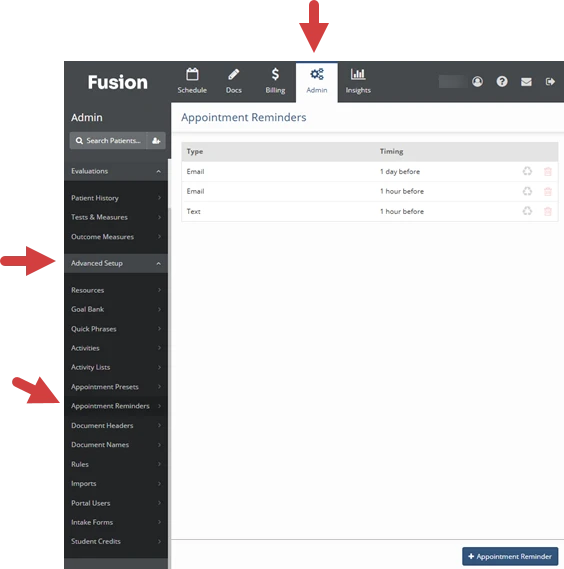
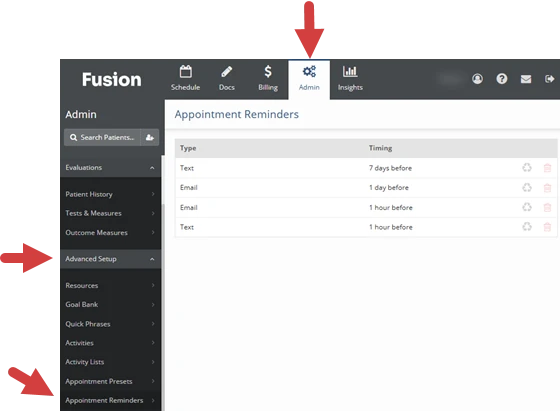
- Click the Admin tab at the top of the screen.
- Click Advanced Setup.
- Click Appointment Reminders.
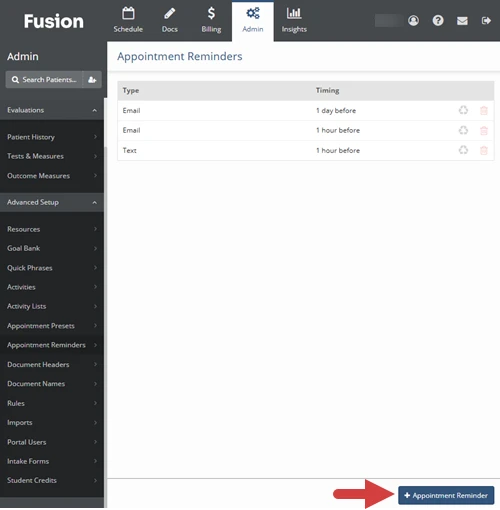
- Click on an existing Appointment Reminder to change the timing of that reminder, or click the + Appointment Reminder button to create a new appointment Reminder.
Edit Existing Appointment Reminder: Create New Appointment Reminder: 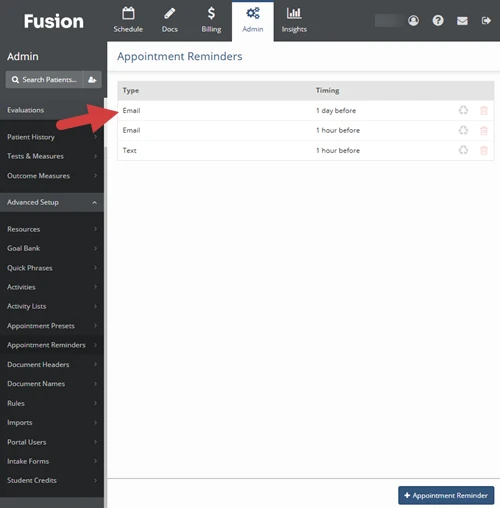
- Select Reminder Type: Email or Text.
- Indicate when to Send the appointment reminder.
- Choose how many days or hours before an appointment the reminder should be sent
- You can set up multiple reminders for both text and email. Remember to check with your billing plan for text message reminder fees.
- No more than two reminders of the same type can be sent for an appointment within one 24-hour period.
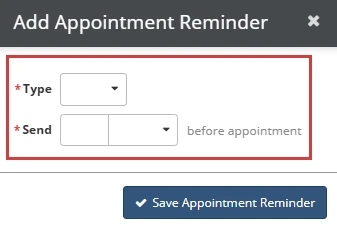
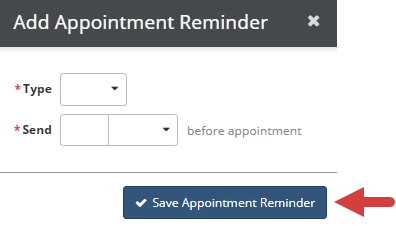
- Click the Save Appointment Reminder button.
Deactivate an Appointment
Deactivate an appointment reminder to stop patients from receiving that reminder. Deactivated reminders are saved in the Reminders list and can be reactivated.
- Click the Admin tab at the top of the screen.
- Click Advanced Setup.
- Click Appointment Reminders.
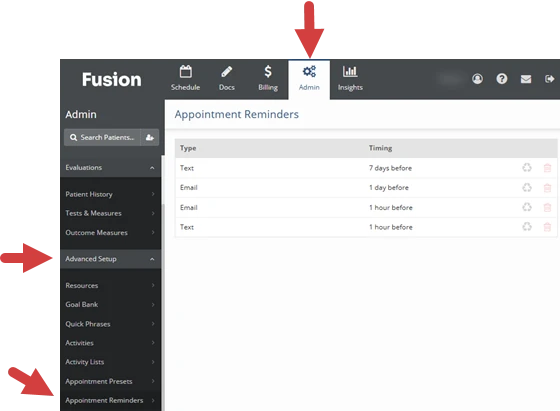
- Click the Deactivate Reminder icon.
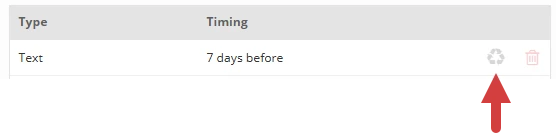
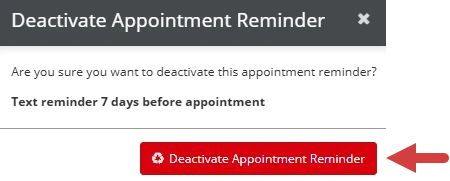
- Click the Deactivate Appointment Reminder button.
Reactivate an Appointment Reminder
Reactivate an appointment reminder that was previously deactivated.
- Click the Admin tab at the top of the screen.
- Click Advanced Setup.
- Click Appointment Reminders.
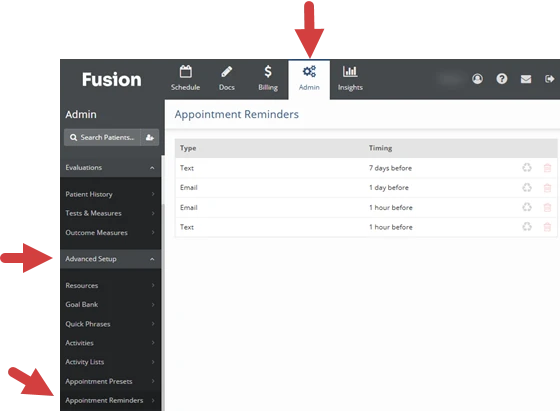
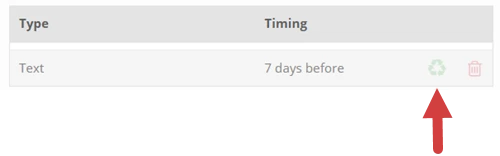
- Click the Reactivate Reminder icon.
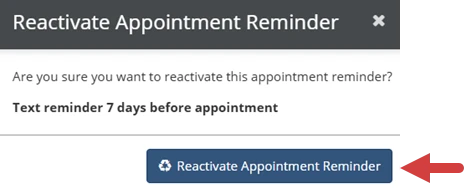
- Click the Reactivate Appointment Reminder button.
Delete an Appointment Reminder
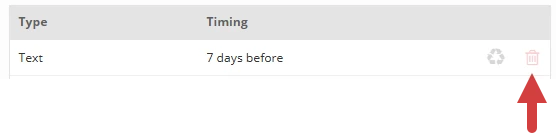
Delete an appointment reminder to stop patients from receiving that reminder and remove the reminder from the reminder list. Deleted reminders can not be reactivated.
- Click the Admin tab at the top of the screen.
- Click Advanced Setup.
- Click Appointment Reminders.
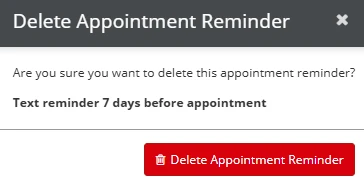
- Click the Delete Reminder icon.
- Click the Delete Appointment Reminder button.