Patient portal users can send messages to therapists using the patient portal if the clinic has turned on patient messaging. Portal users can send a message to any therapist who has been scheduled with a patient that the portal user is associated with. Therapists also have the ability to respond to these messages in the patient portal.
Send a Message to a Therapist in the Patient Portal
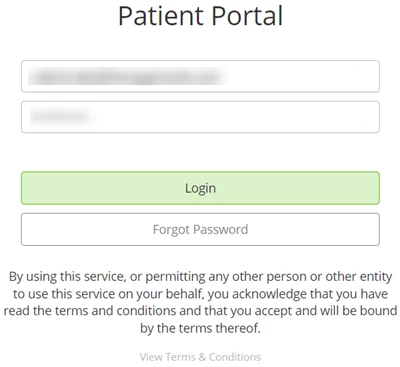
- Navigate to the patient portal and enter your Patient Portal Username and Password.
- Click the Log In button.
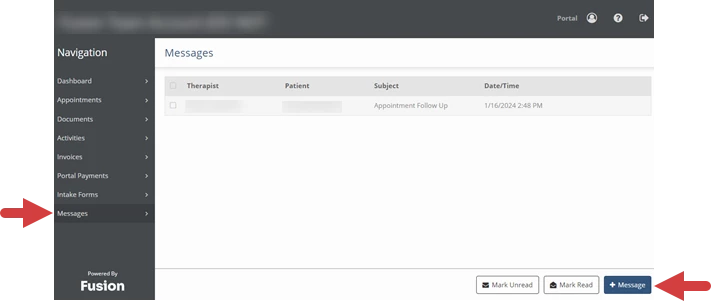
- Click Messages in the portal menu.
- Click the + Message button.
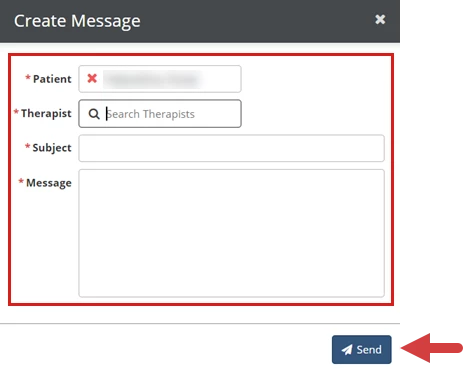
- Click the Patient dropdown to select the patient. (This dropdown will display all patients associated with the portal user.)
- Click in the Therapist field to search for and select the therapist that the message will be sent to. You can select any therapist that the patient has been scheduled with.
- Enter a title for the conversation in the Subject field.
- Subject is limited to 35 characters.
- Subject will be visible to the therapist.
- Enter the message to the therapist in the Message field.
- Message is limited to 2000 characters.
- Click the Send button.
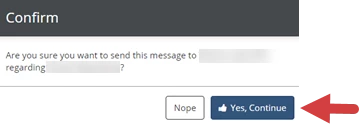
- Click the Yes, Continue button.