If a clinic has turned on patient messaging, the clinic users can send messages to the portal users who are associated with their patients.
After a message is sent, the portal user will receive an email indicating that they have a new message in their patient portal. The email will include the name of the clinic user who sent the message and a link to log into the patient portal to access the message. For security, no other information about the message will be included in the email.
Send a Message to a Portal User
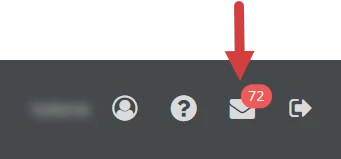
- Click the Messages icon in the upper right corner of your screen.
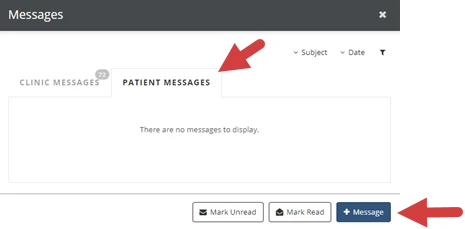
- Click the Patient Messages tab.
- Click the + Message button.
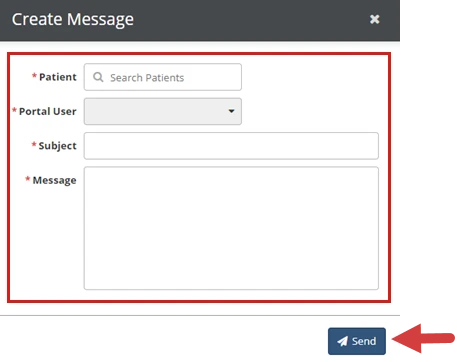
- Click in the Patient field to search for and select a patient you have access to.
- Click the Portal User dropdown to select the portal user that the message will be sent to. (This dropdown will display all portal users associated with the patient.)
- Enter a title for the conversation in the Subject field.
- Subject is limited to 35 characters.
- Subject will be visible to the portal user.
- Enter the message to the portal user in the Message field.
- Message is limited to 2000 characters.
- Click the Send button.
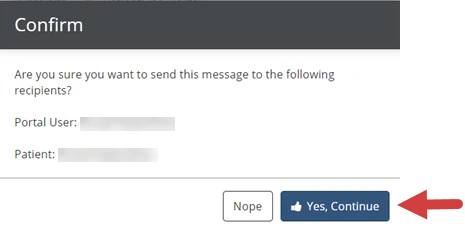
- Click the Yes, Continue button.