PERMISSIONS REQUIRED: You must have the Admin permission to reset Multifactor Authentication for users in your clinic.
Administrators can reset Multifactor Authentication (MFA) for clinic users. When a user's MFA is reset, that user will receive a prompt to Set Up MFA the next time they log into the system. This is useful if a user changes their phone number or loses access to the device they were using for MFA.
IMPORTANT: Administrators should verify the user's identity before resetting MFA. This will help prevent access being given to anyone who is not the correct system user. Ideally, users authenticating via text message should be ready to log in right away after their MFA is reset so they can set up a phone number immediately, ensuring their account remains protected.
Reset Multifactor Authentication (MFA) for User
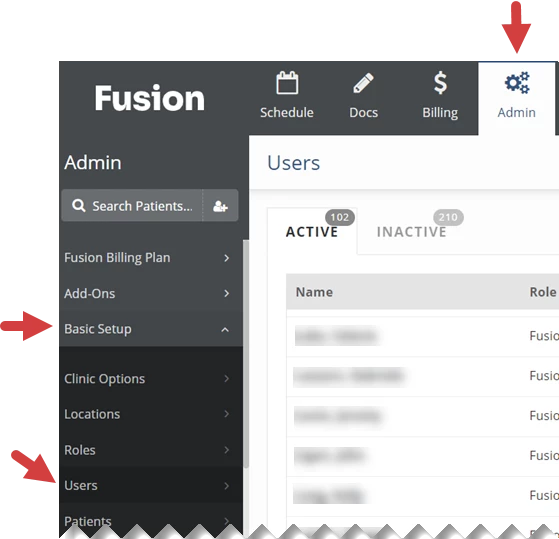
- Click the Admin tab at the top of the screen.
- Click Basic Setup in the menu on the left.
- Click Users.
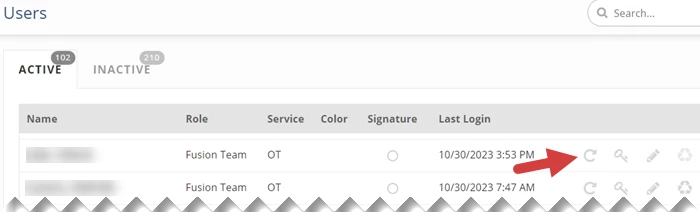
- Click the Reset Multifactor Authentication icon
to the right of the user.
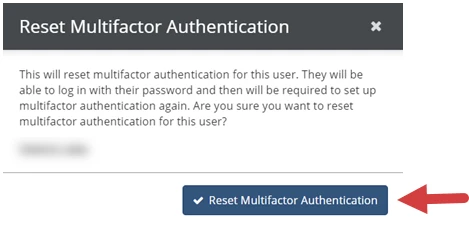
- Click the Reset Multifactor Authentication button to confirm.