A clinic user will receive an email notification if a patient or caregiver has sent them a message using the patient portal. The email will include a link to automatically go to the message when they log in to the system. For security, no other information about the message is included in the email. The system users can also access patient portal messages by clicking on the Messages icon in the system.
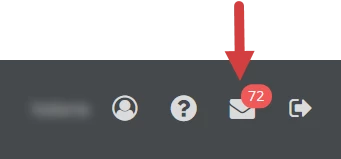
- Click the Messages icon in the upper right corner of your screen.
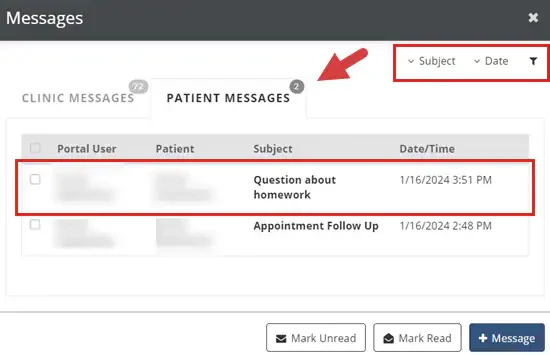
- Click the Patient Messages tab, then click the row of the Conversation you want to reply to. If you opened the system from the patient message notification email, the message will automatically display.
- Click the Filter icon to add filter options to the Messages window. You can filter patient messages by Subject, Message, Patient, Portal User, Date, and Read Status. Once a filter has been added, click that filter to enter filter criteria.
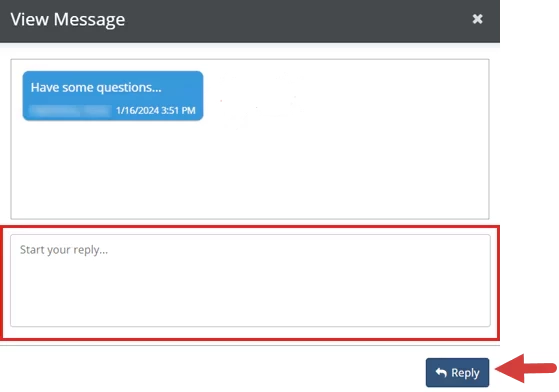
- Enter your reply in the Start Your Reply field.
- Click the Reply button.