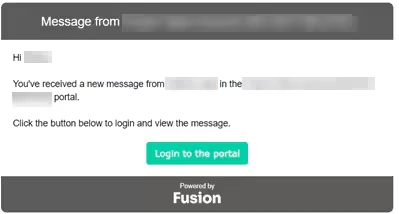
A portal user will receive an email notification if a clinic user has sent them a message using the patient portal. The email will include the name of the clinic user who sent the message and a link to log into the patient portal to access the message. For security, no other information about the message is included in the email.
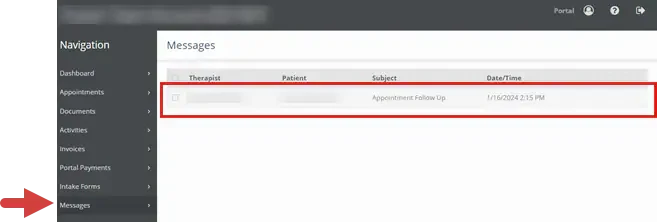
If the portal user uses the link in the notification email, the message will automatically display when the user logs in. If the portal is opened outside of the email, the portal user can access conversations with clinic users by clicking Messages in the portal menu.
Send a Reply in the Patient Portal
- Click the Login to the Portal button in the Portal Message email or navigate to the patient portal login screen.
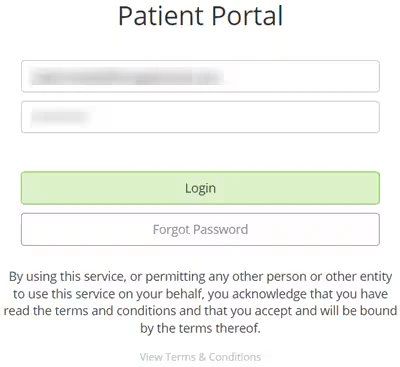
- Enter your Patient Portal Username and Password.
- Click the Login button.
- Click Messages in the menu on the left, then click on the row of the Conversation you want to reply to. (If you opened the portal from the patient message notification email, the message will automatically display.)
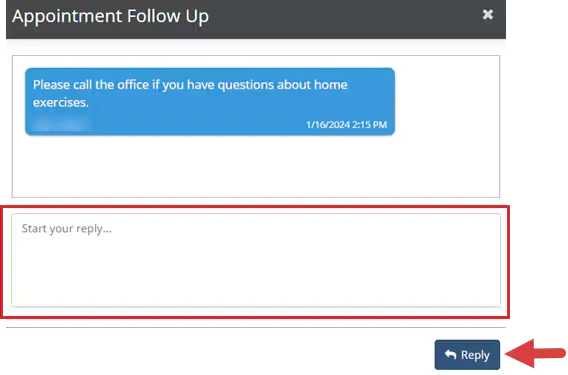
- Enter your reply in the Start Your Reply field.
- Click the Reply button.