


PERMISSIONS REQUIRED: You need the Admin permission to add and manage patients from the Patient list.
Use the Patient List to access a complete list of patients and their charts (including referrals and discharged patients) for all therapists and locations. You can add, merge, quick-discharge and delete patients using the patient list. Scheduling, Billing and Docs permissions give users the ability to open and document in patient charts from the schedule or by using the patient search, but only users with Admin permissions can add and manage patients from the Patient List.
Jump to Section:
Add a Patient to the Patient List
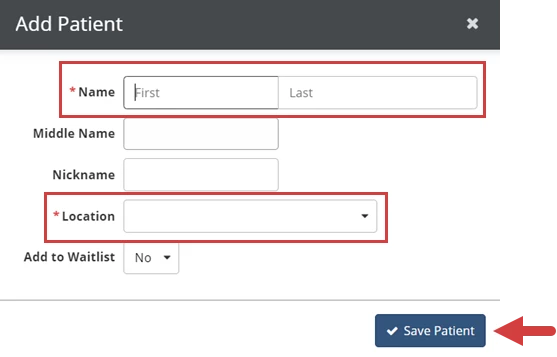
When you add a new patient to the Patient List, you are required to enter their name and Location information. After you save the patient, the Patient Chart will open for more patient documentation. Once the patient is added to the Patient List, other users may also have access to their chart, depending on their permissions.
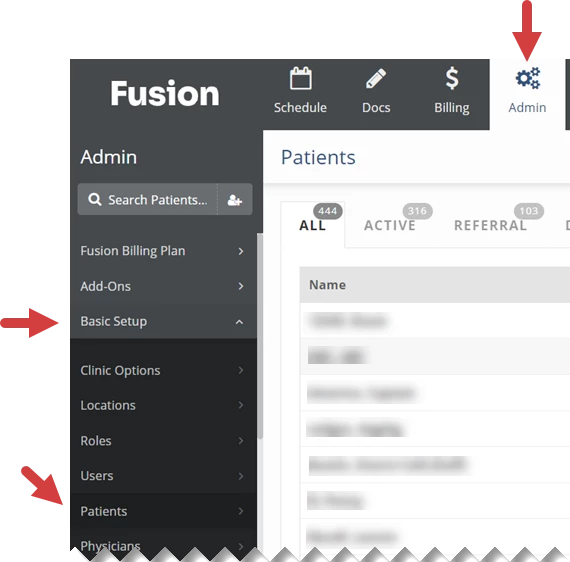
- Click the Admin tab at the top of the screen.
- Click Basic Setup in the menu on the left.
- Click Patients.
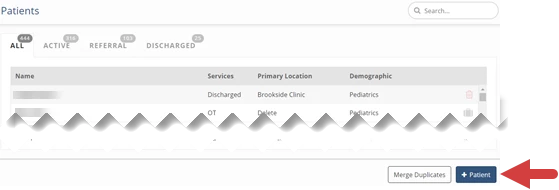
- Click the + Patient button.
- Fill in the patient's name and location.
- Click the Save Patient button.
The Patient Chart will open for the patient you just added. You can continue documenting in the Patient Chart, or click the x in the upper right hand corner to close the Patient Chart. See Working in the Patient Chart for more information.
Merge Duplicate Patients
Merging patients permanently combines patient history, documents and other chart information. When you merge patients, you will select one chart to keep and one to discard. Information from the discarded chart will be moved into the chart you keep. This action can not be undone.
Patient Cases from the discarded chart are moved to the chart you are keeping. Different patient cases with the same service type will remain as separate cases.
If a patient with message history is merged into another patient, the messages from the discarded chart will be moved into the new chart. The portal user originally associated with the message will continue to be the only portal user who can see the message in the patient portal.
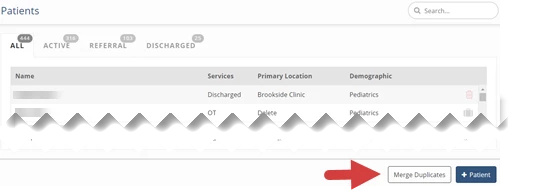
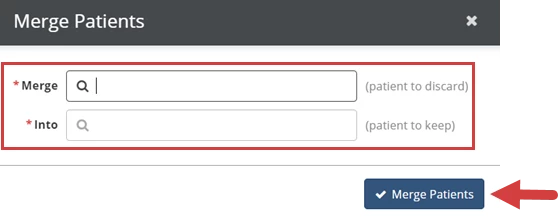
- In the lower right, click the Merge Duplicates button.
- Search for and select the Patient to Discard and the Patient to Keep.
- Click the Merge Patients button.
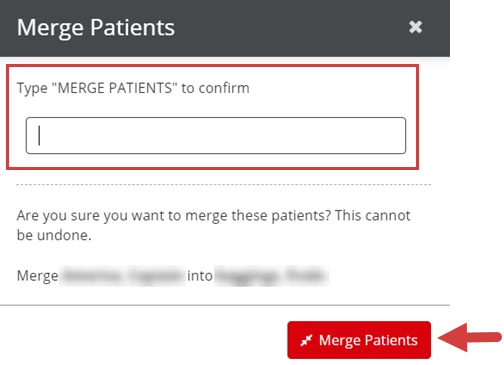
- Type Merge Patients to confirm.
- Click the Merge Patients button.
Quick-Discharge a Patient
A Quick-Discharge from the Patient List discharges with patient with a case note instead of full discharge documentation. This should only be used if the patient never received treatment, or to correct a mistake. Any patient that received treatment should be discharged fully with a document.
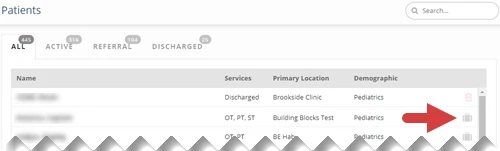
- To the right of the patient, click the discharge icon.
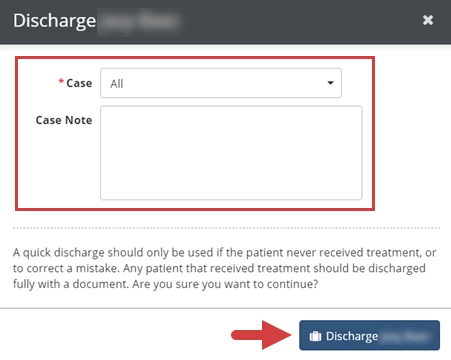
- Click the Case drop-down to select the patient case(s) to discharge.
- Select the All checkbox to discharge all cases for the patient. When all of a patient's cases are discharged, the patient's status is changed to discharged.
- Optional: Enter a Note.
- Click the Discharge button.
Delete a Patient
You can only delete an active patient if no appointments or documents have been created for that patient. You can delete any patient that has been discharged. A patient with message history can not be deleted.
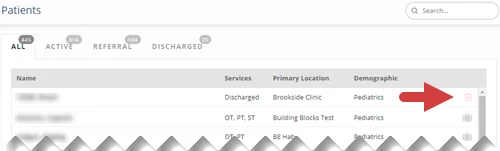
- To the right of the patient, click the delete icon.
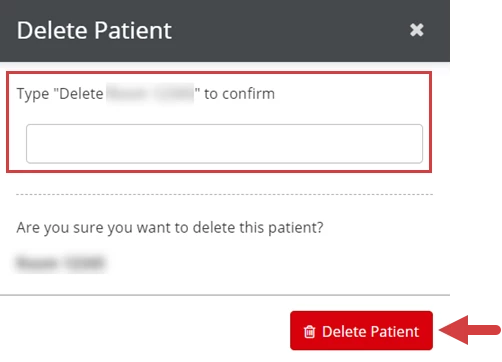
- Type the confirmation message.
- Click the Delete Patient button.
[Back to Top]