


PERMISSIONS: You need the Admin permission to edit Reminder Settings in Clinic Options.
Medicare and some other payers have a limit on how much they will pay for a patient’s OT and PT/ST services within a calendar year. To continue to receive payment for services after reaching this threshold, the provider must add the KX modifier to the claim on lines for medically necessary services, and medical necessity must also be documented in the patient’s medical record in case the payer requests to review it.
KX Modifiers allow you to track the amount for each patient and add the modifier to patients without needing to request a claim rule.
NOTE: If a claim rule is already adding the KX modifier to a line, a KX modifier setting will not add a second one for that line.
Jump to Section:
Set KX Modifier Reminders
An admin can choose when KX Modifier reminders appear. If these settings are blank, the reminders will be turned off.
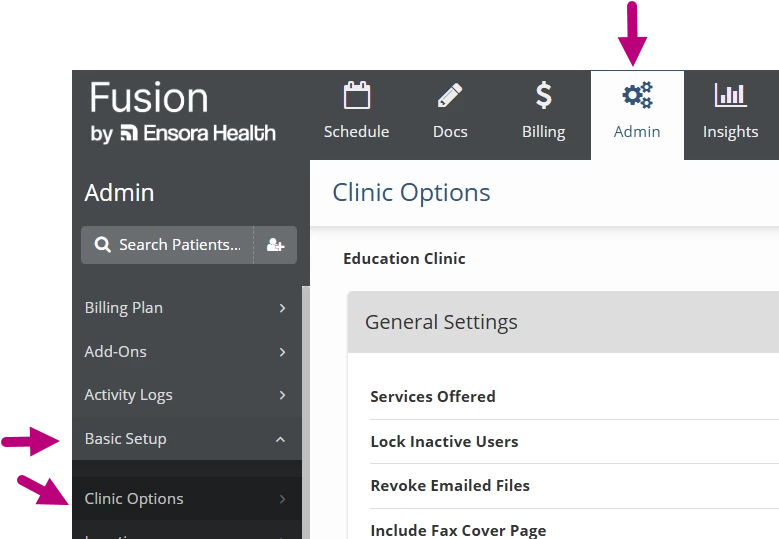
- Click the Admin tab at the top of the page.
- Click Basic Setup.
- Click Clinic Options.
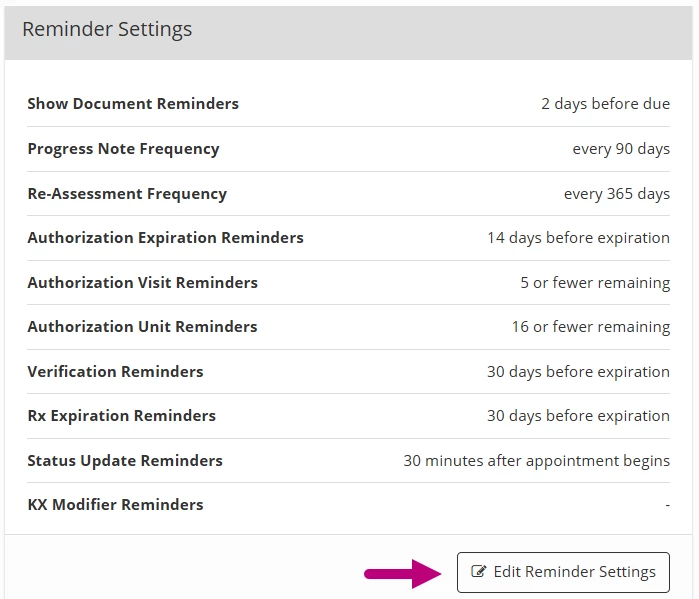
- Scroll down to the Reminder Settings card and click the Edit Reminder Settings button.
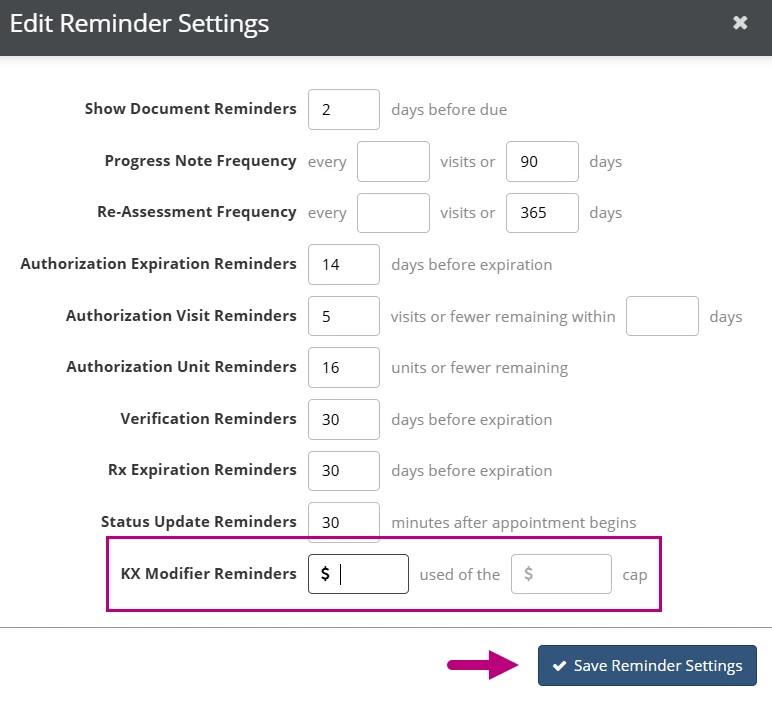
- Enter the $ amount at which you want the reminder to appear in the KB Modifier Reminder fields:
- First Field (Used) : Enter the amount at which you want the reminder to appear.
- Second Field (Cap): Enter the amount at which you want the reminder to be overdue.
NOTE: If you fill in only the First (Used) field, reminders will appear but will never be overdue. If you fill in only the Second (Cap) field, reminders will appear and be overdue immediately.
- Click the Save Reminder Settings button.
NOTE: the system determines the Used amount as Charges for Pending Claims + Payments for Finalized Claims + Offset, where:
- Charges for Pending Claims is the sum of charges for non-finalized claim instances for the applicable payer and service type for appointment dates in the current year.
- Payments for Finalized Claims is the sum of charges paid on adjudications for finalized claim instances for the applicable payer and service type for appointment dates in the current year.
- Offset is the amount recorded in the KX Modifier Offset for OT or KX Modifier Offset for PT/ST fields in the patient’s information for the applicable payer and service type.
Turn on KX Modifier Reminders for a Payer
An admin can turn on KX Modifier reminders for each payer.
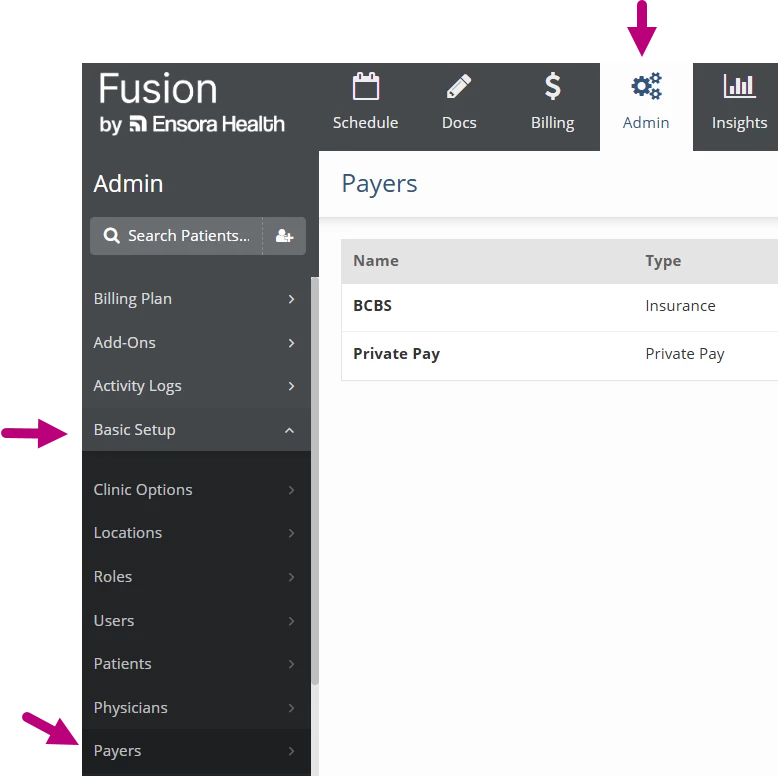
- Click the Admin tab at the top of the screen.
- Click Basic Setup.
- Click Payers.
- Click on a Payer.
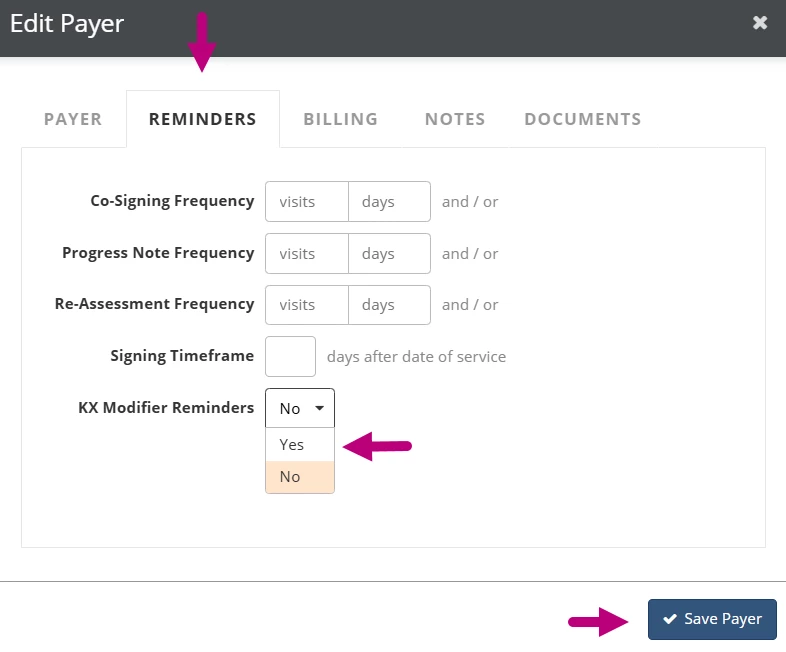
- Click the Reminders tab.
- Select Yes in the KX Modifier Reminders dropdown.
- Click the Save Payer button.
Offset the KX Modifier Reminders for External Payouts
A user with access to a patient can add an offset amount for each of the patient’s payers to represent payments made outside of the system, such as payments made to another provider in the calendar year. This will adjust the Used amount in determining when to show reminders for the patient.
- Open the Patient Chart.
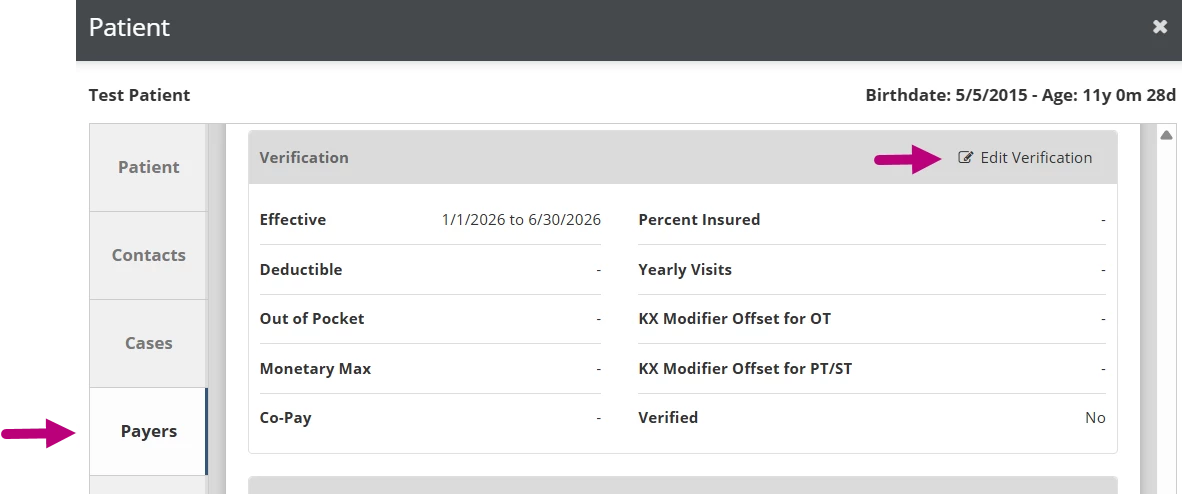
- Click the Payers tab.
- Scroll down to the Verification section and click Edit Verification.
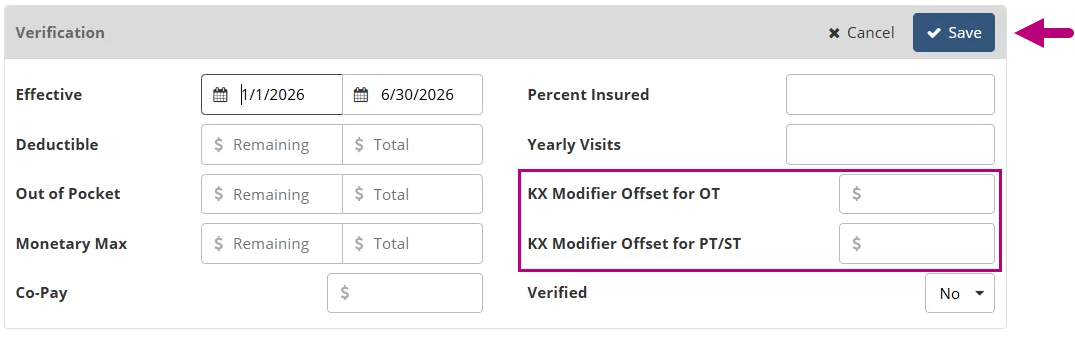
- Enter an amount in the KX Modifier Offset for OT and/or KX Modifier Offset for PT/ST fields.
- Click the Save button.
Turn on the KX Modifier for a Patient
When a patient’s reminder threshold is reached, the reminder will appear in the KX Modifier Reminders List under the Schedule tab. From here, you can click on a reminder to open that patient's chart and turn on the KX Modifier. Turning on a KX Modifier will hide KX Modifier reminders for the patient, and also automatically apply the KX modifier to the patient's claims for the selected service types.
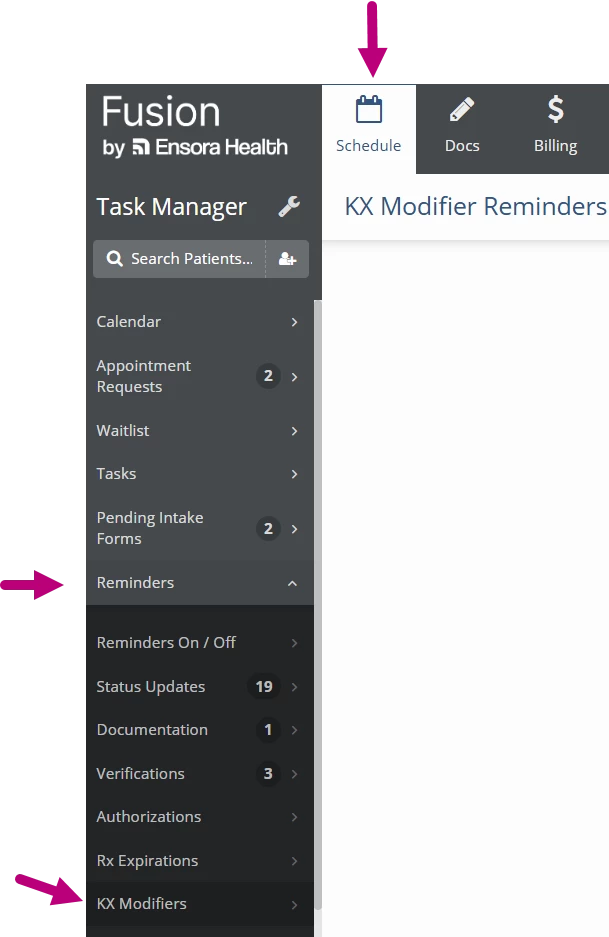
- Click the Schedule tab at the top of the screen.
- Click Reminders.
- Click KX Modifiers to display the KX Modifier Reminders list.
- This list shows a reminder for each service bucket (OT or PT/ST), applicable payer, and patient and includes the Used amount for reference.
- You can filter reminders by patient or payer.
- A row will turn red and the clock icon will appear once the used amount reaches the cap amount set in clinic options to indicate that the reminder is overdue.
- Click on a Reminder to open that patient's chart.
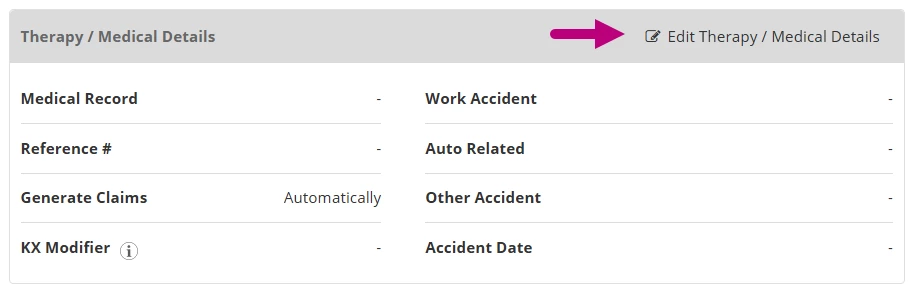
- Scroll down to the Therapy/Medical Details section and click Edit Therapy/Medical Details.
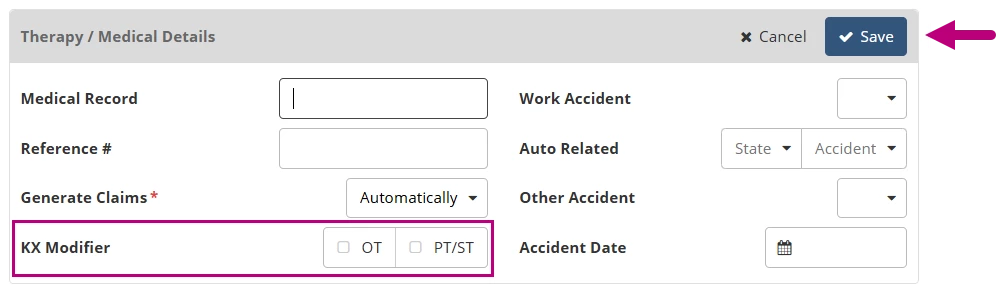
- Click the KX Modifier OT and/or PT/ST checkboxes.
- Click the Save button.
KX Modifier Annual Reset
Since the therapy limits are based on the date the claim is received, KX Modifier settings and reminders will be reset at the start of each year.
On January 1st:
- The KX Modifier field’s OT and PT / ST options for all patients will be unchecked.
- The KX Modifier Offset for OT and KX Modifier Offset for PT / ST fields will be cleared.
- The Used amount for calculating KX Modifier reminders will start over.
KX Modifier FAQs
If an appointment happens in December but charges don’t get submitted until January, will the system know to apply the KX Modifier after the January 1 reset?
No, because the therapy caps are based on the date the claim is received by the payer. So if a claim with a date of service in December 2025 doesn’t get submitted until January 2026, the 2025 limit doesn’t matter anymore.
If KX Modifier Reminders are turned on for one of a patient’s payers but not the other and the patient has the KX Modifier turned on, does the modifier only show up on claims for the payer that has the reminder turned on?
No, the KX Modifier Reminders setting only affects whether the reminder appears or not. If a patient’s KX Modifier option is turned on for a service type, all of their claims for that service type will have the KX modifier.